Salesforce - QuickBook Demo
How to Sync Salesforce order into QuickBook ?
This document demonstrate how we can import order of Salesforce into QuickBook and and where we can view the order.
Please Follow the below steps with screenshot for QuickBook Integration.
Step 1 : First login the online quickBook account in Intuit Developer Sandbox.
Login URL :https://developer.intuit.com/v2/ui#/sandbox
Username :sarvesh.kumar@arcscorp.net
Password :vision@2020
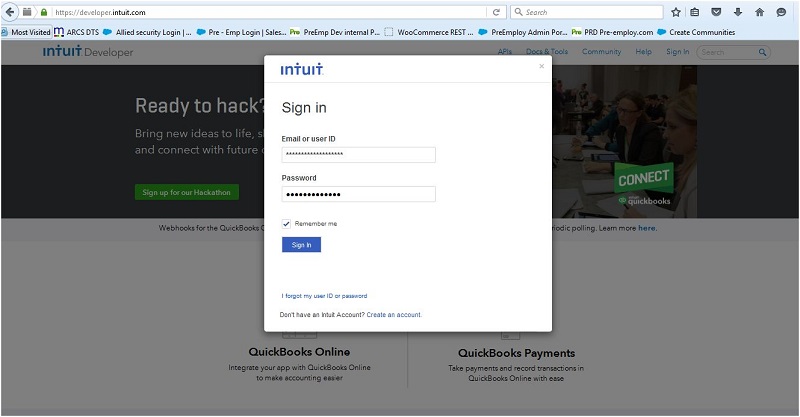
Step 2: Create an App in Online QuickBook.
-
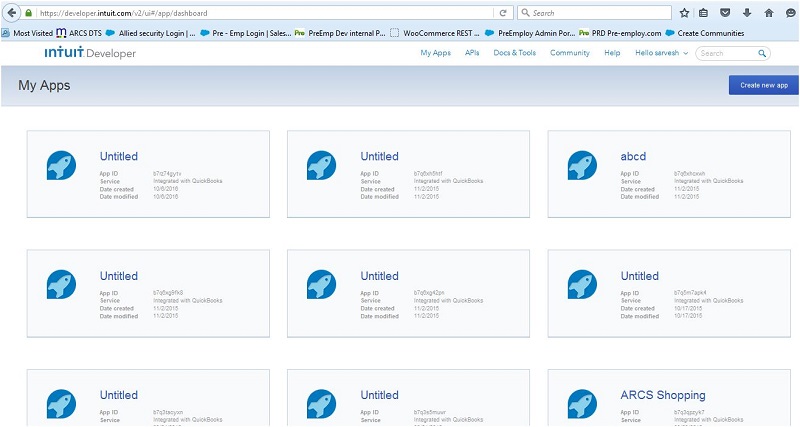
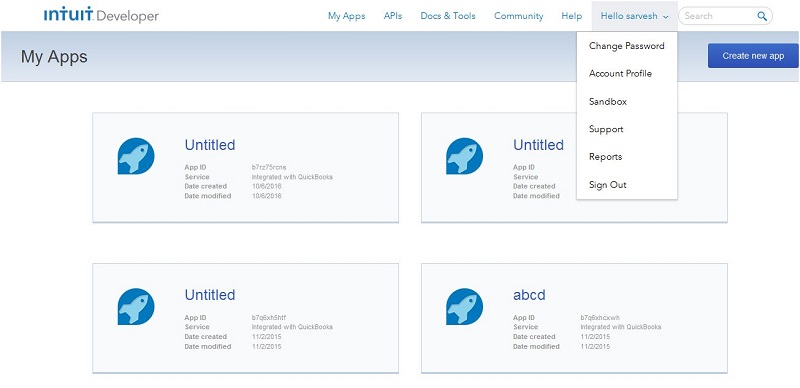
Go to MyApps -> Create new App
-
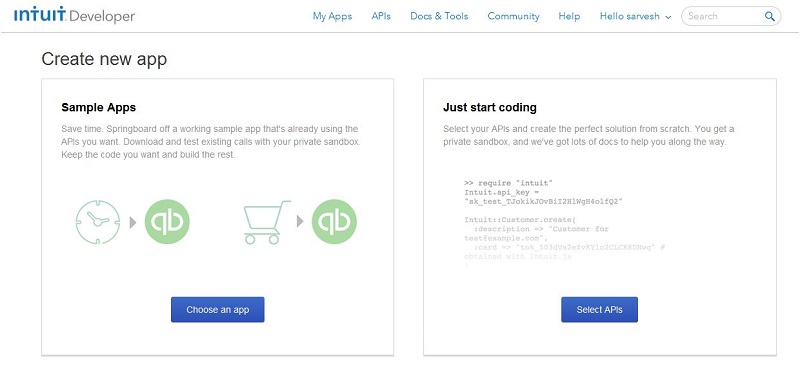
Click on Select APIs.
-
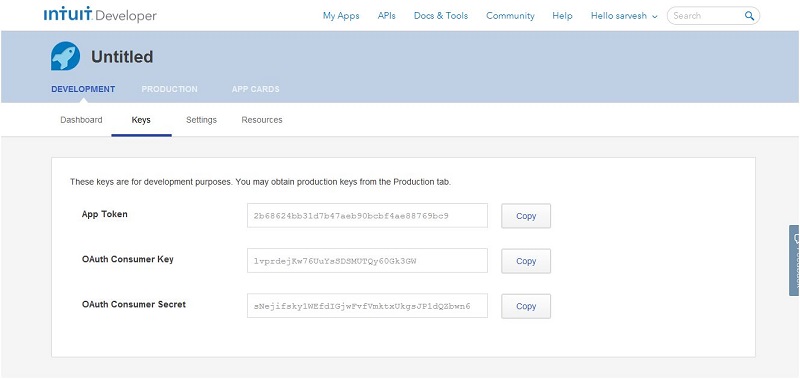
Creating an app in quickbook automatically generating App Token, OAuth Consumer Key and OAuth Consumer Secret for integration with the salesforce.
-
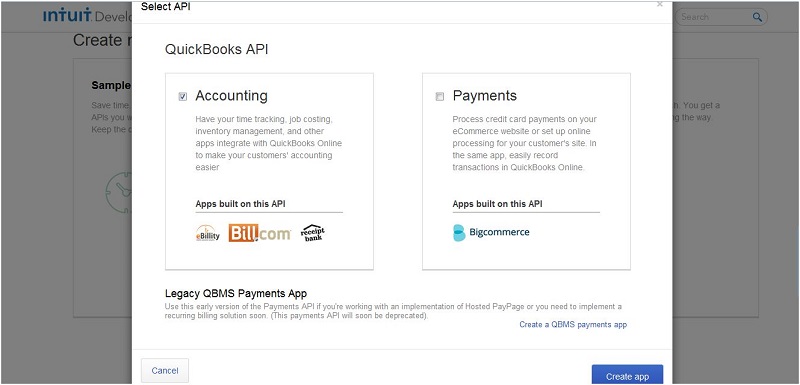
Select Accounting QuickBooks API for your time tracking, job costing, inventory management and other apps integrate with QuickBooks Online and click on create App for submission.
-
Choose Your App in MyApps to publish.
Click on your App -> click on Keys which provide Tokens for integration with salesforce.
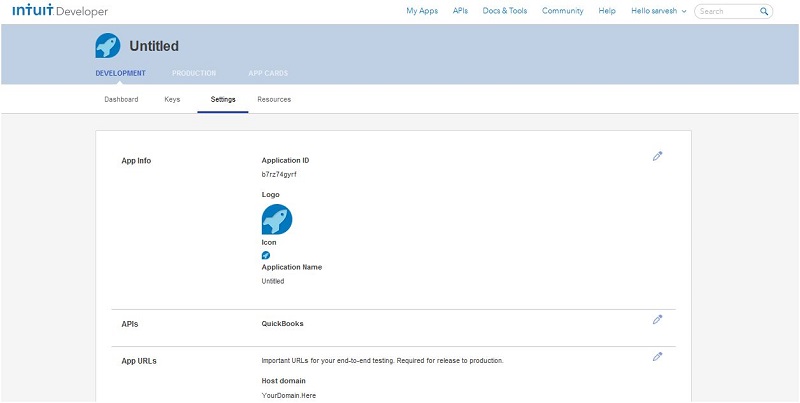
Go to Setting -> Edit Your App Info, APIs and App URLs and Edit App URL for integration and end to end testing and set OpenId for publish the App.
Step 3 : Create Company in QuickBook Online to manage records.
-
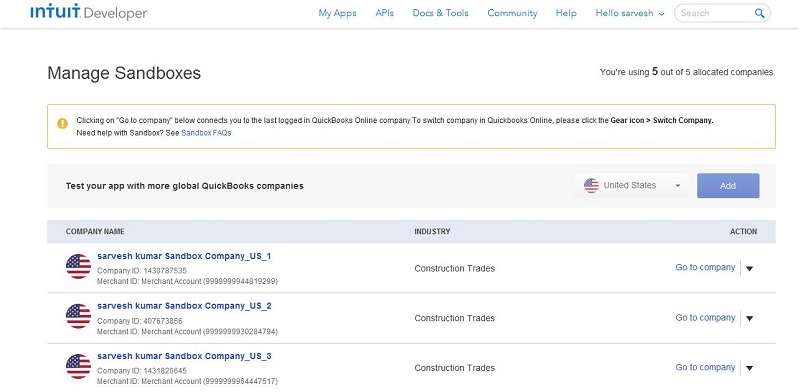
Click on APIs at homepage -> click on Sandbox -> click on Add to create company in online Quickbook and company name is based on username. You can edit Company Name.
-
After Add company -> Go to Company -> Manage/Edit your Company Account.
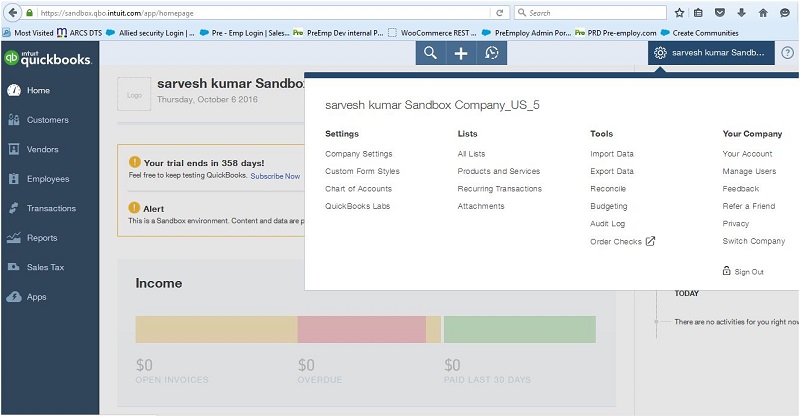
Step 4 : Create Custom Object in salesforce.
Sandbox Details :
Login URL : Login.salesforce.com
Username : arcs.shopping@arcscorp.net
Password : vision1234
Step 4 : Log in to your organization by entering your username and password and create custom object
From Setup -> Objects -> Custom Object -> OauthServices.(Object name)
Custom Fields for Custom Object OauthServices.
We have to use custom object for saving the token which is generated from the Quickbook online App.
Custome Object URL :https://ap2.salesforce.com/a0R280000006csl
Custom Object : QuickBooks
Custom Field Name :Access Token URL
Field API Name : Access_Token_URL__c
Custom Field Name :Application Token
Field API Name : Application_Token__c
Custom Field Name :Authorization URL
Field API Name : Authorization_URL__c
Custom Field Name :Consumer Key
Field API Name : Consumer_Key__c
Custom Field Name :Consumer Secret
Field API Name :Consumer_Secret__c
Custom Field Name :OAuth Token
Field API Name :OAuth_Token__c
Custom Field Name :OAuth Token Secret
Field API Name :OAuth_Token_Secret__c
Custom Field Name :Request Token URL
Field API Name :Request_Token_URL__c
Custom Field Name :Temporary Token Secret
Field API Name :Temporary_Token_Secret__c
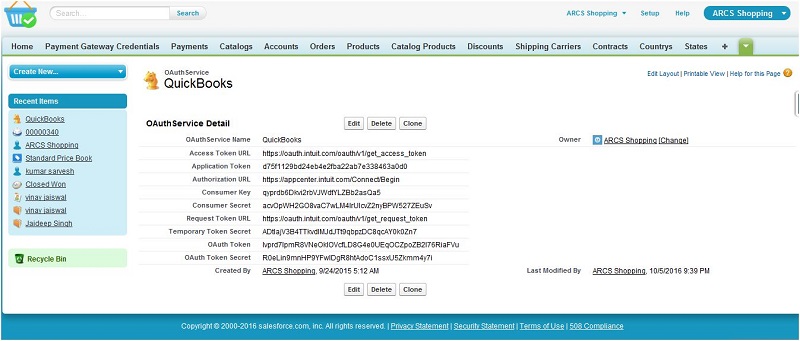
Step 5 : Custom Button Order Object page and record Sync in QuickBook.
Button With name : "sync with quick book" is created on order Page.
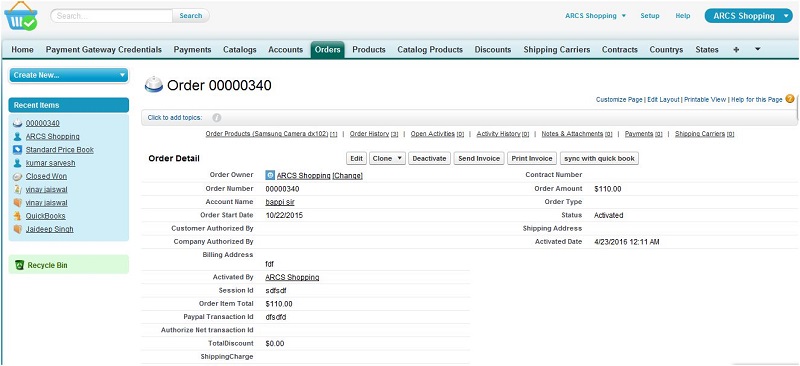
After click on "sync with quick book" page is redirected to quickbook online login page (intuit developer sandbox) and We have to login with UserName and Password.
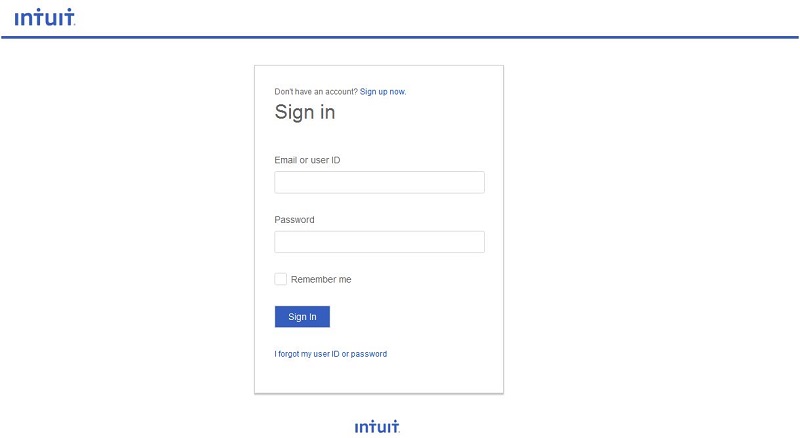
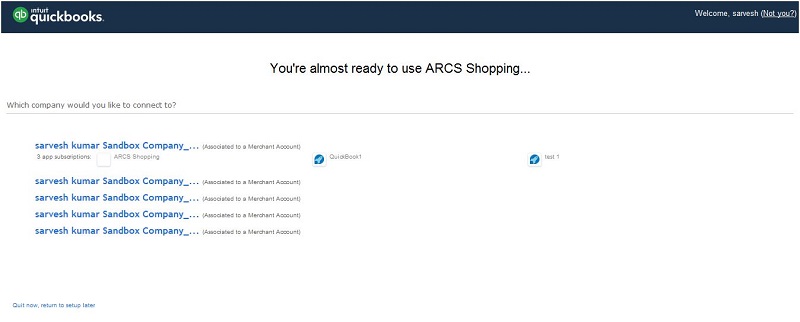
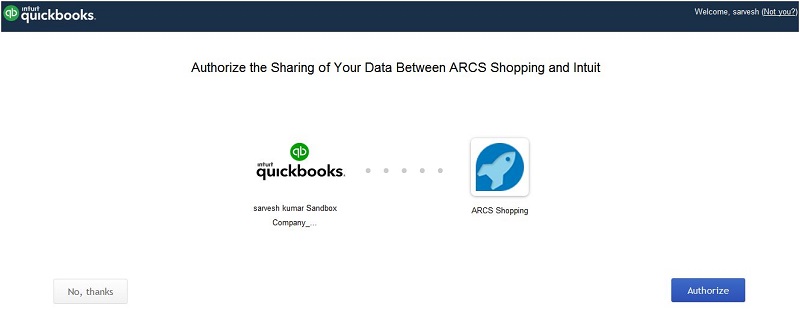
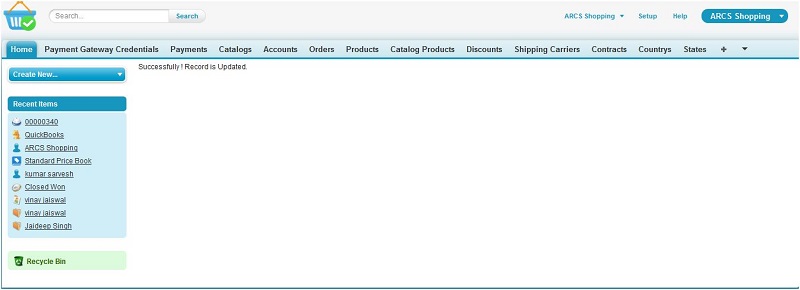
Step 6 : Check records in Quickbook.
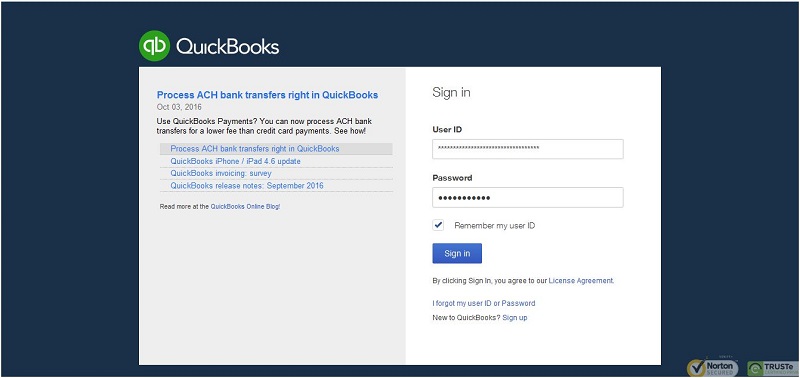
After order is inserted successfully from the salesforce, we have to go in quickbook, login the quickbook (intuit developer sandbox) with username and password and go to respective company where we have inserted our record.
Login URL :https://sandbox.qbo.intuit.com/qbo50/login
Username :sarvesh.kumar@arcscorp.net
Password :vision@2020
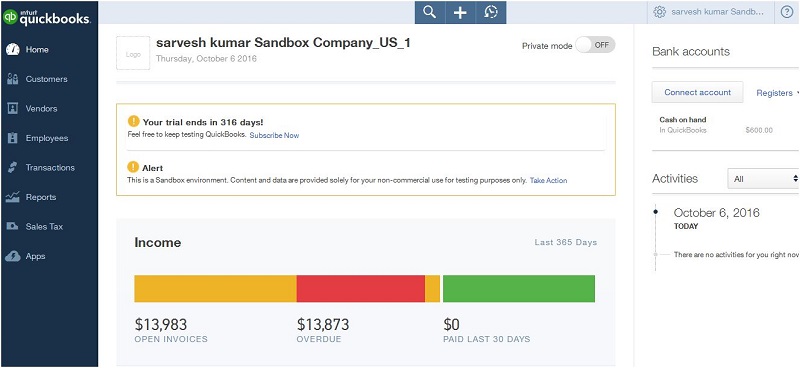
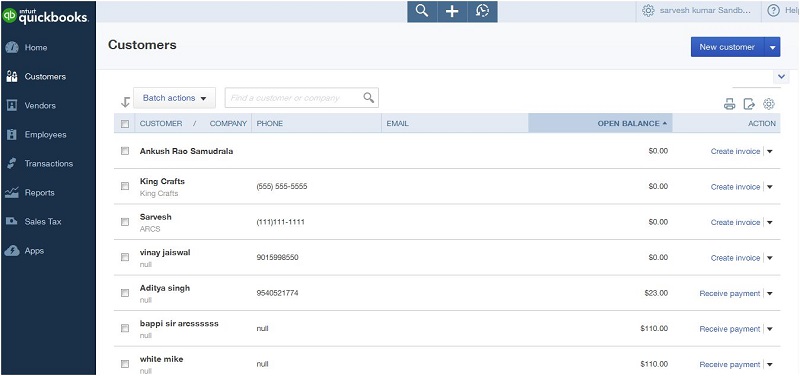
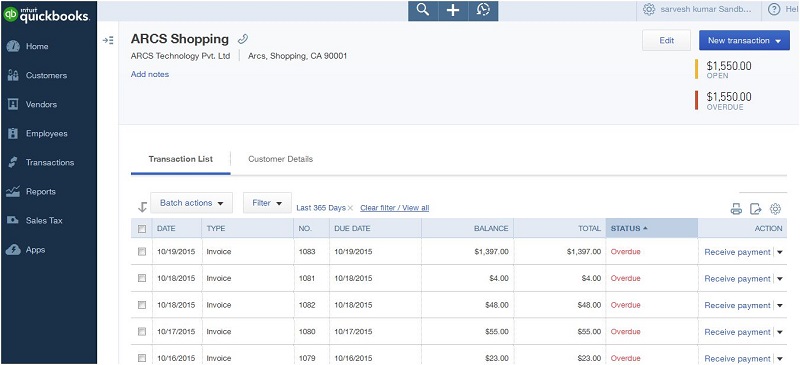
Click on Customer -> Check for the salesforce user who is created as customer in quickbook -> Click on create invoice of particular customer and show all invoice in that page -> Check for the order which is inserted from the salesforce.
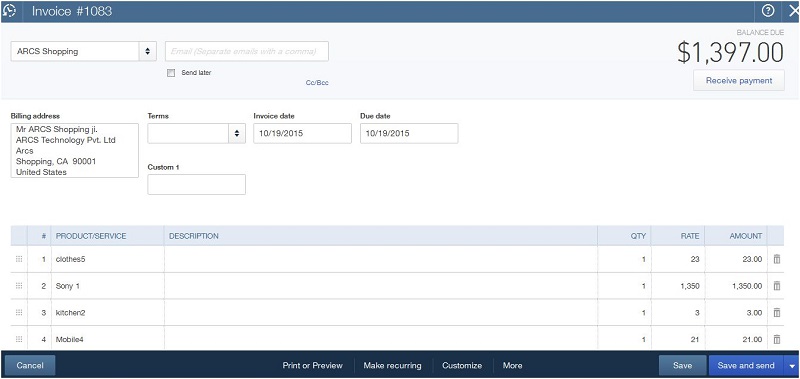
Note : Follow this Step to insert order in online quickbook from salesforce successfully.