Refresh Process Document
1: Delete the data of four provided intake object using data loader UI.
1: Provided Education Information(BGC_Degree_Intake__c)
2: Provided Employment Information(BGC_Employment_Intakes__c)
3: Provided License Information(BGC_License_Intake__c)
4: Provided Reference Information(BGC_Reference_Intake__c)
2: Modify the sensitive data of given objects using data loader script after
deactivating the given triggers and process builders by using "UpdateAllObjects.bat" file. Click here for how to run data loader script.
Objects to modify the sensitive data
1: Account (Account)
2: BGC Configuration (BGC_Configuration__c)
3: Background Check Order (BGC_Order__c)
4: Contact (Contact)
5: Verification (Verification__c)
6: Employee Status (People_Controller__c)
7: Public Profiles (Public_Profile__c)
8: Background Checks (PreEmploy_Case__c)
9: DOT Information(BGC_DOT_Intake__c)
10: Drug Screen & Occupational Health Orders (BGC_DTOC_Order__c)
11: Case (Case)
12: Disclosure & Authorization (Disclosure_Authorization__c)
13: I9Form (I9Form__c)
14: UIClaimDeterminations (UI_Claim_Determinations__c)
15: UI Claim Information (UI_Claim_Information__c)
16: Disputes(Dispute__c)
17: BGC SO/US Crim Details (BGC_SO_US_Crim_Details__c)
18: Background Search(Background_Search__c)
Important: Steps need to taken before running data replacement script:
All trigger needs to be deactivated and then again reactivated after sensitive data replacement by using "Manage Trigger" custom settings => https://preemploy--admin1.my.salesforce.com/setup/ui/viewCustomSettingsData.apexp?setupid=CustomSettings&id=a2p1N000001Hxub
All Process Builder needs to deactivated and then again reactivated after sensitive data replacement.
Deactivated all the admin1 exe by login on dev server=> task scheduler and activate them again after data replacement.
Change the admin1 .net website https://sidespreemploy.arcsdev.com SF credentials to devdata sandbox from admin1 and revert it again after data replacement.
Set Email Deliverability access level to "No Access" by using the steps as given in point 9 and after deployment it should be "All Email" as per point 9
Deacitate and activate again the BGC Config Validation rule "BGC Configuration Validation Rule".
BGC Configuration Validation Rule: https://preemploy--admin1.my.salesforce.com/01I1N000002mVwW?setupid=CustomObjects
Deactivate the "Dispute Validation Rule" of dispute object.
Dispute Validation Rule: https://preemploy--admin1.my.salesforce.com/01I1N000002maR8?setupid=CustomObjects
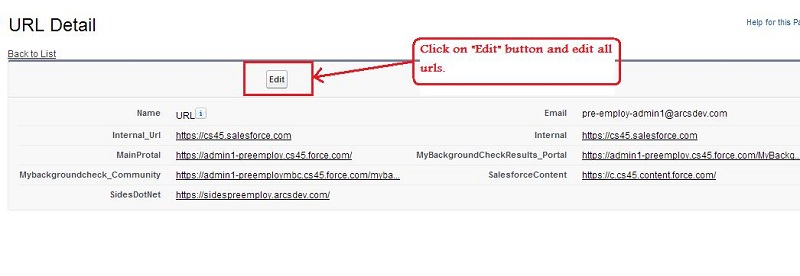
3: Modify the Custom Settings "URL" for sandbox URL changes. Please follow the below steps.
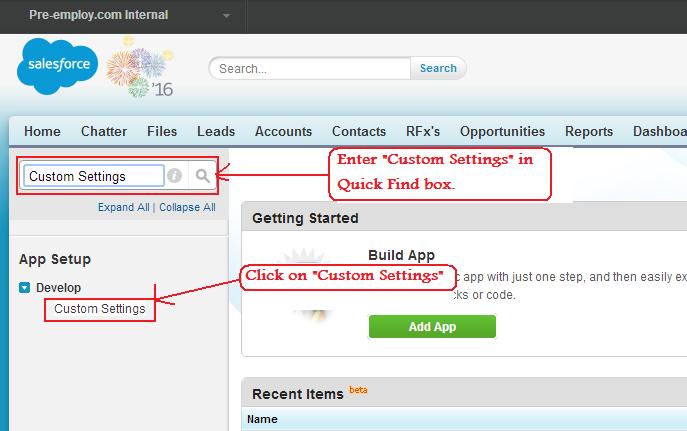
Step 1: Go to Setup and enter "Custom Settings" in Quick find box. Click on "Custom Settings".
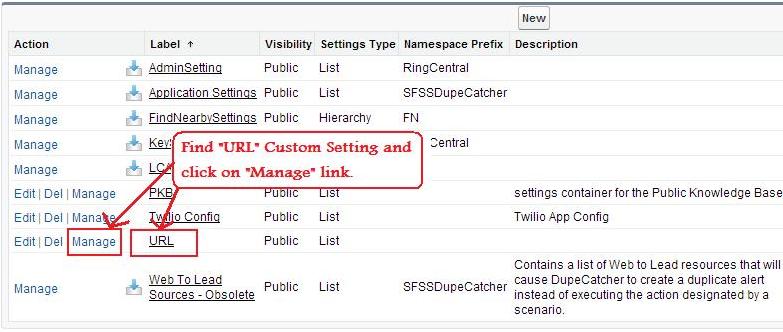
Step 2: Find "URL" Custom Setting and click on "Manage" link.
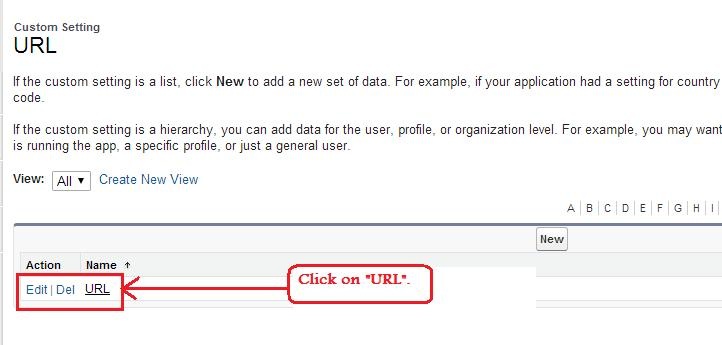
Step 3: Click on "URL".
Step 4: Click on "Edit" button and edit all URL.
4: Modify the URL__c, Community_URL__c and Internal_Url__c field of user object for sandbox URLs. Please follow the below steps.
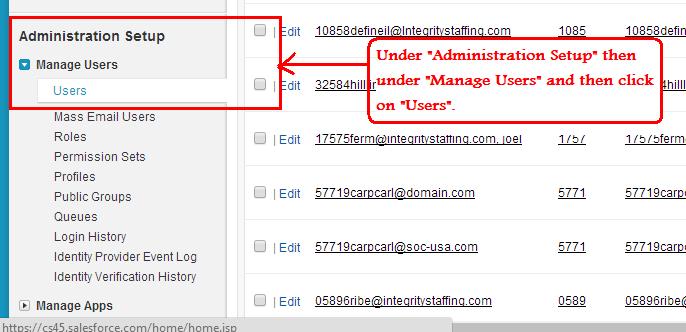
Step 1: Go to Setup. Under "Administration Setup" then under "Manage Users" and then click on "Users".
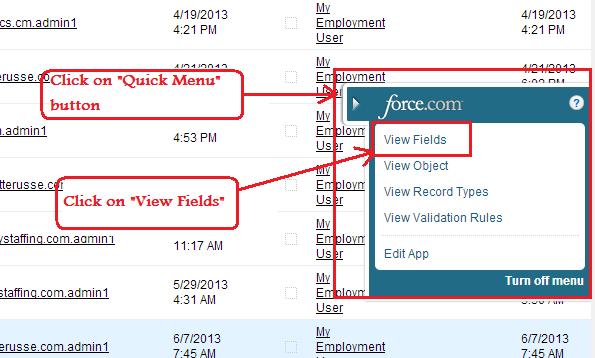
Step 2: Click on "Quick Menu" button and then click on "View Fields".
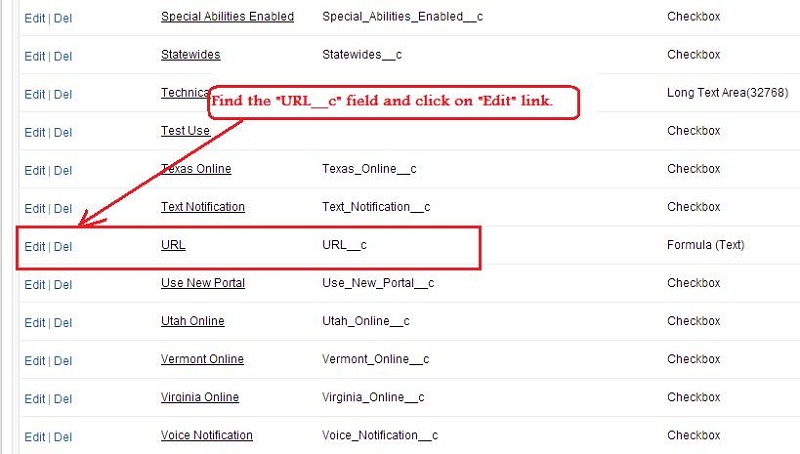
Step 3: Find the URL__c field and click on "Edit" link.
Step 4: Change the URL in "Formula" section and click on "Save" button.
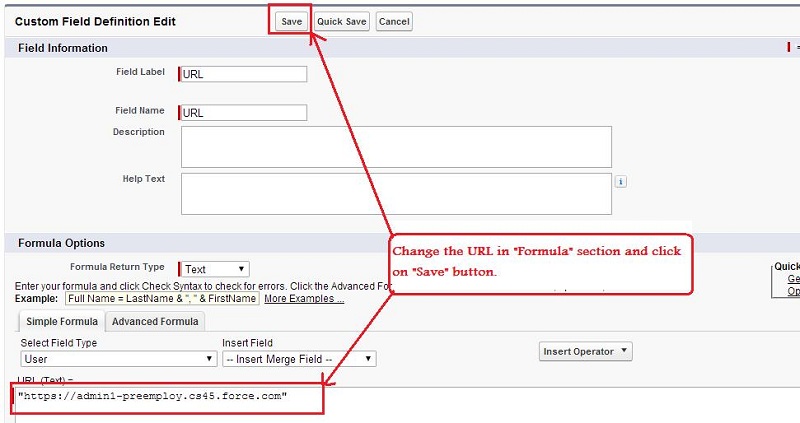
Step 5: Please repeat step 3 and 4 for changing the URL in "Internal_Url__c" field.
5: Modify the "System Administrator Custom" profile to give permission on all apex classes. Please follow the below steps.
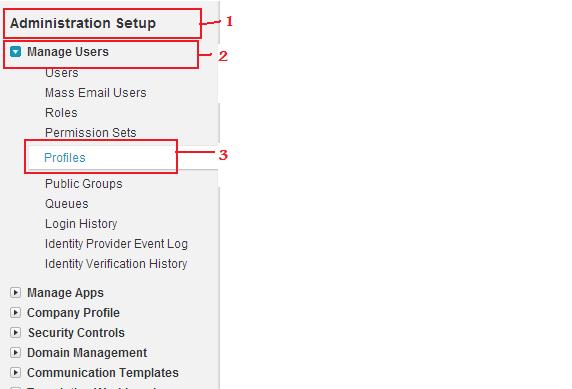
Step 1:Go to Setup >> under "Administration Setup" section click on "Manage Users" >> click on "Profiles"
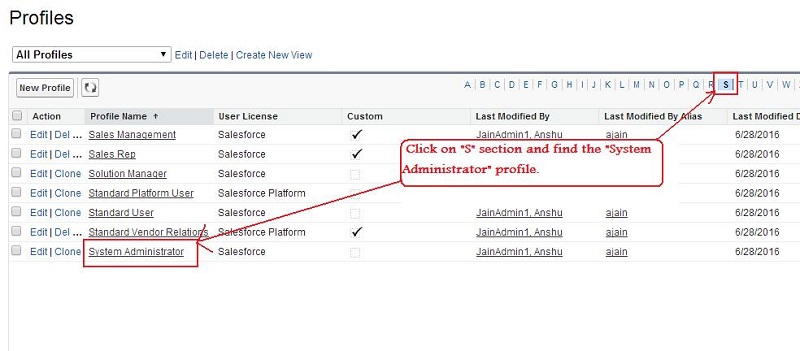
Step 2: Click on "S" section and find the "System Administrator" profile.
Step 3: Click on "System Administrator" profile. Find "Enabled Apex Class Access" section and click on "Edit" button.
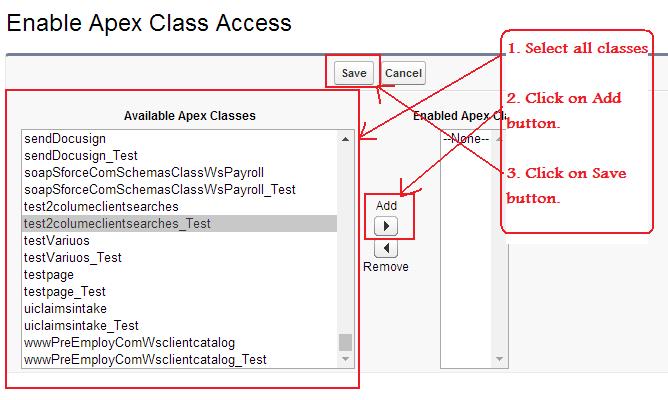
Step 4: Select all classes which are in "Available Apex Classes" list and click on "Add" button. Finally click on "Save" button.
6: Modify the web.config in "sidespreemploy.arcsdev.com" for chanding the new admin1 instance URL like cs71 to cs13. Also Change the Admin1 new REST credentials in web.config file.
7: Modify the admin1 credentials like REST, portal etc in admin1 database on dev server. Please follow the below steps.
Step 1: Login in
"PRE-EMPLOY HELP AND SUPPORT".
Step 2: Click on "Manage Credential" >> click on "Update Credential" >> select
"Admin1" option in dropdown list.
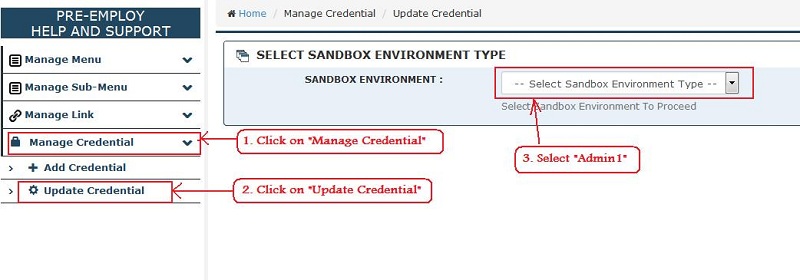
Step 3: Modify all credentials like REST, portal etc one by one.
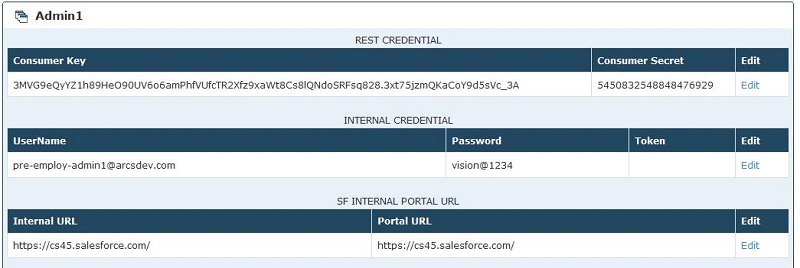
8: Modify the Email Alert as per T-18744. Please follow the below steps.
Step 1: Go to Setup >> under "App Setup" section, click on "Create" >> click on "Workflow & Approvals" >> click on "Workflow Rules".
Step 2: Select "All Workflow Rules" option in View dropdown list. Click on "D" section and find the "Dispute Accuracy Check" workflow rule.
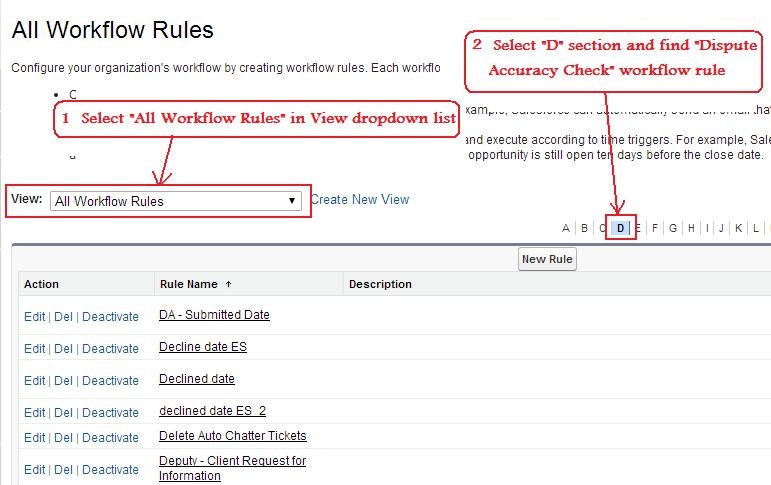
Step 3: In "Dispute Accuracy Check" Workflow, click on "Dispute Accuracy Check" Email Alert.
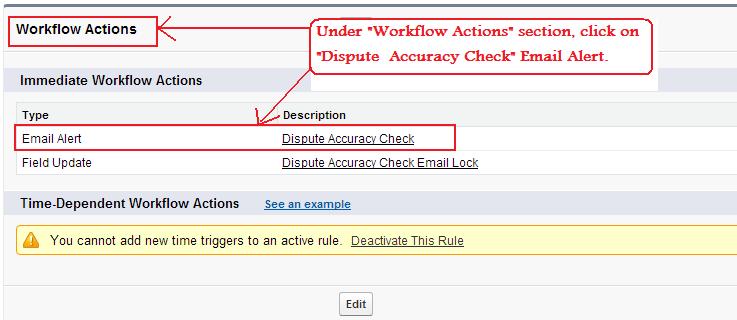
Step 4: Click on "Edit" button.
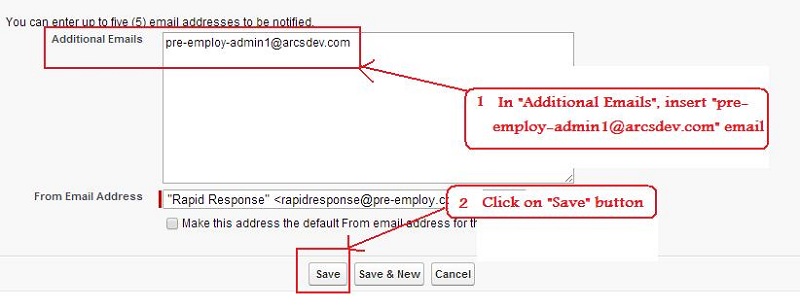
Step 5: In "Additional Emails" field, insert "pre-employ-admin1@arcsdev.com" email and click on "Save" button.
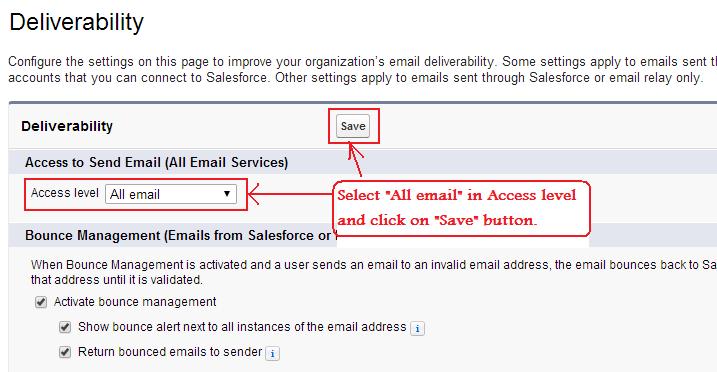
9: Set the Access level to "all email" option to deliver the email to all email id in
Deliverability under email administration. de-activate the "Internal: Test Search Cancellation" workflow.
Please follow the below steps.
Step 1: Go to Setup >> under "Administration Setup" section, click on "Email Administration" >> click on "Deliverability".
Step 2: Select "All email" option in Access level and click on "Save" button.
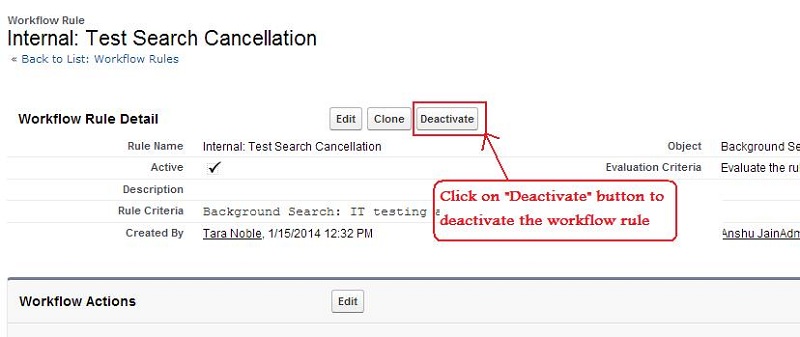
10: De-activate the "Internal: Test Search Cancellation" workflow.
Please follow the below steps.
Step 1: Go to Setup >> under "App Setup" section, click on "Create" >> click on "Workflow & Approvals" >> click on "Workflow Rules".
Step 2: Select "All Workflow Rules" option in View dropdown list. Click on "I" section
and find the "Internal: Test Search Cancellation" workflow rule. Id of this workflow rule is "01Q1N0000002wjZ"
Step 3: Click on "Deactivate" button to deactivate the workflow rule.