Functionality of Add Search
Add Search Functionality
Add Search is Custom button on the
Background Check Case (PreEmploy_Case__c)
Object Which is used to create the searches according to the selected
Search Type
on the Add Search VisualForce Page
For Add Search Button:
Click on All Tabs ----> Background Check ----> Click on the Case Link ---> Click on the
Add Search
Button
Whenever we click on the Add Search Button Then Its redirect to the Add Search Page
OR
We can Open the AddSearch Page Directly using the link:
https://c.cs12.visual.force.com/apex/AddSearch?CaseNameID=a0dV0000002klBE (Any Case ID)
If we are using the above link and visualforce page and class is not displaying Then We have to follow the given steps:
Go to Setup ----> Personal Information (Under the My Personal Information Under the Personal Setup)----> Click on the Edit Button ----> Checked the Development Mode ----> Click on the Save button
Add Search Class Methods:
-
LstAkaName
-
AllSearchType
-
GetClassification
-
AllTypes
-
Constructor
-
Autorun
-
CommonPropForBGS
-
IsSearchCreatedForCounty
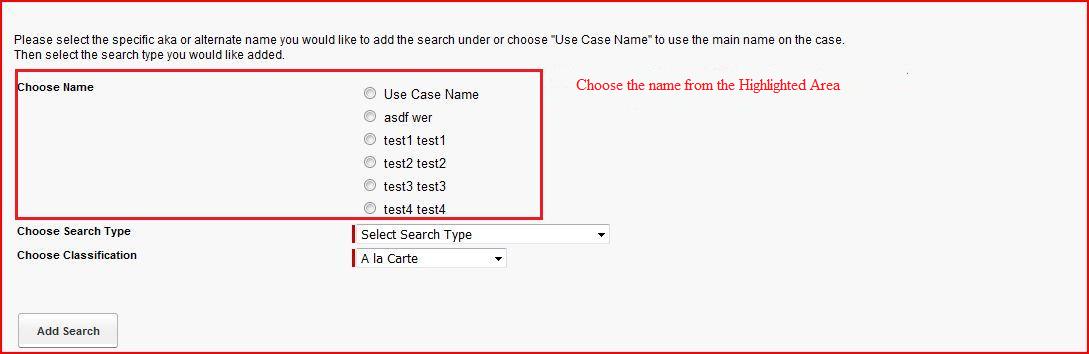
Working of Choosing the Use Case Name:
- In this case AddSearch Controller contain the method Name: lstAkaName
- We have get the sCaseNameId from URL and Add the Use Case Name in Default Value for any Select Option
- Then write the Query on Alternate Name and get the Combined_Name_Type__c where Validated__c checked and Invalid__c unchecked
- Then add the Alternate Name Id and Combined_Name_Type__c in Select Option
- Then call this method in
Select Options
Tag Under the
Select Radio
Tag
- On the Change of Select Radio we have call the
All Types
Method in
Action Support
Tag
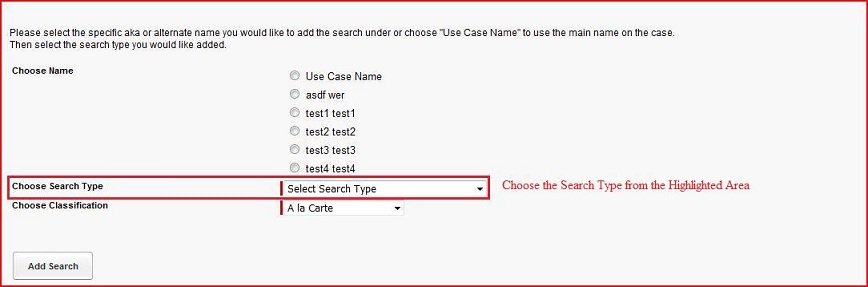
Working of Choosing the Search Type:
- In this case AddSearch Controller contain the method Name: allSearchType
- SId ----> It is the String type variable in the AddSearch Controller.
We are getting the value from the AddSearch VF Page URL and store in SId variable.(Constructor of AddSearch Controller).
Whenever we click on the Add a Search VF Page Then Its redirect to the ClientAddSearch Page.
Then we select the SearchType DrugTest Its move to next screen.
Then we click on the next button Its redirect to the AddSearch VF Page.
We have appended the value variable end of the AddSearch VF Page.
In URL value variable is append and contains the value DrugTest.
- If SId Contains
DrugTest
Then Add the DrugTest Id and Name in Picklist.
- If Service Name is except Drug Test Then Add the Select and Select Search Type in the Select Option
- Then Write the Query on the BGC_List_of_Services__c and check Name does not Contains
Statewide Criminal
AND Name Not Equals
Statewide Research.
- Then add the Id and Name in the PickList.
- Then we call the
allSearchType
Method in the autorun in the AddSearch Controller.
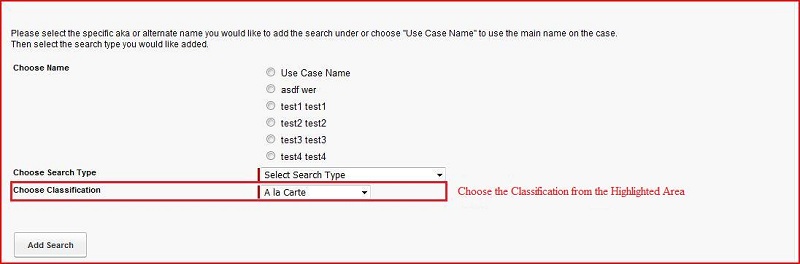
Working of Choose Classification:
- In this case AddSearch Controller contain the method Name: getClassification
- We have created the SelectOptions type List
- Add the
A la Carte, Package, US Criminal Re-Verify
in the List
- Call this method in the
selectOptions
under the
selectList
Working of
AllTypes
Method in AddSearch Controller
- In this case: we have created the List
BGC_List_of_Services__c
- Write the Query on
BGC_List_of_Services__c
and get the Name ,Location_Based__c, Location_Based_Type__c
- Check the
Service Name
and set the Flag according to the Service Name
Working of AddSearch Controller: Constructor
- In Constructor we have get the
sId, q, akaFName, akaLName
- SId ----> I already explain the SId in the allSearchType method.
- q ---->It seems to doubtful code because of multiple changes in controller. In future this code have to be removed.
- akaFName ----> It is the String type variable in the AddSearch Controller.
We are getting the value from the AddSearch VF Page URL and store in akaFName variable.(Constructor of AddSearch Controller).
Whenever we click on the Add a Search VF Page Then Its redirect to the ClientAddSearch Page.
Then we select the SearchType DrugTest Its move to next screen.
Then we click on the next button Its redirect to the AddSearch VF Page.
We have appended the string type getAkaFName Method end of the AddSearch VF Page.
(Whenever we click on the Add a Search Custom Button Then Its Redirect to the ClientAddSearch
VF Page Then We have select the Drug Test Search Type then Its move to next page then click on the next button then its redirect to the AddSearch VF Page and append the CaseNameId, AlternateFirstName (akaFName))
- akaLName ----> It is same as akaFName.
- Write the Query on the
PreEmploy_Case__c
Object
- get the id, Subject_First_Name__c, Subject_Last_Name__c, Subject_Middle_Name__c, Subject_Zip_Code__c, Order_Number__c , Government_ID_Number__c, Subject_Phone_Number__c,
Account__c,Formation_Complete__c from
PreEmploy_Case__c
Object based on the
sCaseNameId (get the CaseNameId from the Page URL)
- Then write the Query on the
DTOC_Client_Options__c
Object
This is for Drug Test Search Type ---->
- Get the Partner_Location__c, OCC_Health_Location__c from the
DTOC_Client_Options__c
Object based on the Account__c
Write the Query on the
Partner_Location__c
Object.
Get the Name, Street__c, City__c , Postal_Code__c from the
Partner_Location__c
based on the Partner_Location__c.
Again write the query on the
Partner_Location__c
Object.
Get the Name, Street__c, City__c , Postal_Code__c from the
Partner_Location__c
based on the OCC_Health_Location__c.
- Then write the query on the
BGC_Order__c
Object.
- Get the Name ,Government_ID_Number__c, Order_Requested_By_Email__c, Subject_Date_of_Birth__c, Subject_Email__c, Subject_First_Name__c, Subject_Last_Name__c from
BGC_Order__c
Object based on the Order_Number__c.
Working of AddSearch Controller: autorun
- Initialize all the variable in the autorun
- Write the query on the
PreEmploy_Case__c
Object
- Get the Report_Case_Closed__c, Report_Case_Status__c from
PreEmploy_Case__c
Object based on the sCaseID (get this Id in the AddSearch Constructor)
- Check if the Report_Case_Closed__c is checked
Then Error Message is throw:
New search cannot be added to a closed case
- Also Check Report_Case_Status__c Equals
Compliance Review Needed
OR
Searches Complete - Pending Grading
OR
Dispute in Progress
Then Error Message is throw:
New search cannot be added from "Report_Case_Status__c" status.
- Also get the Name from
PreEmploy_Case__c
Object based on the CreatedDate Less Than THIS_MONTH AND id Equals sCaseID
- Then Check If List of Size Not Equals Not AND SId Not Equals
Drug Test
Then Error Message is throw:
Case Created Date does not belongs to current month
- Write the Query on the
Country__c
Object
- Get the Id based on the Name Equals United States
- Then write the Query on the
State_Providence__c
Object
- Get the Id from the
State_Providence__c
Object based on the AssociatedCountry__c = Country__c (Id) ORDER BY Name
- Write the Query on the
County__c
Object
- Get the Id from the
County__c
Object based on the AssociatedState__c = State_Providence__c (Id) ORDER BY Name
Working of AddSearch Controller: commonPropForBGS Method
- This method only used to assign the Common Property to Background_Search__c Object.
- Need of this Method::- Whenever we are creating the Background Search Then every time we have to assign the all values in the Background Search Object.
We have define the common fields which is used in the backgroundsearch in commonPropForBGS method and used everywhere in the controller whenever its required.
The main objective of defining this method is to optimize the code.
- This method is call in the
bAddSearch
Method in the AddSearch Controller.
Working of AddSearch Controller: isSearchCreatedForCounty Method
- In this method we have create the object of the
BackgroundSearchTriggercl
Class
- Call the
FillListBackGroundSearch ---->
This method is used to fetch the record from the Background_Search__c Object based on the criteria.
- Write the Query on the Background Search Object
- Get the id, Service_Ordered__c from the Background Search Object based on the SearchType__c not equals null AND SearchType__c equals sListOfServiceID
- Then Check sType equals County then further check County__c not equals null AND Country__c equals sCounty then append the County__c condition in the query.
- Then check the sType equals Statewide then check Applicant_State_Providence__c not equals null AND Applicant_State_Providence__c equals sState then append the Applicant_State_Providence__c condition in the query.
- Then check the sType equals International then check Applicant_Country__c not equals null AND Applicant_Country__c equals sCountry then append the Applicant_Country__c condition in the query.
- Then check PreEmploy_Case__c not equals null AND PreEmploy_Case__c equals sCaseId then append PreEmploy_Case__c condition in query for all condition.
- Then check the sAlternateName not equals null and blank AND Alternate_Name__c equals sAlternateName
then append the Alternate_Name__c condition in the query.
- Then check the sArchivedAlternateName not equals null and blank AND Archived_Alternate_Name_ID__c equals sArchivedAlternateName then append the Archived_Alternate_Name_ID__c condition in the query.
- Then execute the whole query.