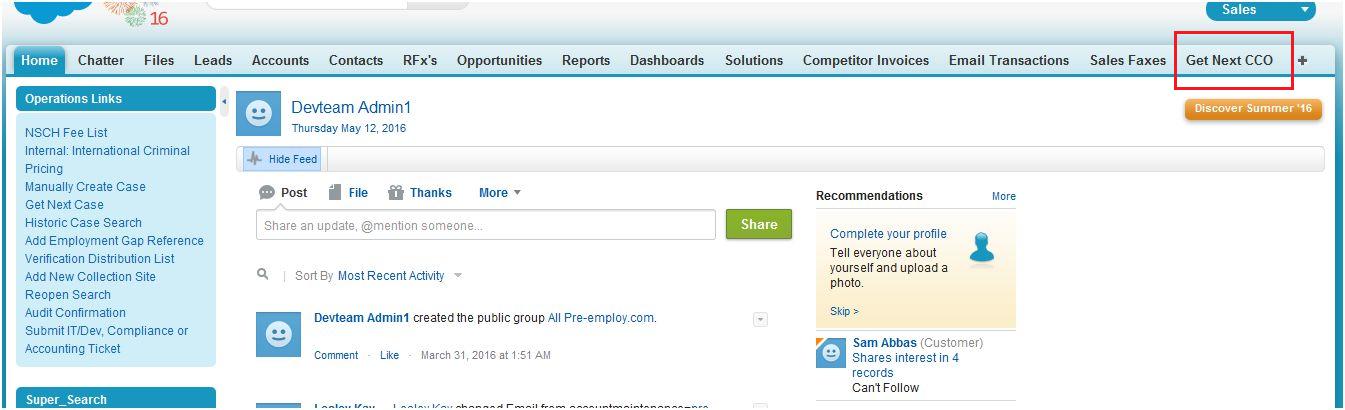
About custom tab :
Custom tab is a tab in the salesforce to display the data stored in that custom object.
How To create custom tab ?
Steps to create custom tab :
Step 1 : Click on the user name (Right corner of the screen)
Step 2 : Select setup
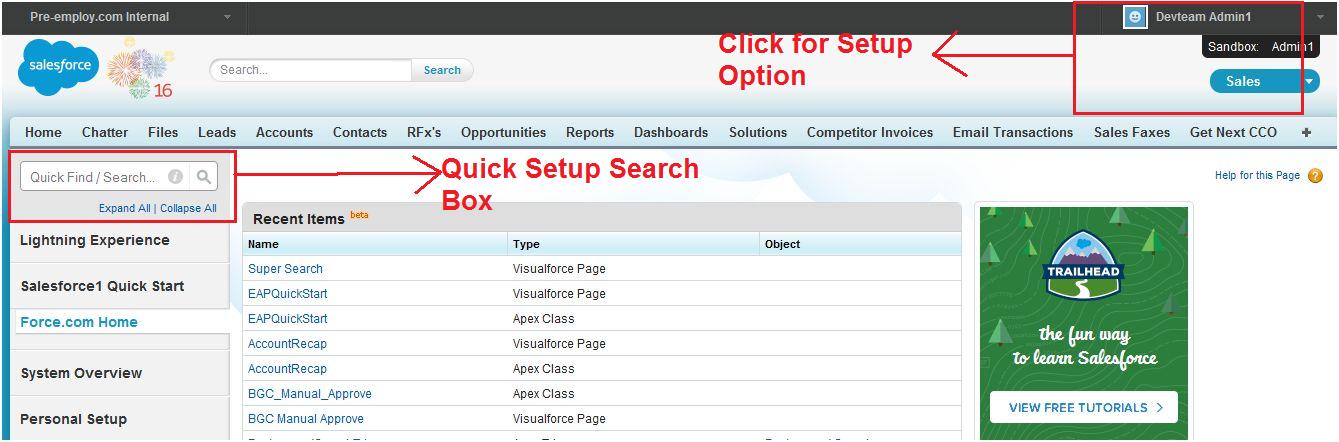
Step 3 : Enter tabs in the quick find box
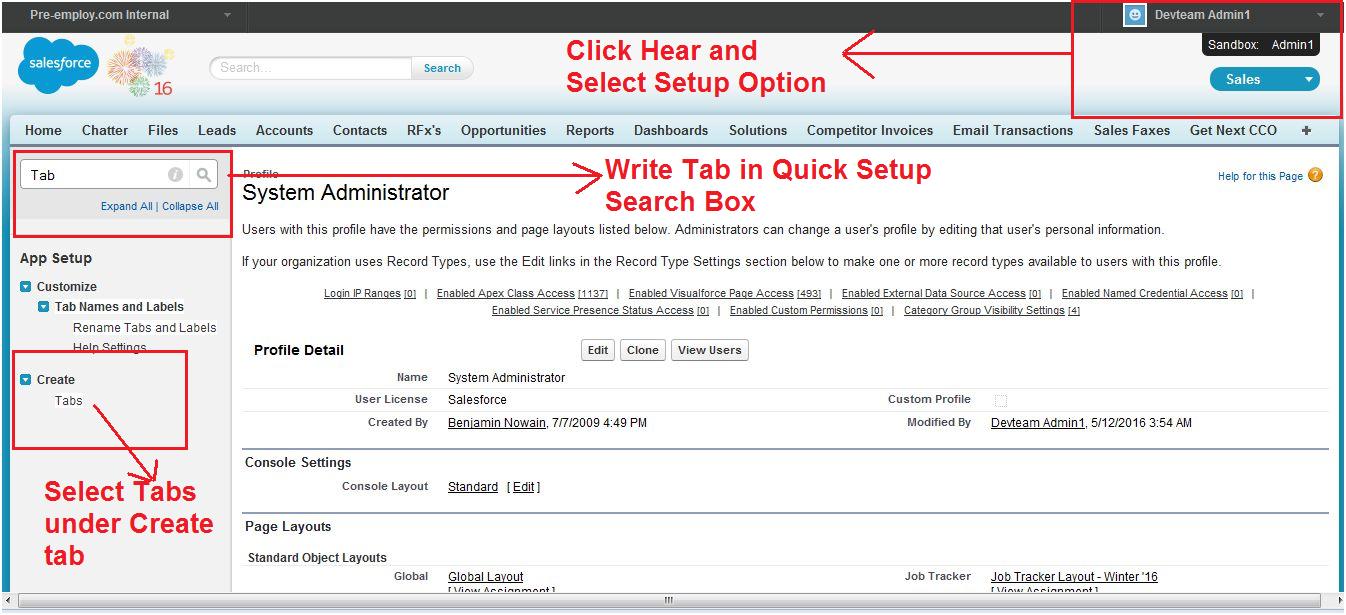
Step 4 : Select tabs under create tab.
Step 5 : Setup => App Setup => create => tabs
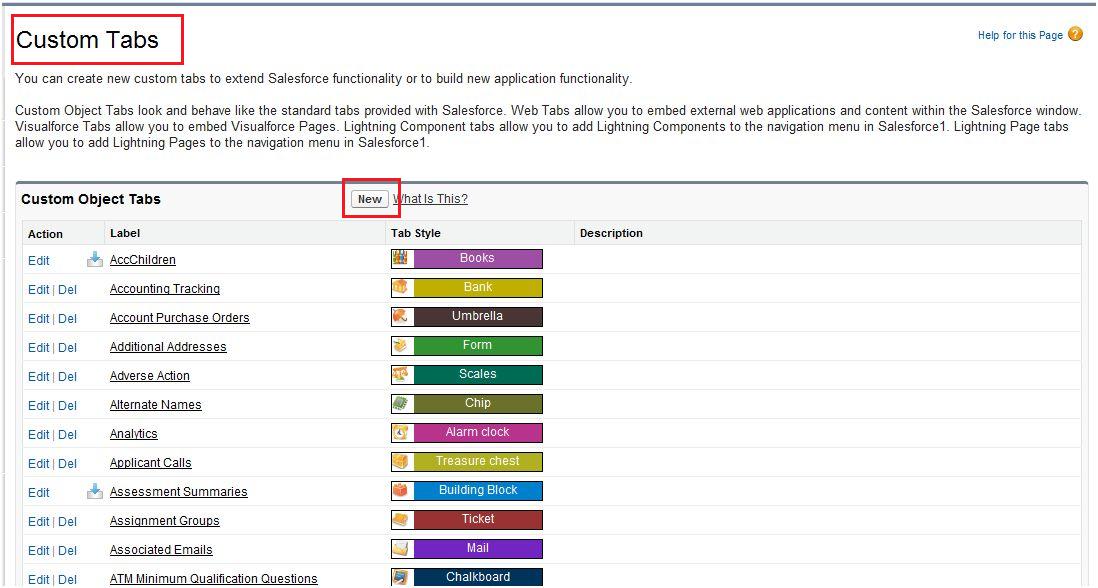
Step 6 : Click new in the custom tab related list.
Step 7 :Select the custom object to display in the custom tab.
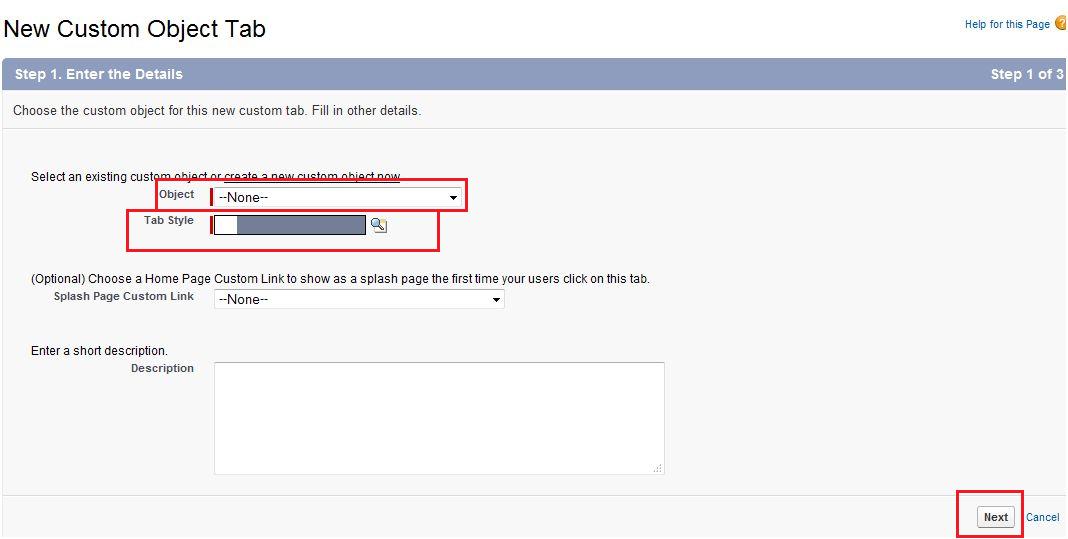
Click the tab style lookup icon to display the tab style selector.
If a tab style is already in use, a number enclosed in brackets [] appears next to the tab style name.
Hover your mouse over the style name to view the tabs that use the style. Click hide styles which are used on other tabs to filter this list.
Step 8 : Click a tab style to select the colour scheme and icon for the custom tab.
Step 9 : Optionally, choose a custom link to use as the introductory splash page when users initially click the tab.
Step 10 : Enter a description of the tab, if desired, and click Next.
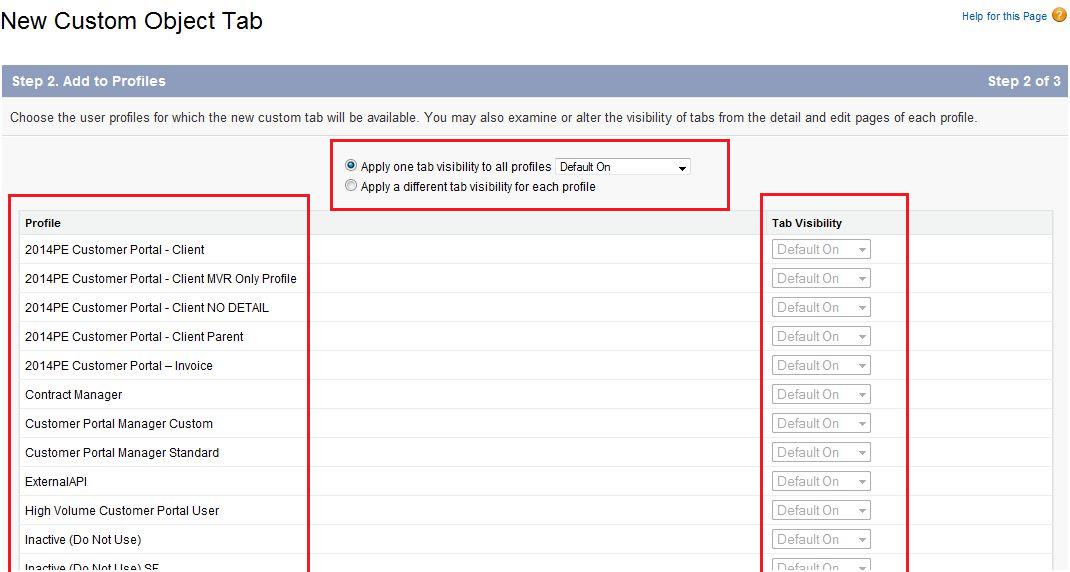
Step 11 :Choose the user profiles for which the new custom tab will be available:
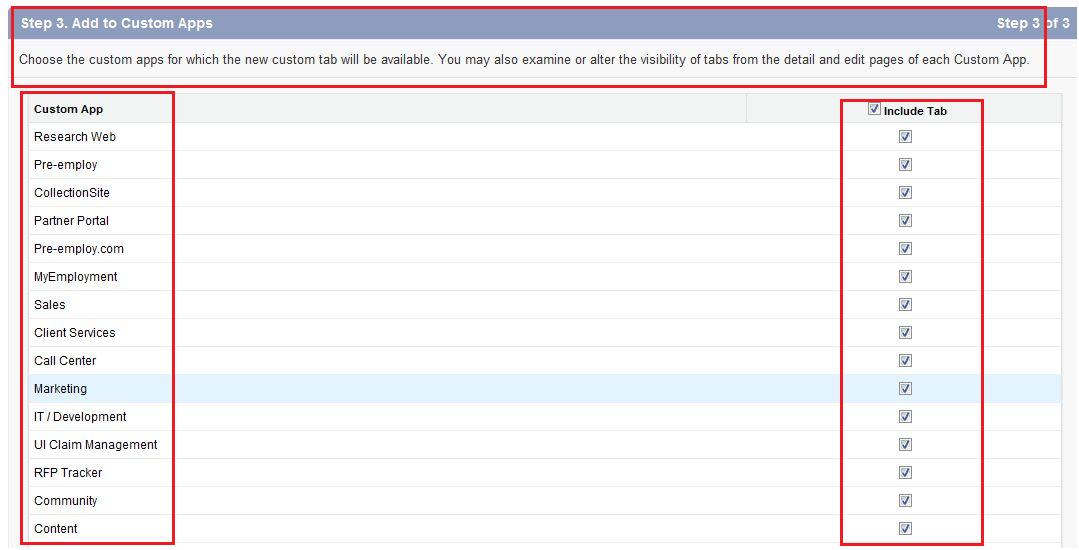
Step 12 :Specify the custom apps that should include the new tab.
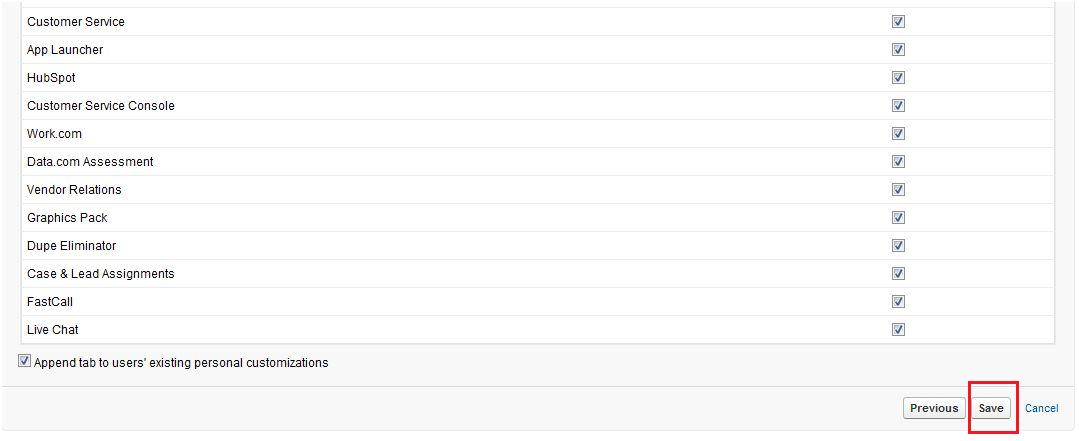
Step 13 :Select append tab to users' existing personal customizations to add the tab to your user's
customized display settings if they have customized their personal display.
Step 14 :Click save.
How to display custom tab in all tab ?
Step 1 : Click on the user name (Right corner of the screen)
Step 2 : Select setup
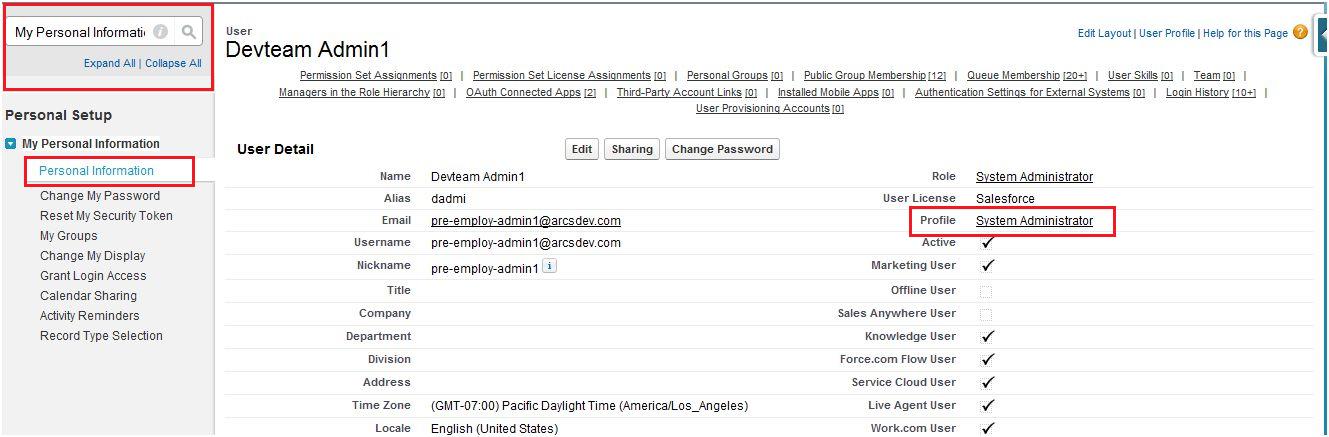
Step 3 : Enter my personal information in the quick find box
Step 4 : Select personal information under my personal information.
Step 5 : Clicked on profile field
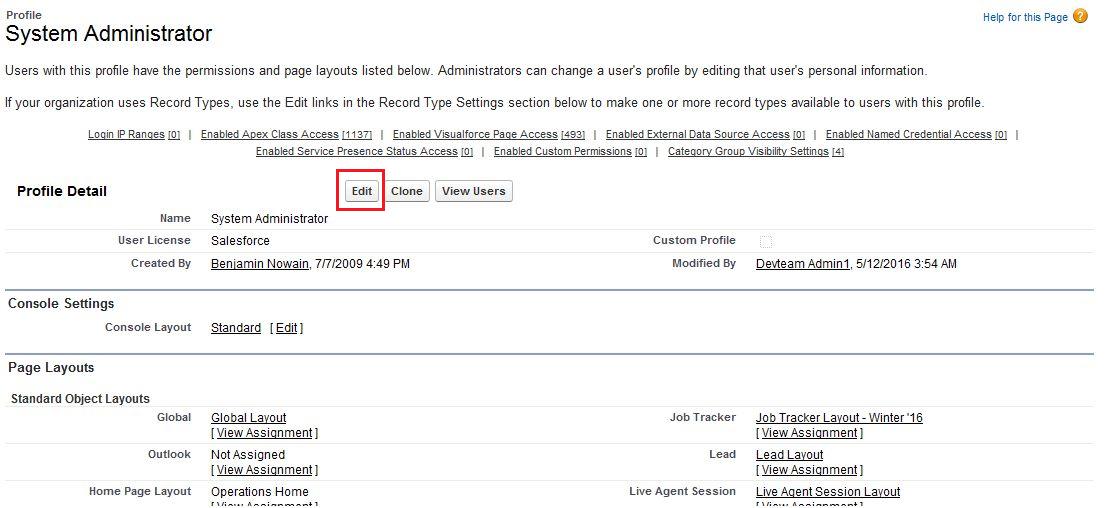
Step 6 : Search for the created custom tab, and than click on edit
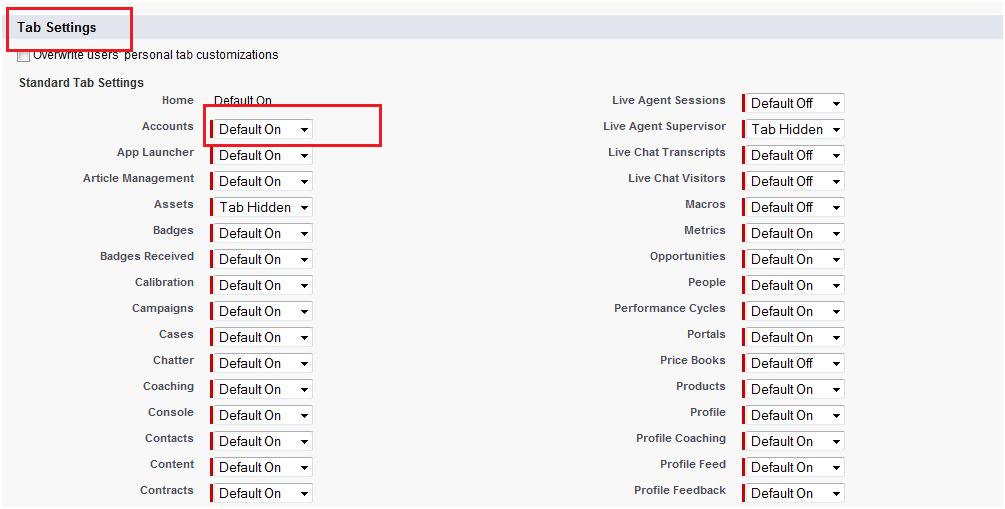
Step 7 :Now change to 'default on' for your Custom Tab
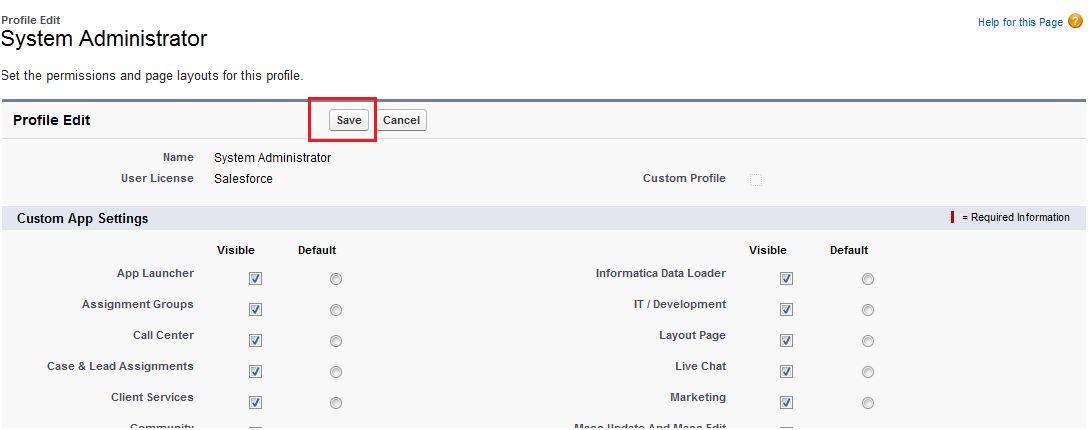
Step 8 :Now click on save button.and custom tab will be display.
How to display custom tab in header navigation ?
Step 1 : Click on all tab button on the home page of salesforce
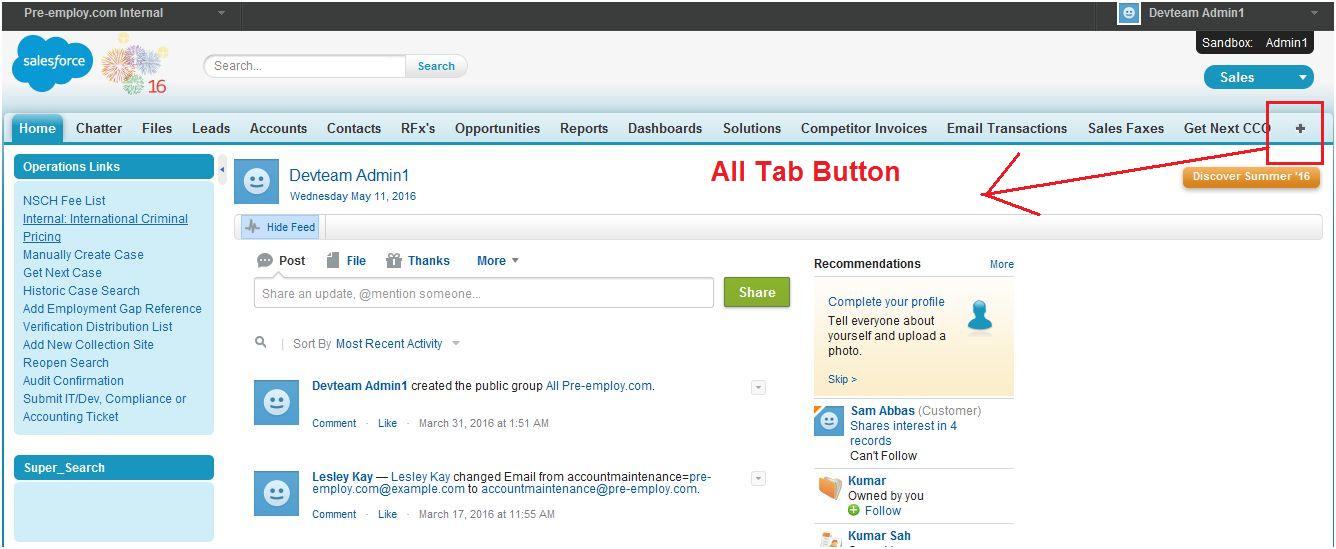
Step 2 : Click on the 'Customize My tab' button
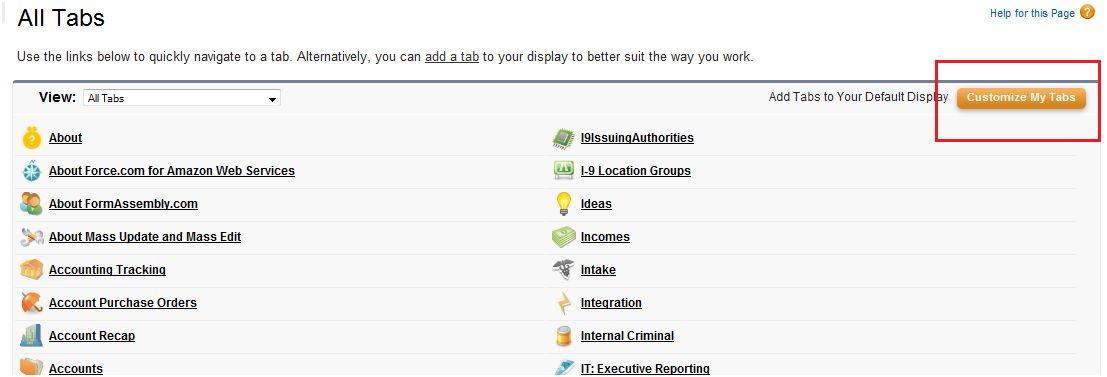
Step 3 : Add the custom tab from the 'Available tab' to 'Selected Tab' and click on save.
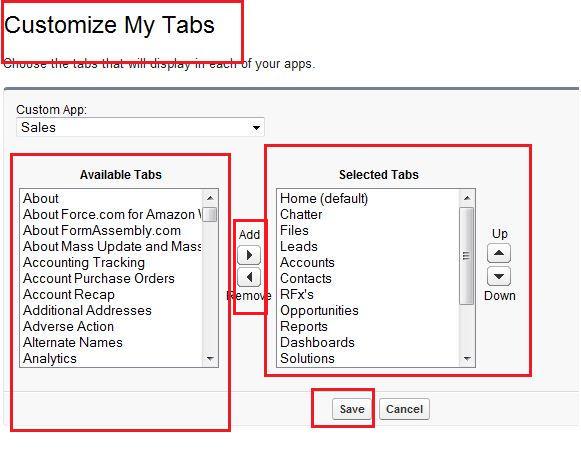
Step 4 : Added custom tab will be appear on the main page.