VR Department Automatic Work Distribution
A vendor rep will
hit the “Get Next” button which will assign up to 25
searches. When these searches are distributed an activity is created
and when finished that same activity is updated. Any search that is
distributed and not updated for 60 minutes after the distribution
time will be placed back into the queue.
How are records determined for the VR automatic work distribution?
Object Records: Background Searches
|
Field
|
Value
|
|
IT Testing Account
|
False
|
|
Status
|
Pending
|
|
Internal Code
|
Not Equal to External
|
|
Automatic Distribution*
|
True
|
|
Ready For Internal Processing*
|
True
|
New Fields: Automatic Distribution and
Ready for Internal Processing are both fields that do not currently
exist. These will be formula fields that will allow us greater
control of the distribution process, without having too many filters.
Ready for Processing
Criteria 1) Scripted Searches that are ready for internal processing will return TRUE
Research CScript_Complete__c = TRUE, Jurisdiction__r.Scripted__c = TRUE
Criteria 2) Integration Searches that are ready for internal processing will return TRUE.
Integration_Process_Complete__c = TRUE, Jurisdiction__r.Automated__c = TRUE
Criteria 3) Scripted searches that are not ready for internal processing will return FALSE
Script_Complete__c = FALSE, Jurisdiction__r.Scripted__c = TRUE
Criteria 4) Integration Searches that are ready for internal processing will return FALSE.
Integration_Process_Complete__c = FALSE, Jurisdiction__r.Automated__c = TRUE
Criteria 5) If the Search has Already been processed then it will not distribute
Research_Complete_c = TRUE or Researcher_Complete__c = TRUE
Otherwise will return TRUE
How are records prioritized?
|
Field
|
Value
|
|
Distribution Score*
|
High Value to Low
|
|
Age
|
Newest to Oldest
|
|
Time Zone
|
All time zones are active, but are distributed at different times.
|
New Fields: Distribution score is a
formula field that does not currently exist. This will be a formula
field that will allow us greater control of the distribution process,
without having too many filters.
The distribution score
should be a numeric formula field that looks at various criteria
within the search record and attached jurisdiction record to
determine a total “Score”
Value 1) Jurisdiction Method (Field: Jurisdiction_Research_Method__c)
|
Name
|
Point Value
|
|
Direct-Court
|
2
|
|
Direct-Mail
|
2
|
|
Direct-Certified Mail
|
2
|
|
Direct-Fax
|
2
|
|
Direct-Phone
|
3
|
|
In-house Online
|
1
|
|
External Vendor
|
0
|
|
Other
|
1
|
|
Integration
|
2
|
|
Vendor
|
0
|
|
Credit Card - Unlimited Result Access
|
1
|
|
Credit Card - Limited Access
|
1
|
|
Credit Card - One-Time Access
|
1
|
Value 2) Jurisdiction > Time Zone
This field does not
exist on the search or jurisdiction object, it should be pulled from
the associated County record, if no county record then it should be
pulled in through the associated state/providence record. The field
on the county record is Time_Zone__c and it will need to be added to
the state/providence object.
So from the search
the jurisdiction record is found – from there the county record
is found and time zone pulled, if value is null, then from the state
the time zone is pulled.
If both are null – value should be “Other”
|
Name
|
Point Value
|
|
Atlantic (GMT -04:00)
|
6
|
|
Eastern (GMT -05:00)
|
5
|
|
Central (GMT -06:00)
|
4
|
|
Mountain (GMT -07:00)
|
3
|
|
Pacific (GMT -08:00)
|
2
|
|
Alaska (GMT -09:00)
|
1
|
|
Hawaii-Aleutian Islands (GMT -10:00)
|
1
|
|
American Samoa (GMT -11:00)
|
1
|
|
Marshall Islands (GMT +12:00)
|
1
|
|
Guam (GMT +10:00)
|
1
|
|
Palau (GMT +9:00)
|
1
|
Value 3) Background Search > Research Status
Research status is a
current field on the background search object; its value will also
affect the distribution score
|
Values
|
Point Value
|
|
Faxed Request
|
0
|
|
Mailed Request
|
0
|
|
Called - Left Message
|
2
|
|
Website Down
|
3
|
|
Need Follow Up
|
3
|
|
New
|
3
|
|
Invalid DL number
|
2
|
|
Needs Review
|
2
|
|
Resent-Pending Update
|
0
|
|
Faxed or Mailed Request
|
0
|
|
Sent Pending Results
|
0
|
|
Signed Release Needed
|
0
|
|
Additional Information on Record Needed
|
3
|
Value 4) Background Search > Follow Up Date
Follow up date is a
current field on the background search object; its value will affect
the distribution score
If Follow up Date = Today’s Date, then 5 Points Added
If Follow up date = less than today’s date, 0 points added
If follow up date = greater than today’s date, 10 points added
How are jurisdictions activated for distribution?
Automatic Distribution
This is a Boolean field
on the jurisdiction object record, when checked – this will
indicate that the jurisdiction is enabled for automatic distribution.
Active Jurisdiction
This is a current field
on the jurisdiction object record, when checked – this will
indicate that this is an active jurisdiction.
Both Automatic
distribution and Active Jurisdiction must be set to TRUE to
distribute through the get next.
How are searches grouped for distribution?
First searches are
grouped together by jurisdiction. All searches with the same
Jurisdiction will be distributed together, however some jurisdictions
may have different names, but are processed the same way, these
should also be distributed together.
Distribute by Group
This is a new field, it
will be a Boolean field and when checked indicates that this
Jurisdiction is part of a distribution group, when not checked it
indicates that this jurisdiction is not part of a group and therefore
an individual jurisdiction.
So
on the distribution page only searches having same group will be
distributed at the same time distribution score with the highest on
top (current) and 15 searches at a time.
Distribution Group Name
This will be a new
field, it should be a text field or pick list field (depending on
what’s easier to work with) which will allow us to name the
individual distribution groups. This will allow jurisdictions to be
grouped together by name so that they can be distributed together.
Secondly, the
searches are then grouped together by Pre-Employ Case; if possible
all searches within the same group that are able to be distributed
will be distributed to the same user.
What other restrictions are present for work distribution?
Lastly, some jurisdictions are harder to process then others and require special training.
Jurisdiction Object: New field “Research Level”
User Object: New Field “Research Level”
The research level will
be a pick-list field where we will indicate the appropriate research
level for the jurisdiction. This same field will display on the user
object. Users will only have access to jurisdictions where the
research level is the same, or below their own research level. The
values will be 1 through 5, 1 being the simplest jurisdiction, 5
being the hardest.
Example:
User A has research level 2, that means
that User A has access to any jurisdiction with a research level of 1
or 2.
User B has research
level 5, which means User B Has access to any jurisdiction with a
research level of 5, 4, 3, 2 or 1.
What happens when searches are distributed?
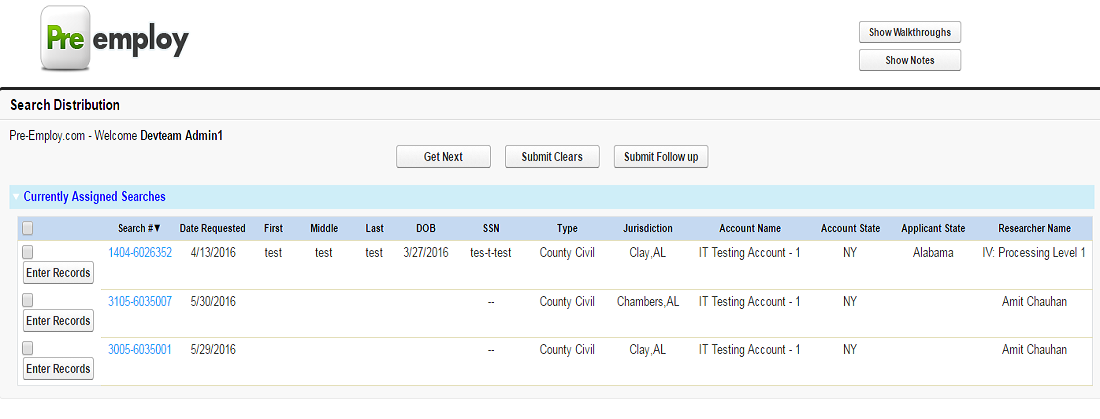
Users will be working
out of a list view or page that is similar to a list view. This page
must be visible to internal users only and its view, buttons and
components cannot be visible to client level or mbcr users.
The buttons will include
-
Get Next
-
Submit Clears
-
Set Follow up
Get Next
When the user hits get
next, the system will distribute the next searches (following the
correct criteria) to the user. No more than 25 searches will be
distributed. When this occurs the following fields on the search will
be updated:
Owner = User distributed to
Last Distribution Date/Time = Date/time distributed
An activity should be created for each search with the following
Record Type: Research Department
Assigned To: [User who is doing action]
Activity Type: Internal
Due Date: [Current Date]
Subject: Distributed for Research
Status: Complete
Priority: Normal
Comments: [Date/Time Stamp] Search Distributed to [Username] for research.
This should take no longer than 10 seconds. The fields available to the user will be
-
Search Number (link to search record)
-
Date Requested
-
First Name
-
Middle Name
-
Last Name
-
Date of Birth
-
Search Type Name
-
Jurisdiction Name
-
Internal Notes
All the header of the column will be having ability to sort the records.
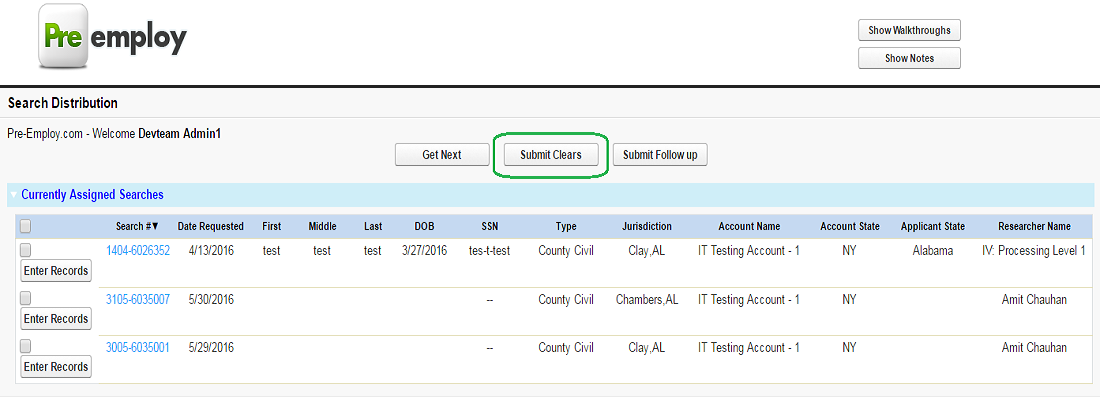
Submit Clears
The
user will have the option to select multiple searches and then select
the “Submit Clears” button, when selected; it will update
the following in the search:
Clear_Search__c = TRUE
Search_Complete__c = TRUE
RecordTypeID = 012800000003o3V(complete record type)
All Clear = TRUE
Status_Standard = Clear
Research_Complete = TRUE
Researcher Complete DateTime = Current Date/Time
Closing User = User
The activity that was created when it was distributed will be updated to
Search Status: Clear
Internal Notes: value of internal notes field
Action Completion Time: [date/time user selected "submit clears"]
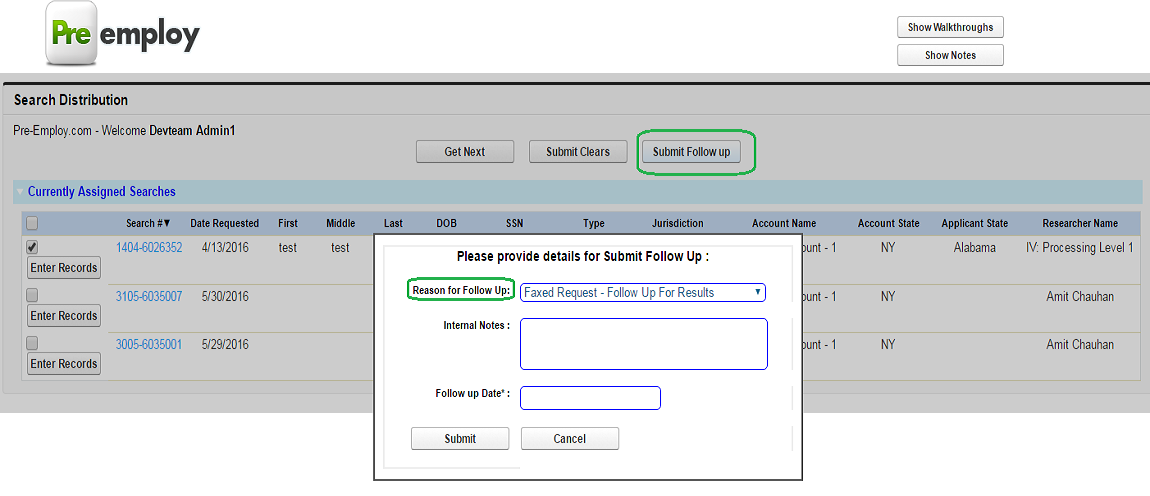
Set Follow Up
The user will have the
option to select multiple searches and then select the “Submit
Follow Up” Button, when selected it will open a pop-up that
prompts the user to provide:
The values of the pick-list and their corresponding research status
|
Pick-list Value
|
Updates Research Status
|
|
Faxed Request - Follow Up For Results
|
Faxed Request
|
|
Mailed Request - Follow Up For Results
|
Mailed Request
|
|
Called and Left Message for Results
|
Called - Left Message
|
|
Website Down - Unable to Proceed
|
Website Down
|
|
Need Follow Up
|
Need Follow Up
|
|
Invalid DL number
|
Invalid DL number
|
|
Resent-Pending Update
|
Resent-Pending Update
|
|
Sent Pending Results
|
Sent Pending Results
|
|
Additional Information on Record Needed
|
Additional Information on Record Needed
|
-
Internal Notes
-
Follow Up date
Once the user selects the values, the search is then updated
Reason for Follow up = Research Status
Internal Notes = Internal Notes
Follow up Date= Follow up Date
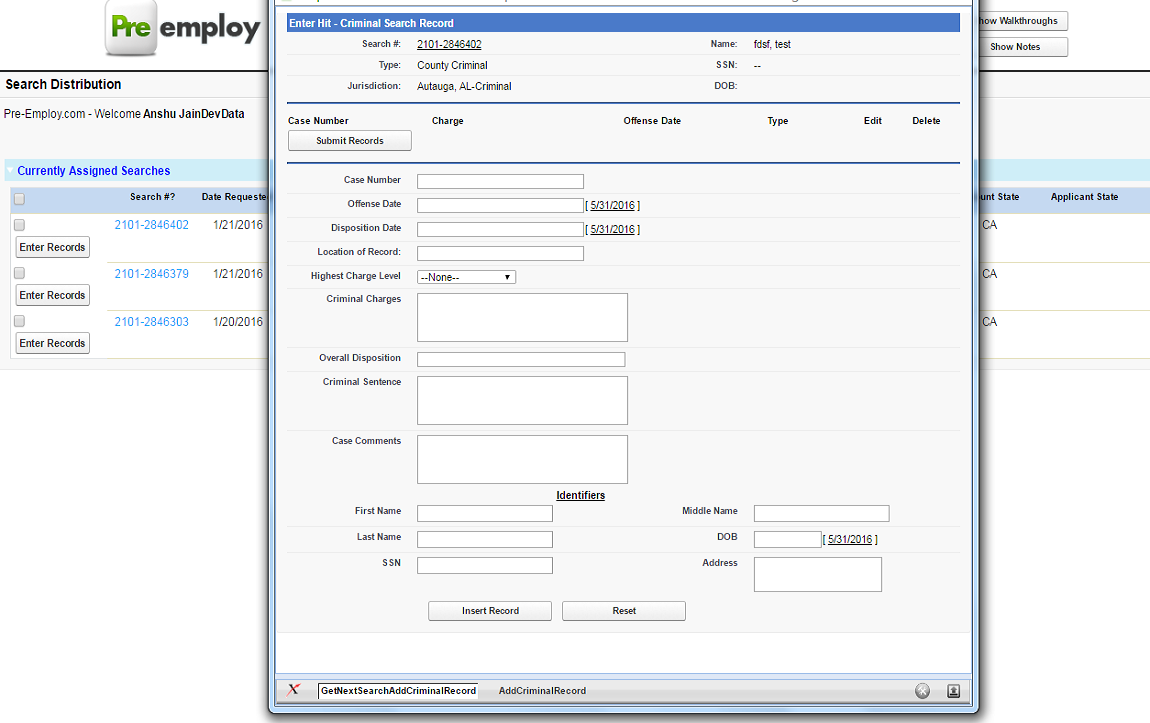
Hit Submission
When
users need to submit records (or submit hits as the internal
terminology goes) – a new button needs to be created on the
search record Named “Internal Hit Submission”. This will
have the same function as the “Submit
Entered Hits to PreEmploy”
button already present, however in addition it will trigger an update
to the same activity that was created when the search was
distributed, it will update
Search Status: Pending – Hit Submission Sent
Internal Notes: value of internal notes field
Action
Completion Time: [date/time user selected "Internal Hit
Submission"]
Like the Call Center
Get next, Management will need a page to monitor the distribution and
assignment of work for this – however since they are dealing
with a larger number of searches, the distribution should display by
groups and number of searches per user (instead of individual
searches). Management should also have the ability to “Force
Release” a user’s queue and release those searches
assigned to a user (in case they leave for the day).
General
note: Between 1500-2000 searches are processed daily by this
department. Users will work about 50-100 per hour.