About pre-employ case :
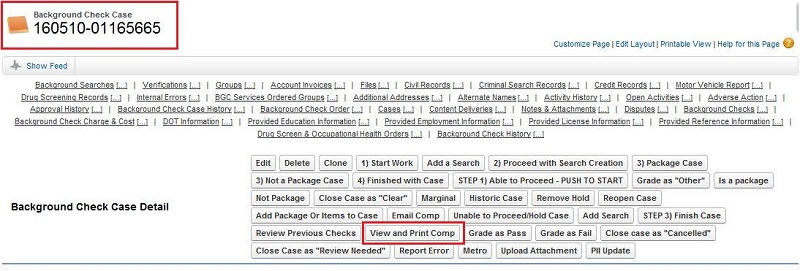
Pre Employ Case object is used to perform all the activities related to background check screen and tracking of work done by the CCO and other staffs.
This object hold the overall case status and get closed when got completed by the pre-employ team.
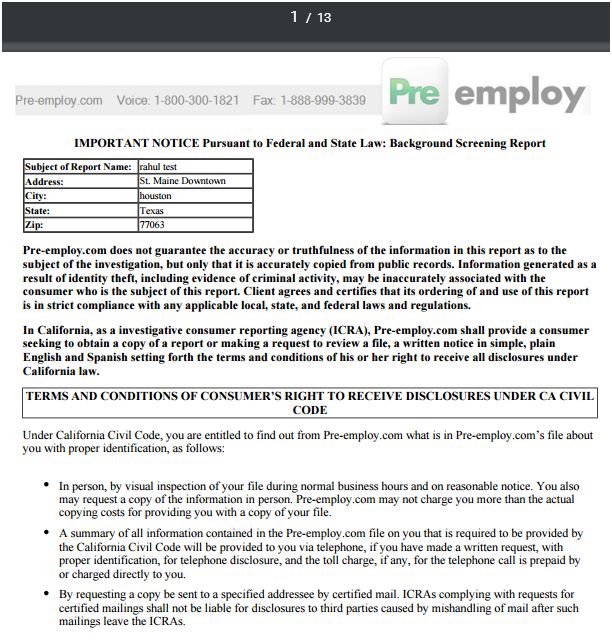
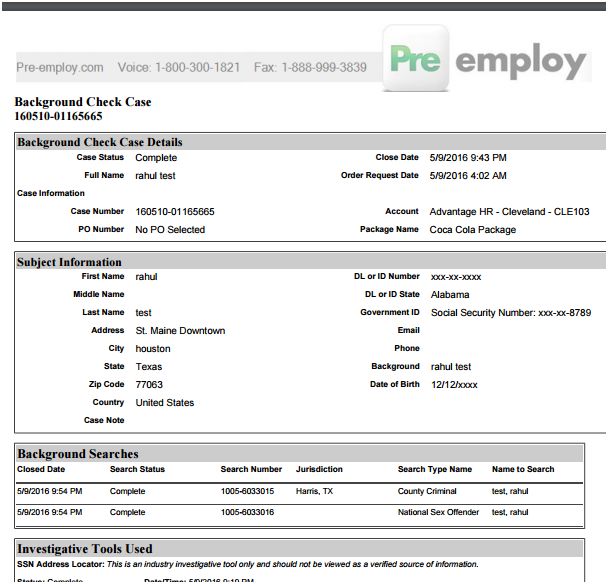
Comp Report which is a complete report about background check screening and tell the result of the background check screening of applicant also got generated from this object.
This object is a parent object of almost all objects which contains the researching data like background search, verifications,
criminal records etc and contains related list of them at its page layout.
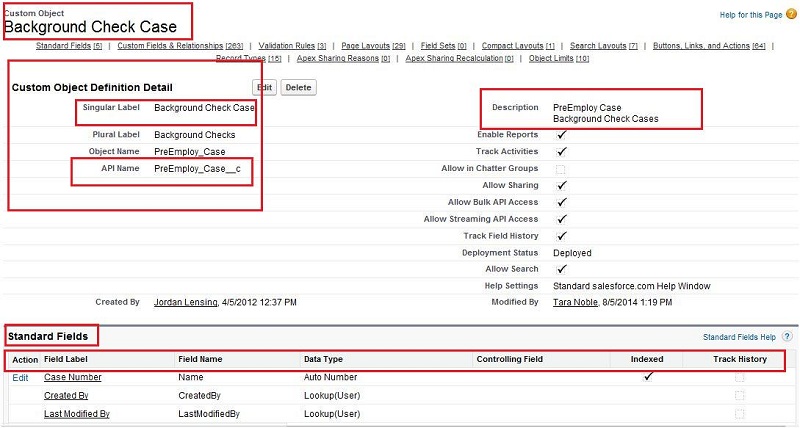
In pre-employ, pre-employ case object is knows as Background check case object and its API name is : Pre_Employ_case
How case is created in pre-employ?
In pre-employ, when a background check order is placed by the client and order is approved than the case is created for that background check order.
Case will be created automatically by flow : Step 9.B) Manual Client Approve Order or we can create manually with the help of internal push button on background check order page.
Inside case background searches will be created based on the service requested by the client.
How searches is created in pre-employ case?
In pre-employ case, searches is created based on the quantity of service request by the client in background search order.
Searches are created by : CreateScheduleSearches.exe. This exe is running automatically in every 15 minutes.
Steps to create background searches :
Step 1: After placing the background search order by the client to pre employ, case will be created for order either automatically by flow or manually by internal push order button on background order page layout.
Step 2: After case is created for background check order the status of 'internal case status' field will be : 'Formation on Hold - Pending Approval'.
Step 3: CreateScheduleSearches.exe will run in every 15 minutes. And this exe will create the searches based on the quantity of service requested by the client in background check order.
Step 4: After searches is created the status of the 'Internal case status' field will become : 'In Progress/Pending'.
Steps to close pre-employ case :
Step 1: Press the internal push button on the background check order page layout to create case number.
Step 2: press the STEP 3)Finish Case button on the pre-employ case page layout to make formation complete field checked.
Step 3: Background searches will be created automatically by CreateScheduleSearches.exe for case number.
Step 4: In all the background searches id of pre-employ case, change the status of 'Status' field to 'Complete' and 'Search Complete'
field checkbox will be checked.
Step 5: If all the searches of pre-employ case is completed and the 'Search Complete' field is checked
than the 'Case Status' field of pre-employ case object will be " Complete - All Results Clear" and the 'Case Closed' check box will be checked and the 'Close Date' will take the current date
on which case has been closed. Like this we can manually close the case.
How to reach pre-employ case object and its fields?
There are mainly two ways to reach out pre-employ case object and its fields.
1: With the help of 'Quick setup' search box.
2. With the help of 'All tab' button.
1: With the help of 'Quick setup' search box.
Step 1 : Click on the user name (Right corner of the screen).
Step 2 : Select setup.
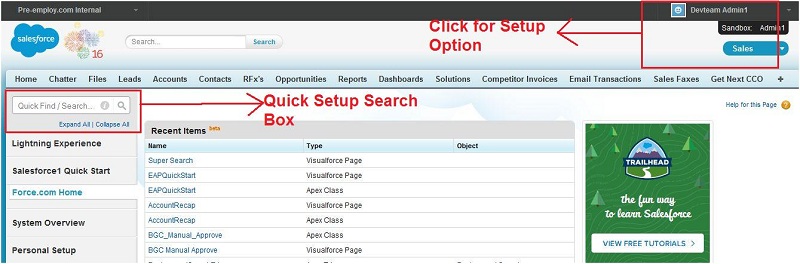
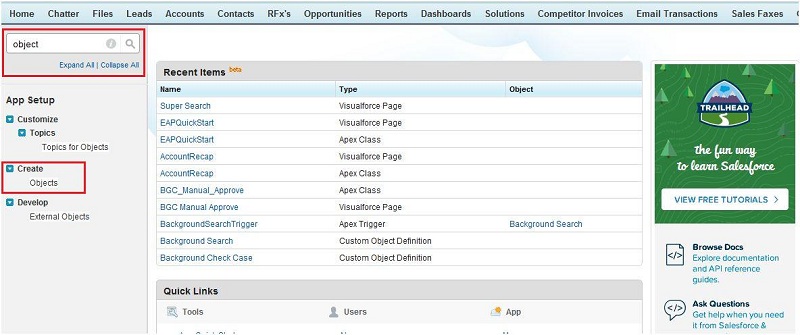
Step 3 : Write 'Object' in quick setup box.
Step 4 : Select objects under create tab.
Step 5 : All the custom objects are available here, search for background check case object.
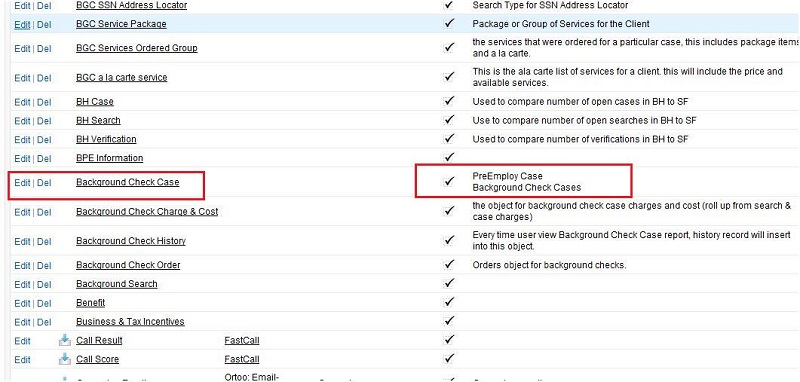
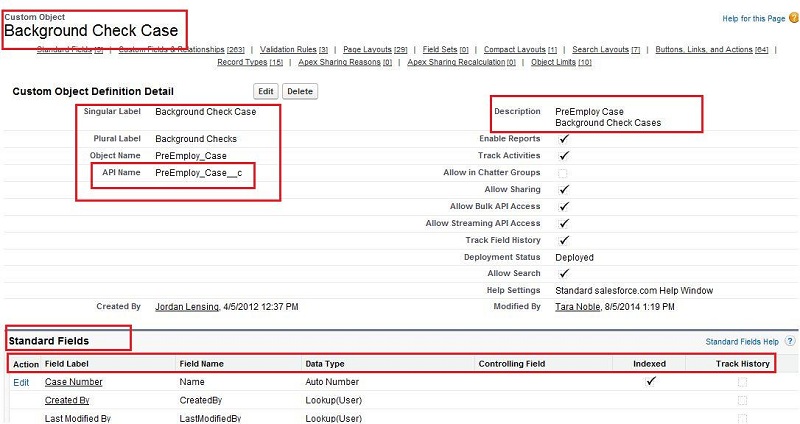
Step 6 : Click on the background check case object and you will get all the fields of background check case object.
2. With the help of 'All tab' :
Step 1 : Click on 'All tab' button on the home page of salesforce.
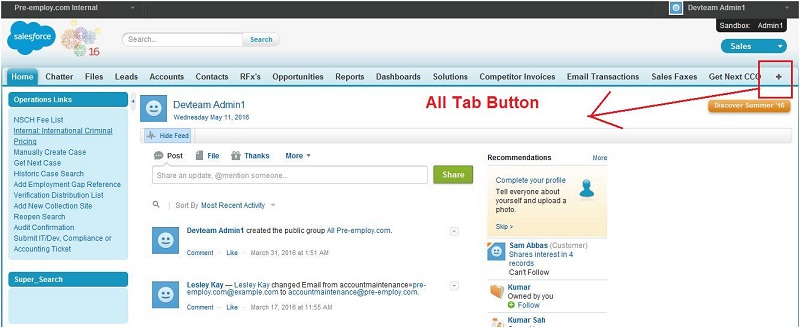
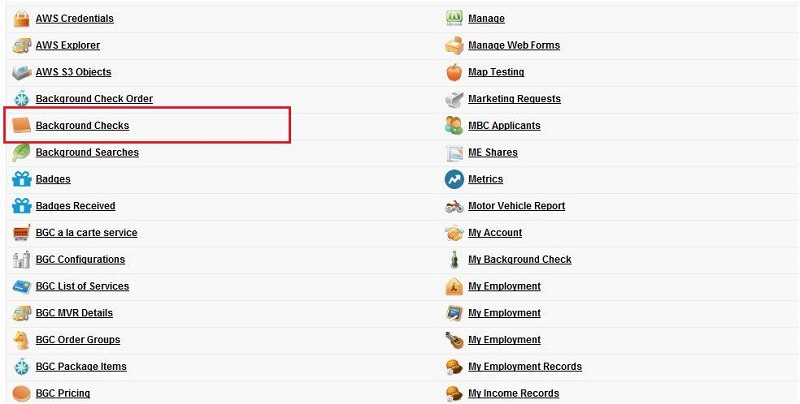
Step 2 : Search for background checks and click on background checks.
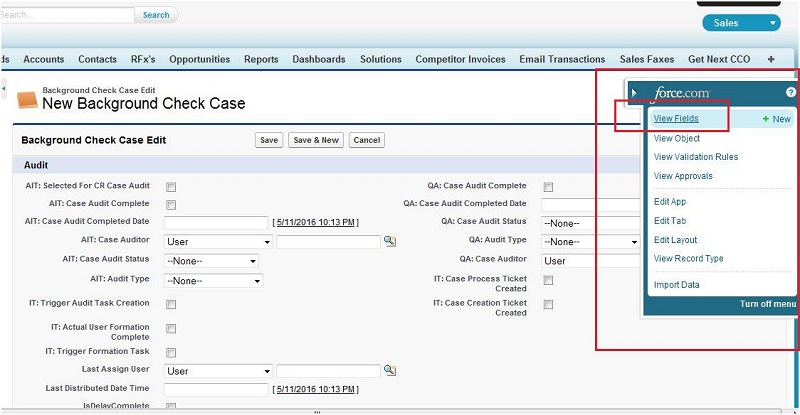
Step 3 : Click on the right side of quick button(Force.com)and select view fields.
Step 4 : All the standard and custom fields of background checks is available on this page.
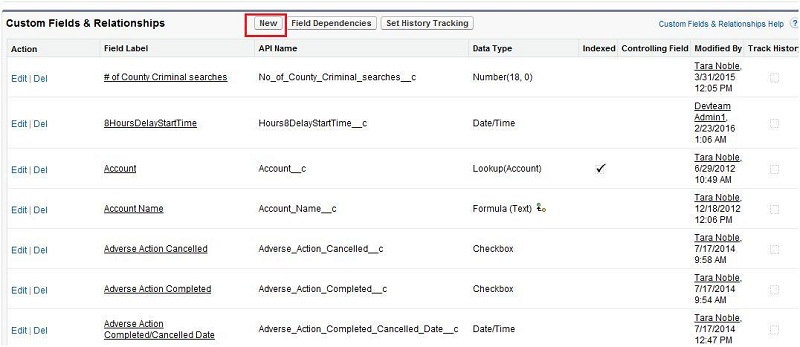
Note: We can create custom field of background check case object by clicking on new button on this page.
Important fields of pre-employ case :
In the 'subject personal information' section of the pre-employ case page, details of the client like first name,
last name, date of birth, email, phone no, government id, id type will be updated which is given by the client at the time of
background check order request. All these details will be filled automatically by the PreEmployCase trigger.
Important fields in pre employ case object are describe below :
1. Account :
Field name : Account
API name : Account__c
Data Type : Lookup(Account)
This field have the information about the account of the client through which order is placed.
This field has a lookup relation with account object. This field to use to show the relation between
background check case object and account object.
2. Case No :
Field name : Case Number
API name : Name
Data Type : Auto Number
Display Formate : {YY}{MM}{DD}-{00000000}
This field holds the case number of the particular background check order.
Case number is created automatically by flow : Step 9.B) Manual Client Approve Order but we can create
manually with the help of internal push button on background check order page. It is a standard object of background check
case object with data type : Auto Number.
The display format of case number explain below :
{YY} : Last 2 digit of the current year
{MM} : Current month
{DD} : Current date
{00000000} : Initial no
3. Record Type :
Field name : Record Type
API name : RecordType
Data Type : Record Type
This field have the information about the record type of the case. Example : if the case is on hold than the
status would be :'Case on hold', if the record is completed than the Status would be : 'Completed'. This field value is updated with
the help of PreEmployCase trigger.
4. Internal Case Status
Field name : Internal Case Status
API name : Report_Case_Status__c
Data Type : Picklist
This is a picklist type of field and it will be updated based on the status of the background searches.
Example : If the status of the searches is hit than the status of this field will be hit. The value of this field is updated by PreEmployCase trigger.
'Process on Hold - Pending Approval', 'Complete - All Results Clear', 'Complete', 'Hit', 'Deleted', 'Please Audit', 'Clear' are some example of the internal case status which will be update based on the status of the background searches.
5. Case Closed :
Field name : Case Closed
API name : Report_Case_Closed__c
Data Type : Checkbox
This is a checkbox type of field. If all the background searches of pre-employ case is completed and the 'Search Complete' field is checked
and 'Case Status' field of pre-employ case object will be 'Complete - All Results Clear' then 'Case Closed' check box will be checked otherwise remain unchecked.
This field value is updated by PreEmployCase trigger.
6. Closed Date:
Field name : Closed Date
API name : Report_Closed_Date__c
Data Type : Date/Time
This is a Date/Time type of field. It holds the value of the date when the case is closed.
When the status of case status field is completed and if case closed field checkbox is checked than this field will take the value of
current date when that case is closed. This field value is updated by PreEmployCase trigger.
7. Formation Complete
Field name : Formation Complete
API name : Formation_Complete__c
Data Type : CheckBox
This is a checkbox type of field, when we press the 'STEP 3)Finish Case' button on pre-employ case
then this field value will become checked otherwise remain unchecked. This field value is updated by PreEmployCase trigger.
About pre-employ case trigger :
1. PreEmployCase Trigger
PreEmployCase trigger is working behind every background check order and background checks. This trigger start working on four
condition for all pre-employ case object.
1. (Trigger. isBefore && Trigger. isInsert)
2. (Trigger. isAfter && Trigger. isInsert)
3. (Trigger. isBefore && Trigger. isUpdate)
4. (Trigger. isAfter && Trigger. isUpdate)
Whenever new background check case is created or any background check case or background searches is updated, this trigger automatically runs
according to inserted data by the client or updated data by the other trigger of per-employ or client.
Pre-Employ case important button :
-
Add a Search
-
STEP 3) FINISH CASE
-
Delete
-
Email Comp
-
View And Print Comp
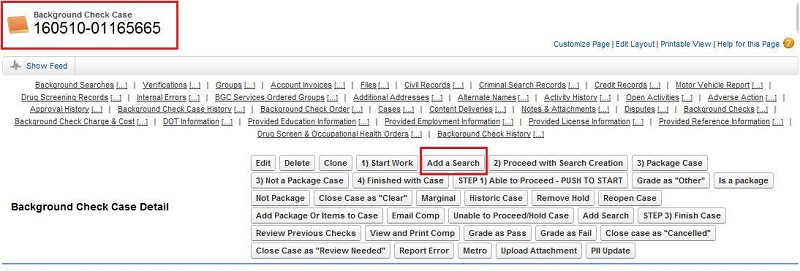
1. Add a Search
This is a javascript button use to add additional searches for the pre-employ case.
If a client wants to add additional services to his background check order than he can use this button to add additional
services in the same background check order number.
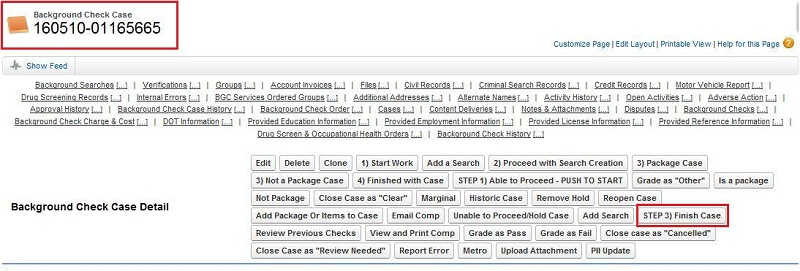
2. STEP 3) FINISH CASE :
This is a javascript button use to update below fields with its value.
Formation Complete Field : 'True'
Case Status : 'In progress/Pending'
Formation date completed : new date()
Formation Completed By : Current User Id.
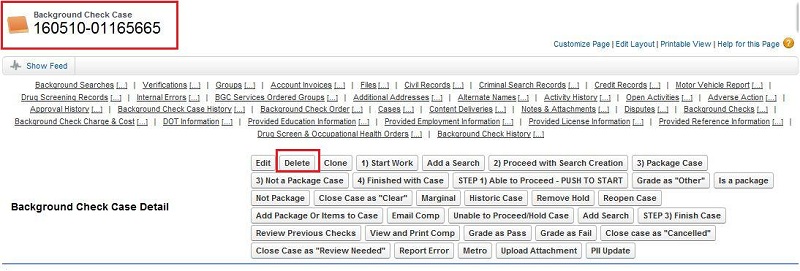
3. Delete
This is a javascript button, use to delete the pre-employ case.
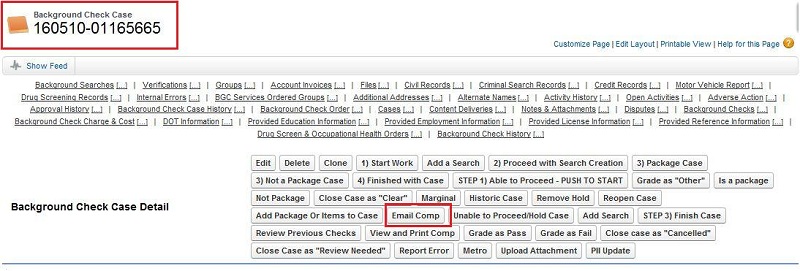
4. Email Comp
This is a javascript button use to email the comp report to the client. Comp report are the pdf type of
report which is based on the service requested by the clients in background check order. All the personal information,
service related information are available in this comp report.
5. View And Print Comp :
This is a javascript button use to view the comp report. Comp report are the pdf type of report,
which is based on the service requested by the clients in background check order. All the personal information,
service related information are available in this comp report.