Taleo Error Tracking & Fix
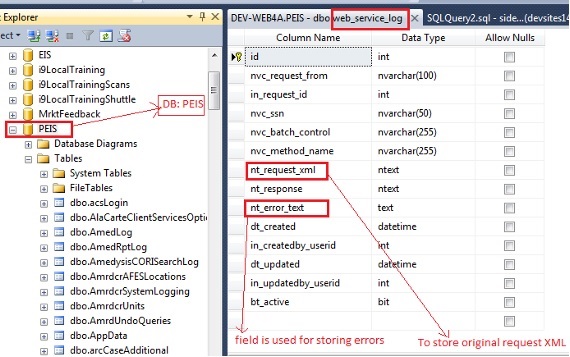
We have a logging table in SQL DB i.e. web_service_log and we can query on this table for any error and original XML with all requested data.
Structure of table:
Steps to query for errors:
1) First we need to query for the original XML as we have to get SSN NO./Batch Control Code for further queries:
“SELECT nt_request_xml FROM web_service_log WHERE nvc_request_from = 'Taleo' AND nt_request_xml like '%[data like names etc.]%' AND dt_created BETWEEN '[Date Value]' AND '[Date Value]' ORDER BY id DESC”
Note: Original requested XML will necessarily be logged in case of any errors except server & DB connectivity errors.
2) Need to get the SSN No. from XML which will be in the following node:
<GovernmentId countryCode="US" issuingAuthority="SSN">999999999</GovernmentId>
3) Need to get the batch control number, requestor control, code transaction id (all are aliases) from XML which will be in the following node:
<IdValue name="transactId">1010006</IdValue>
4) In case, where SSN No./ BatchControlNo. is saved in the table, we can query for the errors logged as follows:
“SELECT nt_error_text, dt_created FROM web_service_log WHERE nvc_request_from = 'Taleo' AND nvc_batch_control = '[Batch Control No]' OR nvc_ssn = '[SSN NO.]' ORDER BY id DESC”
5) In case, where SSN No. & BatchControlNo. was not logged when the error occurred, we can query for the errors as follows:
“SELECT * FROM web_service_log WHERE nvc_request_from = 'Taleo' AND dt_created BETWEEN '[Date Value]' AND '[Date Value]' ORDER BY id DESC”
6) If the error is provided by client and error date duration is known, we can query as follows:
“SELECT nt_error_text, dt_created FROM web_service_log WHERE nvc_request_from = 'Taleo' AND dt_created BETWEEN '[Date Value]' AND '[Date Value]' AND nt_error_text like '%[Error]%' ORDER BY id DESC”
How to Reproduce the Error (Steps):
1) Retrieve the requested XML during which request error was generated, as got in the first step of error tracking by the query as follows:
“SELECT nt_request_xml FROM web_service_log WHERE nvc_request_from = 'Taleo' AND nt_request_xml like '%[data like names etc.]%' AND dt_created BETWEEN '[Date Value]' AND '[Date Value]' ORDER BY id DESC”
2) Modify the above XML for the values as follows:
2.1) First, change the following node's highlighted(in bold) values by Dev server values as follows:
<BackgroundCheck xmlns="http://ns.hr-xml.org/2004-08-02" xmlns:tleo="http://www.taleo.com/passport/backgroundcheck/1.2" xmlns:xsi="http://www.w3.org/2001/XMLSchema-instance" xsi:schemaLocation="http://ns.hr-xml.org/2004-08-02 BackgroundCheck.xsd" userId="aloktest" password="test1234" account="12950">
2.2) Change the transaction ID (batch control no., requestor control code, transaction id, all are aliases) at two places in XML as follows:
I) <ReferenceId idOwner="Taleo">
<IdValue name="transactId">1010006</IdValue>
</ReferenceId>
II) <AdditionalItems type="OriginatorInfo" qualifier="transactId">
<Text>1010006</Text>
</AdditionalItems>
Note: During every testing transaction id should be changed because it is defined as unique value.
3) Change the names and email ids in request XML by test data.
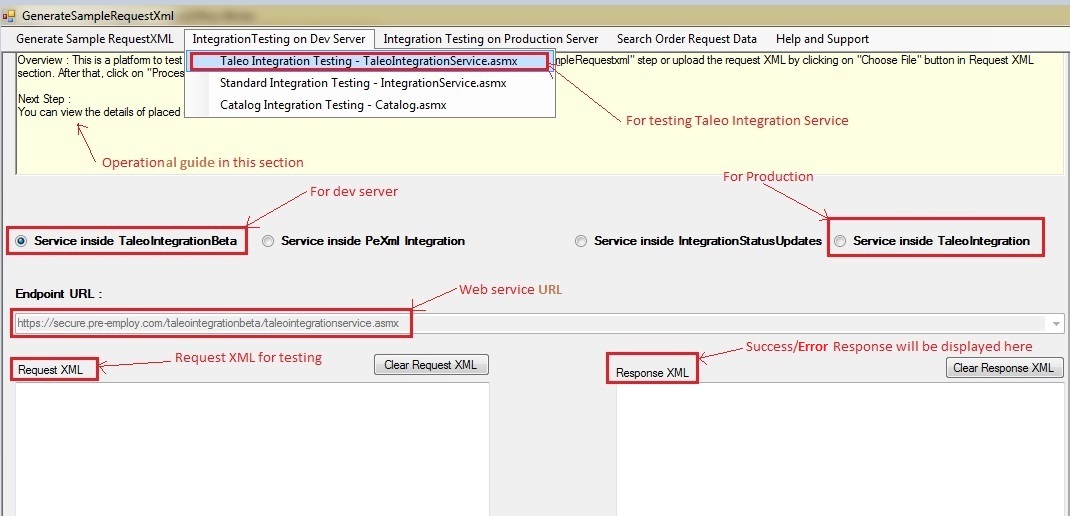
4) We can now test this request XML by using testing utility “TaleoIntegrationProcesses.exe” committed into svn at location: “http://vsvn.arcscorp.net:3391/svn/arcs/arcsdev.com/preemploy/utilities/TaleoIntegrationProcesses”
Note: Operational guide for the utility “TaleoIntegrationProcesses.exe” is given on start up of this utility. SS is given below:
Where to fix Errors:
We have the source code of web service at location: “http://vsvn.arcscorp.net:3391/svn/arcs/arcsdev.com/preemploy/secure.pre-employ.arcsdev.com/TaleoIntegrationBeta”
Used DLL's source code at location: "http://vsvn.arcscorp.net:3391/svn/arcs/arcsdev.com/preemploy/utilities/DEVPreEmployIntegrationVS2010/PreEmployClientIntegrationAWS"
How to debug:
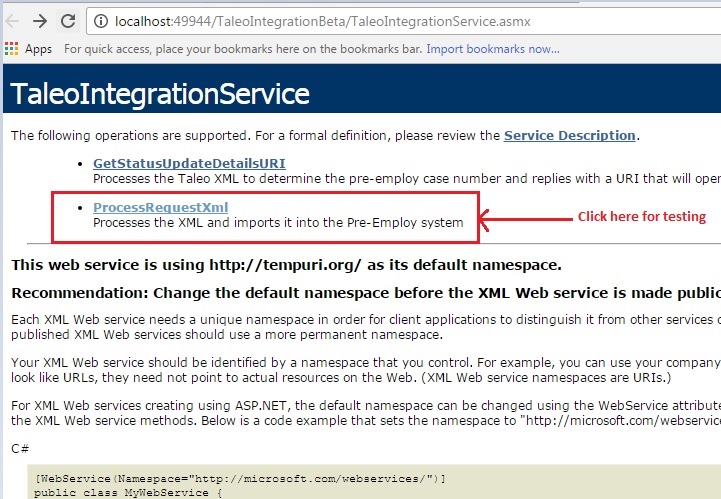
Just run the webservice on local system like:
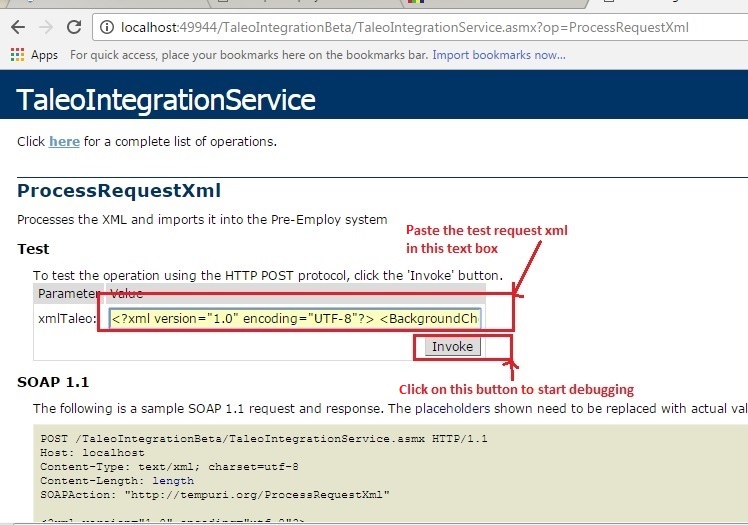
On the local system, the visual studio provides the input boxes for entering the test request XML and a submit button to hit the web service as given in below SS.
After copying the request XML into text box click on Invoke button as following SS:
Check success status of Request:
We need to query in following tables to see the successful posting of requested data:
- select top 10 * from requests order by requestid desc
- select * from requests where requestid = [Request ID]
- select * from requestsubjects where requestid = [Request Id]
- select * from requestsubjecteducation where requestsubjectid = [Requestsubject Id]
- select * from requestsubjectemployment where requestsubjectid = [Requestsubject Id]
- select * from requestsubjectreferences where requestsubjectid = [Requestsubject Id]
- select * from requestservices where requestid = [Request Id]
If data is available in every table as per request XML then it represents the success of request.