Create product into salesforce
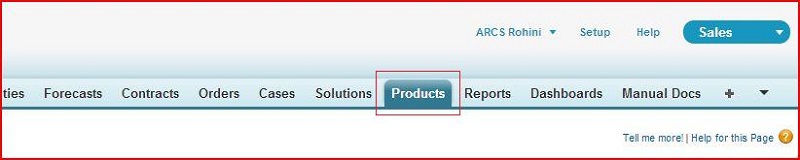
- Click on 'Products' tab.
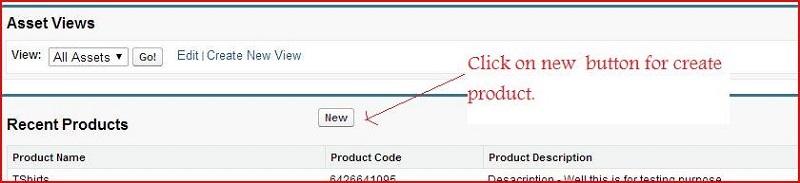
- Click on new button to create product.
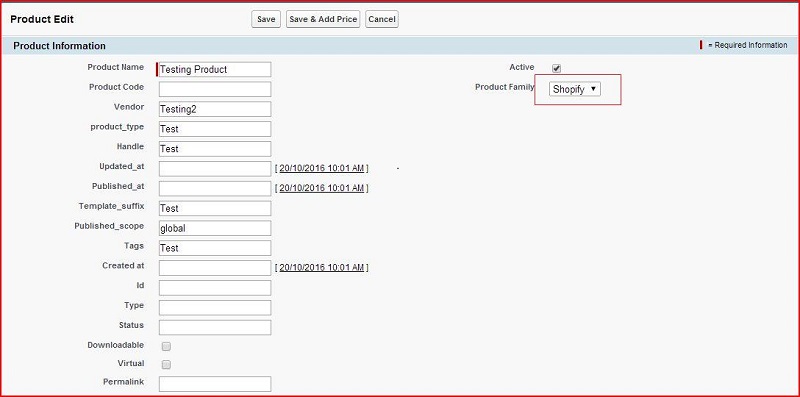
- Fill details except 'Product Code' and set product family to 'Shopify'.
- Click on save button.
Sync salesforce product to shopify
Steps for sync salesforce product to shopify.
- Open 'SyncProducttoshopify' visual force page to sync product..
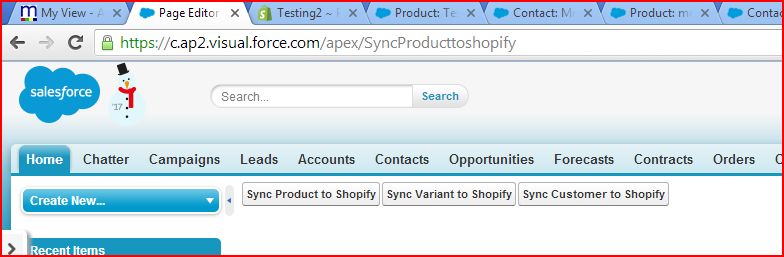
- Click on 'Sync Product to Shopify' button.
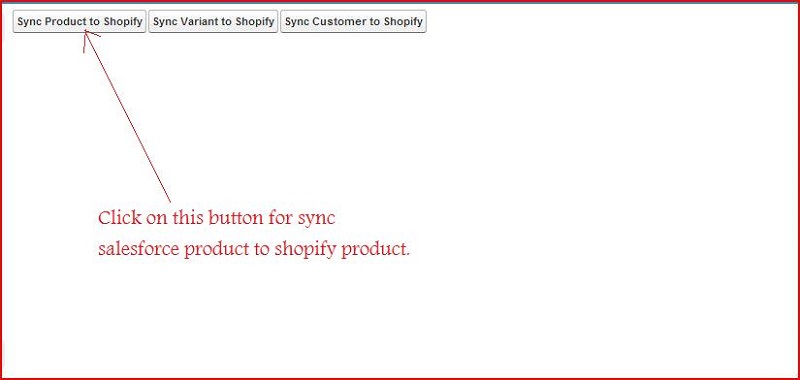
- Process will start to sync product to shopify.
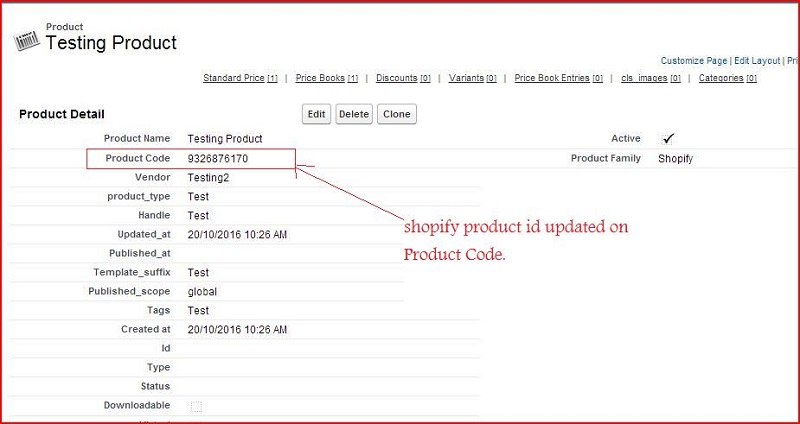
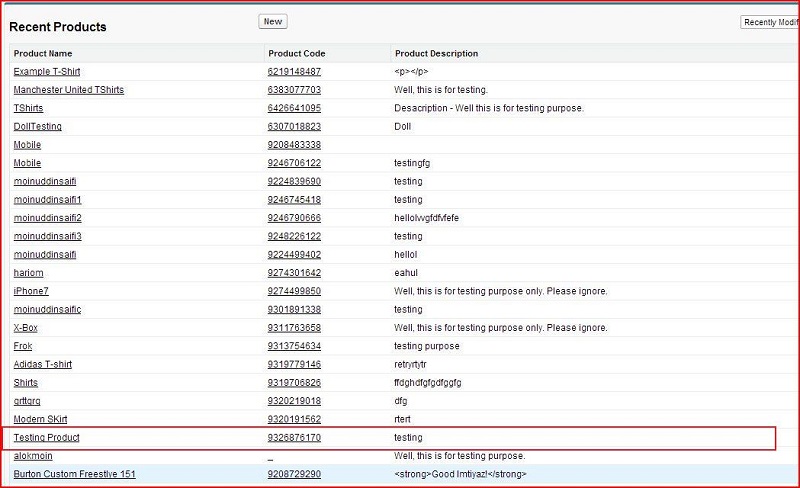
- Shopify product id will update into 'ProductCode' field of salesforce product and display list of sync product.
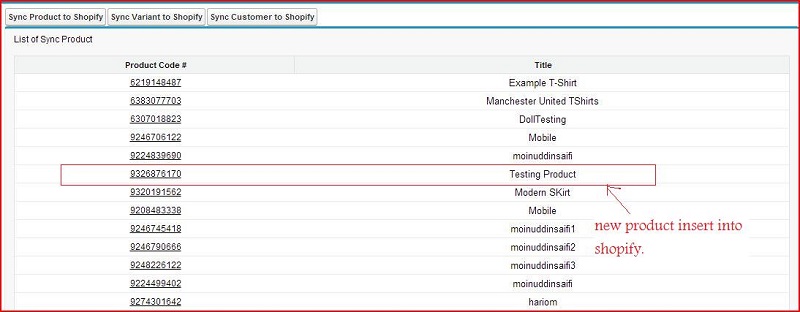
- Click on 'Product Code #' to see details of product.
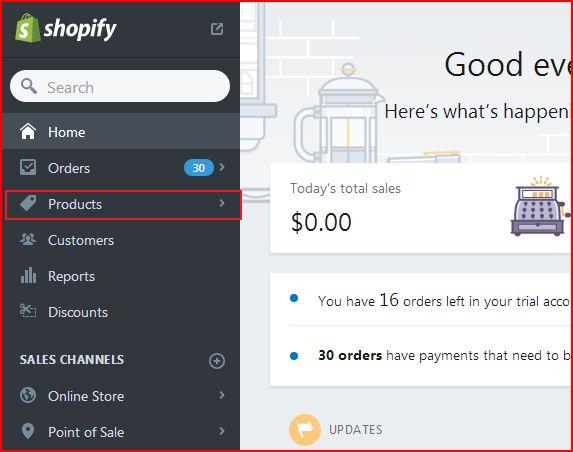
- Open shopify account using given url :- "https://testing2-103.myshopify.com/admin" with valid credential and click on 'Products'.
- Search product by product name like 'Testing Product'.
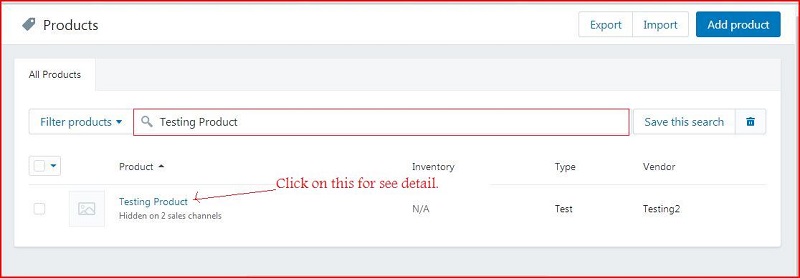
- Click on 'Testing Product' then product detail will open.
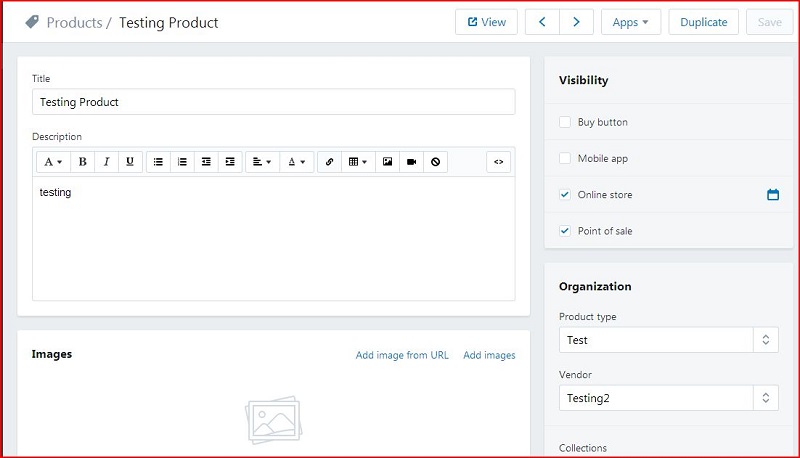
- Update value in salesforce product except 'Product Code' and follow above steps for sync.
Create product pricing in salesforce
Steps for add price into salesforce product.
- Click on 'Products' tab.
- Select product to add price.
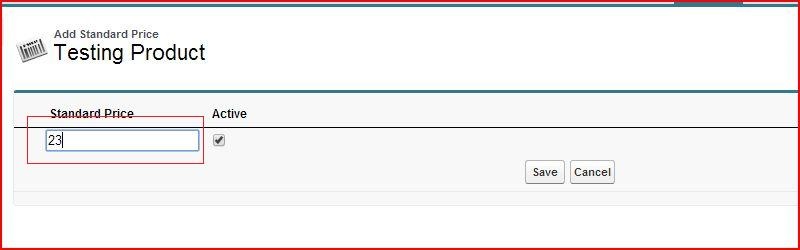
- Go to 'Standard Price' section and click on add button.

- Fill standard price and click on save button.
- Go to 'Price Books' section and click on 'Add to Price Book' button.

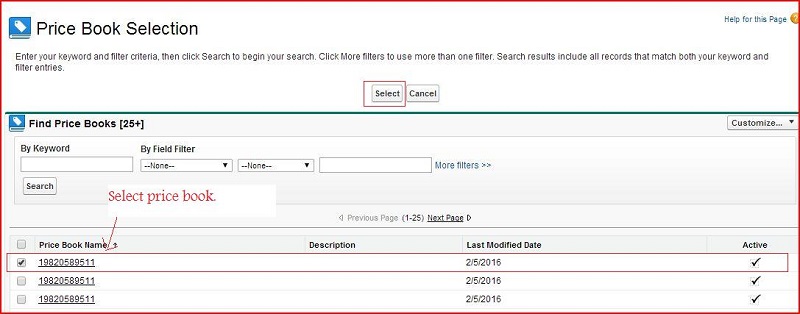
- Select price book and click on select button.
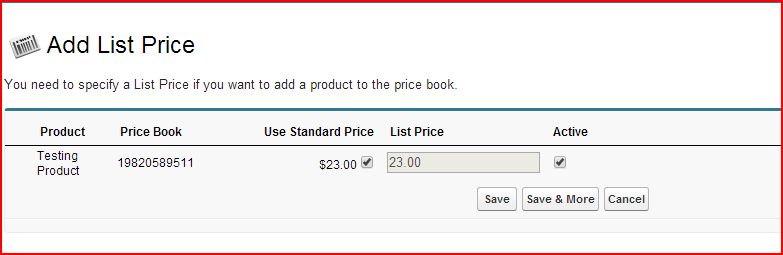
- Fill 'List Price' or check 'Use Standard Price' checkbox and click on save button.
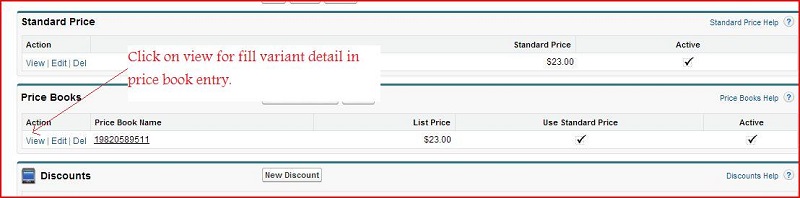
- Go to 'Price Books' section and click on 'View'.
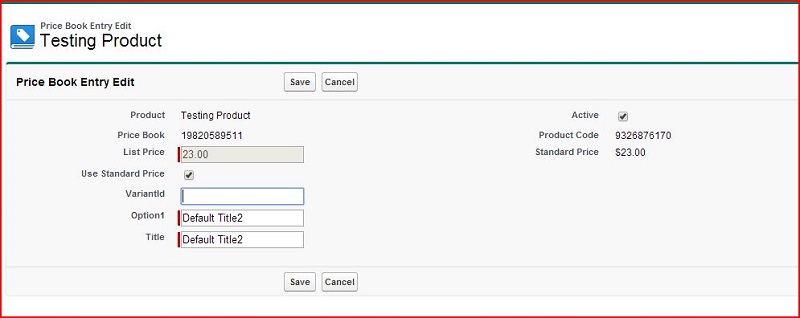
- Fill variant details except 'VariantId' and click on save button.
Sync salesforce product price to shopify variants
Steps for sync salesforce product price to shopify variants.
- Open 'SyncProducttoshopify' visual force page to sync price..
- Click on 'Sync Variant to Shopify' button.
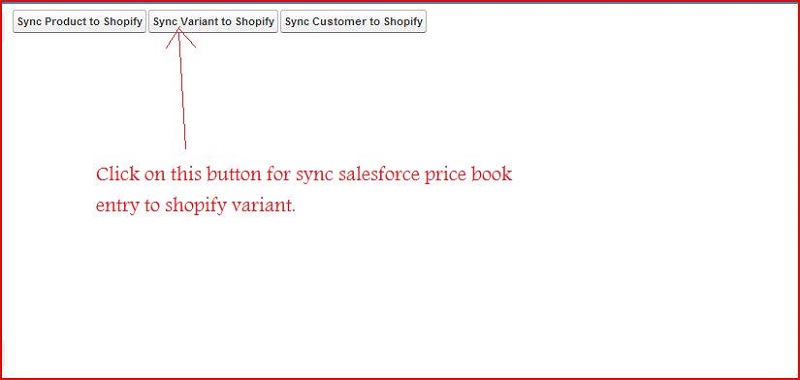
- Process will start to sync product price to shopify.
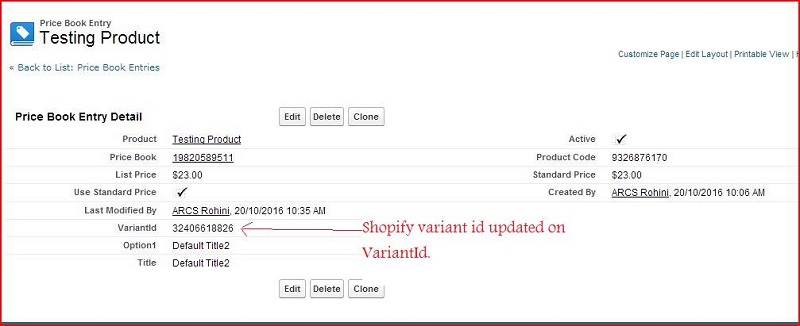
- Shopify variant id will update into 'VariantId' field of salesforce price book entry and display list of sync variant.
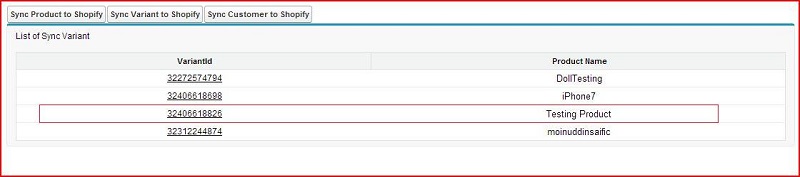
- Click on 'VariantId' to see details of price book entry.
- Open shopify account using given url :- "https://testing2-103.myshopify.com/admin" with valid credential and click on 'Products'.
- Search product by product name like 'Testing Product'.
- Click on 'Testing Product' then product detail will open.
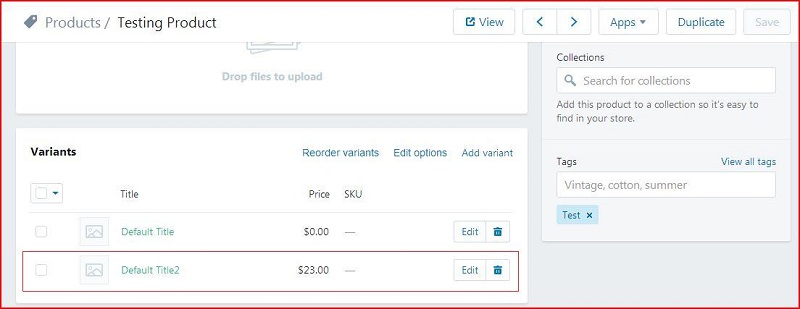
- Update value in salesforce price book entry except 'VariantId' and follow above steps for sync.
Create customer in salesforce
Steps for create account and contact into salesforce for customer.
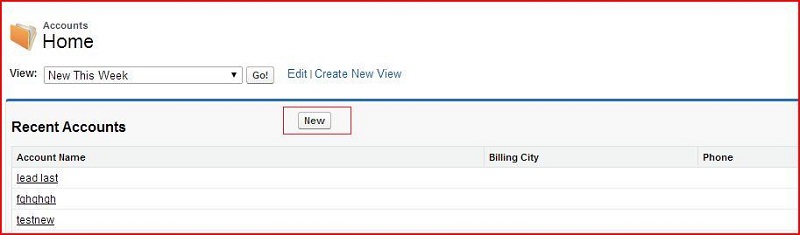
- Click on 'Accounts' tab.
- Click on new button.
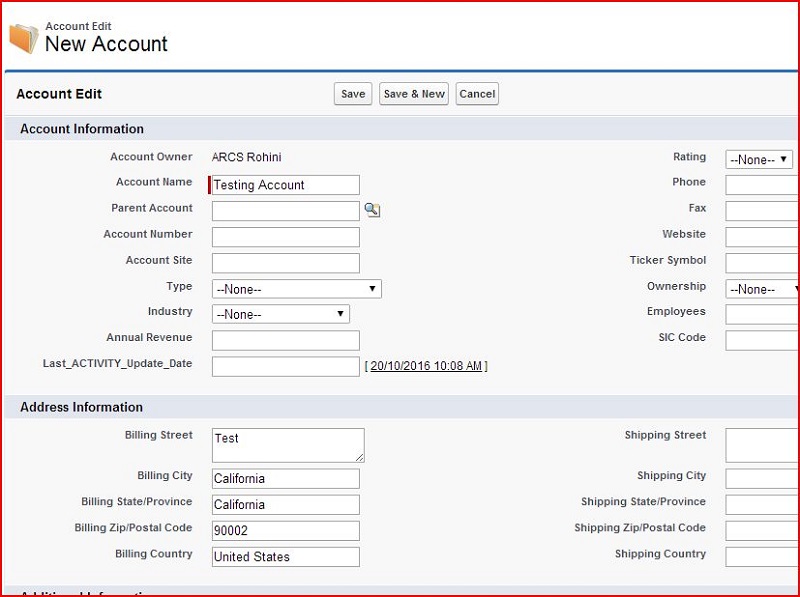
- Fill account details and click on save button.
- Go to 'Contact' section and click on 'New Contact' button.

- Fill contact details with unique email and contact type except 'Shopify_Customer_Id' and 'Customer Address Id'. Contact type should be 'Shopify'.
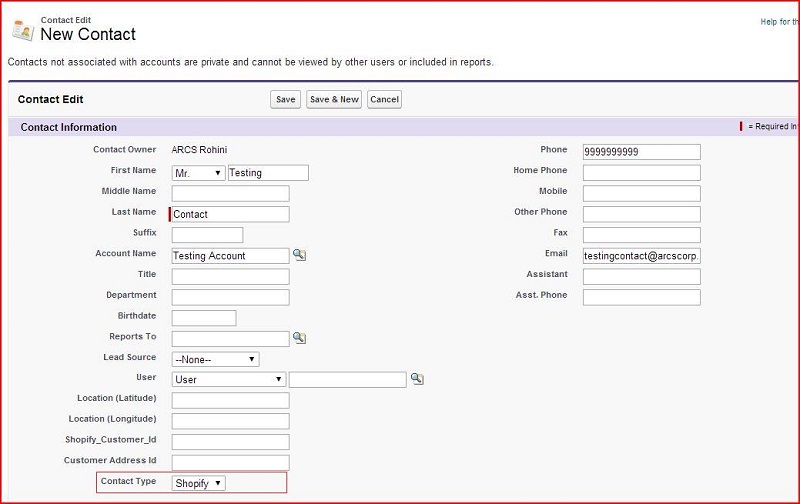
- click on save button.
Sync salesforce account and contact to shopify customer
Steps for sync salesforce account and contact to shopify customer.
- Open 'SyncProducttoshopify' visual force page to sync customer..
- Click on 'Sync Customer to Shopify' button.
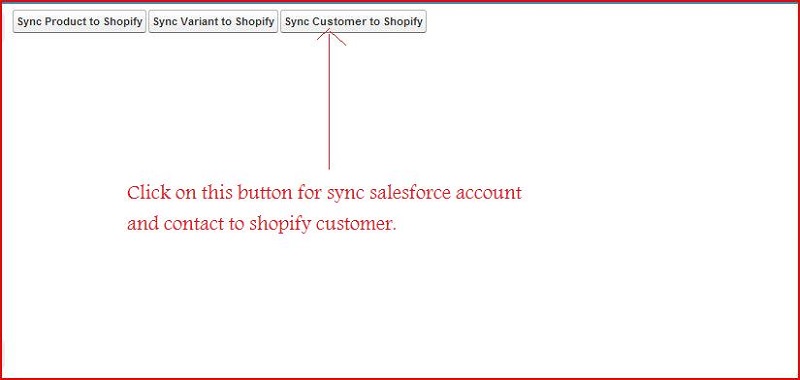
- Process will start to sync customer to shopify.
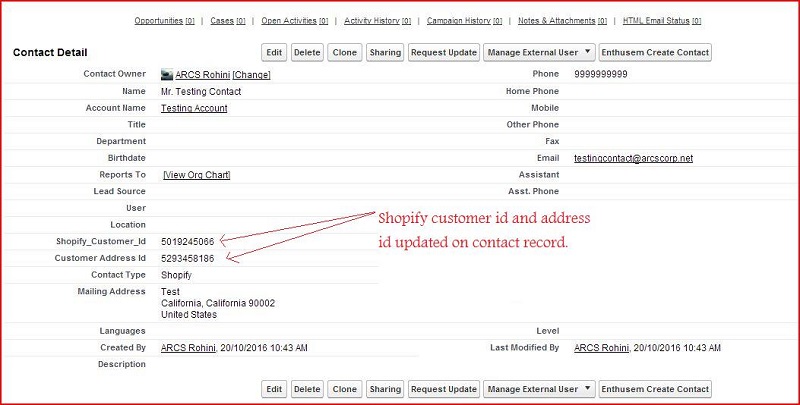
- Shopify customer id & address id will update into 'Shopify_Customer_Id' & 'Customer Address Id' field of salesforce contact and display list of sync customer.

- Click on 'Customer Id' to see details of contact.
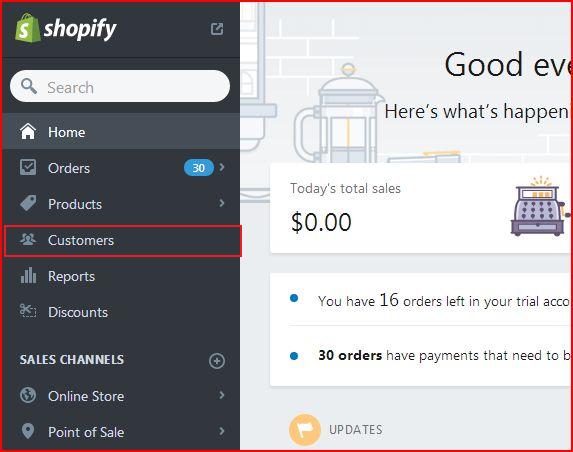
- Open shopify account using given url :- "https://testing2-103.myshopify.com/admin" with valid credential and click on 'Customers'.
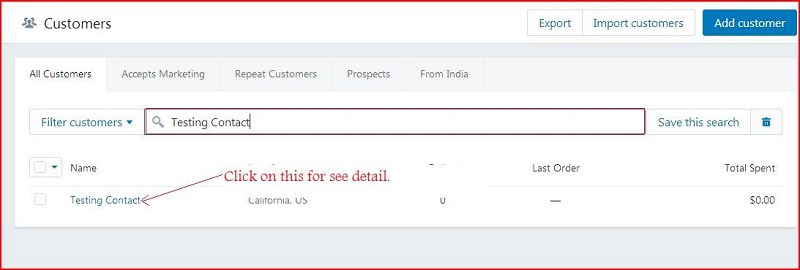
- Search customer by contact name like 'Testing Contact'.
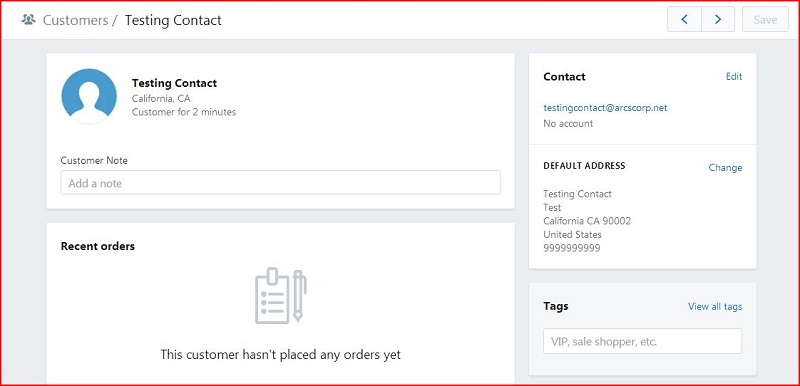
- Click on 'Testing Product' then product detail will open.
- Update value in salesforce account & contact except 'Shopify_Customer_Id' & 'Customer Address Id'
and follow above steps for sync.