User Creation :
-
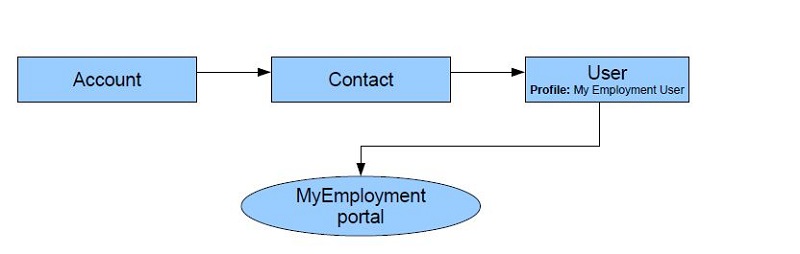
Go to Account
-
Create a contact for that account
-
On Contant detail page click on 'Manage Expternal User button ----------------> Click Enable Customer User link'
-
Create an user with profile : My Employment User
-
Set password
Note: Note that MyEmployment portal user is created.
My Employment Portal Login Page:
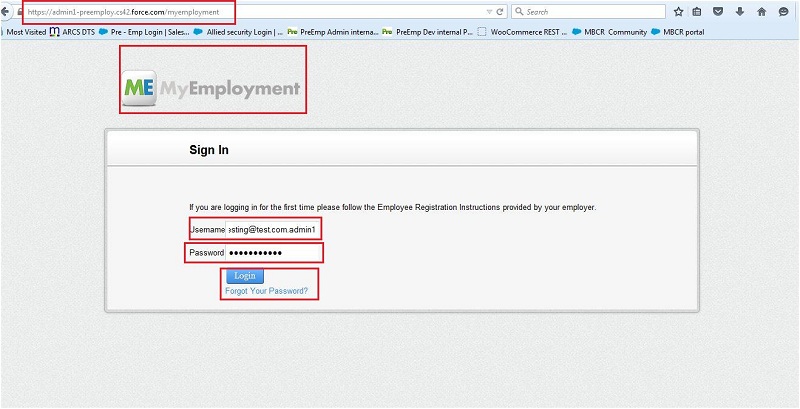
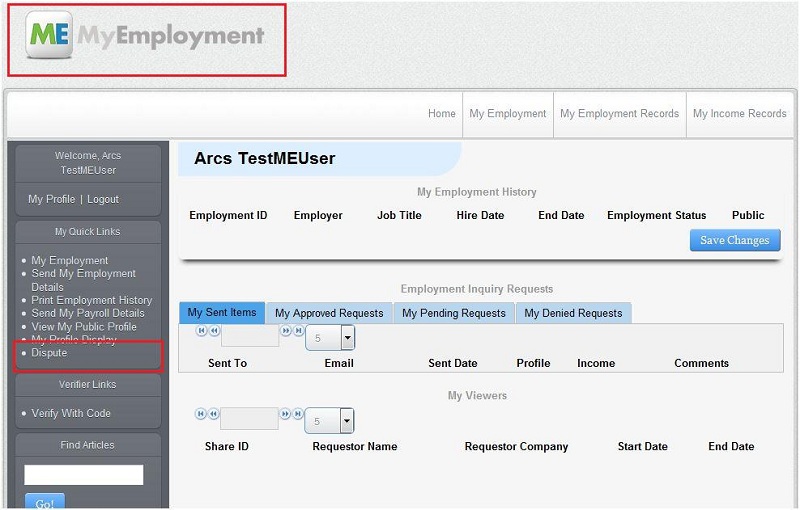
When user logged in to MyEmployment portal user can view his Employment History record associated with the user contact.
Please see the below SS.
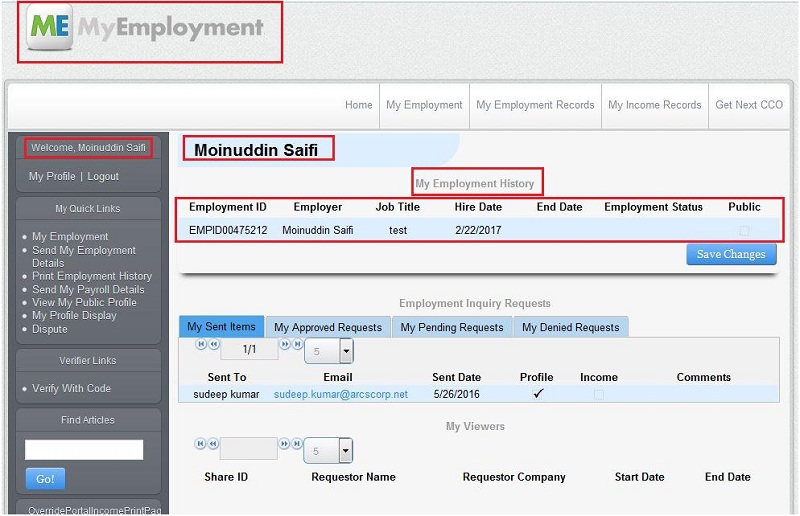
Below section of Employment Inquiry Requests Displays the data when we send request for payroll details on clicking Send My Payroll Details link on left menu.
Please see the below SS.
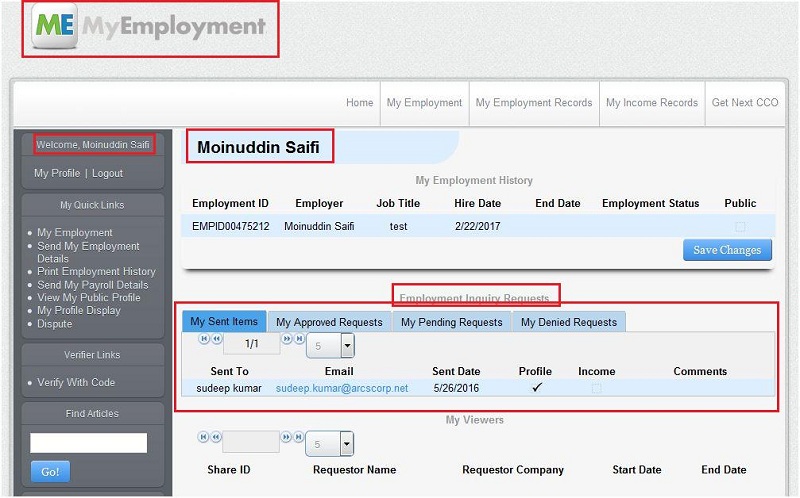
Note: My Employment link also redirect to this page.
Employment History record creation:
In internal salesforce :
-
Go to user contact.
-
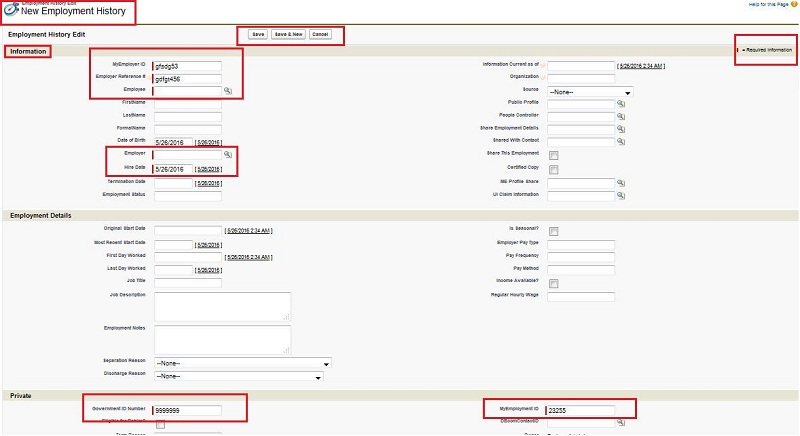
In contact related list of Employment History click on New.
-
Create a new record, fill the data as Employee : '', Employer: '' etc.
-
Click Save
-
Note that Employment History record is created and will be viewed on the portal on My Employment History page.
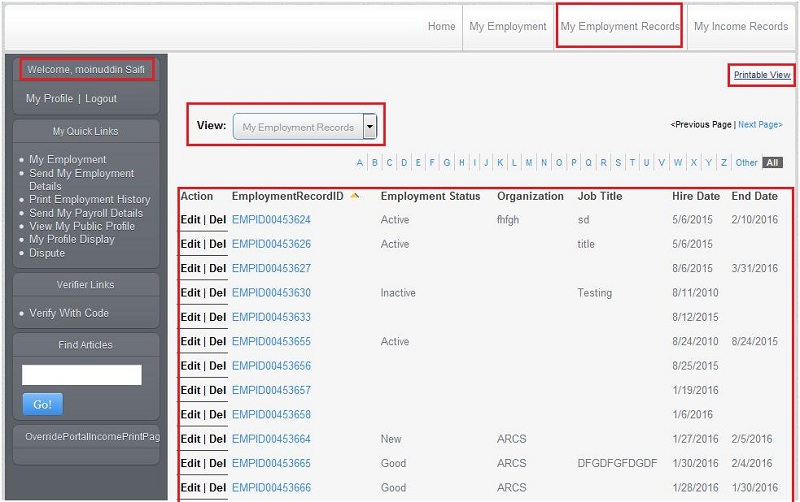
My Employment Record page
This page is a view list page of Employment History records associated with the login user.
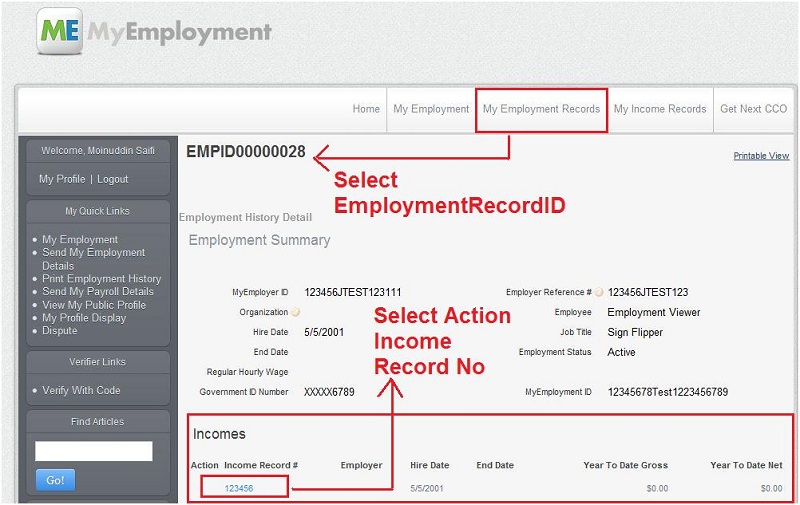
Here user can click on the Employment History record link and view the details and at client side.
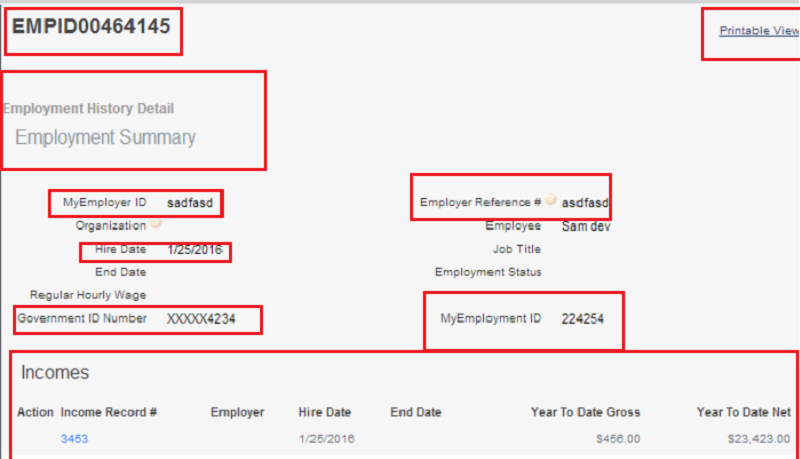
Employment History Detail
On this page user can view the details of employment history record and can see associated Employment Summary income record and payroll details records.
Employment Summary Income record creation
In internal salesforce :
-
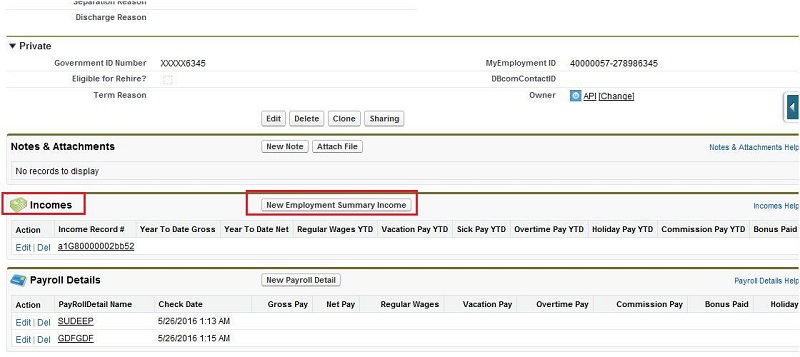
Go to Employment History record page.
-
In Employment History related list of Employment Summary Income click on New.
-
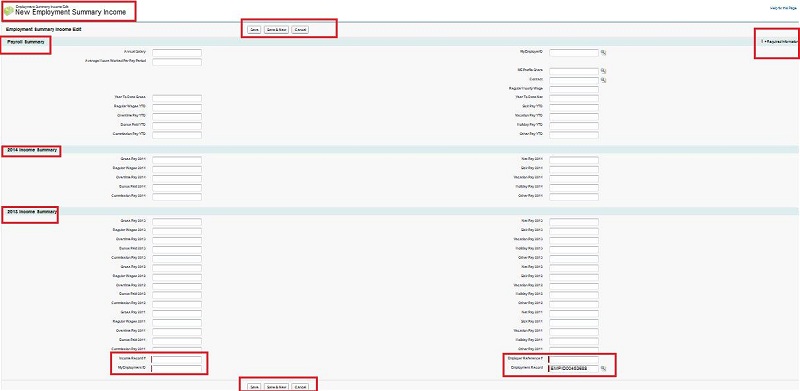
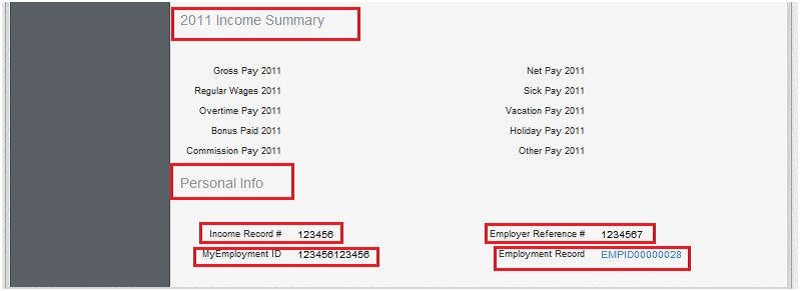
Create a new record, fill the data as Employment Record : '', MyEmployment ID: '', Employer
Reference #: '', Contact: '' etc.
-
Click Save.
-
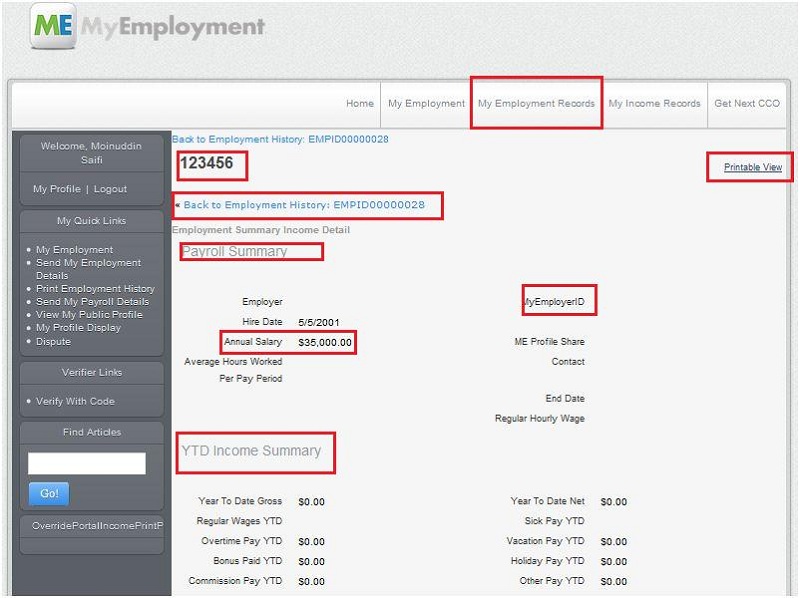
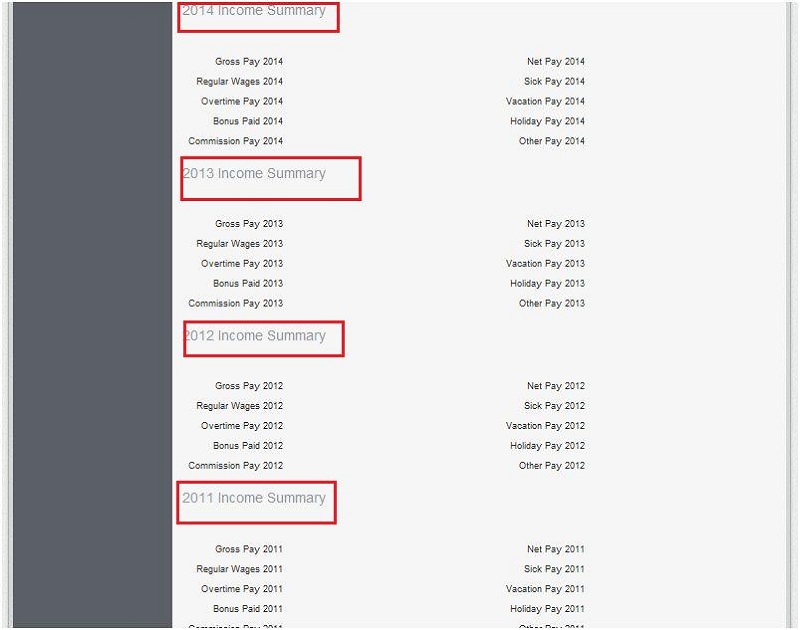
Note that income record is created and will be viewed on the portal on Employment History detail page. (Please See Previous slide).
Please see the SS below.
Please fill the required fields and click on save,
Employment Summary Income Detail on portal
Payroll Detail record Creation
In internal salesforce :
-
Login in to salesforce.
-
Click on all tab button on home page.
-
Search for 'Employments' and click on 'Employments'.
-
Click on EmploymentRecordID.
-
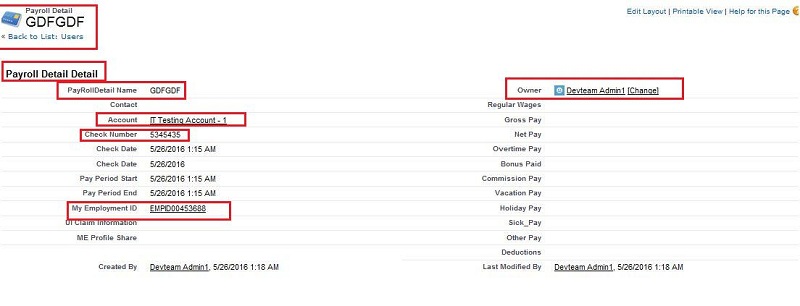
Now Please follow the below SS for Payroll Detail record Creation.
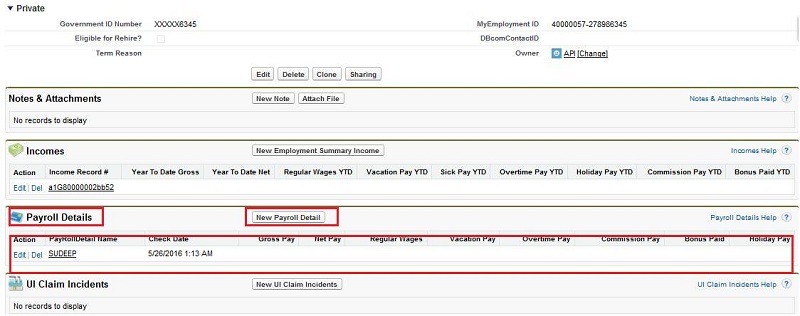
Fill the details and click save
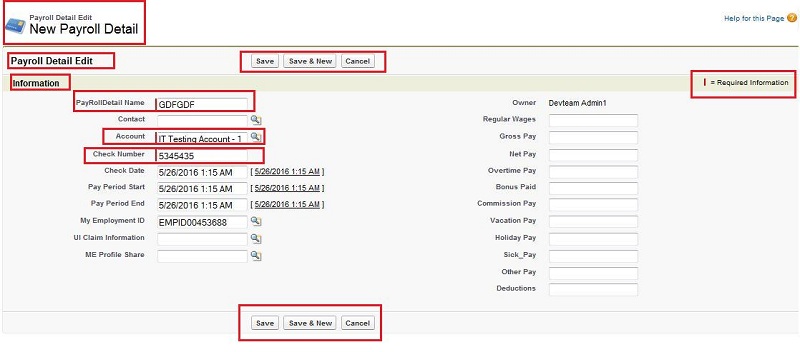
Payroll Detail page
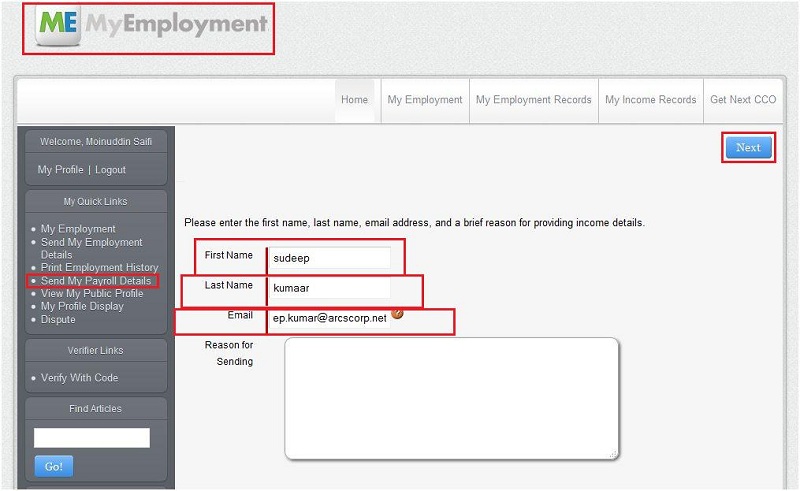
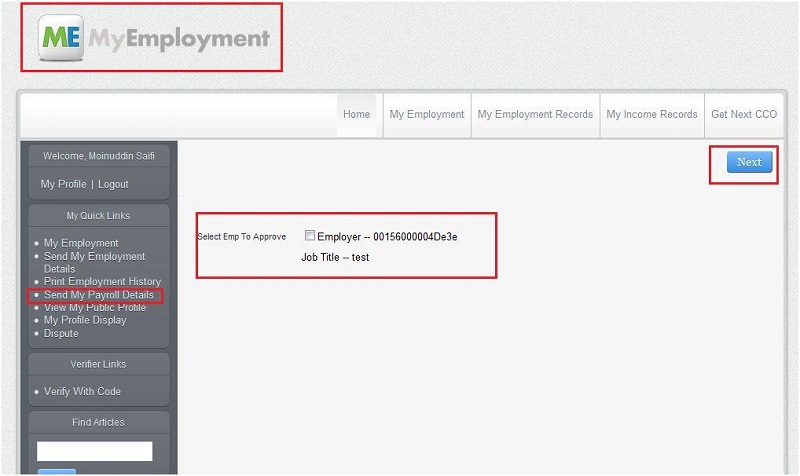
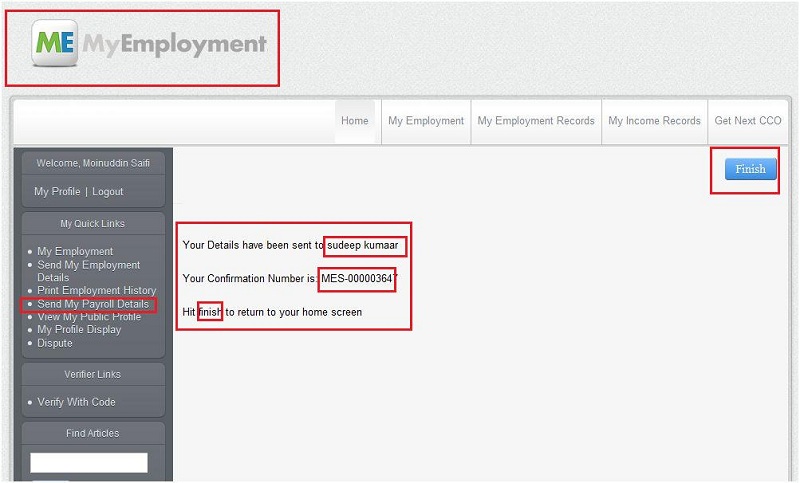
Send My Payroll Details
The flow of sending payroll details ME Profile Share ID is generated record and send the email on email address which is filled in 1st screen.
1st screen
2nd screen
3rd screen
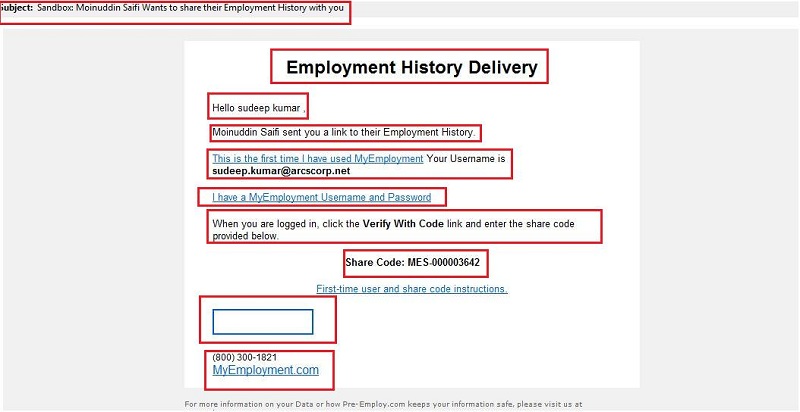
Email and Verification code
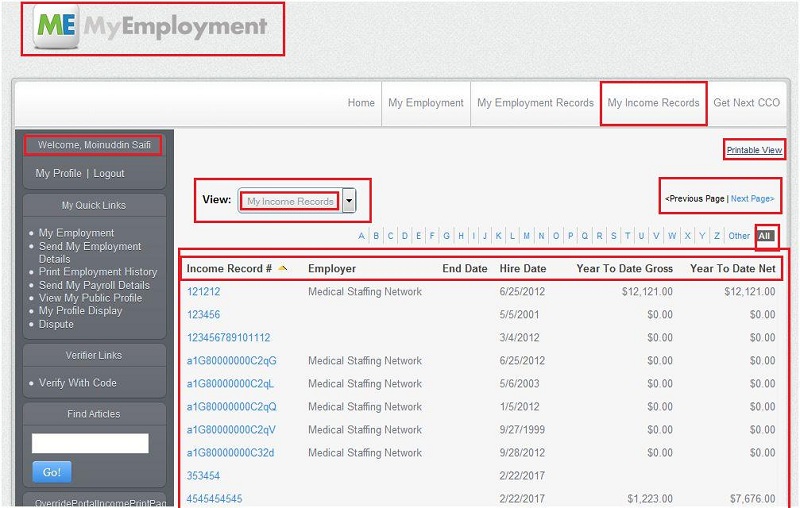
My Income Records page
On this page user can view all the income records associated with Employment History records of the logged in user.
User can create Employment Summary Income record on MyEmployment Portal also by clicking New Employment Summary Income button.
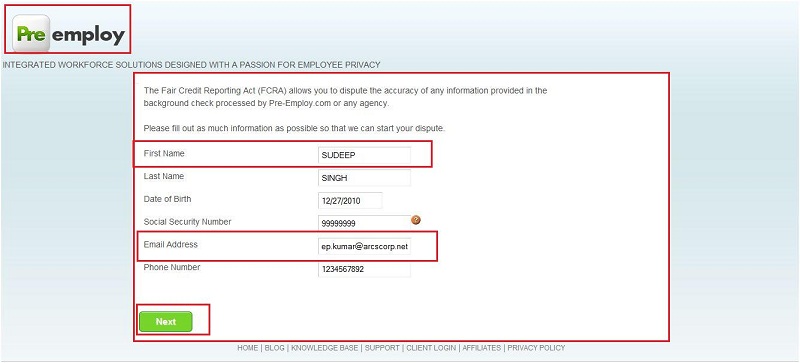
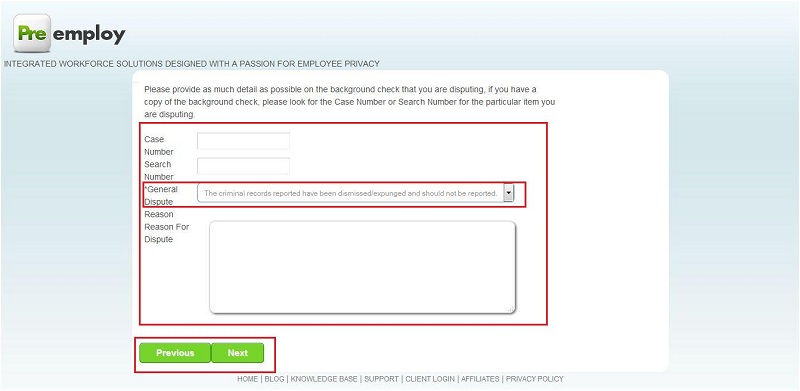
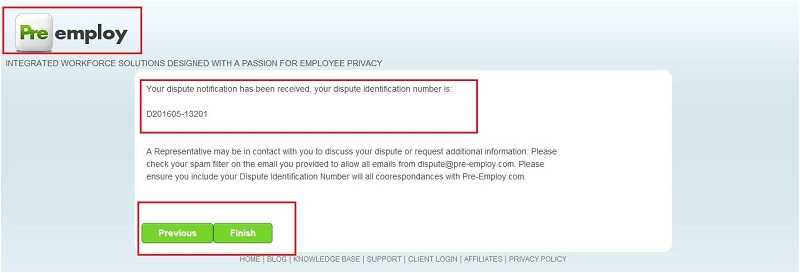
Dispute
Dispute link creates a dispute record for the SSN and related case number and search number. This link navigated to dispute_intake_form flow. Which follows some steps to
create dispute record.
Print Employment History
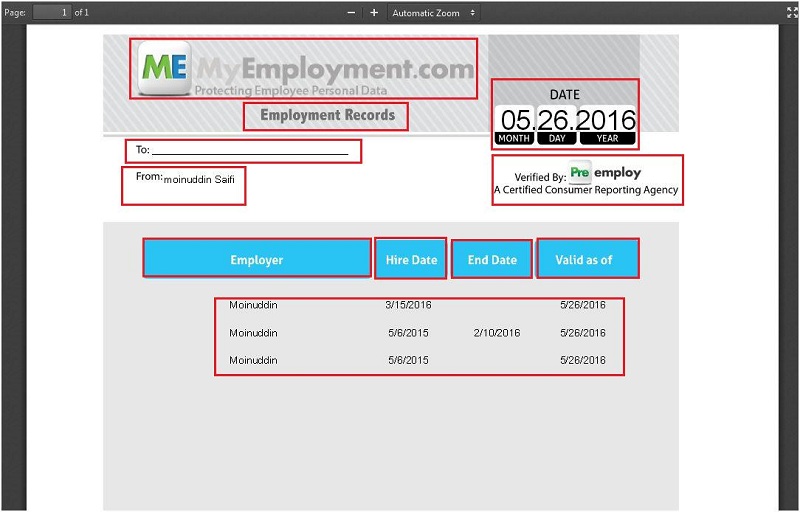
This is use to print the employment history. It will open a pdf with employment history details.