Pre-employ help and support portal admin functionality
=> Login to http://preemploy.arcsdev.com/Admin/Login.aspx
using your Id and password.
How to manage main menu ?
A. For Adding main menu please follow below steps :-
-
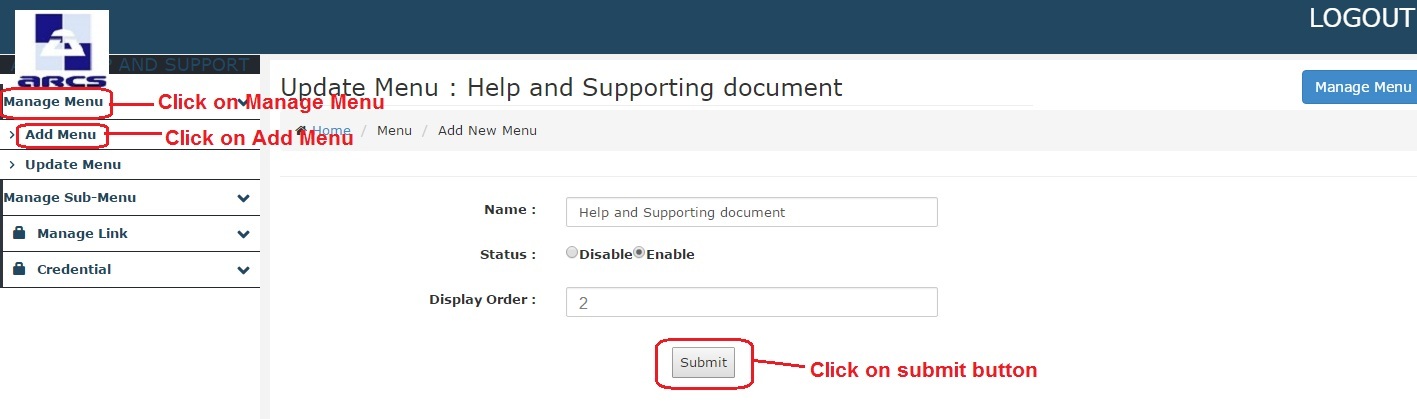
Go to "Manage Menu" option to create menus.
-
Click on "Manage Menu" option then it's sub-menus open.
-
Click on "Add Menu" option to add new menu.
-
After clicking on "Add Menu" option, fields to add new menu will be displayed on the right side.
-
Enter Menu Name.
-
Select status radio button.
-
Set display order, for example - if you set the display order as 2, then that menu will be displayed on secound order.
-
Click on submit button.
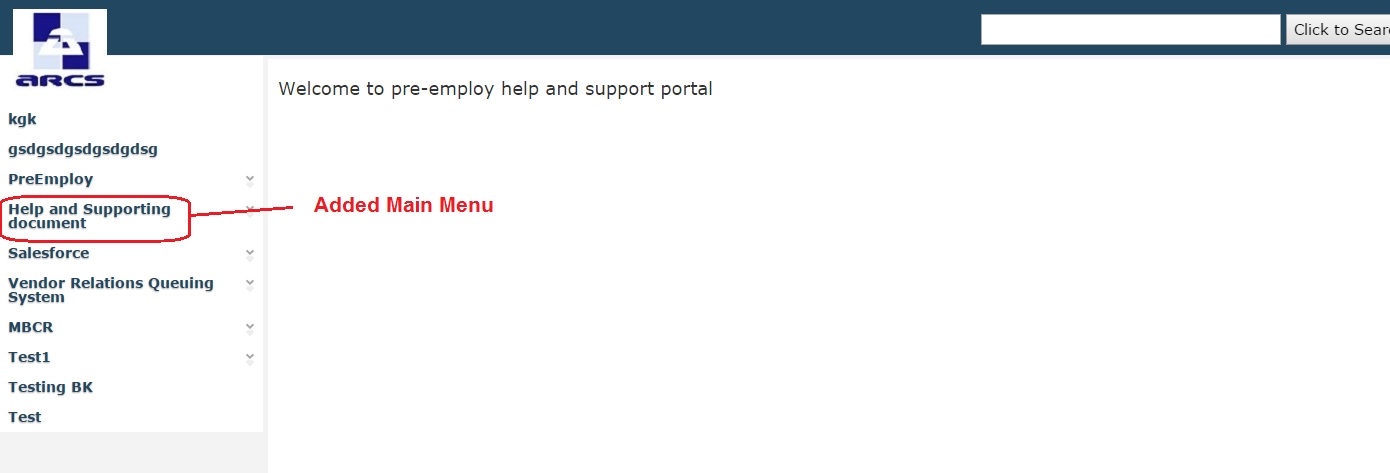
After adding main menu, the new menu will be displayed on
http://preemploy.arcsdev.com/
B. For Updating main menu please follow below steps :-
-
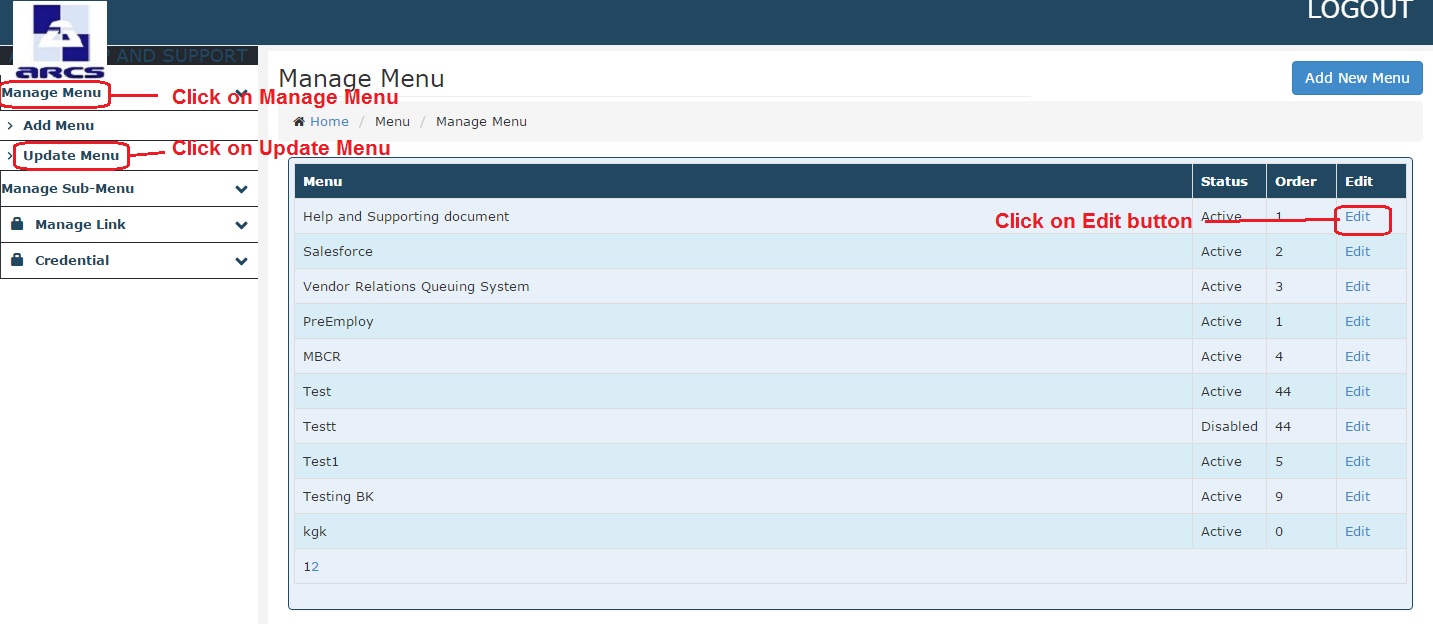
Go to "Manage Menu" option to update menus.
-
Click on "Manage Menu" option then it's sub-menus open.
-
Click on "Update Menu" option to update menus.
After click on "Update Menu" option, list of menus will be displayed on the right side.
Click on Edit button to update menus.
How to manage sub-menu ?
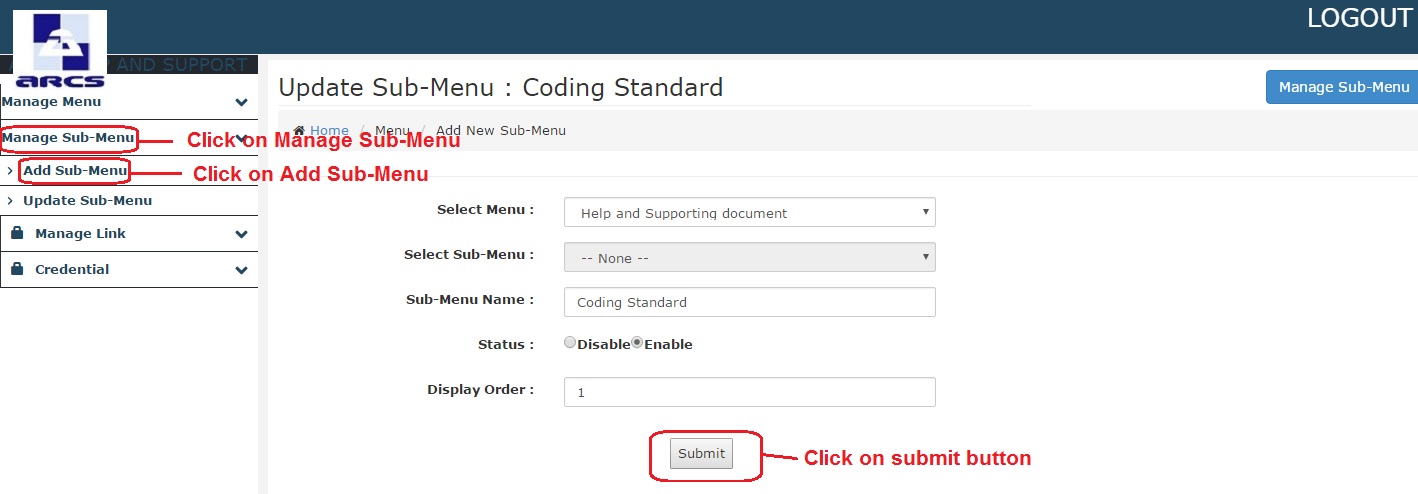
A. For Adding sub-menu please follow below steps :-
-
Go to "Manage Sub-Menu" option to create sub-menu.
-
Click on "Manage Sub-Menu" option then it's sub-menus open
-
Click on "Add Sub-Menu" option to add new sub-menu.
-
After clicking on "Add Sub-Menu" option, fields to add new sub-menu will be displayed on the right side.
-
Select Main Menu from dropdown list.
-
Select Sub-Menu from dropdown list for create sub-menu of sub-menu other by Select None.
-
Enter Sub-Menu Name.
-
Select status radio button.
-
Set display order, for example - if you set the display order as 1, then that menu will be displayed on first order.
-
Click on submit button.
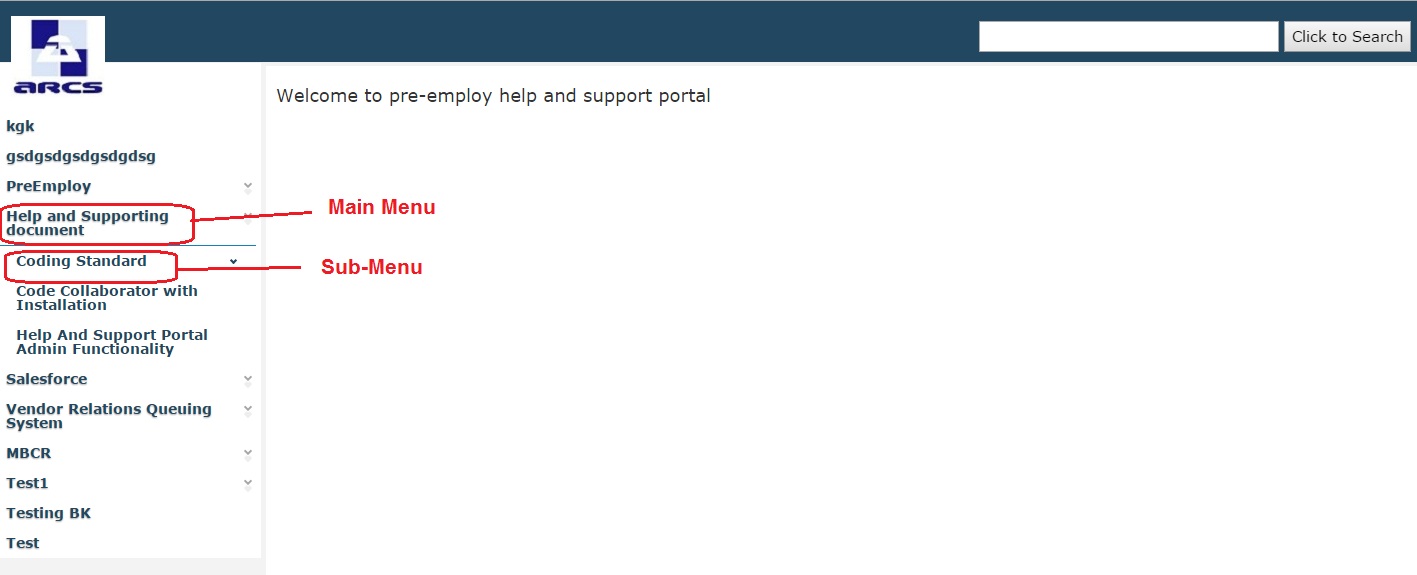
After adding main menu, the new menu will be displayed on
http://preemploy.arcsdev.com/
B. For Updating sub-menu please follow below steps :-
-
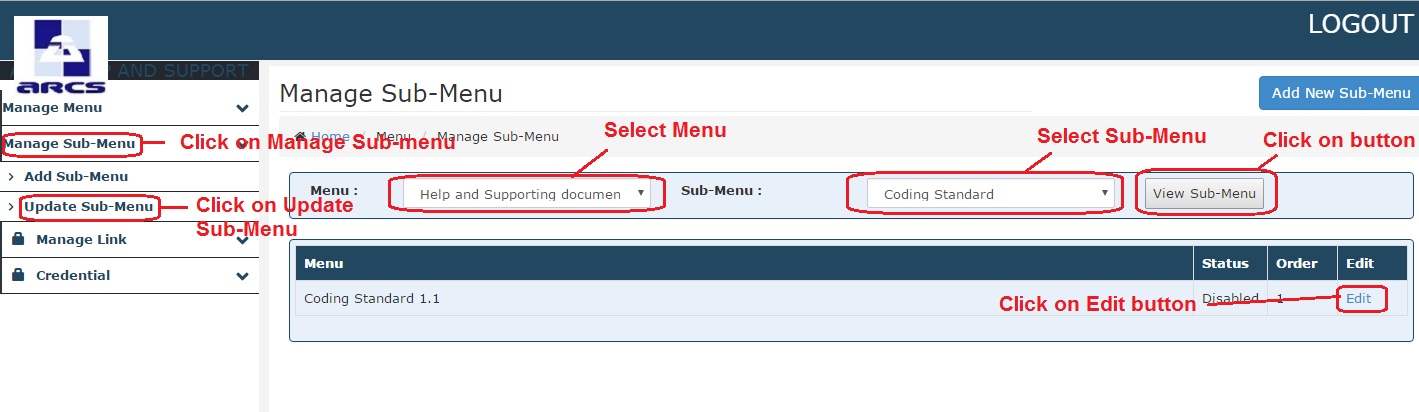
Go to "Manage Sub-Menu" option to update sub-menus.
Click on "Manage Sub-Menu" option then it's sub-menus open.
-
Click on "Update Sub-Menu" option to update sub-menus.
-
Select Main Menu ==> Select Sub-Menu ==> click on View Sub-Menu Button.
-
After Click on View Sub-Menu Button, list of sub-menus will be displayed below.
-
Click on Edit button to update sub-menus.
How to manage Link ?
A. For Adding Link please follow below steps :-
-
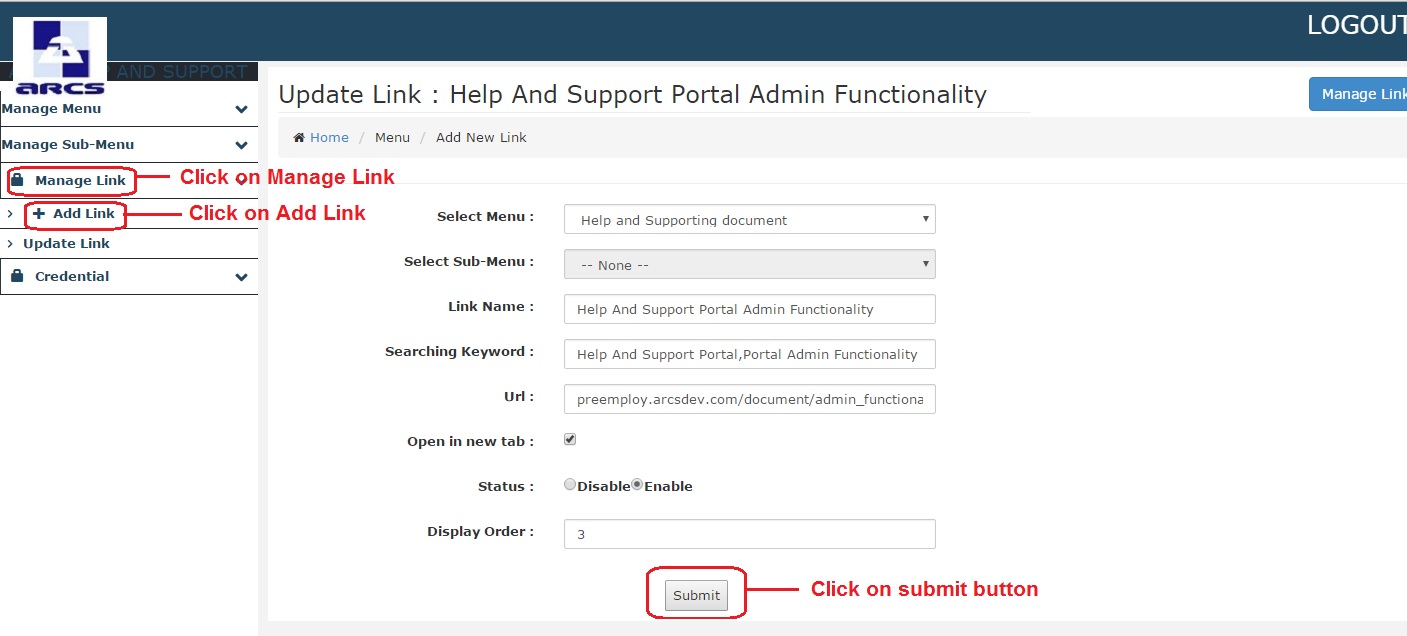
Go to "Manage Link" option to Add Link.
-
Click on "Manage Link" option then it's sub-menus open.
-
Click on "Add Link" option to add new link.
-
After Click on add link option, fields to add new link will be displayed on the right side.
-
Select value from dropdown list of select menu and select sub menu
-
Fill link name whatever you want to show name in menu list.
-
Add Searching Keywords for search the document.
-
Enter page link url Without http://.
-
If you want to open page in new tab then Select on open in new tab checkbox.
-
Select status radio button.
-
Set display order, for example - if you set the display order as 1, then that menu will be displayed on first order.
-
Click on submit button.
B. For Updating Link please follow below steps :-
Go to "Manage Link" option to update Links.
Click on "Manage Link" option then it's sub-menus open.
-
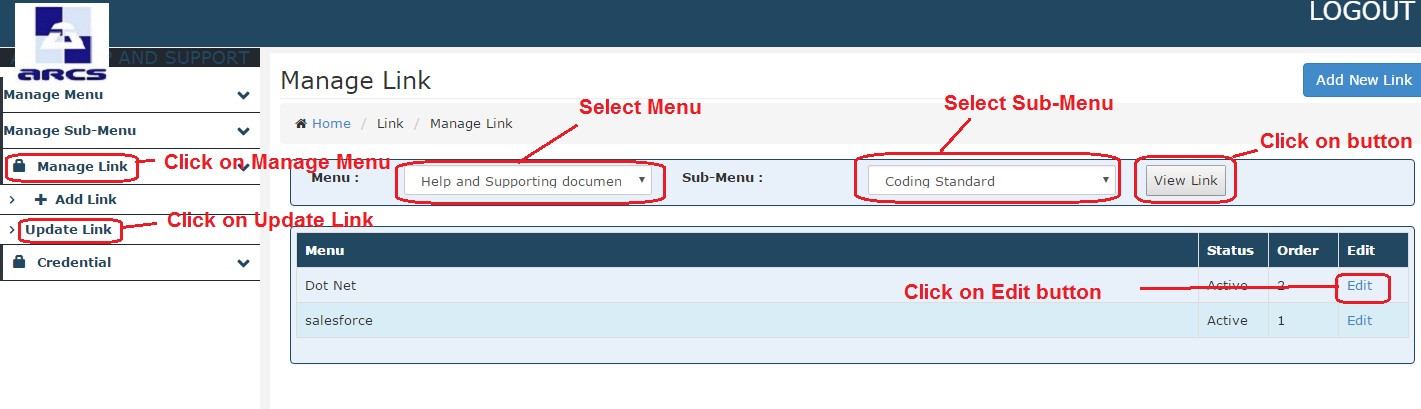
Click on "Update Link" option to update link.
After click on update link option, update link option will be displayed on the right side.
-
Select Main Menu ==> Select Sub-Menu ==> Click on View Link Button.
-
After Click on View Link Button, list of menus link will be displayed on the below.
-
Click on Edit button to update link.
How to add credential ?
A. For Adding Credential please follow below steps :-
-
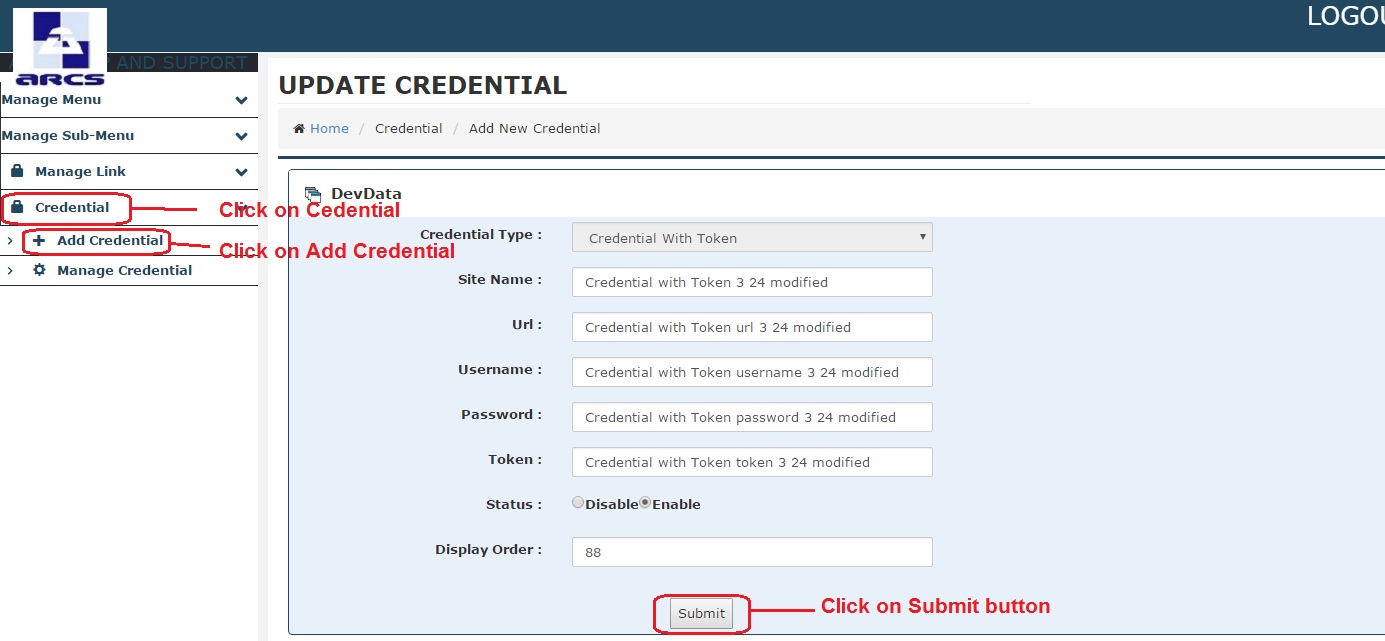
Go to "Credential" option to add credential.
-
Click on "Credential" option then it's sub-menus open.
-
Click on "Add Credential" option to add Credential.
-
After Click on "Add Credential" option , fields to add credential will be displayed on the right side.
-
Select Application Type from dropdown list.
-
After Selecting Application Type, more options will be displayed.
-
Select Credential Type from dropdown list.
-
Enter required fields.
-
Select status radio button.
-
Set display order, for example - if you set the display order as 1, then that menu will be displayed on first order.
-
Click on submit button.
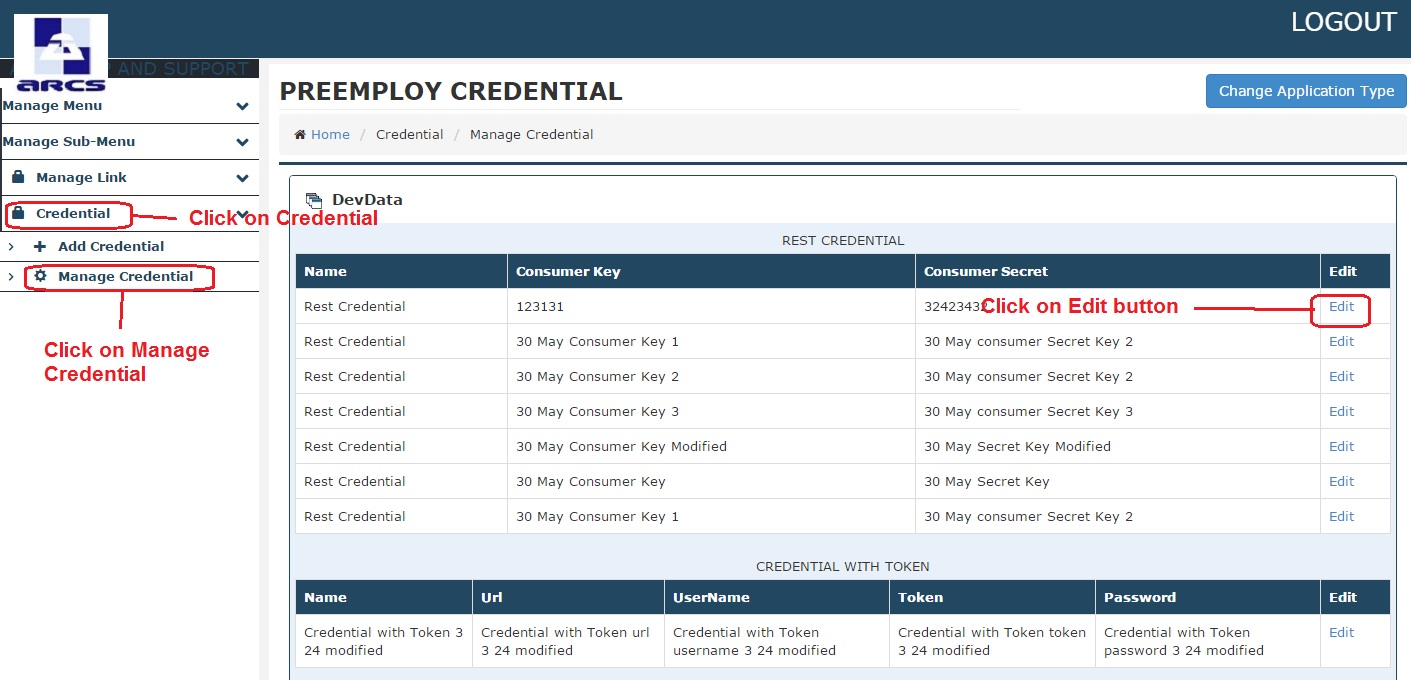
A. For Updating Credential please follow below steps :-
-
Go to "Credential" option to Update Credential.
-
Click on "Credential" option then it's sub-menus open.
-
Click on "Update Credential" option to update credential.
After click on "Update Credential" option, update credential option will be displayed on the right side.
-
Select Application Type from dropdown list.
-
After Selecting Application Type option, list of credential will be displayed below.
-
Click on Edit button to update Credential.