About Background check order :
Background check order object is used to save a background check order's data of pre-employ's client.
It is a custom object. It's account field is used for the client reference and it is a required field.
Why background check order object is in pre-employ?
In pre-employ, client have a option to place a background check order to pre-employ based on his requirements.
All the information of the client will be store in background check order object.
How case is created in the background check order?
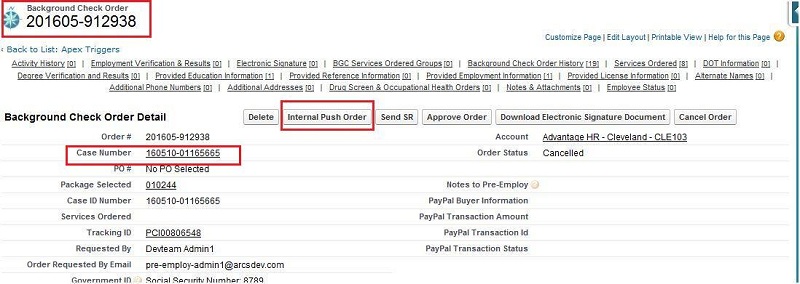
In the background check order, we can create case manually by pressing the internal push order button on the background order page layout.
After pressing the internal push button case is created with the help of flow, flow name : Step 9.B) Manual Client Approve Order.
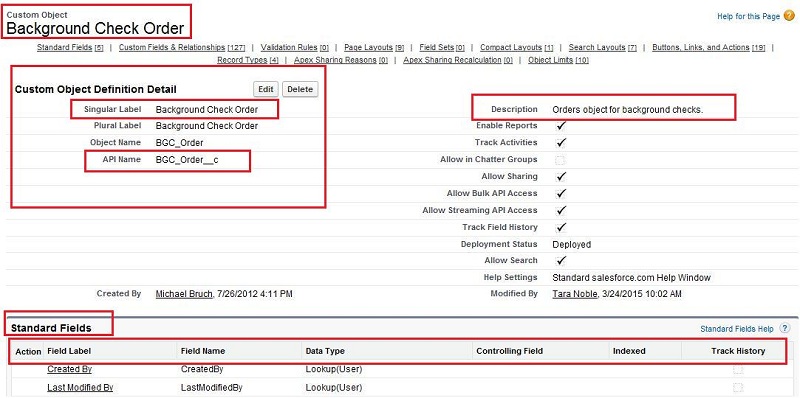
How to reach background check order object and its fields?
There are mainly two ways to reach out background check order object and its fields.
1: With the help of 'Quick setup' search box.
2. With the help of 'All tab' button.
1: With the help of 'Quick setup' search box.
Step 1 : Click on the user name (Right corner of the screen).
Step 2 : Select setup.
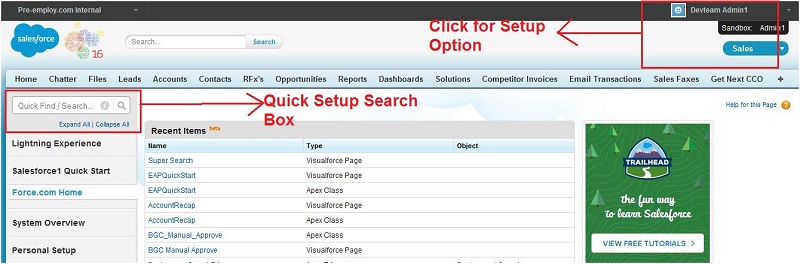
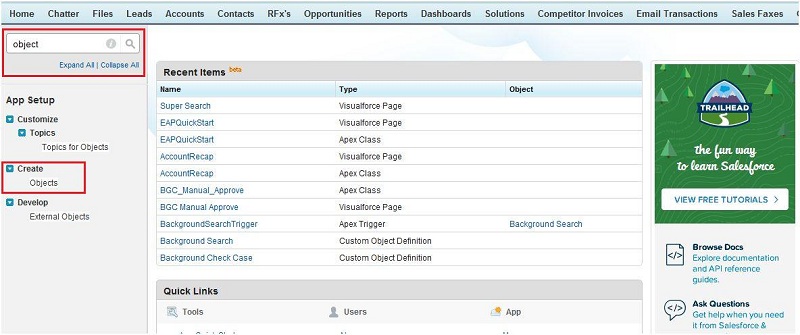
Step 3 : Write 'object' in quick setup box.
Step 4 : Select objects under create tab.
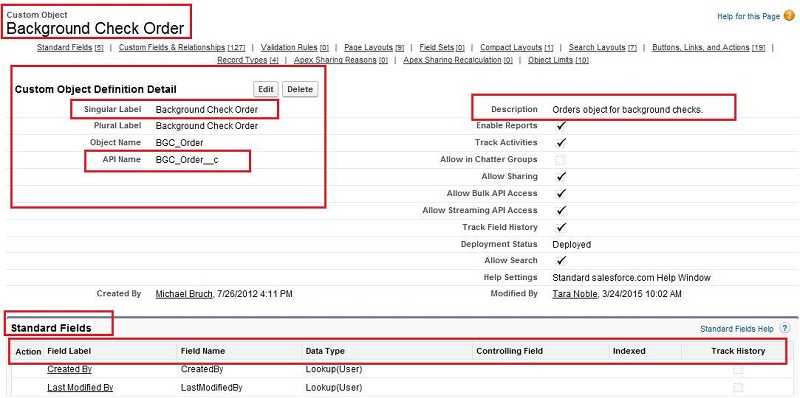
Step 5 : All the custom objects are available here, search for background check order object.
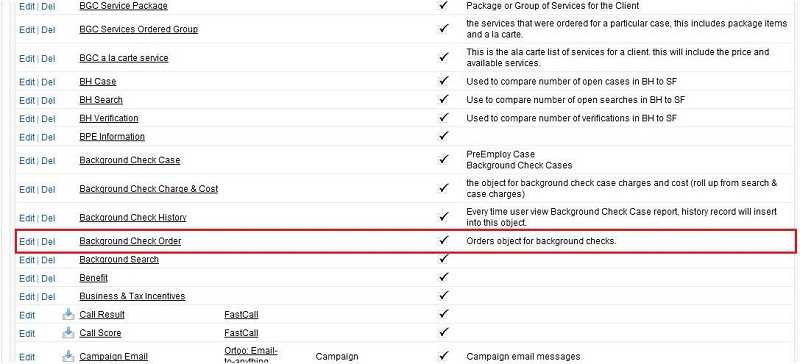
Step 6 : Click on the background check order object and you will get all the fields of background check order object.
2. With the help of 'All tab' button :
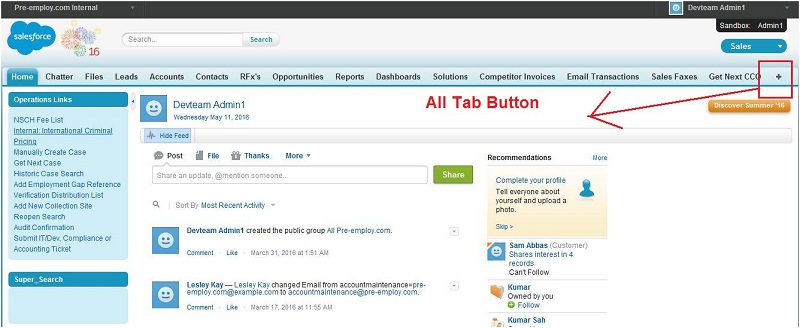
Step 1 : Click on all tab on the home page of salesforce.
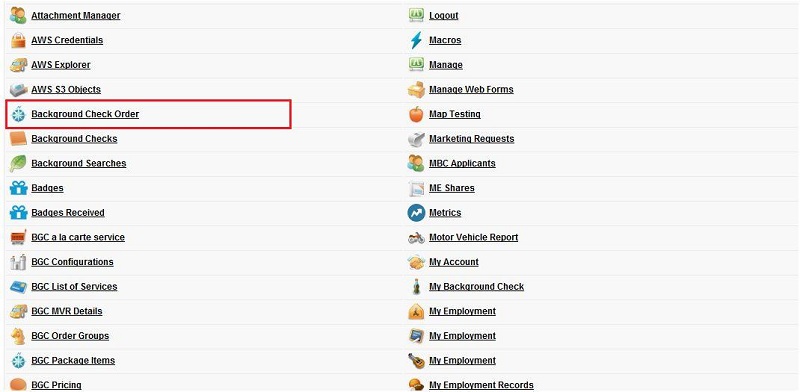
Step 2 : Search for background check order and click on background check order object.
Step 3 : Click on the right side of quick button(Force.com) and select view fields.
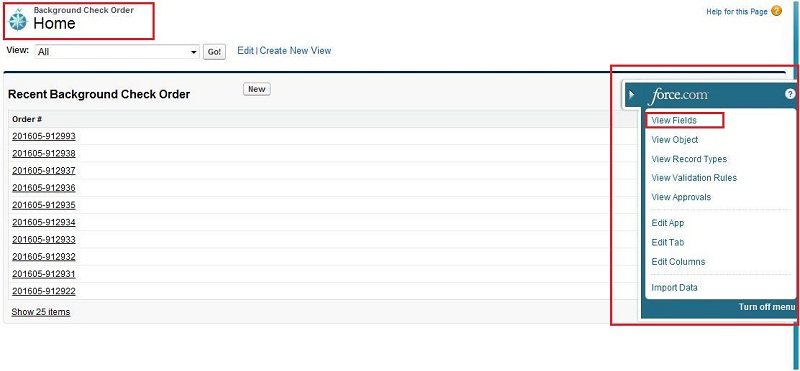
Step 4 : All the standard and custom fields of background check order object is available on this page.
Note: We can create custom field of background check order object by clicking on new button on this page.
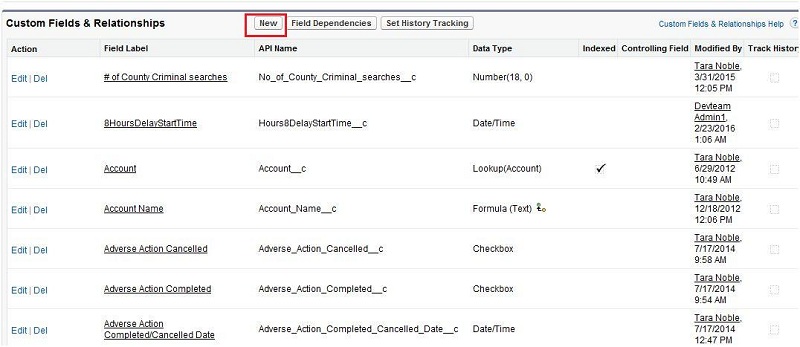
Important fields in background check order object :
Client used to place order from client portal and provide the applicant's data which we saved in this
object like Applicant name, address, SSN number, contact number and screening information like previous employment details,
reference details, license details, education details etc. Fields to hold the provided information are described below as important field.
1. Account :
Field name : Account
API name : Account__c
Data Type : Lookup(Account)
This field have the information about account of the user through which order is placed.
This field has a lookup relation with account object. This field is use to show the relation between
background check order object and account object.
2. Order No :
Field name : Order #
API name : Name
Data Type : Auto Number
This field will store the background check order number value. It is a standard object of background check order object with data type : Auto Number.
In pre employ case object order number field is in lookup relation with background check order object.
The display format of order number explain below :
{YYYY} : Current Year
{MM} : Current Month
{0} : Initial No
3. Order Status :
Field name : Order Status
API name : Order_Status__c
Data Type : Picklist
This field holds the information about order status. This is a picklist type of field which will
be updated when the order is created till when the order will be completed. The picklist value will be selected
by the trigger. Example : when a order is placed than the status of the ORDER STATUS field will be :
'Pending Approval' and if the order is approved,than the status of the ORDER STATUS field will be : 'Approved for formation'. 'Pre-Approved For Formation', 'Cancelled',
'Deleted', 'Applicant Data Entry in progress' are some example of order status.
4. Case No :
Field name : Case Number
API name : Case_Number__c
Data Type : Lookup(Background Check Case)
This field holds the case number of the particular background check order.
Case number is created automatically by flow, flow Name : Step 9.B) Manual Client Approve Order. If we want we can create manually by pressing internal push button on background check order page layout.
It is a standard object of background check case object with data type : Auto Number.
The display format of case number explain below :
{YY} : Last 2 digit of the current year
{MM} : Current month
{DD} : Current date
{00000000} : Initial no
5. Order Approved :
Field name : Order Approved
API name : Order_Approved__c
Data Type : Checkbox
This field holds the status of the background check order that order is approved or not. This is a checkbox type of field.
If the background check order is approved than this field value becomes checked or else remain unchecked.
This is done by the trigger : BGCOrderTrigger
6. Package Name :
Field name : Package Name
API name : Package_A_Name__c
Data Type : Formula (Text)
This field holds the package name which is selected by the client for the background check order.
If the Order_Approved__c = false and Order_Status__c = 'Pending Approval' or Order_Status__c = 'Client Data Entry In progress',
than trigger will update this field value with package name which is selected by the user at the time of placing background check order.
This is done by the trigger : BGCOrderTrigger
About Background check order trigger :
1. BGCOrderTrigger
BGCOrderTrigger is working behind every background check order. This trigger starts working on two condition for all background check order.
1. (before insert, before update)
2. (isBefore && isUpdate)
Whenever new background check order is placed or any background check order is updated, this trigger automatically runs according to
inserted data by the client or updated data by the other trigger of per-employ or client.
Background check order important button :
-
Internal push button
-
Approve order
-
Delete order
-
Cancel order
1. Internal push button
Field name : Case Number
API name : Case_Number__c
Internal push button is use to create the case number for the background check order. Case number value
will be store in the above mention field name.
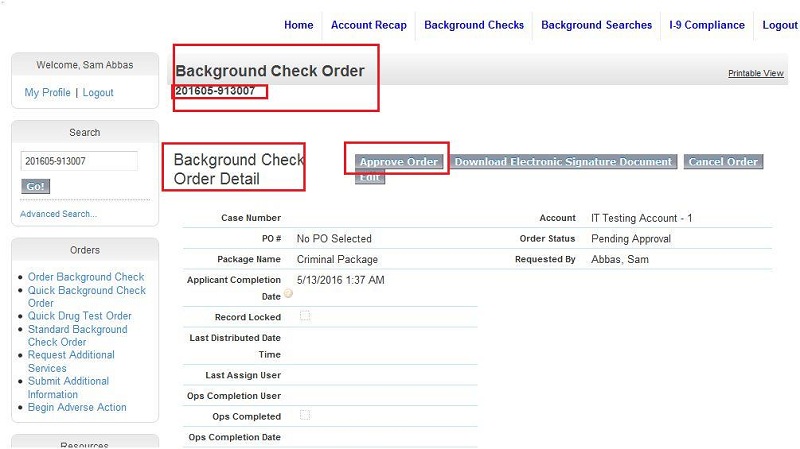
2. Approve order button
Field name : Order Approved
API name : Order_Approved__c
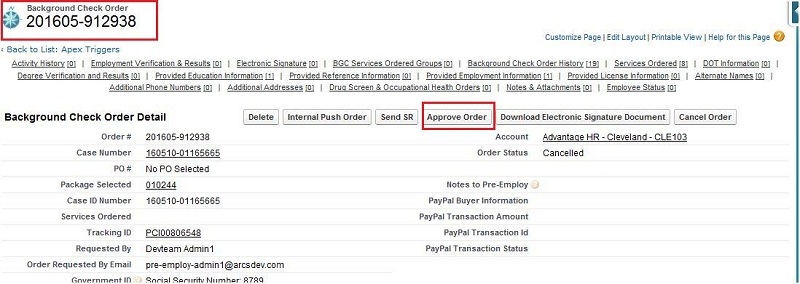
Approve order button is used by client in main client portal to approve the applicant's background check
order which he placed from EAP process. The order approved field checkbox will be checked after approve order button.
Please see the SS below of main client portal where this button is being used.
3. Delete order button
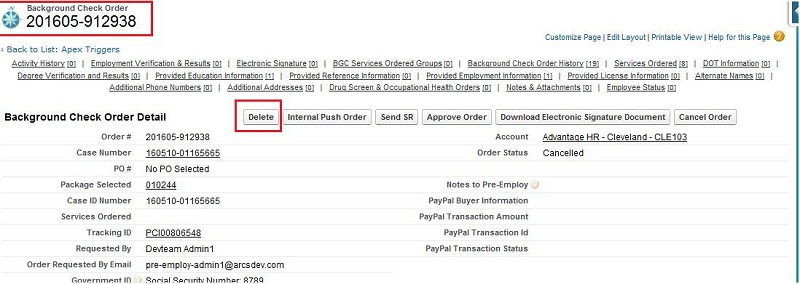
This button is use to delete background check order.
4. Cancel order button
Field name : Order Status
API name : Order_Status__c
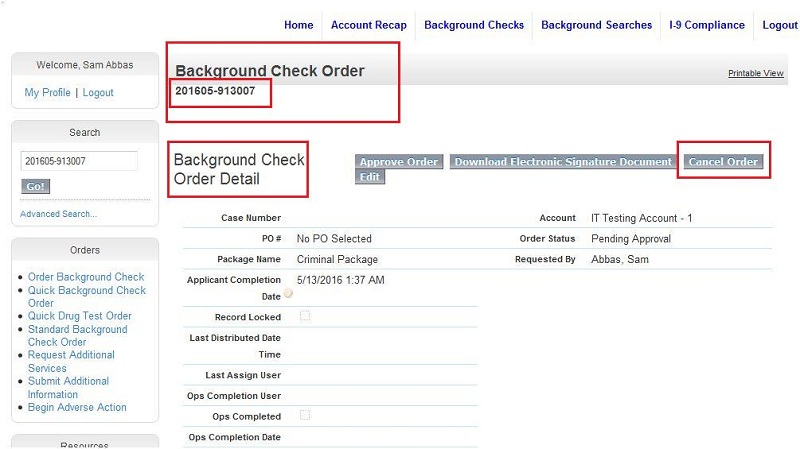
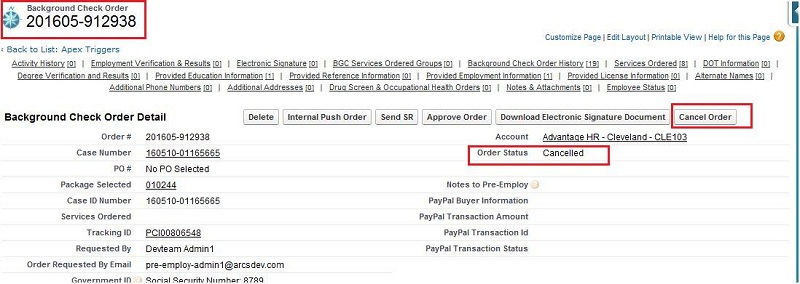
This button is use by client in main client portal to cancel the background check order placed by applicant from EAP process.
The status of the above field name will be 'Cancelled' after cancel order button.
Steps to create background check order in pre-employ :
-
Intake order
-
Quick order
-
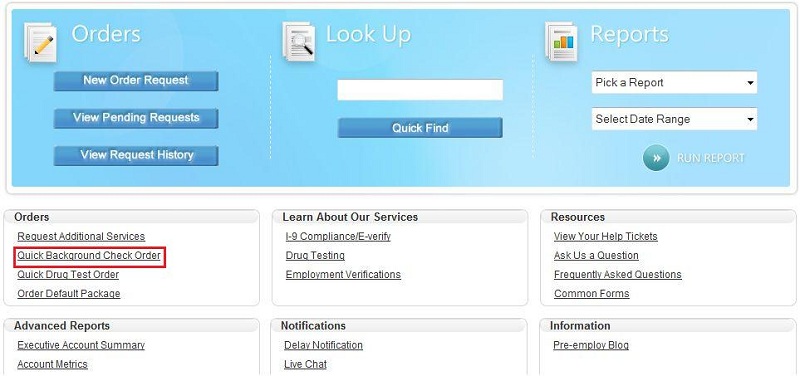
Quick background check order
Steps to create intake order :
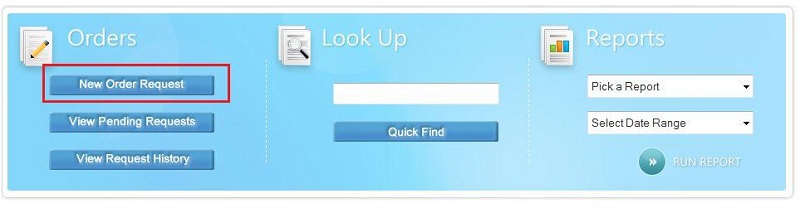
Intake order is the complete background check order process available on the client portal. Client has to log in to
his account in the pre-employ portal and select the new order request option from the main page. Client has to fill all the the information
for the background check order and than he has to place the order. All the information will be saved in the related field of background check order and and the
pre-employ will provide one order number(background check order number) to the client.
Steps to create quick order :
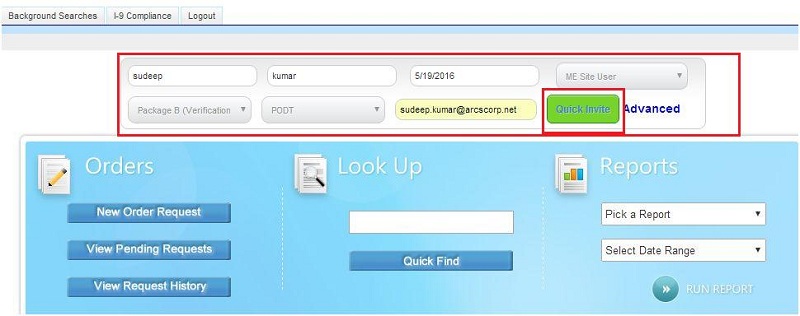
In the quick order client has to fill first name, last name, start date, me site user, package, po and email id in
the client portal and click on to quick invite button. So the client will get the link of the background check order into his email id.
Through that email link client can place a background check order to pre-employ.
Steps to create quick background check order :
In quick background check order client has to login to the pre-employ portal and has to select quick background
check order from the main page, after click on quick background check order client has to fill all the details which is required for the
background check order. Client has to place the order once he has filled all the details of all required field of background check order page.
All the details entered by the client is saved in his background check order number. After placing the order client will get a order number(background check order number)
from pre-employ.