Internal Salesforce
Background Check Creation process
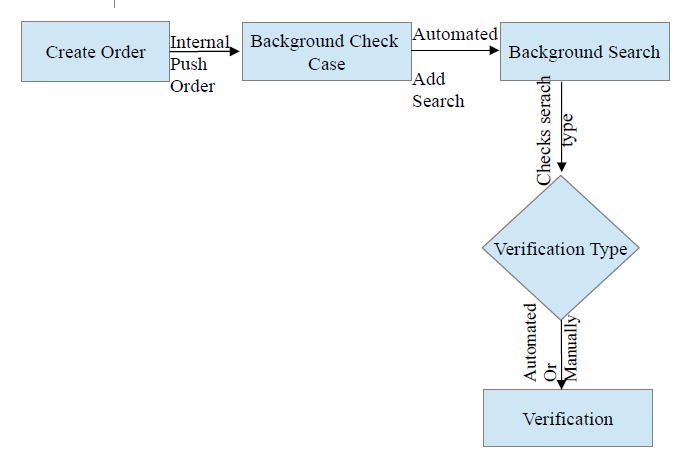
Order Creation: As we have seen in Main Portal document, the order creation is same. In
internal SF we create order using Manually Create Case link. In order selection of package or
services is important part. The package or services we select are authorize to selected account only.
User cannot see other packages of other accounts in its portal.
Package association with Account
In internal SF
navigate to All tab page and then click on BGC Service Packages link,
1. Click on New button.
2. Select user Account you want to associate with
3. Fill Other relevant details
4. Click Save
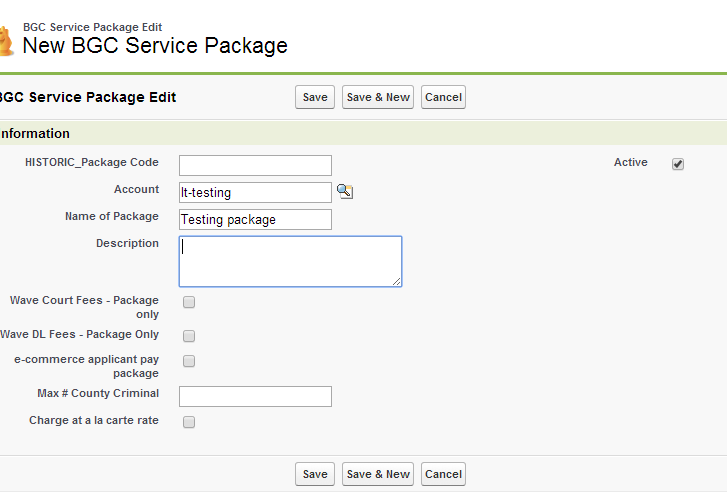
Now user has created a package with that account but there is no Services/Package Items in the
package.
BGC Package Items
1. Click New BGC Package Items button
2. Rest fields as per need
3. Search any item in Package Item field
4. Select item
5. Click Save
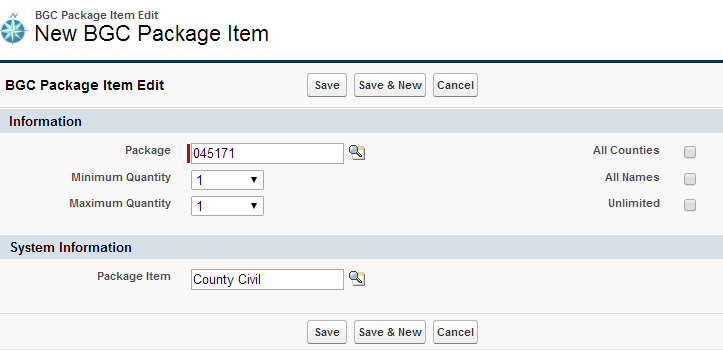
User can add as much items in that package he wants.
Now when item is added in the package, so while creating order, this package is selected then the
package item will create a record for Services Ordered object in the Order.
Note that Service Ordered records in order will depend upon the number of package items in the
package.
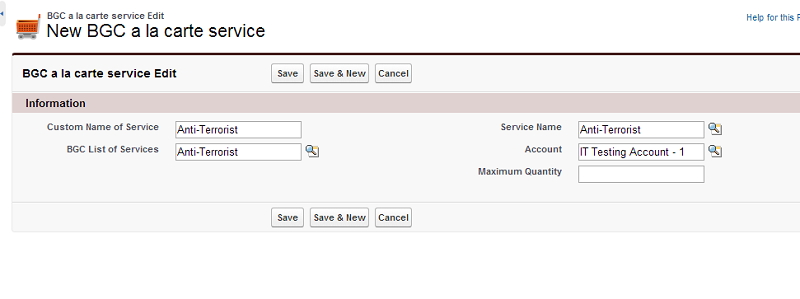
A la carte Service association with Account
In internal SF
navigate to All tab page and then click on BGC a la carte service link,
5. Click on New button.
6. Select user Account you want to associate with
7. Fill Other relevant details
8. Enter the service name you want to enter in BGC List of Services and Service Name field
Case Creation: After creation of order, case is created at admin level. On order detail page there is
Internal Push Order button, when this button is clicked then background check case is created.
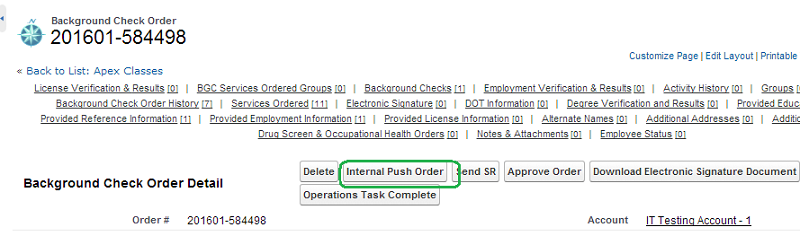
When case record is created then it get associate with order and all detail in order record updated in
Case record. And case status is then set to Pending Automation.
Background Search Creation: Search is created when case is created and then search associate
with the case. All details of case get sync with search. Searches are created Automated and
manually.
Automated: When case is created then searches are created through CreateScheduledSearches.exe.
This exe verify the case status that it is Pending Automation is or not then in associated Order it
verifies the Service Order records and Intake records and create the searches according to number
of service records and Intake records.
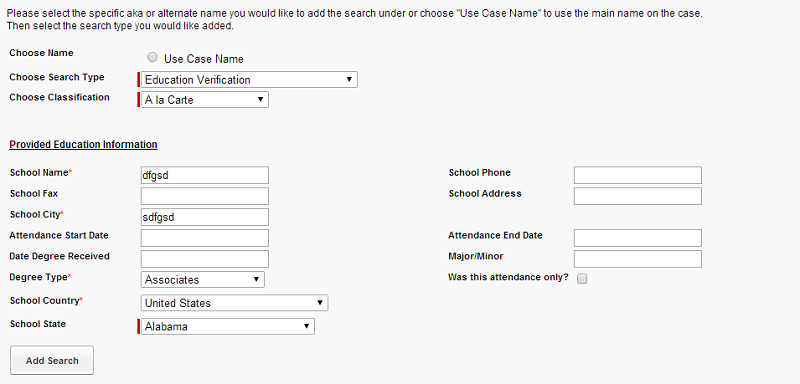
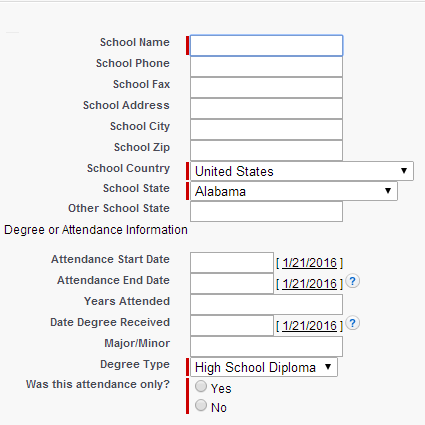
Manually: There are few buttons to add searches manually like Add Search, Add a Search and
Metro buttons. When user prompted to choose service to be add the user click the Add Search
button. For some searches user is asked to fill some data after filling the data then that search will
be created.

Verification Creation: When search type is Verification type then through its Intake verification is
created through an automated exe and that verification associate with that search whose intake
record it was.
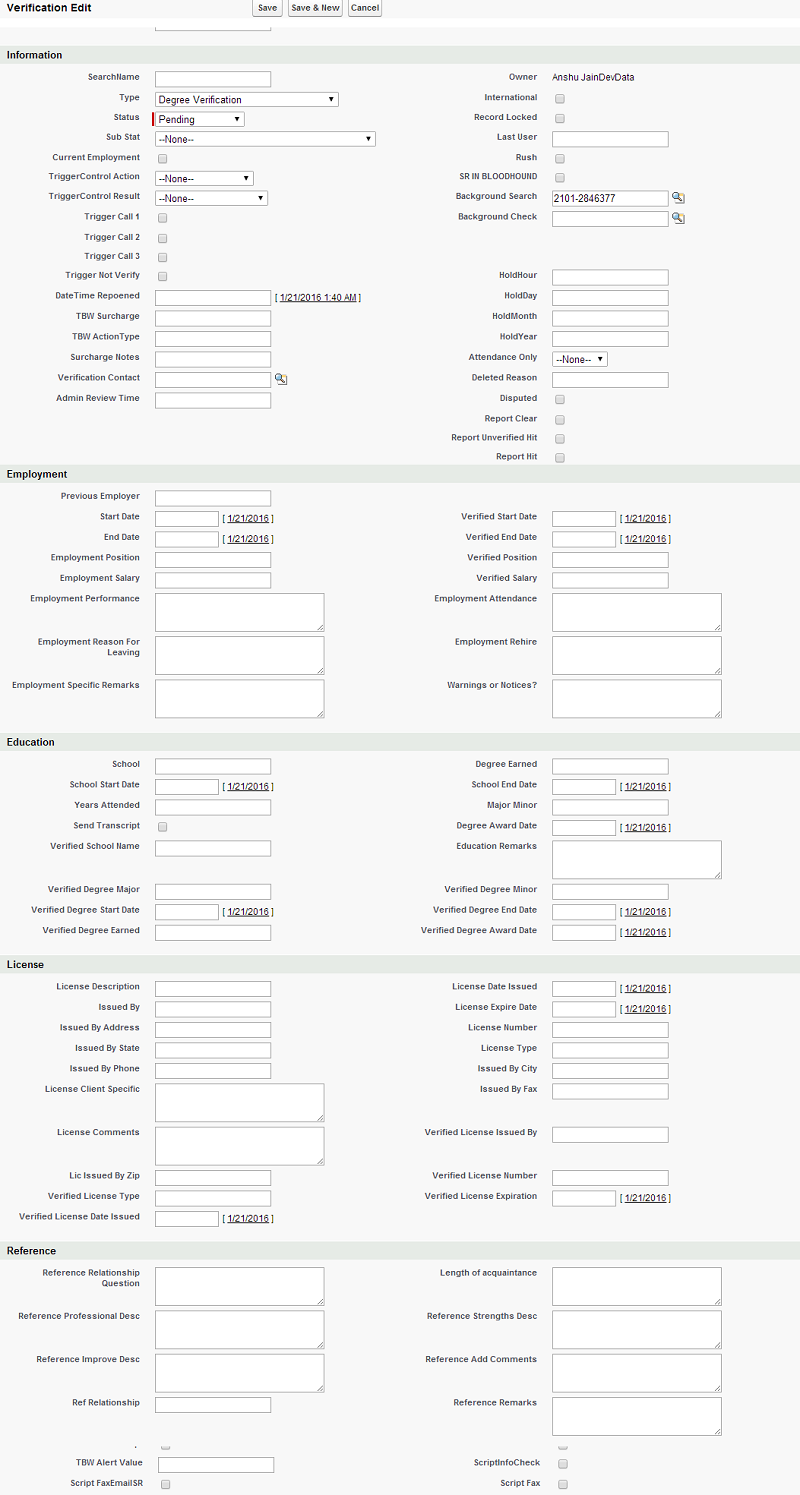
If verification is not created automatically then it can be created manually on Background search
detail page by clicking New Verification, then click record type and proceed then choose the
verification type, status, Background Check, Account, Applicant Details, Contact Details and
verification details according to the type of verification.
Drug Test Client Portal Permission
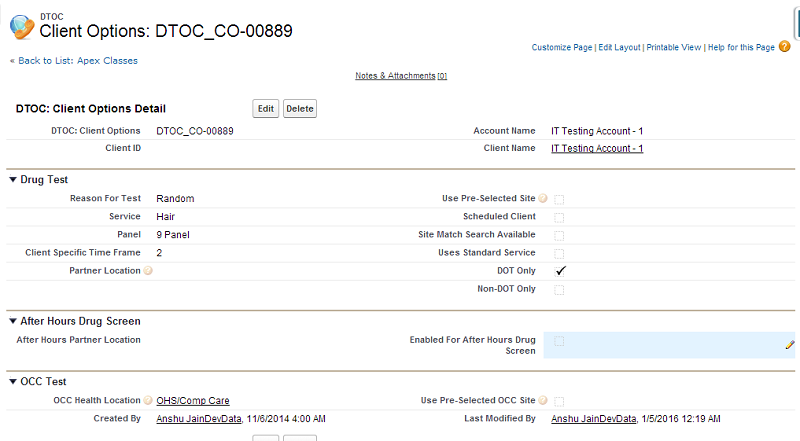
When drug test order is created from client portal then there is set of condition on which drug test
order will create. In Account object there is associated object DTOC: Client Options click on the
ID. This is the object from where we change the details of drug test information.
And similarly this is the object we can manage OCC order details also.
Client Portal dependency with BGC Config in Account
At account level in BGC Config record related to the account there are some fields which directly
and indirectly provides permission in the client portal. Following fields are:
Service Order Options : Its selection decides that order should ask for package or a la carte or both.
Case Archive Access : If this field is true then it gives access to Case Archive page in client portal.
Enabled: OIG Batch Upload : If this field is true then it gives access to Batch Upload page in client
portal.
Default Package : When the package is selected in this field then while creating order in client
portal through Standard Background Check Order then this package is selected by default.
OHSU Citizenship Question : If true then while creating order, it prompts to fill citizenship
Contact Applicant : If true then applicant receives a mail when there is verification item in package.
Client Portal User Creation:
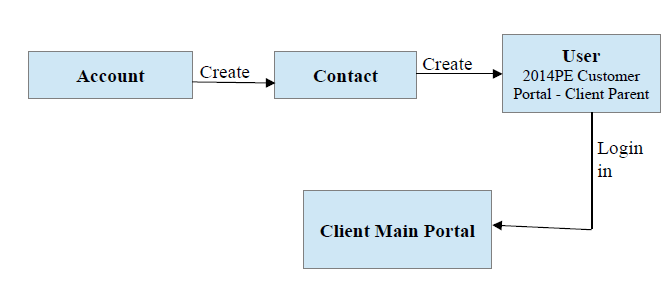
1. Goto Account
2. Create a Contact for that account
3. On Contact detail page click on Manage External User button --> Click Enable
Customer User link.

4. Create an User with profile: 2014PE Customer Portal - Client Parent
5. Set Password
Note that Client portal is created.
For eg. Username: testing123@test.com
Password: vision2020
Note that there is set of permission which administrator have to provide to client portal user otherwise portal user will not able to do several things on his portal.