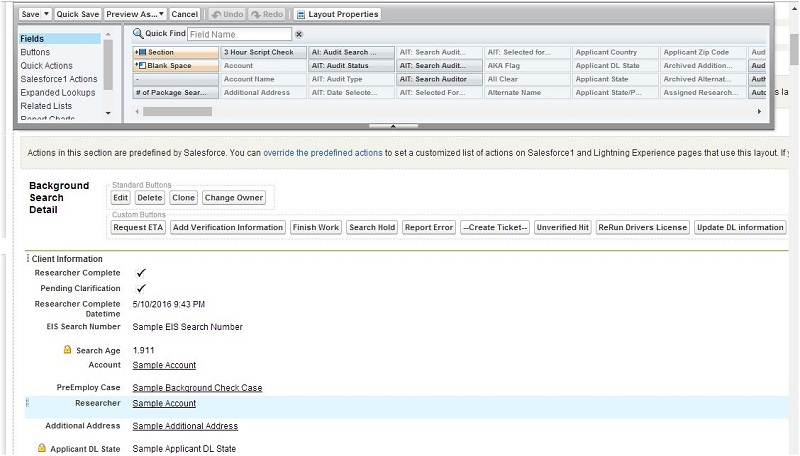
Background Search (Custom Object)
About Background Search object:
Background Search object is a custom object. We can create the new "Background Searches" record
by using "Add Search" button which is there on related Background check case object.
How to reach Background Search object and its fields?
We can see the object definition, trigger and all the fields of background search object by
using given below two ways.
1: With the help of 'Setup' search box.
2: With the help of 'All tab' button.
1: With the help of 'Setup' search box.
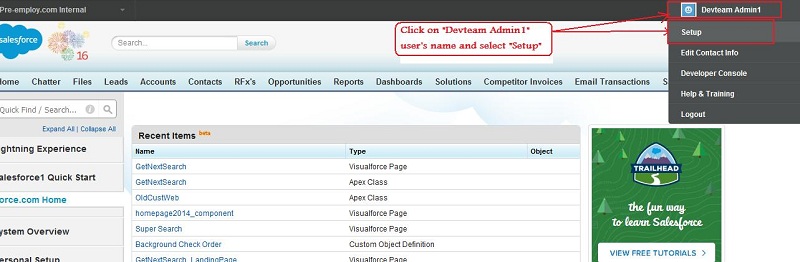
Step 1 : Click on the user name(Right corner of the screen).
Step 2 : Select setup
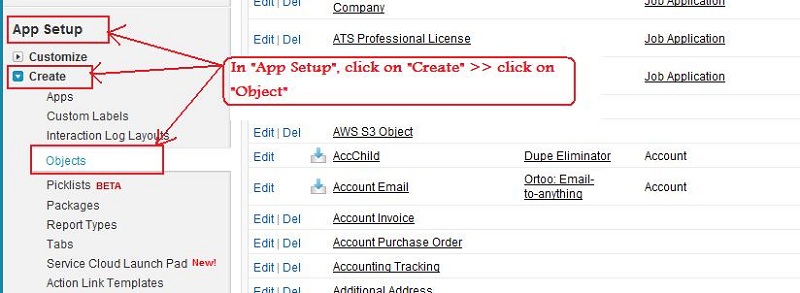
Step 3 : In "App Setup" click on "Create" >> click on "Objects".
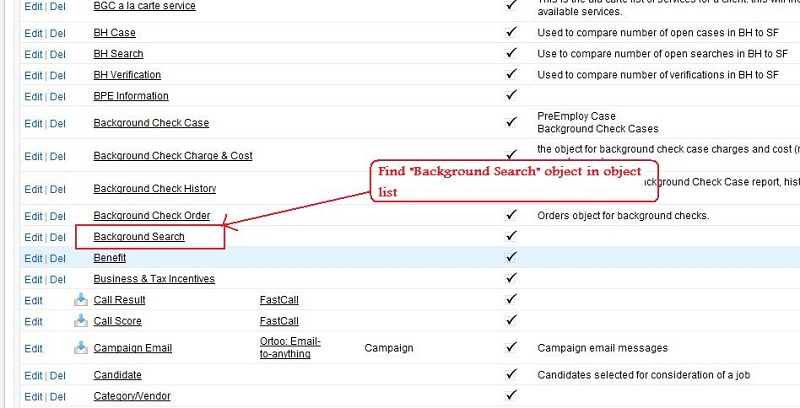
Step 4 : And find the "Background Search" in objects list.
2. With the help of 'All tab' button.
Step 1 : Click on all tab button on the home page of salesforce.
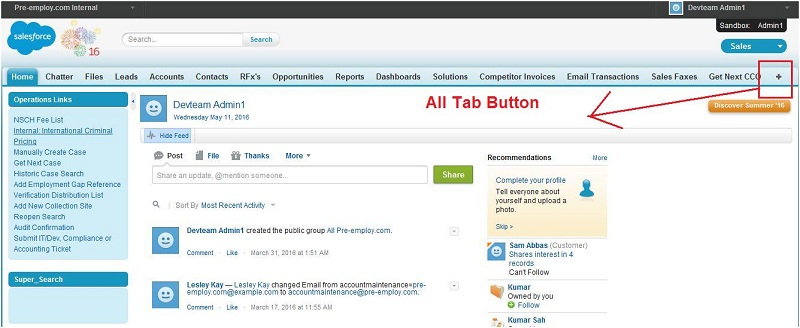
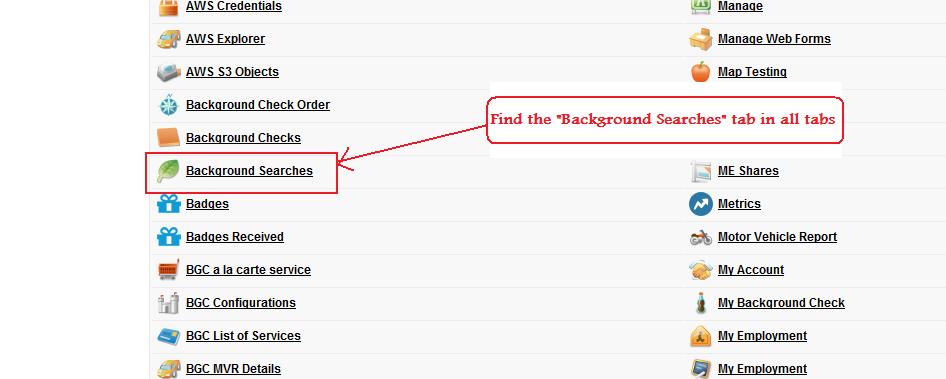
Step 2 : Find "Background Searches" tab in all tabs and click on "Background Searches" tab.
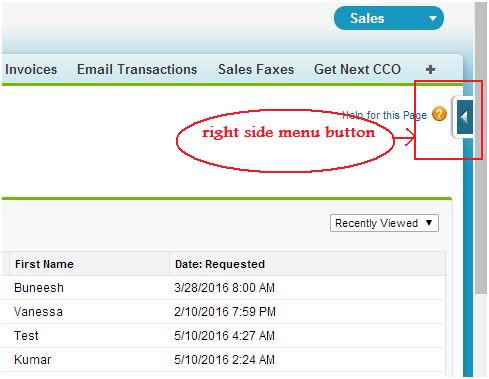
Step 3 : Click on right side menu button.
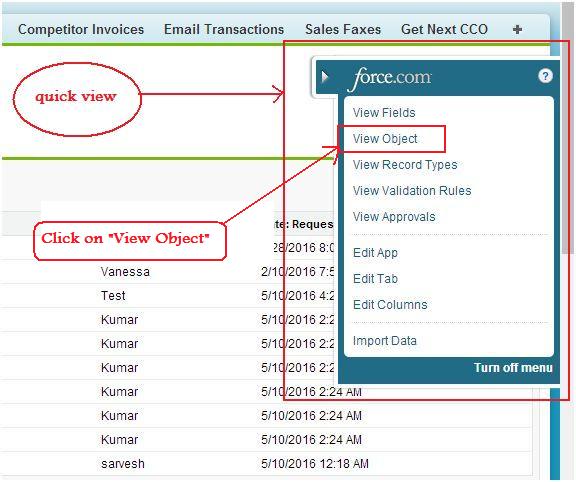
Step 4 : Open a menu list and click on "View Object".
Step 5 : On "Custom Object Definition Detail" page, we can see the object definition,
trigger and all the fields of background search object.
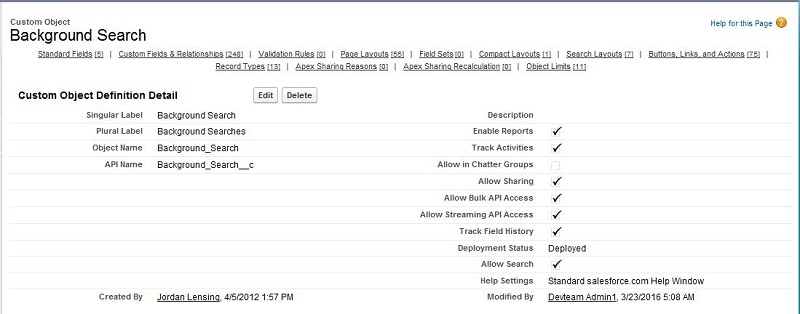
How to create Background Search record:
There are mainly two ways to create Background Search record.
1: Using "Add Search" button.
2: Using Automatic EXE execution.
1: Using "Add Search" button
Step 1: Go to "Background Check Case" detail page.
Step 2: Click on "Add Search" button.
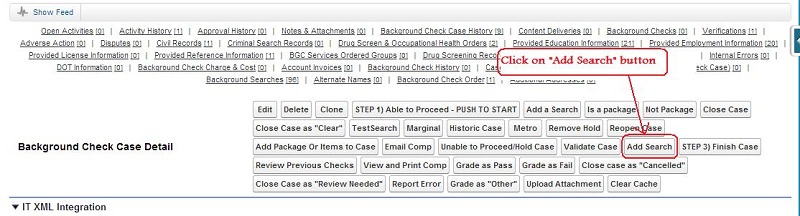
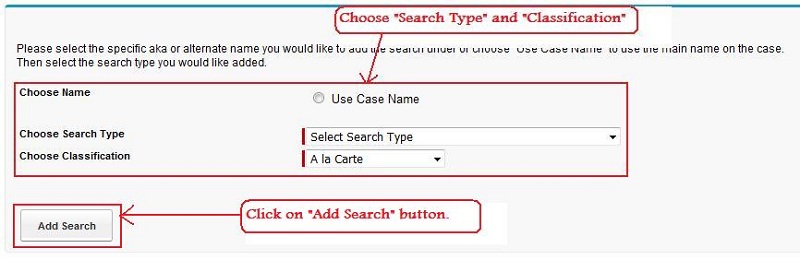
Step 3: Choose "Search Type" and "Classification". Click on "Add Search" button.
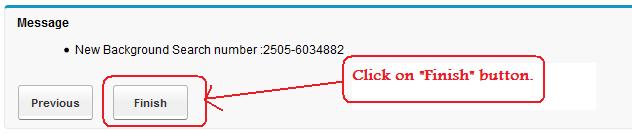
Step 4: Finally click on "Finish" button and Search will be added in related "Background
check case".
2: Using Automatic EXE execution.
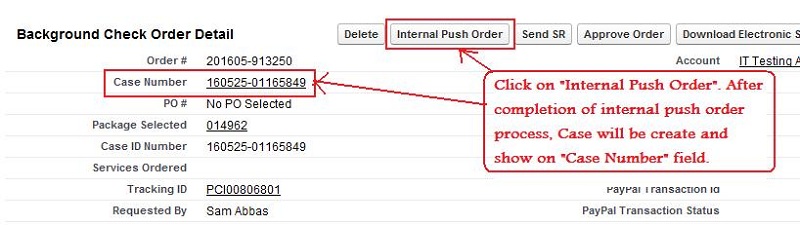
Step 1: Go to "Background Check Order" detail page.
Step 2: Click on "Internal Push Order" button. After completion of internal push Order
process, Case will be created and will be displayed on "Case Number" field.
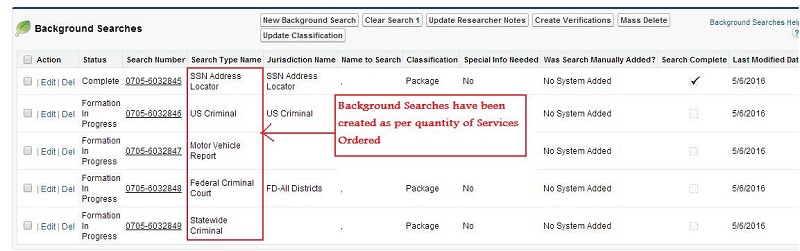
Step 3: Initially search records get created through .Net EXE, it executes in every 30
minutes and creates the number of search records based on quantity of "Services Ordered" object's record which
is related to BGC Order record. Searches are fully based on Services Ordered and number of Services
Ordered based on package or A la carte item selected by the user at the time background check order process.

Step 4: After execution of EXE, Background Searches has been created.
About some important field of background search object:
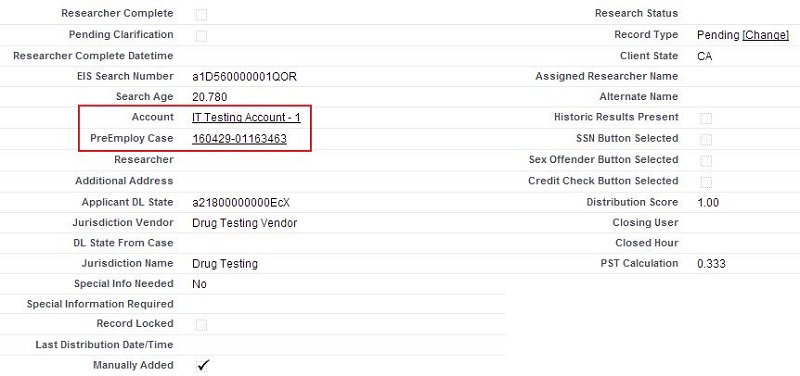
1. PreEmploy Case:
This is a lookup field and it maintains lookup
relationship between Background Search (as a child) and Background check Case object (as a parent). One Background
check Case can contains multiple Background Searches. When we close all the searches by using Search Complete Checkbox,
background check case also get closed.
2. Account:
This is a lookup field and it maintains lookup relationship
between Account(as a parent) and Background Search object(as a child). In portal, only those searches are displayed
for which child of portal user's Account.
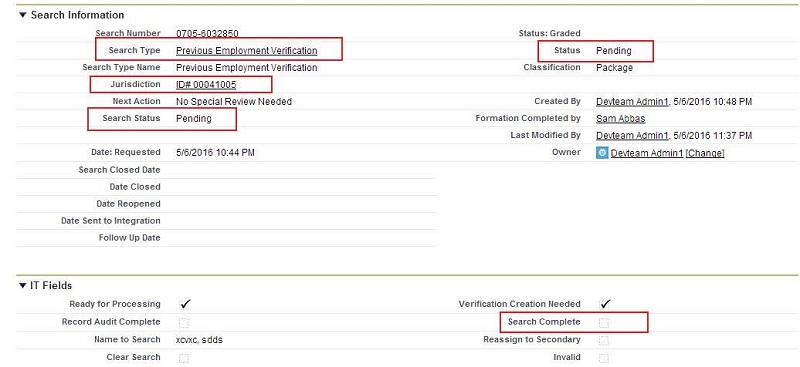
3. Search Type:
This is a lookup field and it maintains lookup
relationship between BGC List of Services and Background Search object. It defines the service type of search like
drug test, county criminal, education verification etc. It's value come from the selected package's item or a la
carte's item.
4. Status:
This is a picklist type field and it contains search record's progress status like Pending, Hold, clear,
Complete, hit etc.
Note : Hit is also a complete type status of search and it means that applicant has a
negative result for this search and employer can decline his employment if any search's status is hit. We also set the
case's status as hit if any search's status is find as hit.
5. Search Complete:
This is checkbox type field. After completion of all procedure and research of any search record pre-employ
researcher staff or vendor set this field's value to true to close the search record. If this field is checked means researching has been completed of that search's
record and it is Closed now.
Note : If we set "Search Complete" to true for all the searches in a case record then case record also got completed and closed by background search trigger.
6. Jurisdiction:
Jurisdiction data is the static data, this data is
created based on the Vendor, County and Location or Non Location based. This data is attached in the background search
at the time of search creation.
About some important Buttons of Background Search object:
1. Edit Button:
This is a standard button and it is use to modify the record.
2. Delete Button:
This is a standard button and it is use to delete the record.
3. Add Search Button:
This is a custom button and it is use to add more search in same Background
Check Case.
4. Cancel Search Button:
This is a custom button and it is use to cancel the search record
and asking "Reason for Cancel" and "Internal Notes".

About Background Search trigger:
Background Search object contains one "BackgroundSearchTrigger" trigger. Every object contain
only one trigger. We perform insert, update and delete operation with a trigger.
There are two types of triggers:
1. Before triggers are used to update or validate record values, before they are save to the database.
2. After triggers are used to access field values that are set by the system (such as a record's Id or
LastModifiedDate field), and to effect changes in other records, such as logging into an audit table or firing
asynchronous events with a queue. The records that fire after the trigger are read-only.
About Background Search page layout:
The main page layout of Background Search is "MasterAdmin". We can create more than one page layout in any object for
and assign to different user profile.