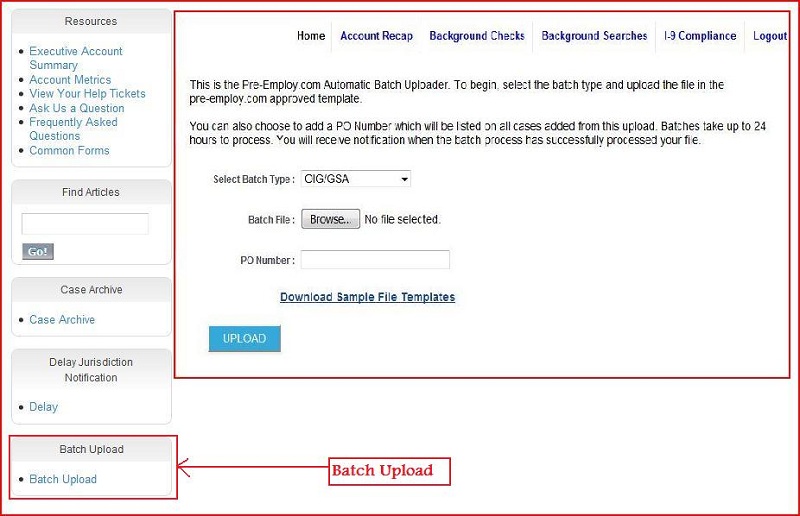
Home page Component and Layout of Main Portal
How to View and Edit the Home Page Layout of Main Portal
- Click on Setup.
- Go to App Setup –> Customize –> Home.
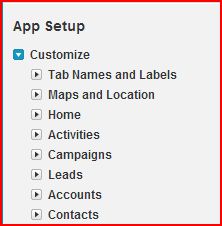
- Click on home, various option will be displayed.
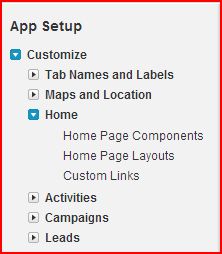
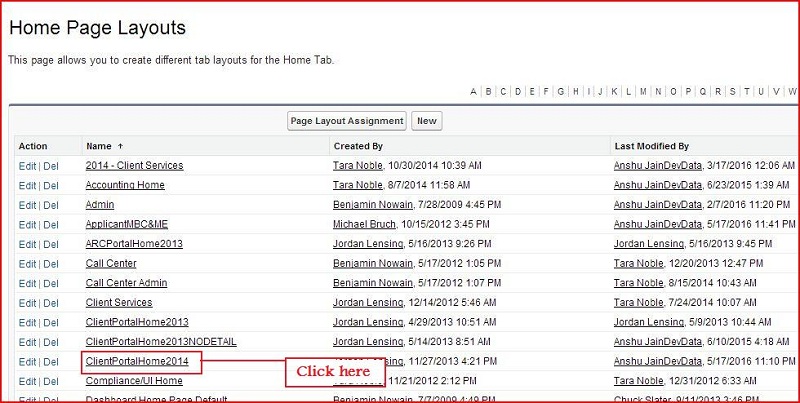
- Click on Home Page Layouts
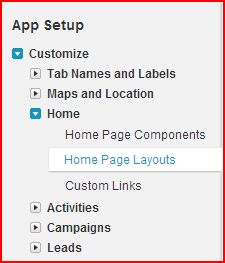
- Click on 'ClientPortalHome2014'.
- After click on 'ClientPortalHome2014', Home Page Layout of Main Portal will open.
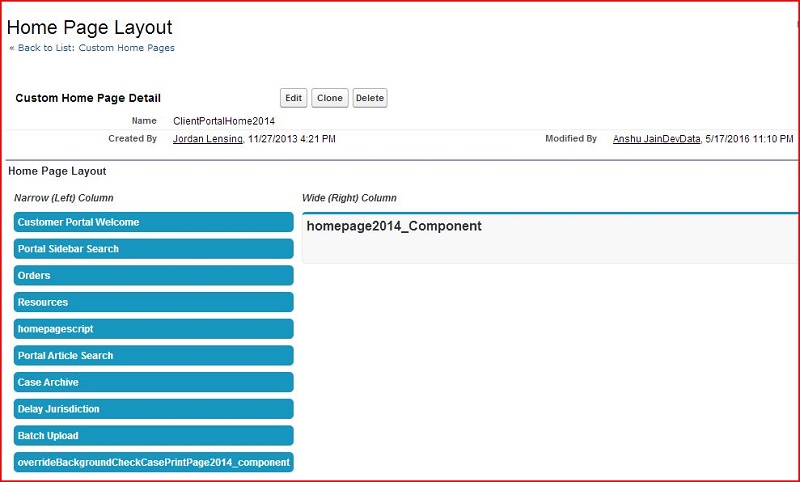
- To edit home page layout, click on edit button.
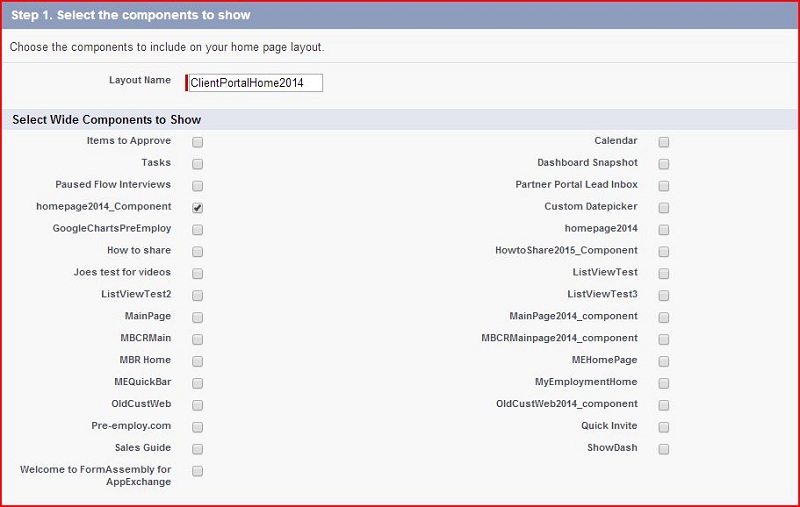
- Select the components to show on home page layout of Main Portal.
- Select Wide Components to Show on right side of home page layout.
- Select Narrow Components to Show on left side of home page layout.
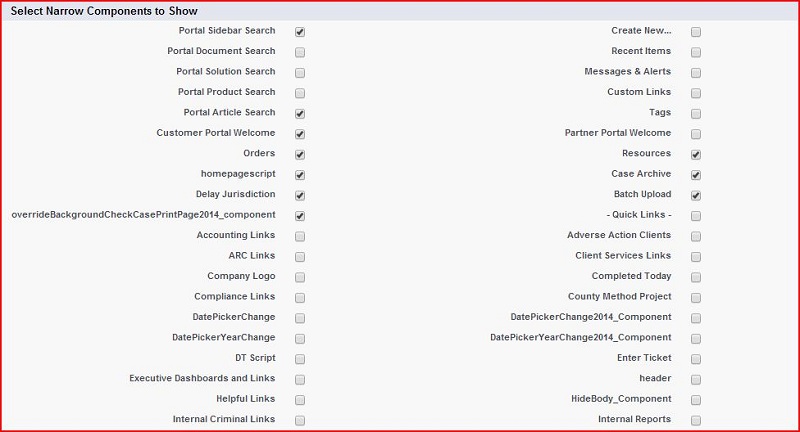
- After selecting of component click on next button.
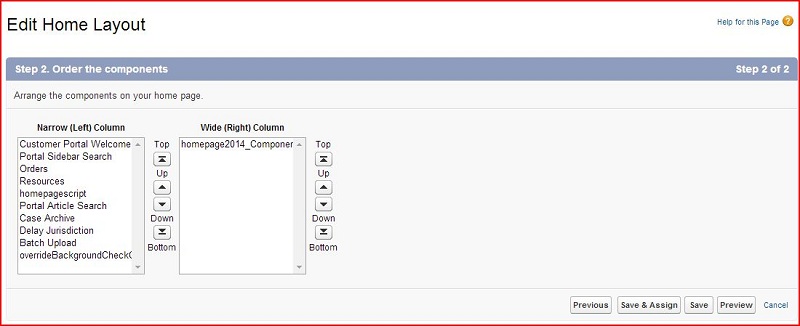
- Set Order of the components according to your need and click on save button.
Create Custom Links and Add or Remove Links From Main Portal
Steps for Create Custom Links
- Click on Setup.
- Go to App Setup –> Customize –> Home.
- Click on home, Various option will display.
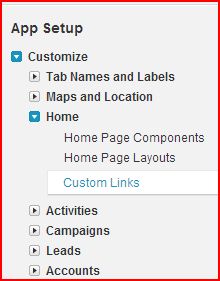
- Click on Custom Links.
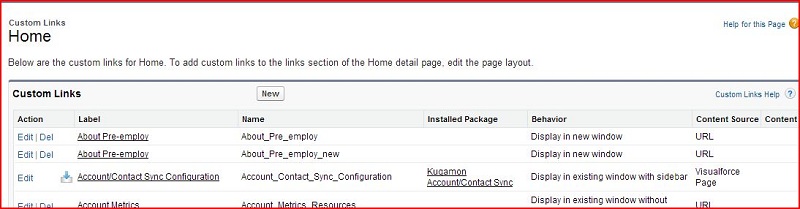
- Click on new button to create custom links.
- Fill Label and Name.
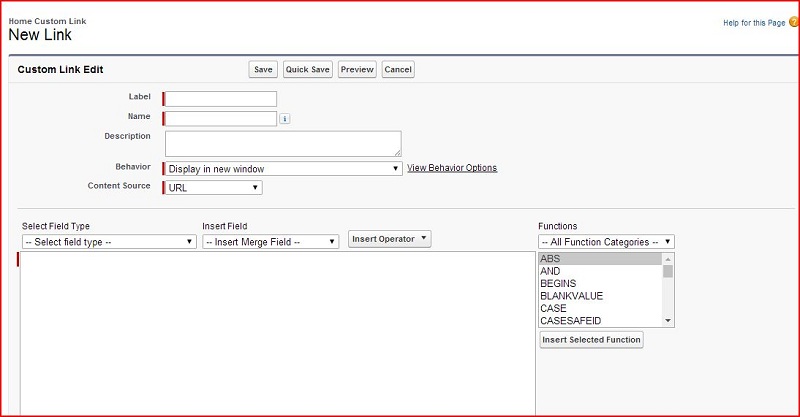
- Select Behavior property defines what should happen when the user clicks the button or link. We currently support the following behaviors:
- Display in new window

- Display in existing window with sidebar

- Display in existing window without sidebar

- Display in existing window without sidebar or header

- Execute JavaScript

- Select Content Source.
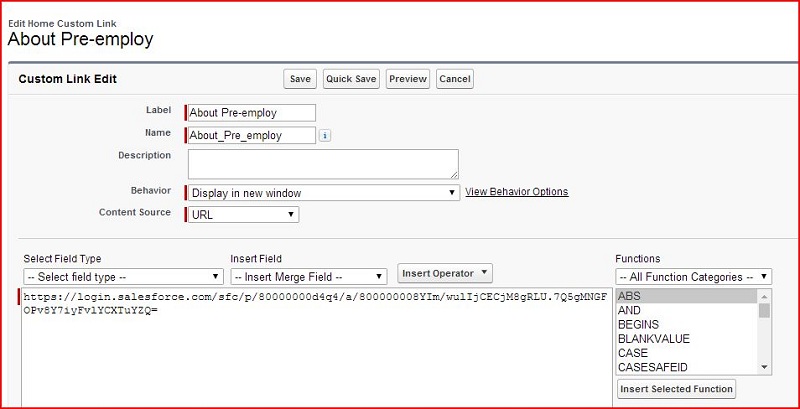
- URL
URL content source work with all behavior option except execute javaScript. In URL option, the given URL will redirect to the specified location.
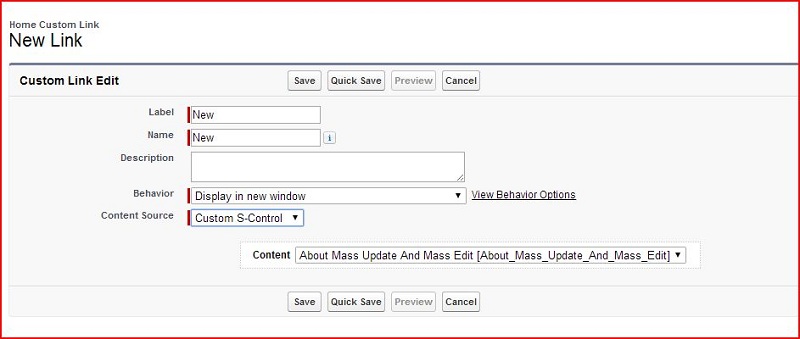
- Custom S-Control
Custom S-Control content source work with all behavior options except execute javaScript.
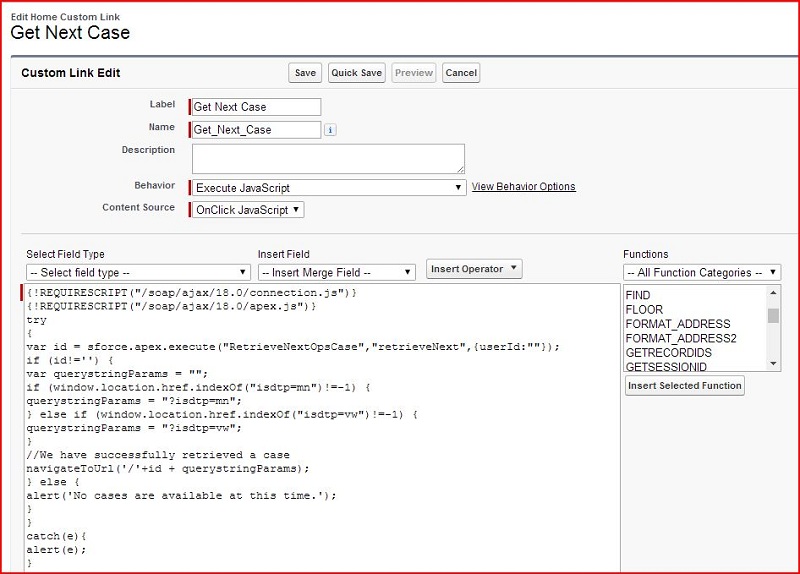
- OnClick JavaScript
OnClick javaScript content source work only with execute javaScript behavior option. In onClick javaScript option we will use both URL and javascript code.
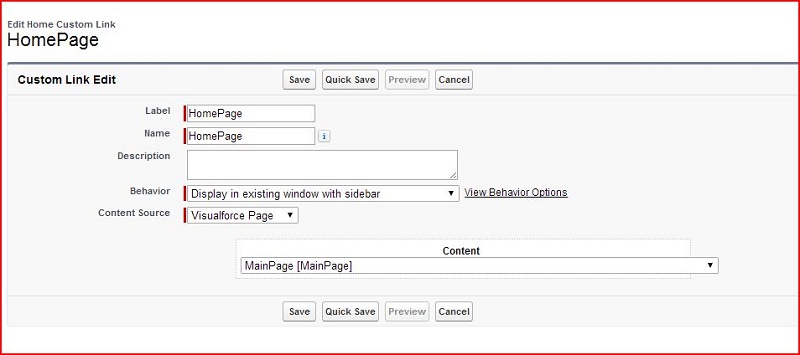
- VisualForce Page
VisualForce page content source work with all behavior option except execute javaScript. In visualForce page option we will use visual force page.
- Write logic in text area and click on check syntax button.
- Click on save button.
Steps to Add or Remove Custom Links From Main Portal
- Click on Setup.
- Go to App Setup –> Customize –> Home.
- Click on home, various option will display.
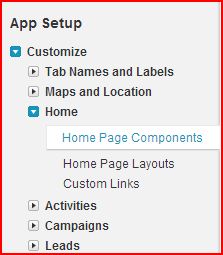
- Click on 'Home Page Components'.
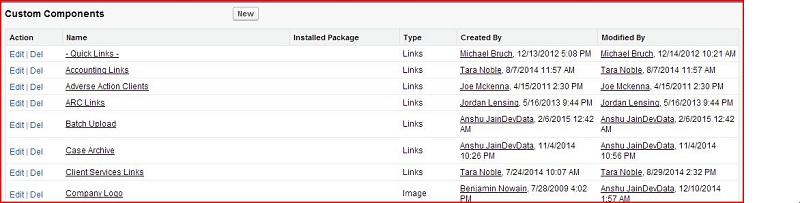
- Click on new button to create custom components.
- Fill name and select type
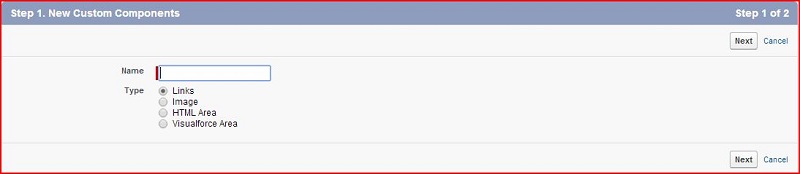
- After fill name and select type click on next button.
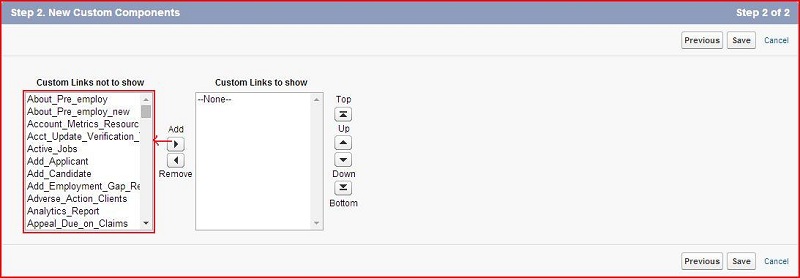
- Add custom links according to requirement from left side and click on save button.
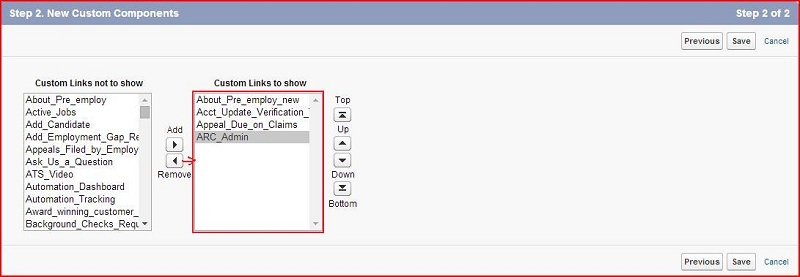
- Remove custom links according to requirement from right side and click on save button.
Add or Remove the Top Menu and Side Menu of Main Portal
Steps to Add or Remove the Top Menu Of Main Portal
- Click on Setup.
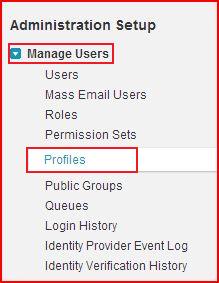
- Go to Administration Setup –> Manage Users –> Profiles.
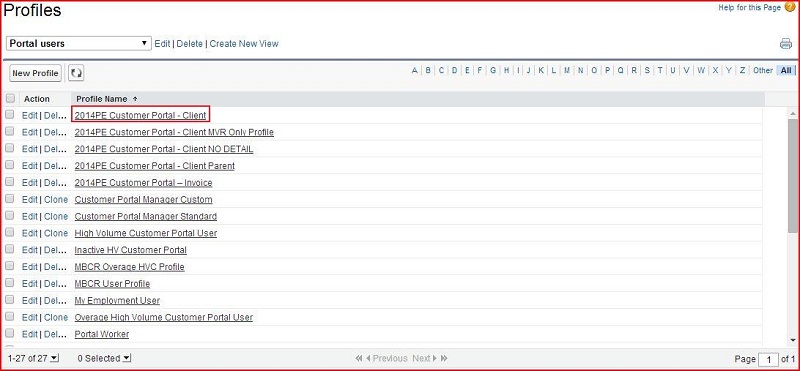
- Click on main portal user profile-"2014PE Customer Portal - Client".
- Click on 'Edit' button.
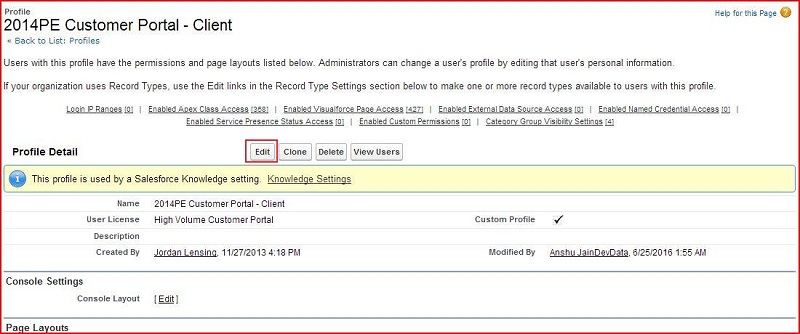
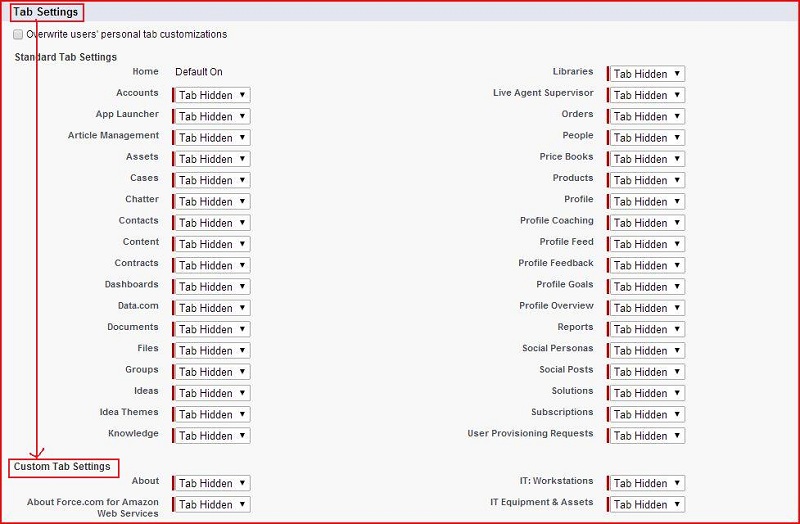
- On profile edit page, under the heading of 'Tab Settings' -–> 'Custom Tab Settings'.
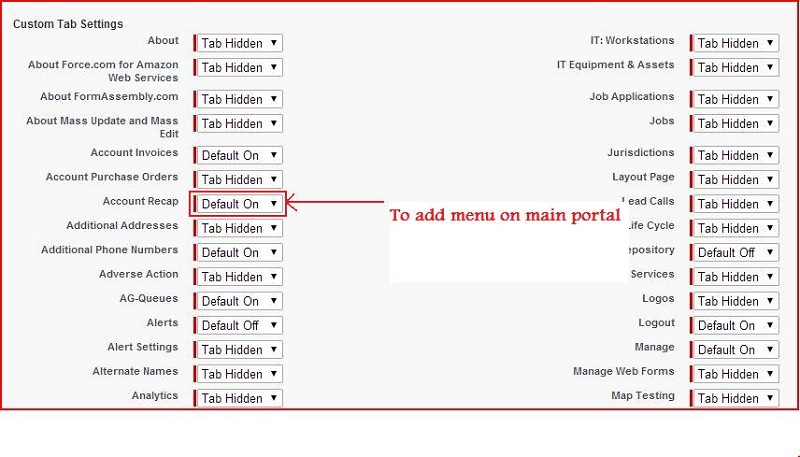
- To add menu set custom tab type "Default on".
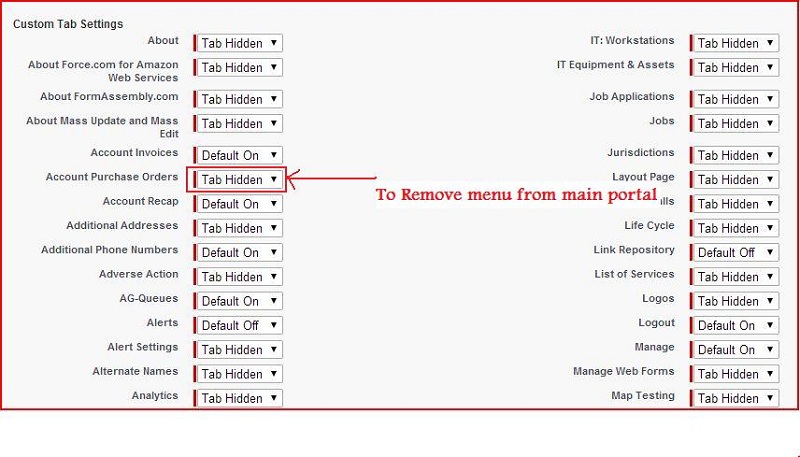
- To remove menu, Set custom tab type "Tab Hidden".
- After set custom Tab type click on save button.
Add or Remove the Side Menu of Main Portal
- Click on Setup.
- Go to App Setup –> Customize –> Home.
- Click on home, various options will be displayed.
- Click on 'Home Page Layouts'
- Click on 'ClientPortalHome2014'.
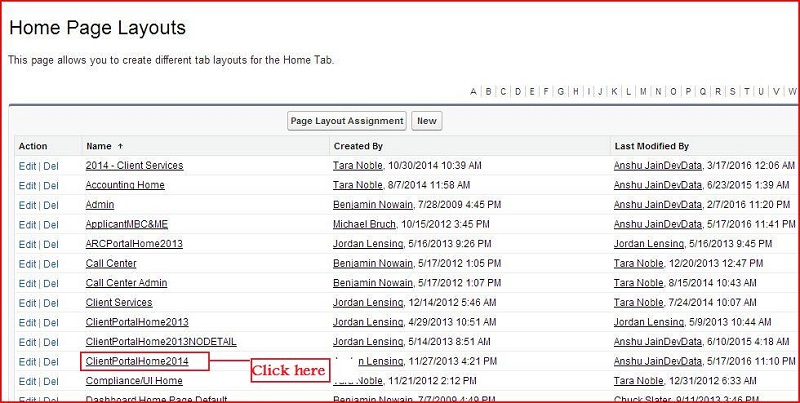
- After click on 'ClientPortalHome2014', home page layout of main portal will open.
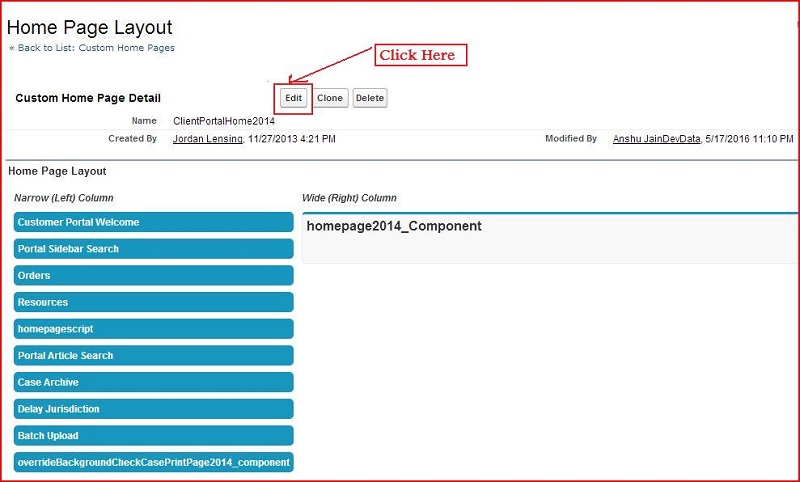
- To edit home page layout, click on edit button.
- Select the components to show on home page layout of main portal.
- Select or deselect narrow components to add or remove the side menu of main portal.
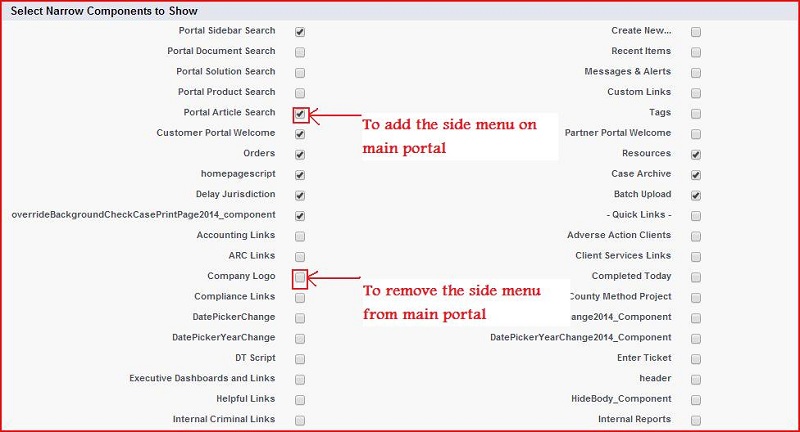
- After selecting of components click on next button.
- Set order the components according to requirement and click on save button.
Descriptions of home page component being used on main portal
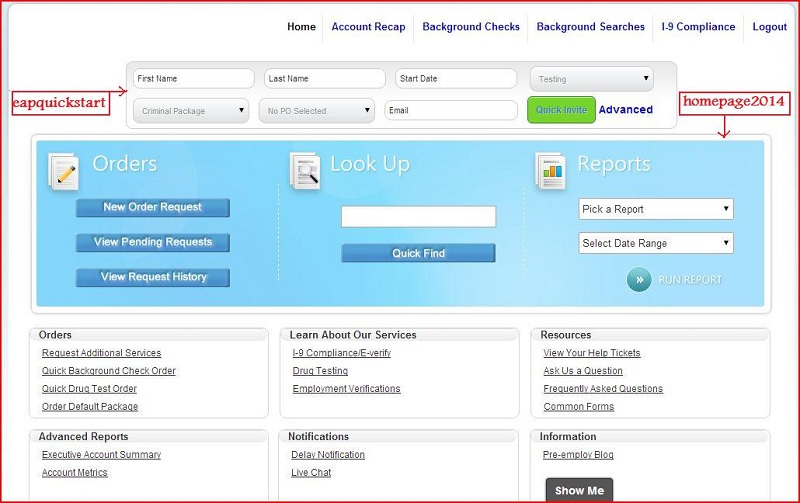
Descriptions of homepage2014_Component
- It is used to display the home page of main portal using eapquickstart and homepage2014 visualforce page.
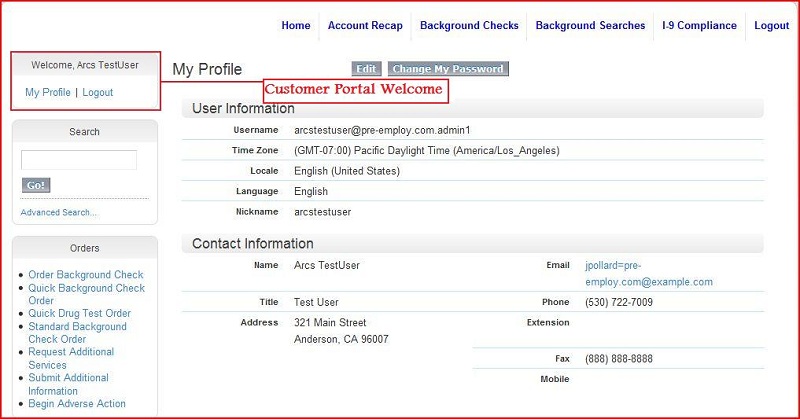
Descriptions of customer portal welcome
- This component shows the user name with welcome greeting, who is logged in to main portal.
- This component having two custom links:
- My Profile: It is used for display profile details of current user's who is logged in to main portal.
- Logout: It is used for logout the user's from main portal.
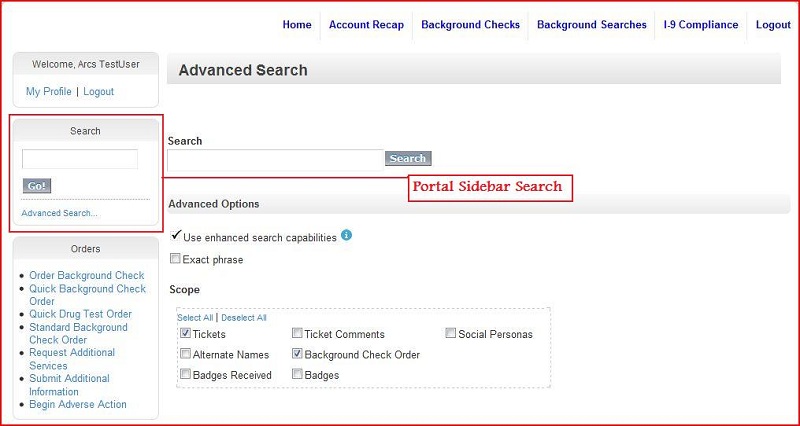
Descriptions of portal sidebar search
- This component used for search the user's queries from main portal.
- This component having one custom link:
- Advanced Search: It is used for advance search with advanced options and scope.
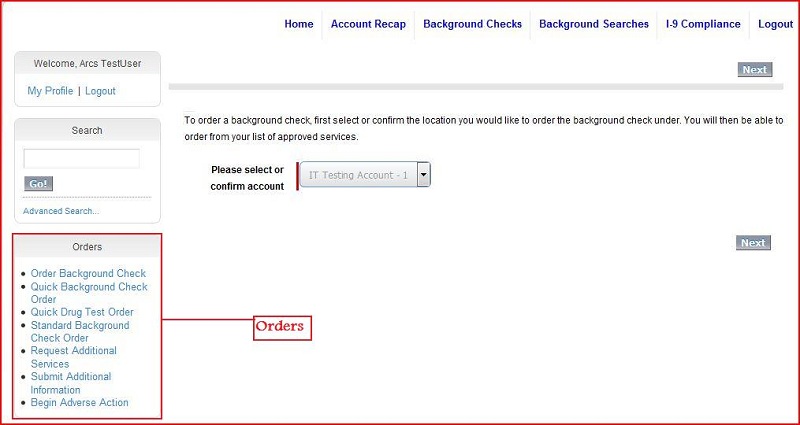
Descriptions of Orders
Orders component have 7 custom links for different types of orders:
- Order Background Check :- This is used for place the order for a background check service.
- Quick Background Check Order :- This custom link is used to order a quick background check service.
- Quick Drug Test Order :- This is used for placing the quick drug test order service.
- Standard Background Check Order :- This custom link is used to order a standard background check service.
- Request Additional Services :- This is used for creating a ticket to request additional services.
- Submit Additional Information :- This custom link is used for submit the additional information to
create a help ticket to be addressed by Pre-employ.com regarding Background Check Case.
- Begin Adverse Action :- This is used for creating a help ticket that addressed by Pre-employ.com regarding Background Check Case.
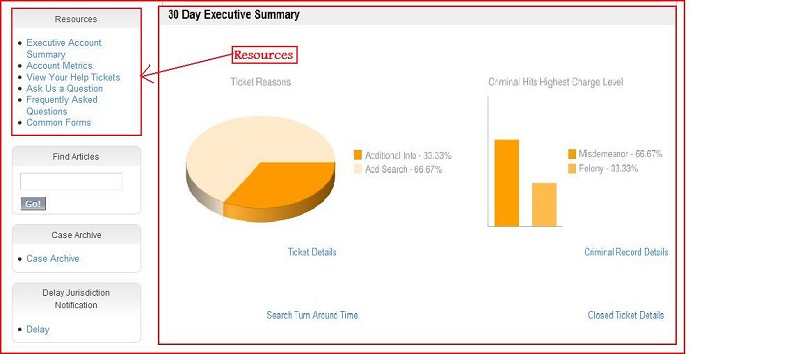
Descriptions of Resources
Resources component have 6 custom links:
- Executive Account Summary :- This is used to show the 30 Day Executive Summary.
- Account Metrics :- This custom link is used to show the dashboard for account.
- View Your Help Tickets :- This is used to check the status of the help tickets.
- Ask Us a Question :- This custom link is used to create a help ticket for ask a question to Pre-employ.com
- Frequently Asked Questions :- This page displayed the answer of questions which help user's to learn about Pre-employ.com.
- Common Forms :- This custom link is used to display the common forms for download.
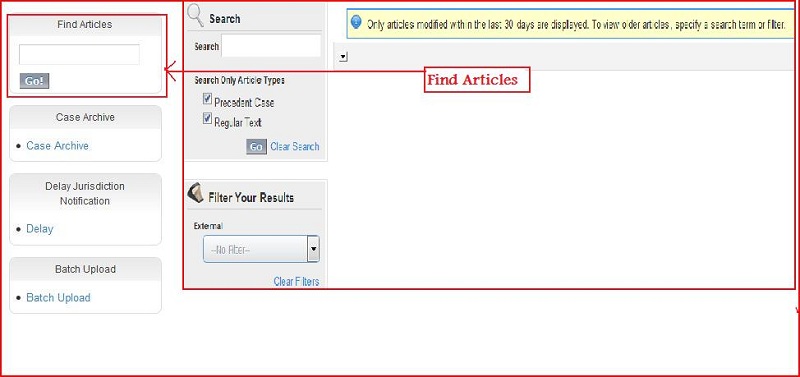
Descriptions of Find Articles
- This component is used for find the articles.
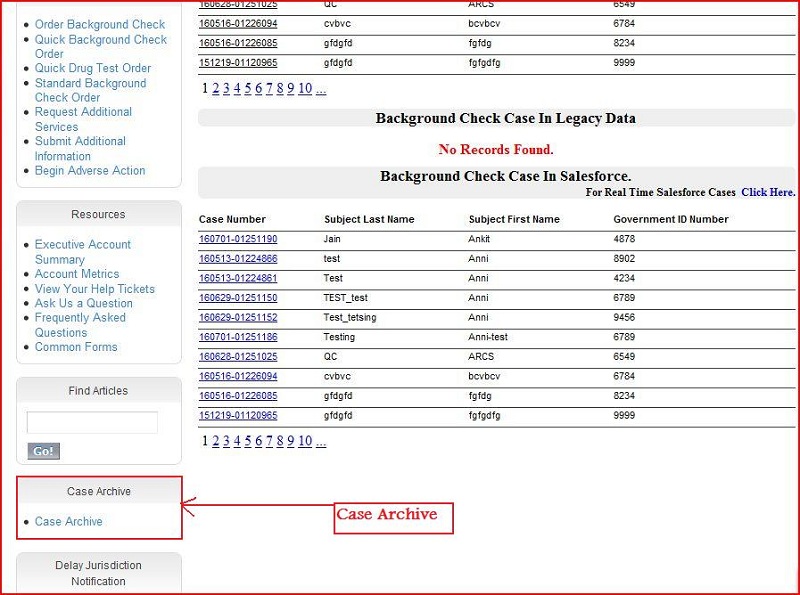
Descriptions of Case Archive
- This component is used for find the archived background check case.
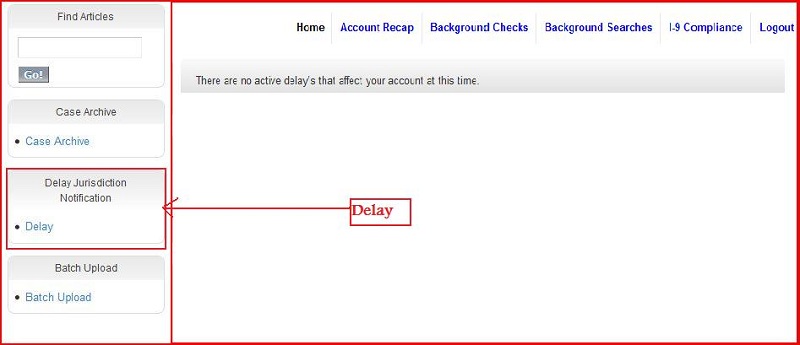
Descriptions of Delay Jurisdiction
- This component is used for shows the list of delayed searches by jurisdiction.
Descriptions of Batch Upload
- This is the Pre-Employ.com Automatic Batch Uploader. To begin, select the batch type and upload the file in the
pre-employ.com approved template.