Code Collaborator User Settings
Step 1 -Confirm access to Collaborator and confirm user settings
-
Login to http://scm.arcscorp.net:8081/ui
using your svn login name and password.
-
Click on Settings on top right and confirm that following is correct:
-
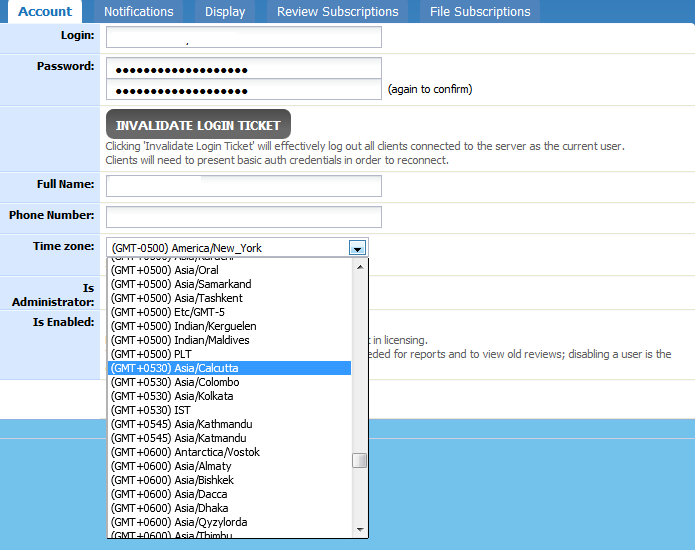
Account Tab: Full Name and Time Zone. Time Zone should be GMT +0530 as shown in screenshot below.
-
Notifications Tab: Email Address.
Step 2 - Download & Install JAVA and Collaborator client
-
Download
JAVA and Collaborator client from software location on local
network. Make sure you are either downloading 32bit or 64bit
depending on version of operating system on your machine.
-
Install JAVA first and then Collaborator client.
-
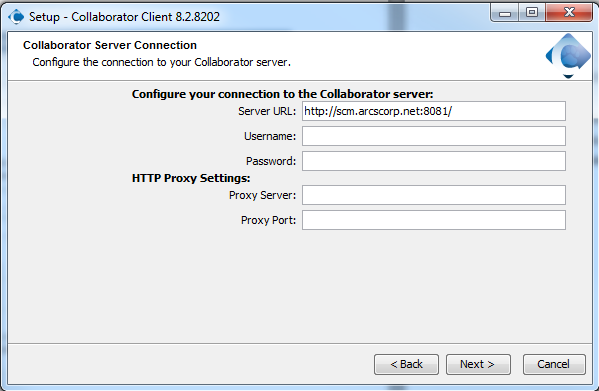
During installation of Collaborator client, enter following url for Server
URL: http://scm.arcscorp.net:8081/.
For username and password use your svn username and password.
Step 3 -Configure Collaborator client
-
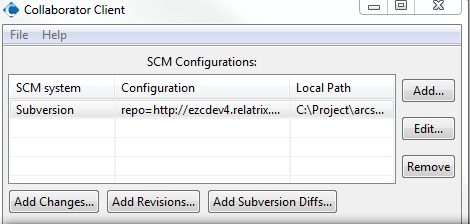
Open Collaborator client from system tray or start menu.
-
Click on Add button.
-
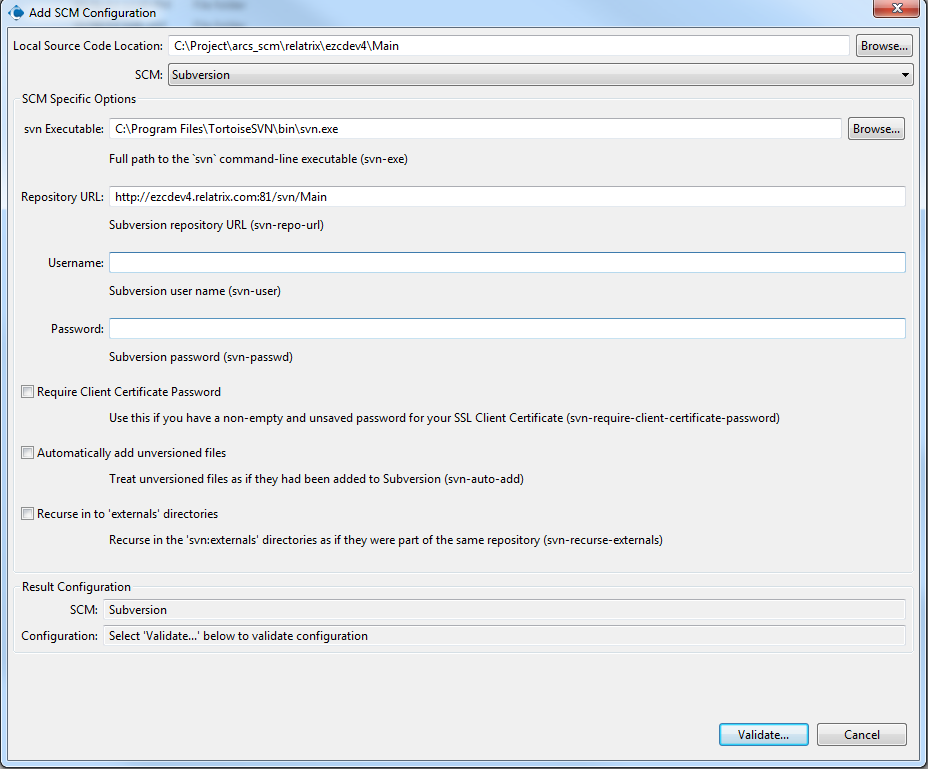
Enter values for following fields:
-
Local Source Code Location: Root folder of svn repository.
-
SCM: Select Subversion from dropdown.
-
Repository URL: Root url of svn repository.
-
Username and password: Your svn credentials
-
Click on Validate and then OK button.
-
Repeat Steps 2 to 4 for all svn repositories you want to add.
Step 4 -Submit Review Request using Collaborator client
-
Open Collaborator client from system tray or start menu.
-
Click on Add Changes button.
-
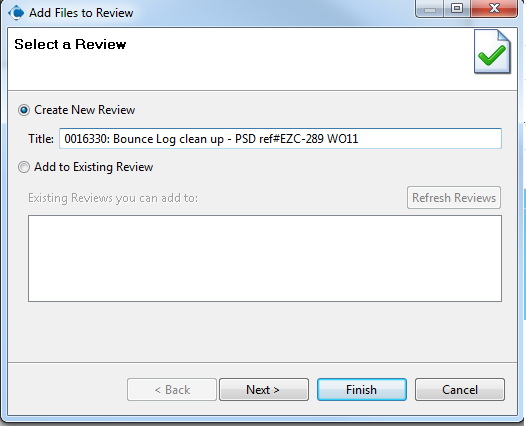
Enter DTS issue title in Title field and click on Next button.
-
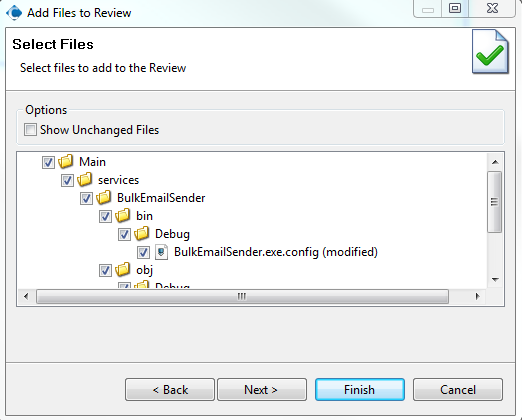
In next screen select files that you want to Submit for review. Click on Next Button.
-
In next screen add any additional files (e.g. db or data scripts). Click on Next Button.
-
In next screen review summary and click on Finish button.
-
It will open browser window and takes you to SCM website. Enter svn credentials to login and you will be direct to review page.
-
In review page enter / confirm following:
-
Review title is matching with DTS issue title.
-
Enter DTS Issue# e.g. 16330
-
Fill-in checklist.
-
Add participant to whom you want to submit review.
-
Click on BEGIN REVIEW to submit the review.