Business Process of Pre-employ
What pre-employ do :
Pre-employ provides a wide variety of comprehensive and in-depth employment-screening packages with outstanding customer service.
pre-employ role in background screen service :
Pre-employ, which serves businesses through its website, MyBackgroundCheck.com and pre-employ.com, has an extensive selection of
background check plans. Its packages start with simple criminal background checks, while other packages offer more in-depth
searches that include past employment and education verifications. There are also plans for businesses that specialize in
transportation, child care, financial services and health care.
how pre-employ do it (Normal Overview):
Pre-employ's online portal is very easy to use. First, Client purchases the plan that fits Client needs. After making the purchase
online, Client will receive an email requesting the name of company and contact details, as well as additional information, such as
articles of incorporation, W-9 forms and other details that allow Pre-employ to verify Clients business.
Once Clients business has been verified, Pre-employ team creates Account and Login Credential for Client then a customer service
representative will call to help client log in to the online portal. Through this online portal, client can request background checks,
see the status of a Background check and review the final reports.
Pre-employ offers two ways to request a background check,
1. A manual option in which client fill the candidate's name, birthday, Social Security number etc directly into the website(Portal)
using process 'Order Background Check', 'Quick Background Check Order' etc.
2. The second option is the "Quick Invite" With this method, Client just fill out the candidate's name and email address. Pre-employ
then sends the job candidate an email with a link to the system, asking them to fill in all of the remaining details.
This not only makes less work for client, but also puts the responsibility on the candidates to make sure all of the details they
submit are accurate.
Once the required information has been submitted, the background check is immediately started.
Pre-employ has a department CCO (Call Center) which is involved with verifications.
Throughout the process, Client can log in to the Portal to check on the status of their searches
For example, if a county criminal search was done, the status will say "clear" if nothing was found or "hit" if a criminal record was
discovered. For those who have a hit, Pre-employ displays all of the particulars it found about the case.
Pre-employ also sends an email to client each time a search is completed.
Once all verification is completed and Case is closed then a PDF of Case summary and electronic Bill sent to client by Pre-employ.
How pre-employ do it (Technical Overview): :
Once client get log in to the online portal then client can place an order for applicant by several process:
Process to Create Order :
-
New Order Request/ Order Background Check
-
Quick Drug Test Order
-
Standard Background Check Order
-
EAP Order
Except EAP Order, all process is the basic flow to create an applicant order. The order is created by a client with the
applicant data to be filled depending upon what type of background check order is needed to be verified i.e Package. In intake
flow there are different process to create an order depending upon the package.
Order Process explanation:
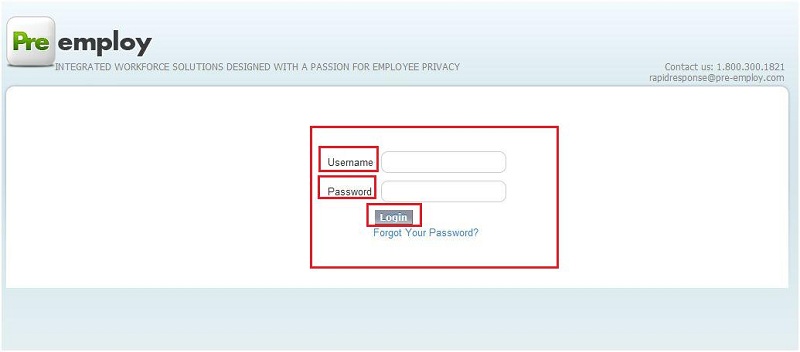
In the background check order process ,1st we have to login to the pre-employ website with valid credential.
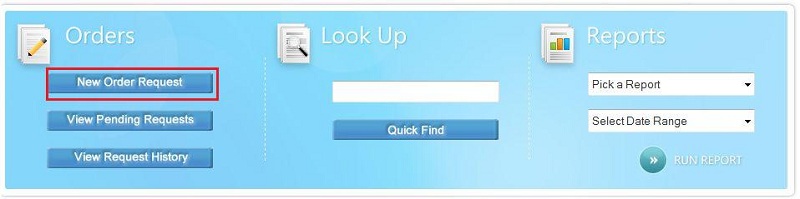
after Login into pre-employ,please click on new order button on the main page pf pre-employ.
now please follow the below screen to place the order.
Screen 1:
This screen is choosing account. The account name are listed here are associated with the contact of the user logged in.

Screen 2:
On clicking next on Account page navigates to Choose Package page.
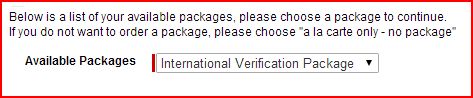
Screen 3:
This is the page where the client sees that what package he has selected with the items in it and also on this page client can
choose Yes to add any additional item as a la carte.
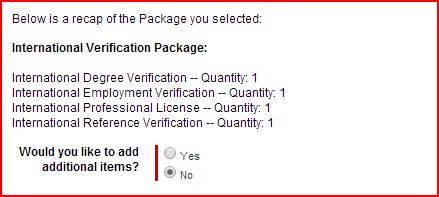
If Yes then client can choose items from next screen from the Select Service drop-down and Quantity.
Screen 4:
To add more items if required.
Note That if the verification package is chosen and also verification item is added as a la carte also then that
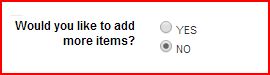
Verification will be prompted total number of times. For example If the Employment Verification is in a Package with 2 quantity
and also Employment Verification as a la carte with 3 quantities then 5 times Employment verification will be prompted to fill by the user.
This quantity process will only be done for verification items only.
Screen 5:
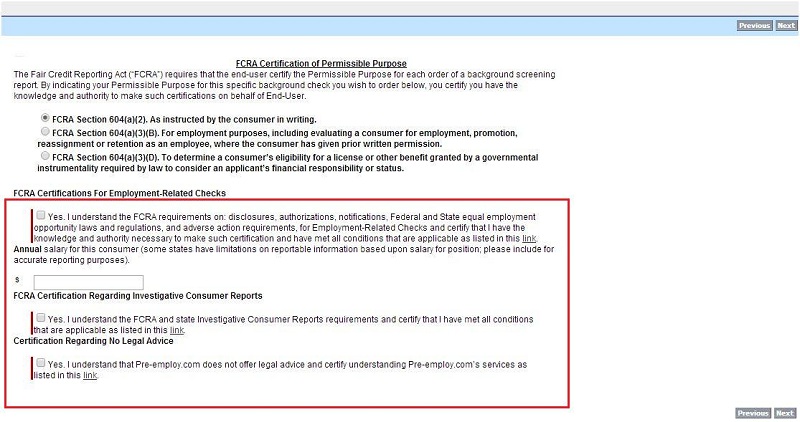
This is the Fair Credit Reporting Act ('FCRA') page.in this page client acknowledge that end-user certify the Permissible Purpose for each order of a
background screening report. By indicating your Permissible Purpose for this specific background check you wish
to order below, you certify you have the knowledge and authority to make such certifications on behalf of End-User.
this screen will be appear on the client side is based on the package client has selected.
If Yes then client can choose items from next screen from the Select Service drop-down and Quantity.
Screen 6:
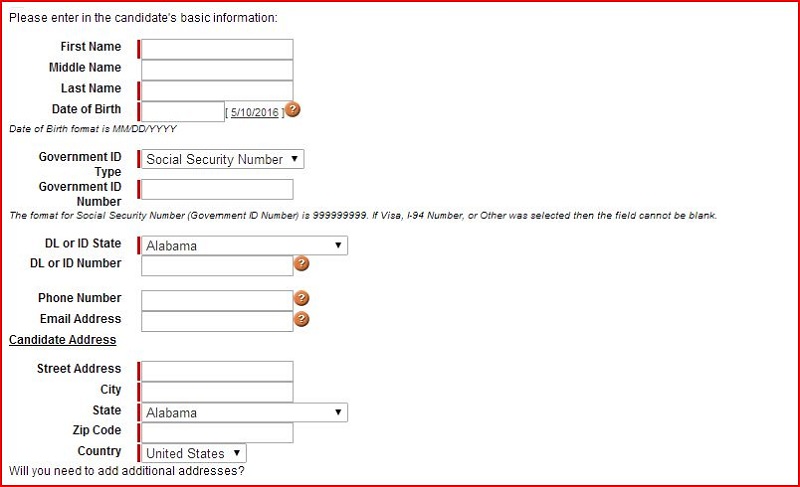
Basic applicant information page.
Here user fills the basic detail of the applicant. On the page there is an option to add Alternate Name and Additional Address if applicant has so.
When all fields are filled on the basic info page then all fields update the fields on background check order object.
Note that Government ID number if SSN is selected then user have to enter 9 digit number in the field
Screen 7:
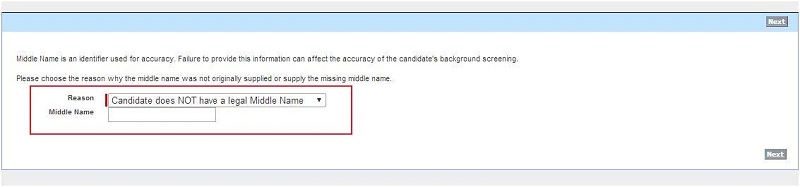
This screen only appear when middle name is not provided in the previous step.if middle name is given in the previous step then screen 8 will appear in the client side.
if the Middle name is not mention in the previous page then this screen will appear in the client side where client has to clarify that client don't have legal middle name.
Screen 8:
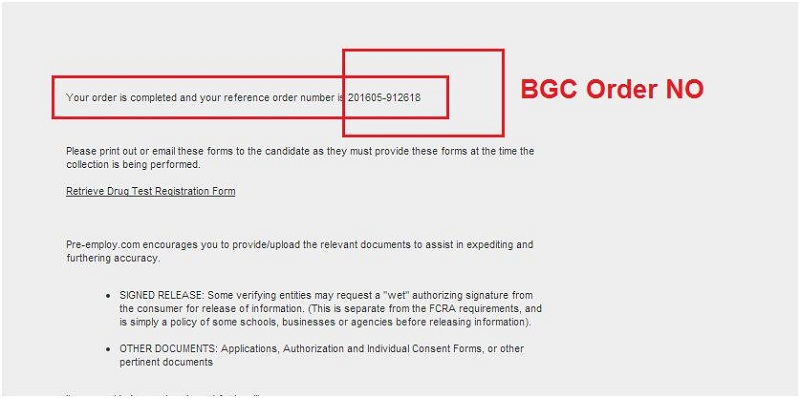
Order Completion page. When Order is completed after filling all details in all steps then page will navigate to this page.
NOTE : On this page if Drug Test item and OCC item are added then completion page will displayed with different contents.
Now once order is placed by client, Pre-employ team started other process.
Case Creation:
After creation of order, case is created at admin level.
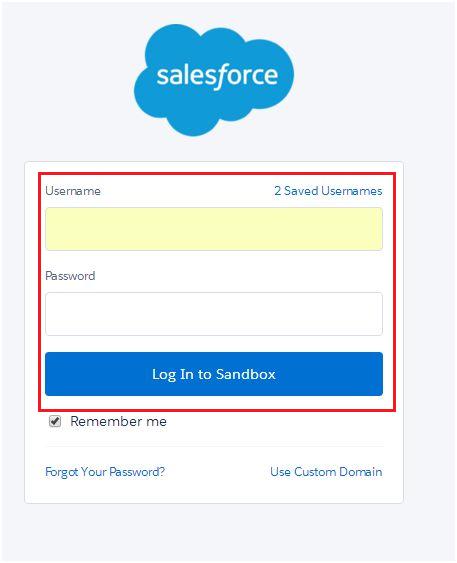
now login to admin sandbox with valid Credential
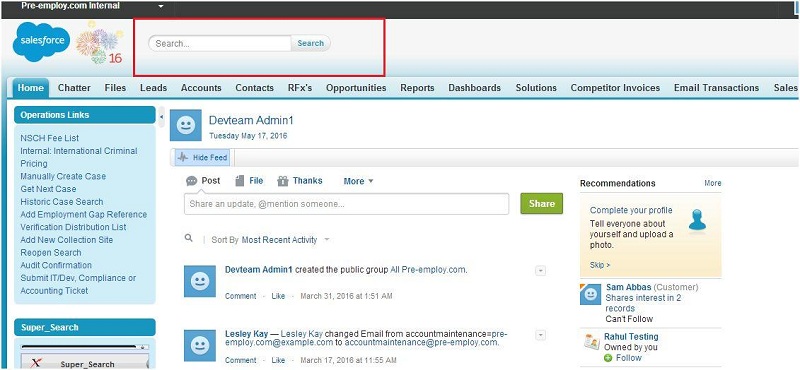
search for the order no which we have received in the previous step.
write order no in the search box of the admin server sandbox and click on search button.
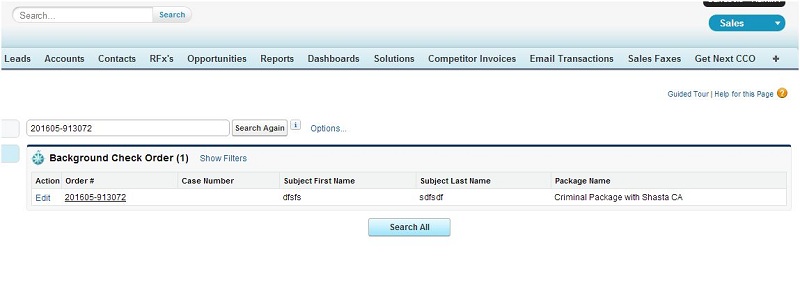
Click on the search result or order no for which you have searched .
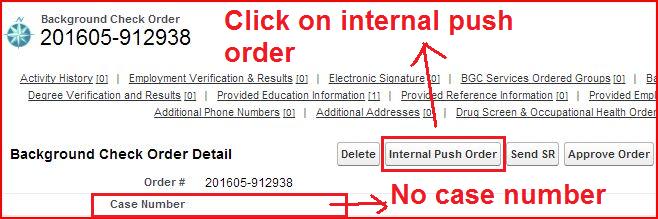
On order detail page there is Internal Push Order button,when we press this button then a pop up will open and we just need to close that pop-up after some time because it is use to
create the case no for this background check order. so,when this button is clicked then background check case is created. this is not necessary to clicked on this page. in admin1 exe is also running to
do the same work. in every15mnt that exe is running to create case no for the bgc order. but for fast process we are clicking on this button.
When case record is created then it get associate with order and all detail in order record updated in Case record.
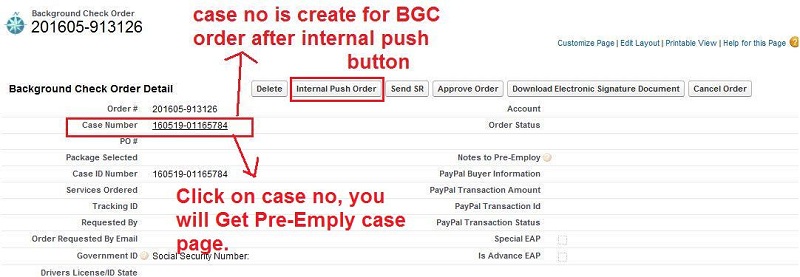
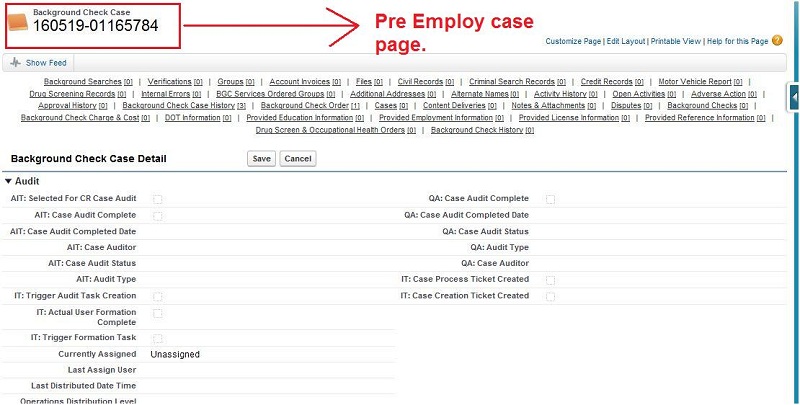
Clicked on the case no and check the case information section on the background check case page.u can see that internal case status is set to
'Formation on Hold - Pending Approval' and Case Status is set to 'Pending'.
Background Search Creation:
Search is created when case is created and then search associate with the case. All details of case get sync with search.
Searches are created Automated and manually.
Searches are created based on the services order. service order are the package that the client has taken at the time of placing the background check order. so in background check case all the
searches are created based on quantity of service order selected by the client.
searches are created with the help of CreateScheduleSearches.exe . it is running on admin1 to create searches of the case .

once the background searches are create then it will get sync with case data of client and after that it will perform the work according tho the service ordered by the client.
if the status of the all searches are complete for background check case then the status of the case will also be closed and this is done by the PreEmployCase Trigger.
and if the status of the case is completed then the background check case status will also be completed.
Automated: When case is created then searches are created through CreateScheduledSearches.exe. This exe verify
the case status that it is Pending Automation is or not then in associated Order it verifies the Service Order records
and Intake records and create the searches according to number of service records and Intake records.
Manually: There are few buttons to add searches manually like Add Search, Add a Search and Metro buttons. When
user prompted to choose service to be add the user click the Add Search button.
Verification Creation:
When search type is Verification type then through its Intake verification is created through an automated exe and that
verification associate with that search whose intake record it was. If verification is not created automatically then it
can be created manually on Background search detail page by clicking New Verification, then click record type and proceed
then choose the verification type, status, Background Check, Account, Applicant Details, Contact Details and verification
details according to the type of verification.
When Verification is created successfully then these searches are distributed to Pre-emply call center representative.
Representative updates verified responses to search using Call Center page.
Note for CCO : For more information about call center please find Call center Document on below link.
Click here for CCO : Call Center Document
Result, Notification and Reporting :
When all Searches are closed as a clear then Background Check Case get closed as well by script and notification,
summary of Case (Comp report pdf) sent to client by scheduler exe(Automated Process).
comp report are the pdf type of report which is based on the service requested by the clients in background check order. All the personal information ,
service related information are available in comp report.
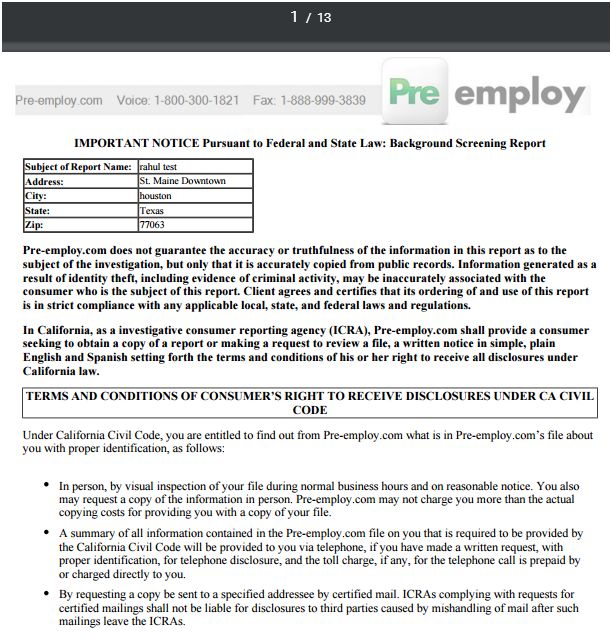
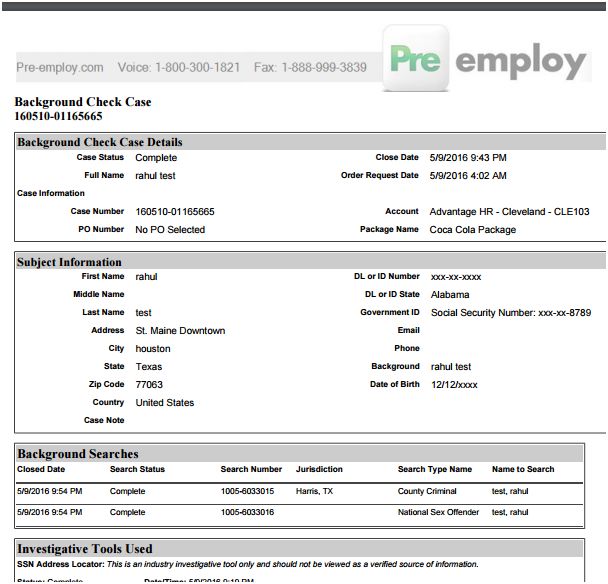
Note : Comp report Pdf contains information about Background Check Case and Searches.
Dispute process :
Pre-employ provides dispute process. When an applicant's background check shows undesirable behavior's from the past then he
can process any and all verification as a disputes i.e. If any applicant provides False information or by mistake Pre-employ
provides undesirable result then it could cost applicants a job or promotion or lead to termination etc.
Through this process applicant is eligible to verify their Background check again. In case of, if Pre-employ has done mistake
then Pre-employ needs to pay $10000 to applicant with desired result.