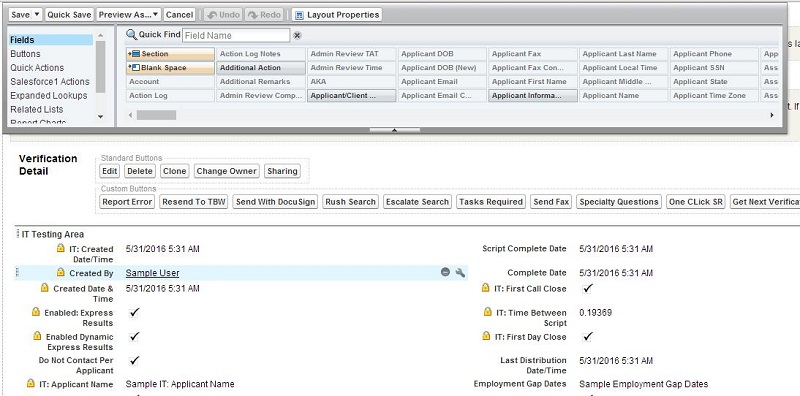
Verification (Custom Object)
About Verification object:
Verification object is a custom object. It's record get created automatically/manually only for
Background Search object's record whose type contains verification like Degree verification, employment verification,
license verification, DOT etc. It has one to one relationship between Background Search object i.e every Background
Search record can have only one Verification record. Verification record get's processed by Pre-employ's call center
staff through "GetNext Call Center" module. They verify the applicant's provided information and enter his information
in verified fields. Verification record gets distributed to call center department by it's priority which is calculated
based on various distribution priority criteria like timezone, Queue etc through "GetNextDistributionSheduler" EXE
which is being executed within every 30 minutes.
Type of Verification:
- Employment Verification
- Degree Verification
- License Verification
- Reference Verification
How to reach Verification object and its fields?
We can see the object definition, trigger and all the fields of Verification object by using given
below two ways.
1: With the help of 'Setup' search box.
2: With the help of 'All tab' button.
1: With the help of 'Setup' search box.
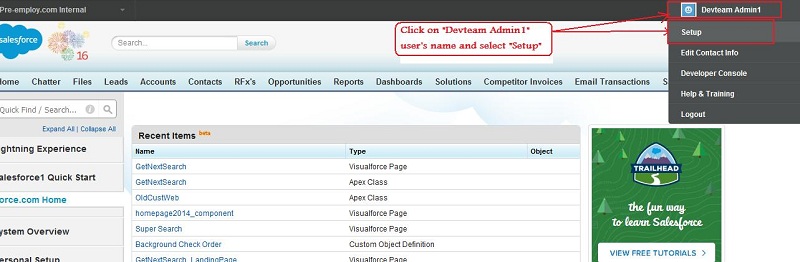
Step 1 : Click on the user name(Right corner of the screen).
Step 2 : Select setup
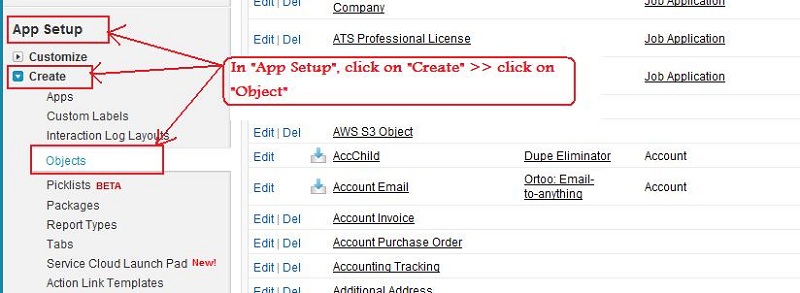
Step 3 : In "App Setup" click on "Create" >> click on "Objects".
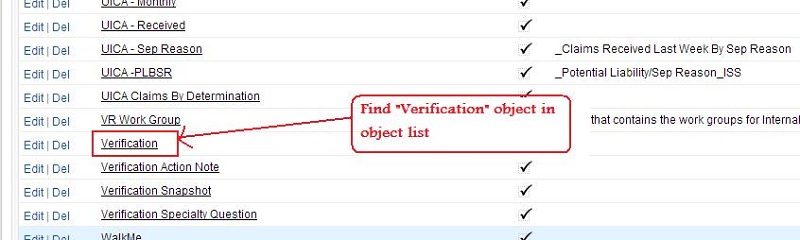
Step 4 : And find the "Verification" in object list.
2. With the help of 'All tab' button.
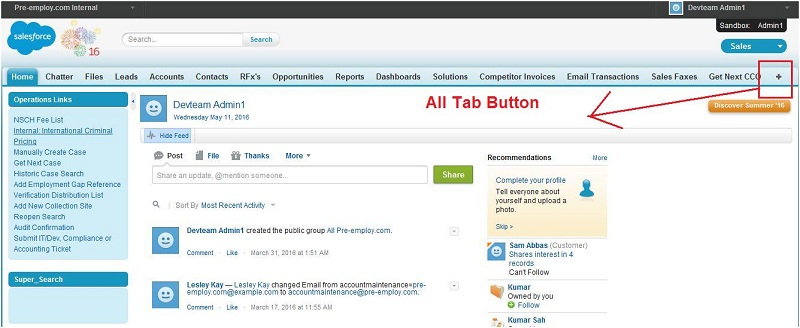
Step 1 : Click on all tab button on the home page of salesforce.
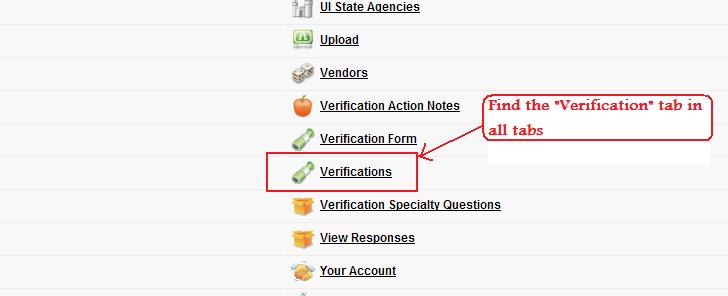
Step 2 : Find "Verification" tab in all tabs and click on "Verification" tab.
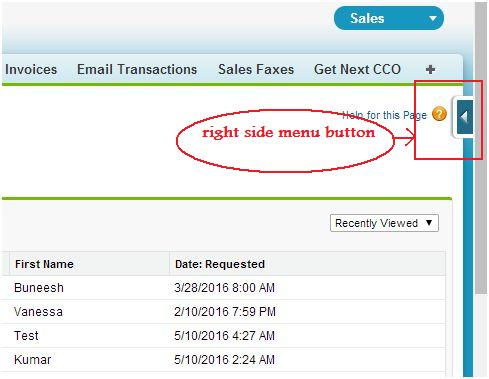
Step 3 : Click on right side menu button.
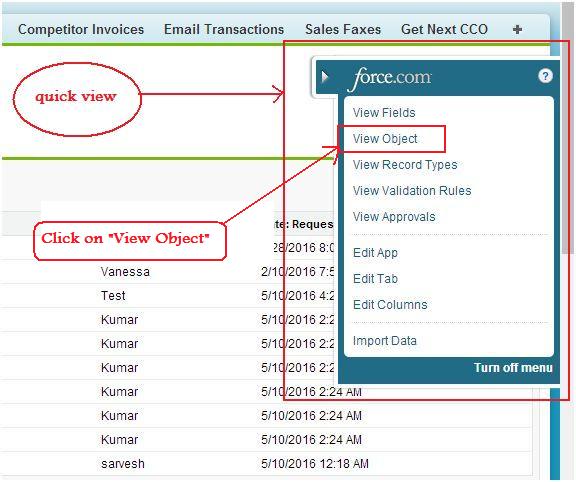
Step 4 : Open a menu list and click on "View Object".
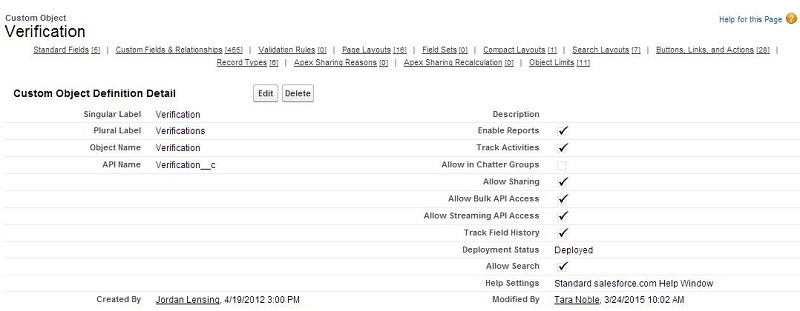
Step 5 : In "Custom Object Definition Detail" page, we can see the object definition,
trigger and all the fields of Verification object.
How to create Verification record:
1. Using EXE execution.
2. Manually.
1. Using EXE execution:
Initially verification records are creating automatically.
2. Manually:
Step 1 : Go to verification type Background Search detail page.
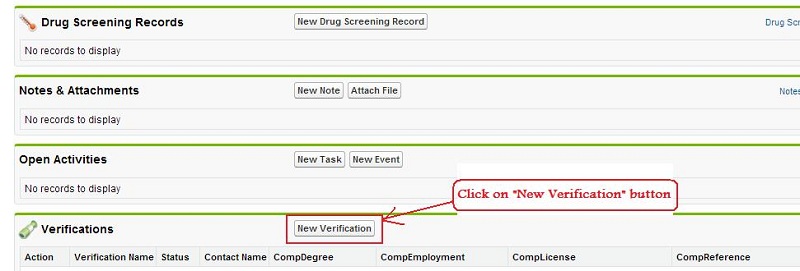
Step 2 : Go to related Verification list and click on "New Verification" button.
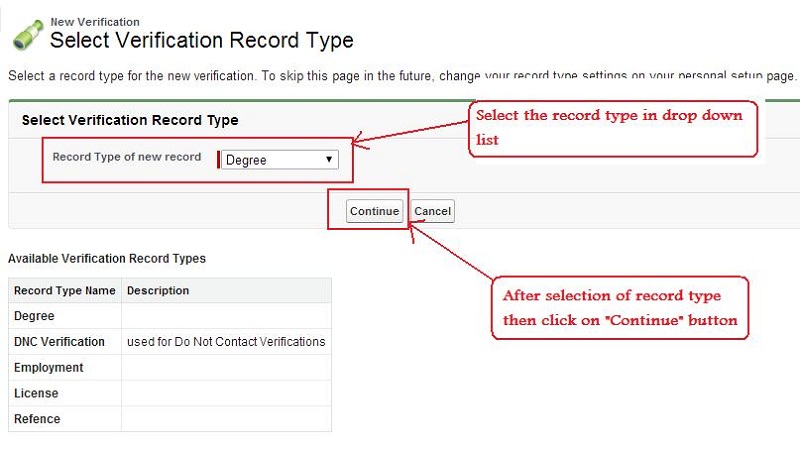
Step 3 : Select the record type of verification then click on "Continue" button.
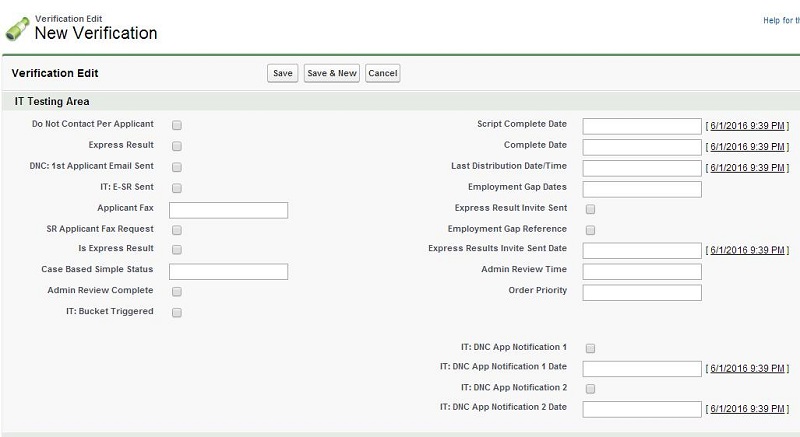
Step 4 : Enter all the required fields.
About some important fields of Verification object:
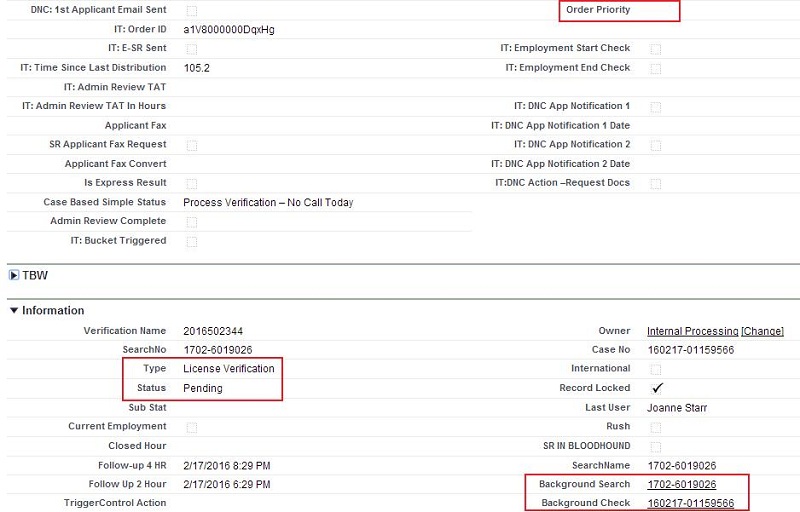
1. Type:
It is a custom picklist field and it contains the type of
verification like license, Reference, Degree and Employment. GetNext CallCenter's page is based on this field, if type
is "Reference" then Reference based fields are displayed on GetNext CallCenter page etc.
2. Status:
This is a picklist type field and it contains search record's progress status like Pending, Hold, clear,
Complete, hit etc.
Note : Hit is also a complete type status of verification and it means that applicant has a
negative result for this verification and employer can decline his employment if any verification's status is hit.
3. Background Search:
It is a custom lookup field and it contains the
related Background Search record(as a parent). It's value comes form related Background Search number and it is a
required field. Without this field we can't relate with related Background Search record.
4. Background Check:
It is a custom lookup field and it contains the
related Background Check Case(as a parent). It's value is entered manually from related Background Search's Background
Check Case.
5. Order Priority:
It is a Number data type field. Based on this field,
GetNext CallCenter page displays the verification. After execution of "GetNextDistributionSheduler" EXE, priority
number is assigned in this field and after completion of "GetNext CallCenter" process this field is again blank.
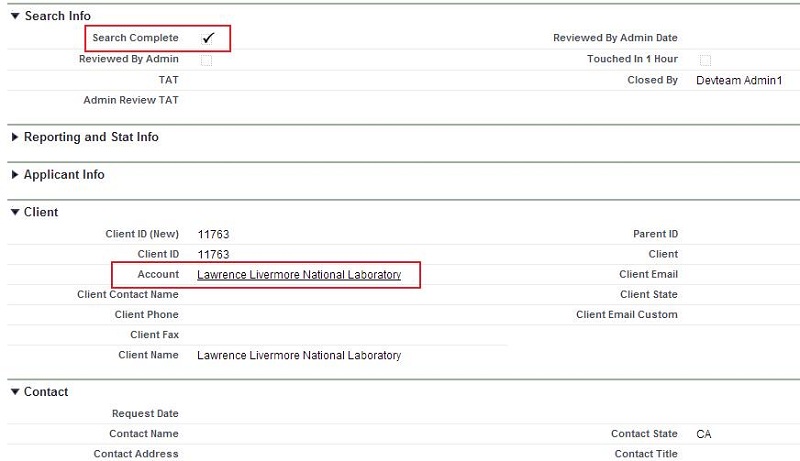
6. Account:
It is a custom lookup field related to account object and is used for the client who ask for the applicant's background check.
If Account is "LLNL" then verification distribute priority got changed proceed through "LLNL GetNext CallCenter" page.
Note : LLNL is a special client of pre-employ and pre-employ process its verification record
in some different way.
7. Search Complete:
It is a checkbox field. If verification is complete
then this field is checked and some fields are updated like Reviewed By Admin, Reviewed By Admin Date, Complete Date,
Closed By etc.
8. Client is Admin Review:
It is a formula checkbox field. It is contain
the value of Account__r.BGC_Configuration__r.Verification_Review_Enabled__c. If it is true then again Admin review the
result of record and it is extra chargeable process.
9. Admin Review Complete:
It is a checkbox field. If it is true
then "Admin review" process has been completed.
10. Internal Notes:
It is a Long Text Area field. It is contain date to date
all actions of GetNext CallCenter.
11. Notes To Client:
It is a Long Text Area field. It contains all date
to date actions with proper notes from GetNext CallCenter.
About some important Buttons of Verification object:
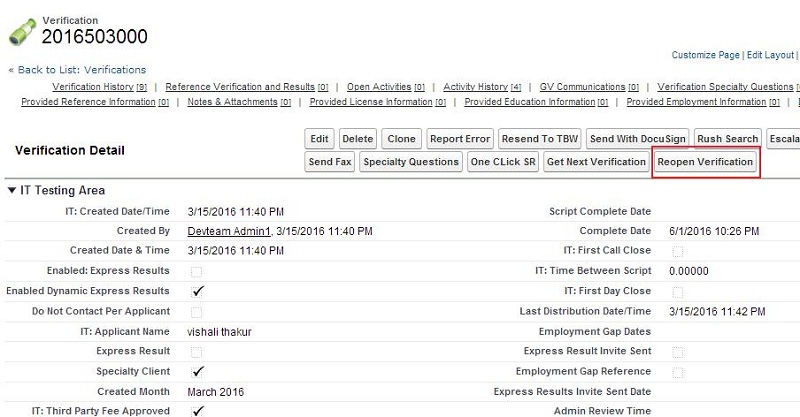
1. Reopen Verification:
This is a custom button and it is used to reopen
any verification and unchecked the "Script Complete" field and clear the date of "Script Complete Date" field.
About Verification trigger:
Verification object contain one "verificationTrigger" trigger.
In every object contain only one trigger. We perform insert,
update and delete operation with a trigger.
There are two types of triggers:
1. Before triggers are used to update or validate record values before they are saved to the database.
2. After triggers are used to access field values that are set by the system
(such as a record's Id or LastModifiedDate field), and to effect changes in other records,
such as logging into an audit table or firing asynchronous events with a queue.
The records that fire the after trigger are read-only.
About Verification page layout:
The main page layout of Verification is "Master Admin Layout". We can create more than one page layout in any object for
and assign to different user profile.