Research for connect and transfer data from background
Create an Intuit developer account, an app, and a QuickBooks Online sandbox:
Step 1: Sign in at https://developer.intuit.com URL.
Username: sarvesh.kumar@arcscorp.net
Password: vision@2020
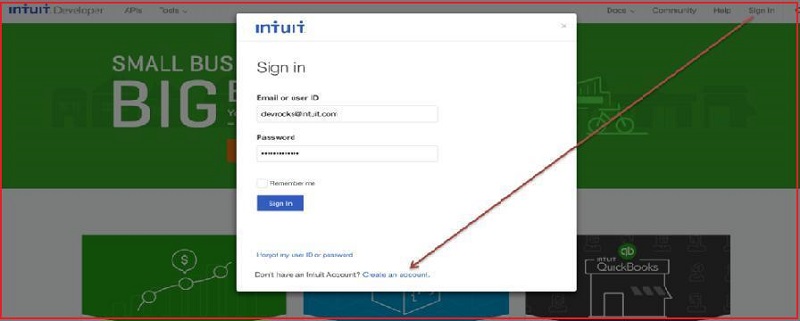
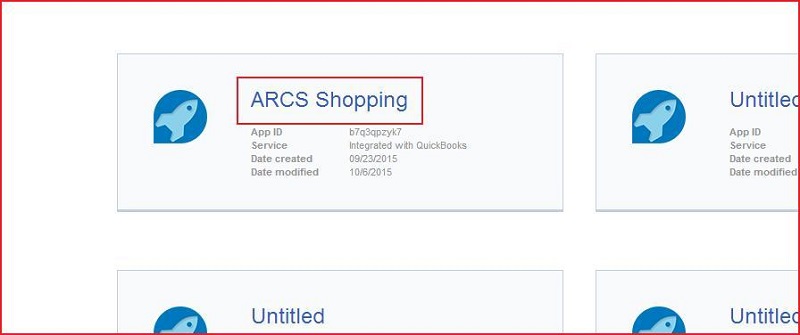
Step 2: Click on "ARCS Shopping" app.
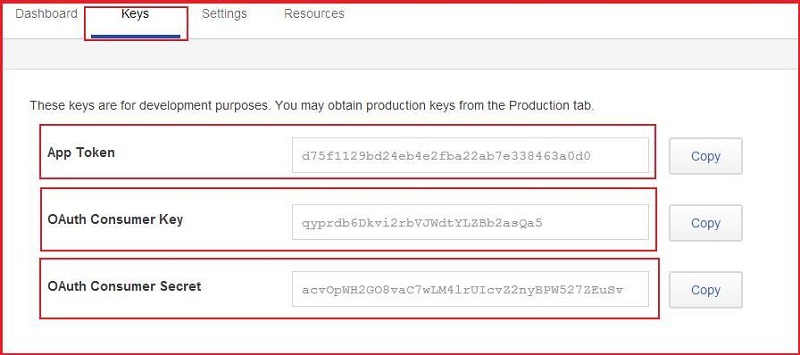
Step 3: Click on "Keys" and find the "App Token", "OAuth Consumer Key" and "OAuth Consumer Secret".
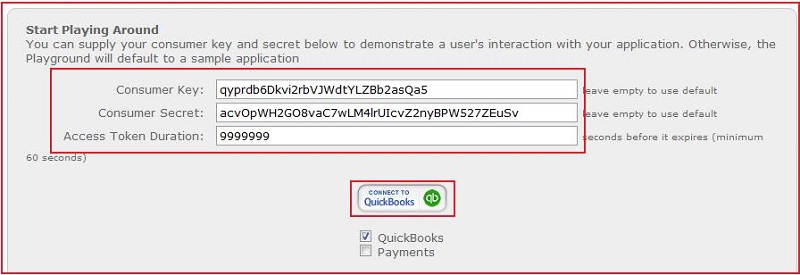
Step 4: Go to "OAuth playground tool" using https://appcenter.intuit.com/Playground/OAuth/IA URL.
Step 5: Insert the value of "Consumer Key", "Consumer Secrete" and "Access Token Duration". Then click on "Connect To Quickbooks" button.
Step 6: Sign in through above credential.

Step 7: Click on first company link.
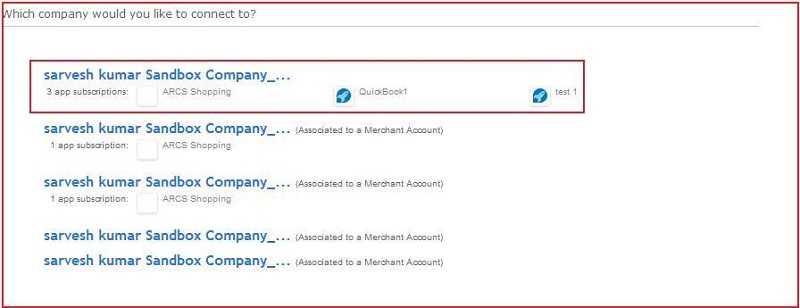
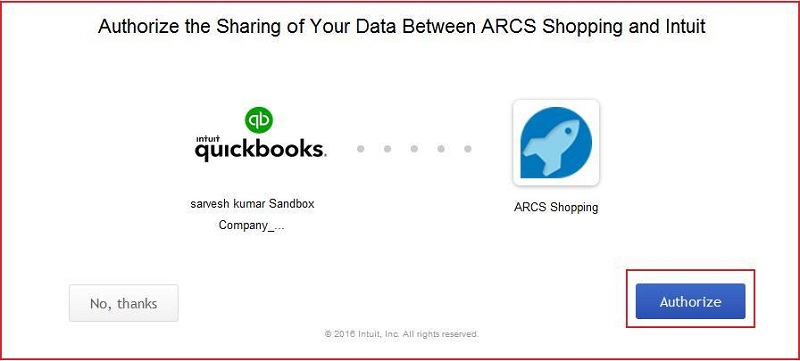
Step 8: Click on "Authorize" button.
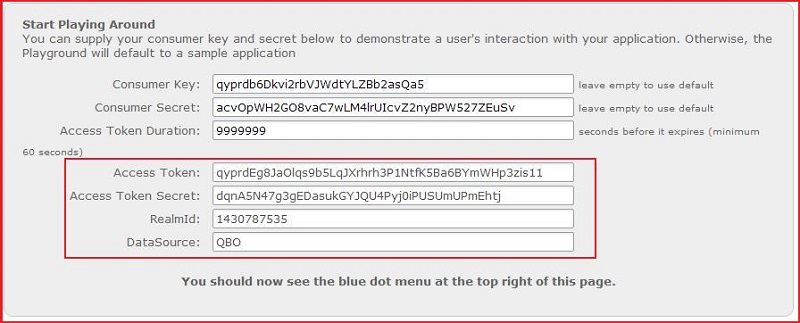
Step 9: Find the "Access Token", "Access Token Secret", "RealmId" and "DataSource".
Call QuickBooks Online REST APIs using POSTMAN:
We use POSTMAN, a popular chrome extension, as the REST Client. This client generates an OAuth signature to include in the call to the QuickBooks Online API endpoints.
Step 1: Go to https://chrome.google.com/webstore/detail/postman/fhbjgbiflinjbdggehcddcbncdddomop?hl=en and search the Postman rest client Application on left hand side seach box then move to down and click on Postman Application. After that add this application on google chrome on the click of "Add to Chrome" button. Then open added application "Postman" and follow the below steps.
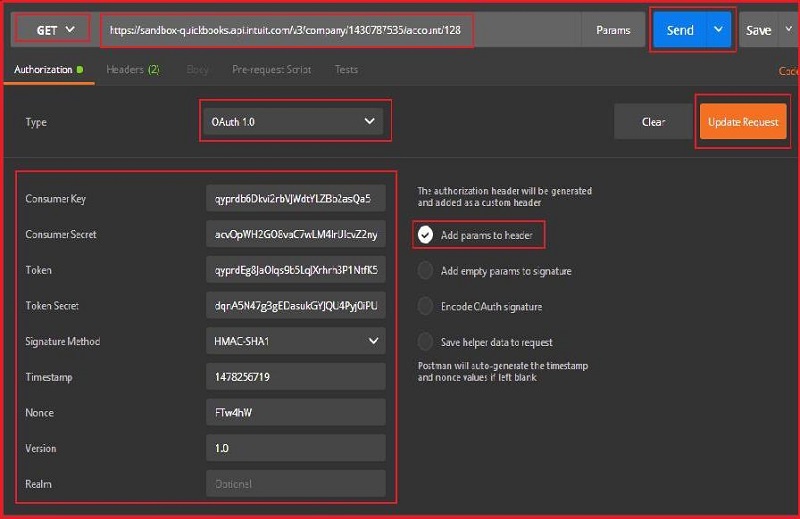
Step 2: In "Authorization" section, follow the below lines:
- Select "OAuth 1.0" option in Type dropdown list.
- Insert Consumer Key.
- Insert Consumer Secret.
- Insert Token.
- Insert Token Secret.
- Insert Timestamp.
- Select "Add params to header" checkbox.
- Insert "https://sandbox-quickbooks.api.intuit.com/v3/company/1430787535/account/128" URL on top of the page.
- Click on "Update Request" button.
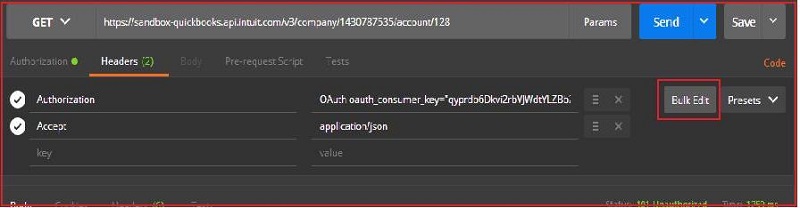
Step 3: Click on "Headers" and click on "Bulk Edit" button.
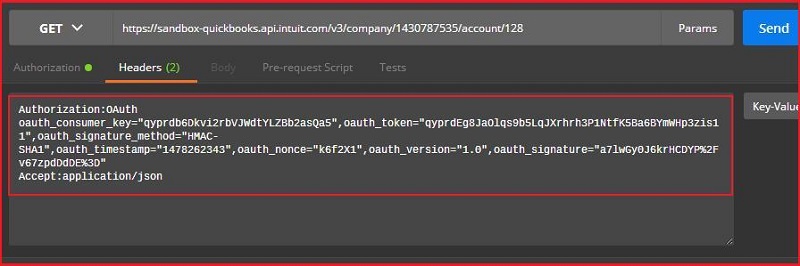
Step 4: Find the Authorization format.
Execute apex code on Developer console in Salesforce:
Step 1: Sign in Salesforce using https://login.salesforce.com/ URL.
Username : webconnectiondevqc@arcscorp.net
Password : Access@9987
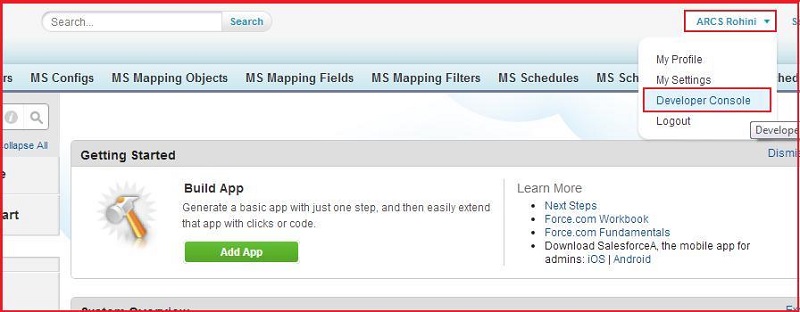
Step 2: Click on "ARCS Rohini" >> click on "Developer Console".
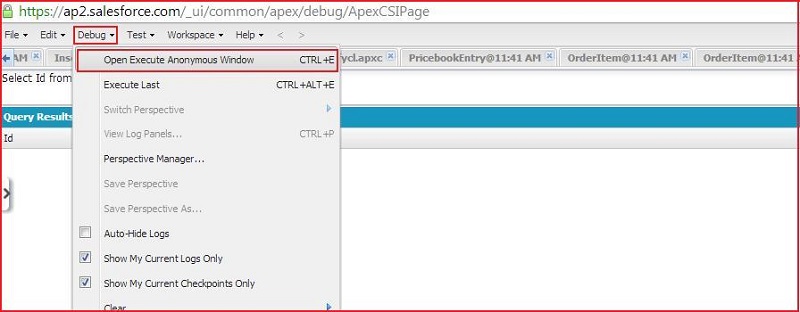
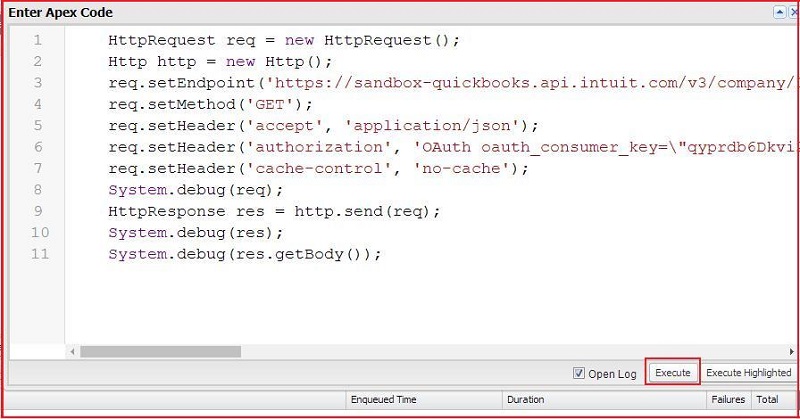
Step 3: In "Developer Console" window, click on Debug and then click on "Open Execute Anonymous Window"(Use shortcut key CTRL+E).
Step 4: Insert below code in this pop-up window and click on "Execute" button.
HttpRequest req = new HttpRequest();
req.setEndpoint('https://sandbox-quickbooks.api.intuit.com/v3/company/1430787535/account/128');
req.setHeader('accept', 'application/json');
req.setHeader('authorization', 'OAuth oauth_consumer_key=\"qyprdb6Dkvi2rbVJWdtYLZBb2asQa5\",oauth_token=\"qyprdEg8JaOlqs9b5LqJXrhrh3P1NtfK5Ba6BYmWHp3zis11\",oauth_signature_method=\"HMAC-SHA1\",oauth_timestamp=\"1478255004\",oauth_nonce=\"V9yJnW\",oauth_version=\"1.0\",oauth_signature=\"DNrTkkgHyFMTGxCDiq0AefVUAjw%3D\"');
req.setHeader('cache-control', 'no-cache');
HttpResponse res = http.send(req);
System.debug(res.getBody());
Note: Please use always newly generated Access token under the Apex code on the given field:
req.setHeader('authorization', 'OAuth oauth_consumer_key=\"qyprdb6Dkvi2rbVJWdtYLZBb2asQa5\",oauth_token=\"qyprdEg8JaOlqs9b5LqJXrhrh3P1NtfK5Ba6BYmWHp3zis11\",oauth_signature_method=\"HMAC-SHA1\",oauth_timestamp=\"1478255004\",oauth_nonce=\"V9yJnW\",oauth_version=\"1.0\",oauth_signature=\"DNrTkkgHyFMTGxCDiq0AefVUAjw%3D\"');
Step 5: Result show in generated log.