Researcher Web Addition
Vendor RFP and Jurisdictional Update Pages
Note: The Internal Salesforce Screen-shots included in the ppt are not the steps to proceed, these are only to relate the data migration from Researcher Web Addition portal to internal salesforce.
Introduction
To provide a place where current vendors and potential new vendors can supply their business information, jurisdiction coverage and prices.
This project will be a publicly accessible web form that will allow a business to enter in their business information, contact and jurisdictional coverage areas. The user will be able to upload their coverage list (in an approved format) or enter them in manually. They can also download the appropriate vetting forms and upload into our system.
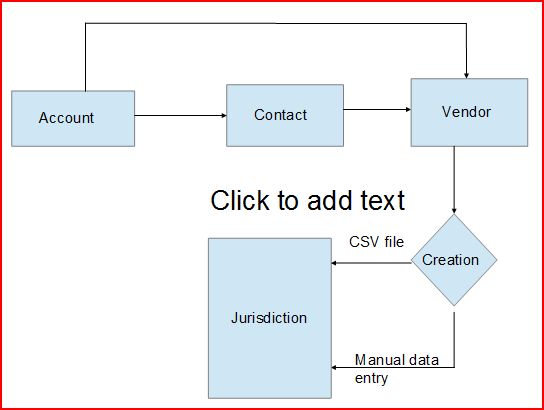
So the related objects are required are Account, Contact, Vendor, Jurisdiction
Process
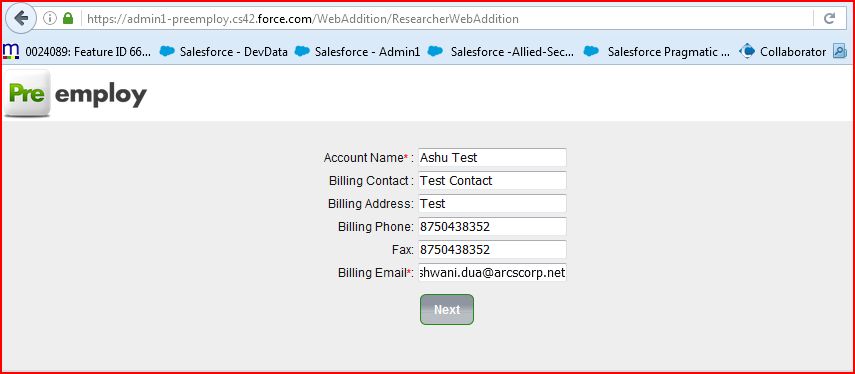
Account Info Page
|
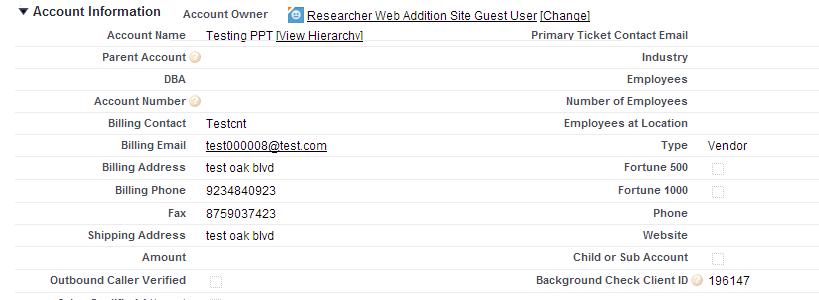
The user will be prompted to enter in the information needed to create an vendor Account. This page will include the following fields which will create a new account and will update the these fields.
Account Name
Billing contact
Billing email
Billing phone
Fax
Billing address
Type = Vendor
Record Type= Authenticated
Vendor/Researcher = TRUE
|
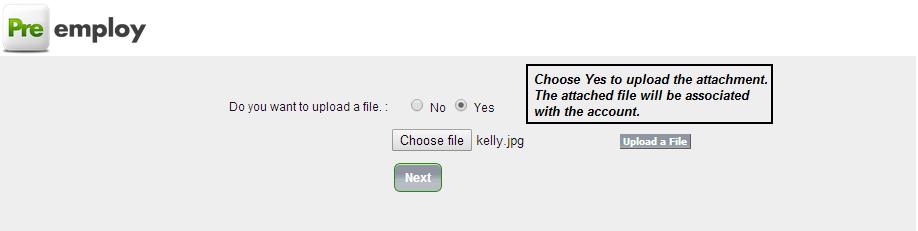
 |
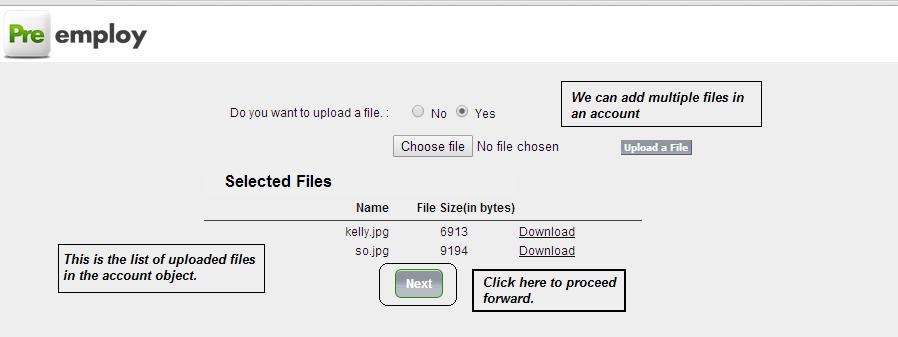
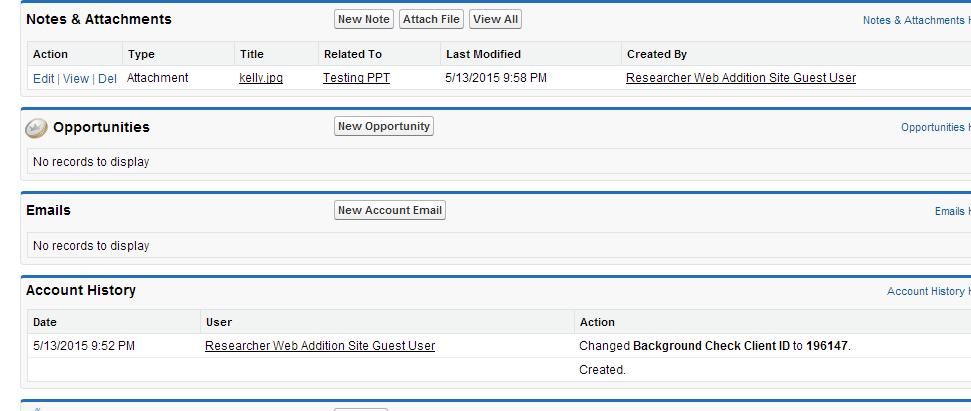
Upload Attachment In Vendor Account
List of attached files
Contact Info Page
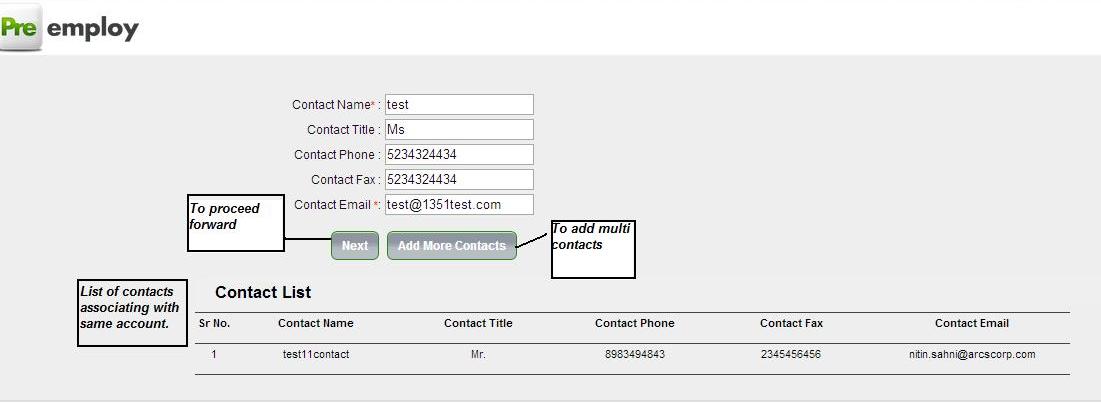
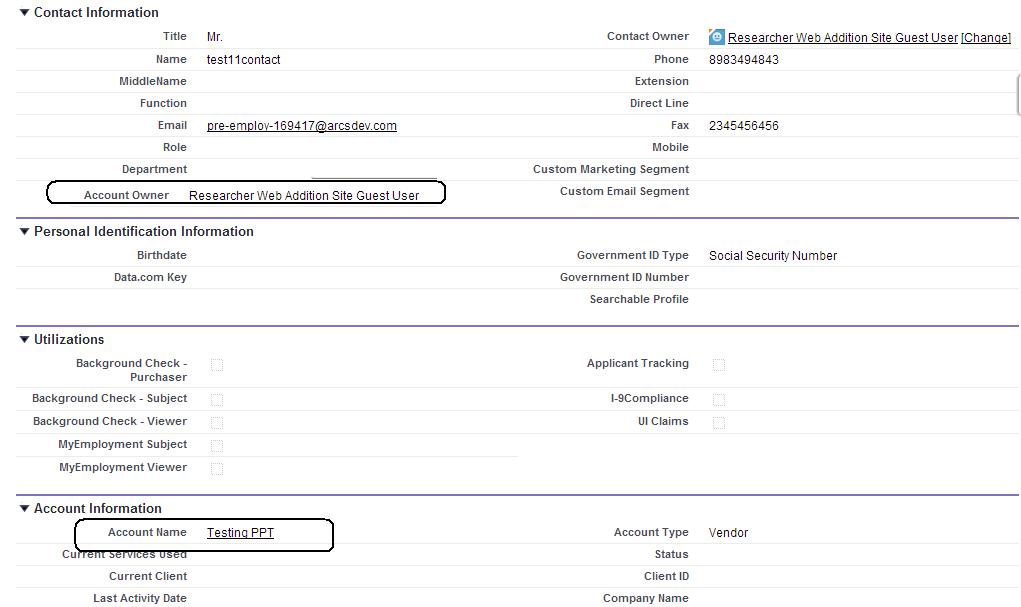
The user will be prompted to enter at least 1 contact record, which will be associated to the account. And we can add multiple contacts in it. Following fields will prompted to the user.
Contact Name
Title
Phone
Fax
Email
Vendor and Jurisdiction Info Page
This is divided into 2 sections Vendor and Jurisdiction
Vendor Section
|
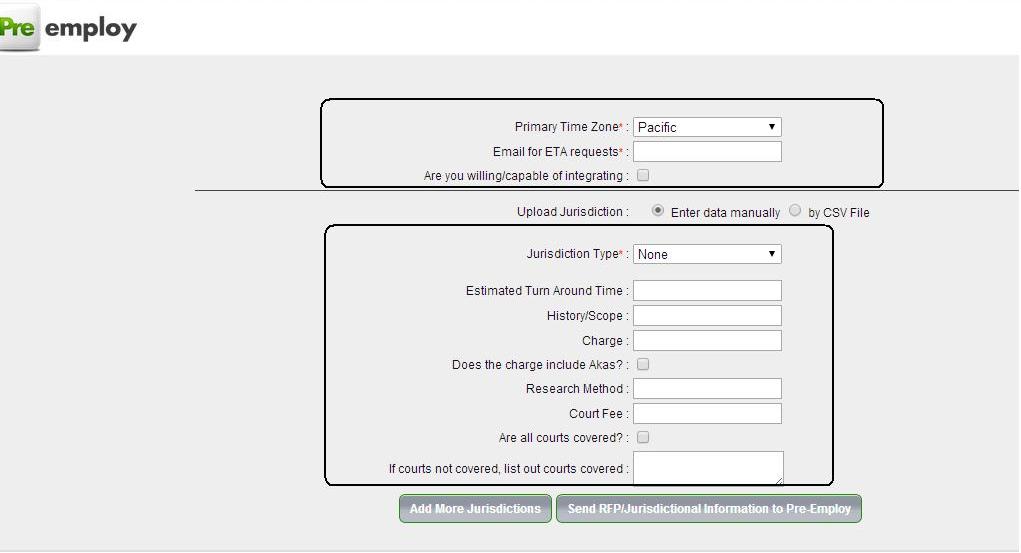
When the account has created with it a Vendor object record has also created. On this page the user will be prompted with a few other questions that will be saved in this vendor record. Fields will include are:
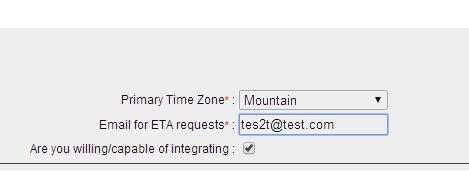
Primary Time Zone
Email for ETA requests
Are you willing/capable of integrating?
|
 |
Jurisdiction Section
Enter data manually
The user will be able to either upload a file to add their jurisdiction coverage list or enter jurisdictions one by one.
Following process is to add jurisdiction by filling details one by one. So this will include following fields.
Jurisdiction Type such as County Criminal, County Civil, Statewide Criminal etc
Estimated Turn Around Time, user can enter estimated TAT in days.
History/Scope, user will enter how many years back this search will go.
Country, State & County (where applicable, e.g. county would only be prompted on county level types)
Charge
Does the charge include Akas?
Research Method
Court Fee
Are all courts covered?
If courts not covered
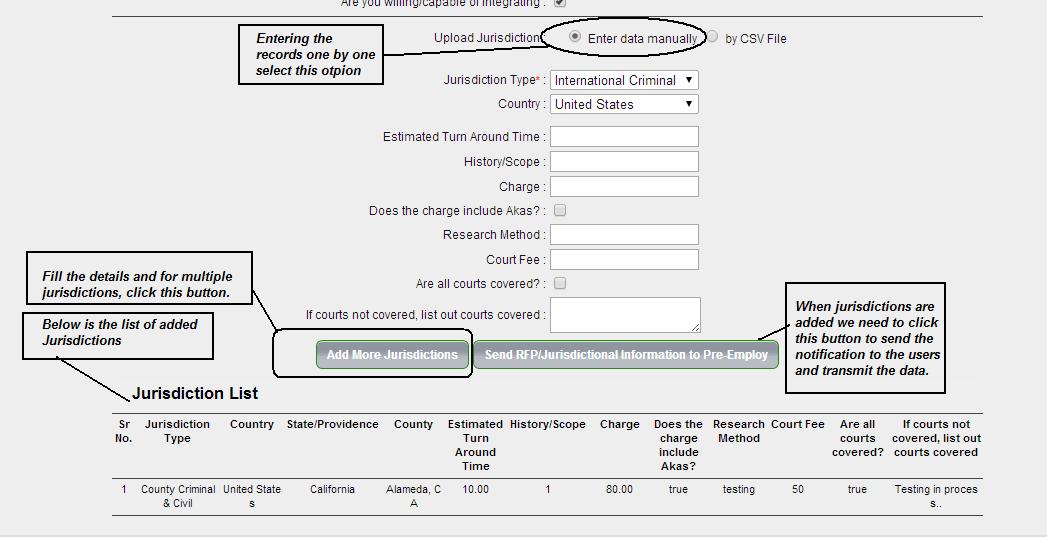
"Send RFP/Jurisdictional Information to Pre-Employ" button available, which will transmit the data and send a notification email with a link to the vendor record to internal pre-employ designated users.
Jurisdiction Section
by CSV File
Download the sample CSV file and edit the jurisdiction details as required.
Add more rows in same file to add multiple jurisdiction records to the same vendor then save it in the CSV format.
Click the upload button
Click Send RFP/Jurisdictional Information to Pre-Employ
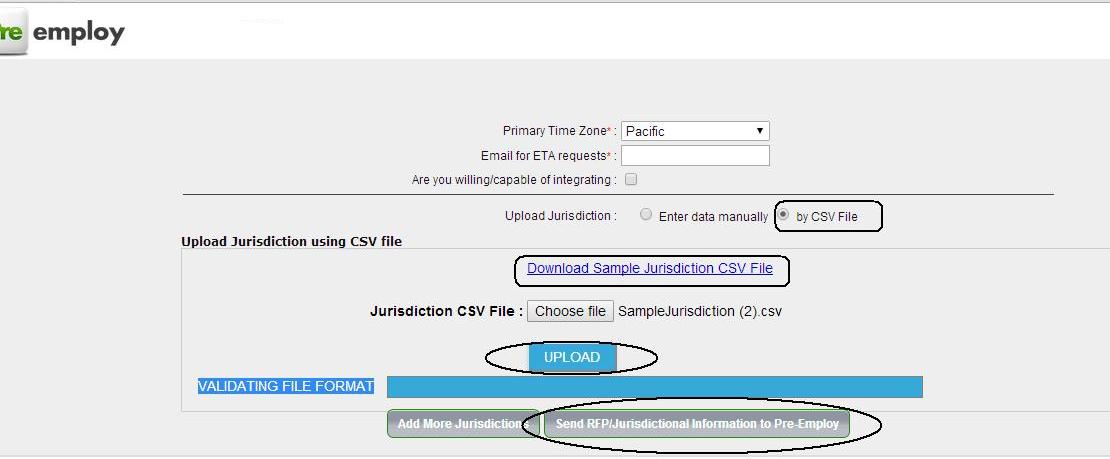
CSV file format

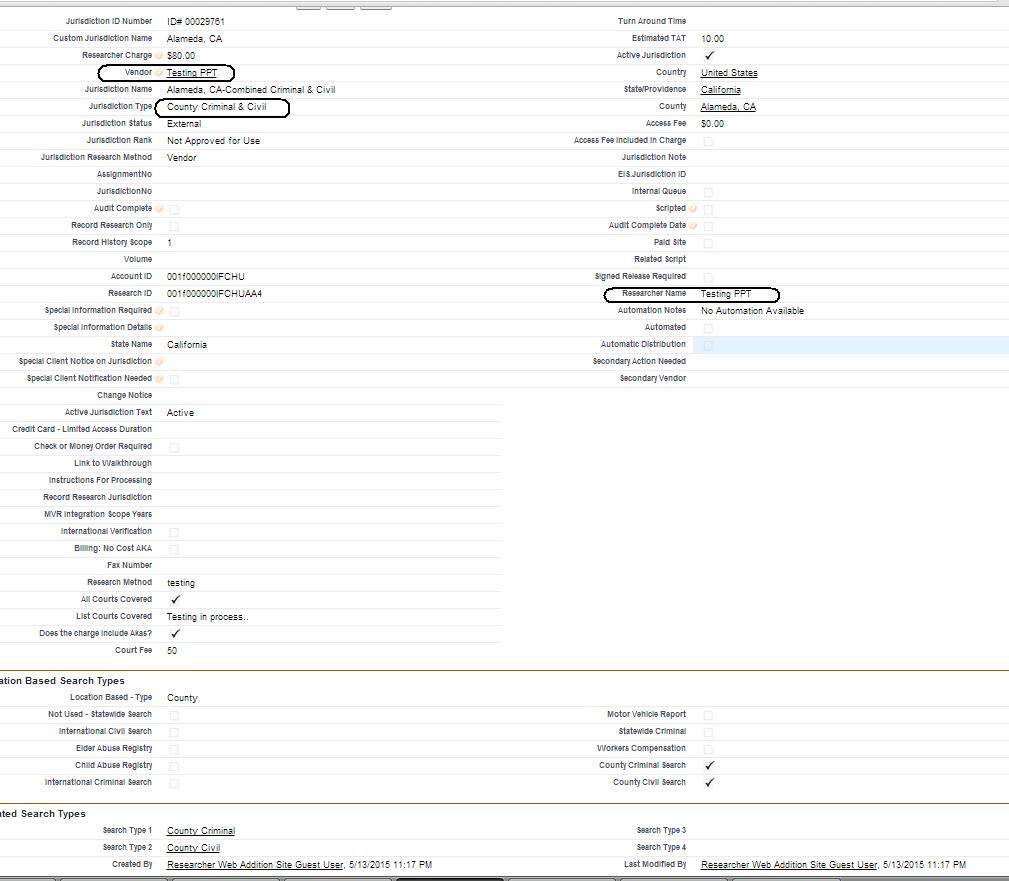
For each jurisdiction entered, a corresponding Jurisdiction record will be added. The system will need to auto fill the additional data needed that the user will not enter such as
| Jurisdiction Name: this will depend on the type
|
Location based Search type checkboxes
|
|
If County Criminal & Civil: County Name, State (Orange, CA)
If County Criminal: County Name, State (Orange, CA)
If County Civil: County Name, State (Orange, CA)
If Statewide Criminal: Statewide-State (Statewide-California)
If International Criminal: Country (Cuba)
Jurisdiction Status = External
Jurisdiction Rank = Not Approved for Use
Jurisdiction Research Method = Vendor
Location Based Type: this will depend on the type
If County Criminal & Civil: County
If County Criminal: County
If County Civil: County
If Statewide Criminal: Statewide
If International Criminal: International
|
If County Criminal & Civil: County Criminal search & county civil
If County Criminal: County Criminal search checked
If County Civil: county civil search checked
If Statewide Criminal: Statewide Criminal checked
If International Criminal: International Criminal search checked
Related Search types
If County Criminal & Civil: Search Type 1 = County Criminal
Search Type 2 = County Civil
If County Criminal: County Criminal search checked
Search Type 1 = County Criminal
If County Civil: county civil search checked
Search Type 1 = County Civil
If Statewide Criminal: Statewide Criminal checked
Search Type 1 = Statewide Criminal
If International Criminal: International Criminal search checked
|
After clicking "Send RFP/Jurisdictional Information to Pre-Employ" button email is sent
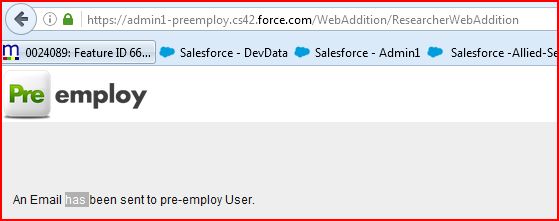
Email sent to the preemploy users.
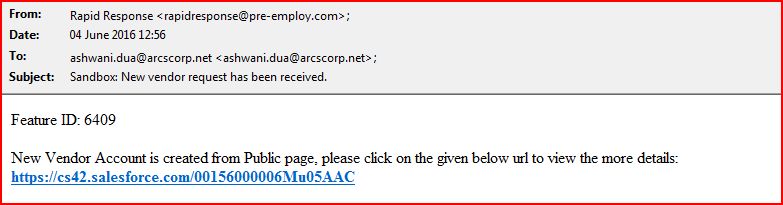
Account detail page SF
Uploaded attachment in Account
Contact associated with Account.
Vendor and Jurisdiction
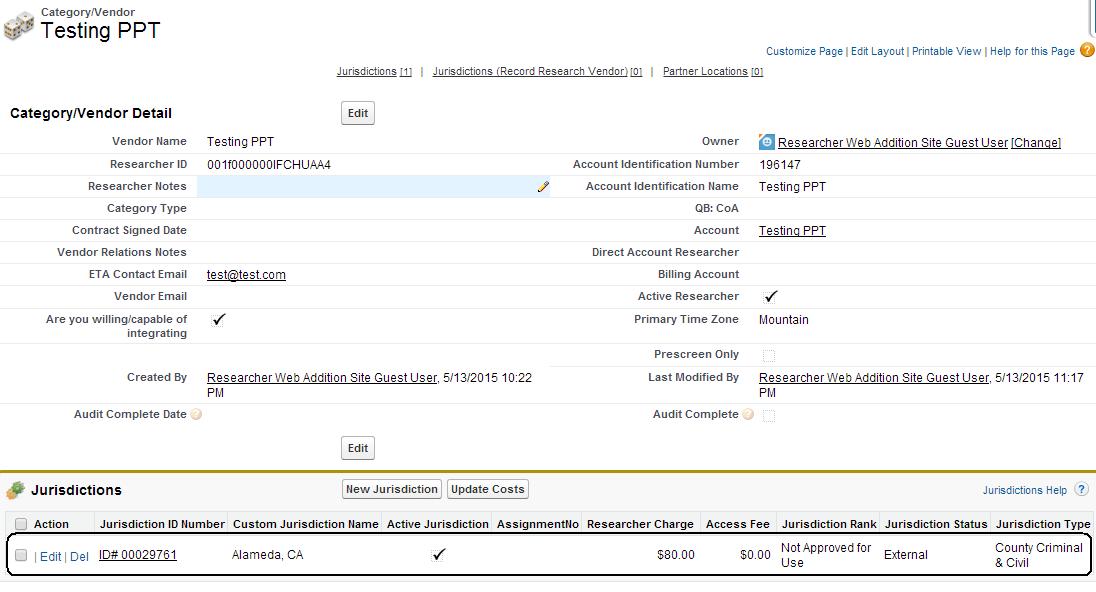
Jurisdiction Details