How to built an email service for Leads and Opportunities in SF.
What is the Email Service.
Email services are special-purpose Force.com processes that use Apex classes to process incoming email messages. When you set up an email service, you generate a special email address on which Force.com will receive your emails. You also supply an Apex class adhering to a particular interface. The email services will then invoke a method on the Apex class whenever an email is received on the email address.
Steps to configure to email service for leads given below :
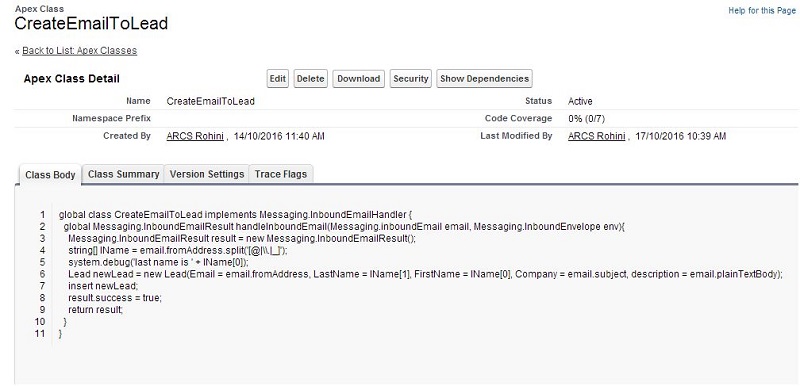
⇒ Create an apex class (example: CreateEmailToLead.cls) in the Salesforce for creating lead through the email which is used in configure of email service
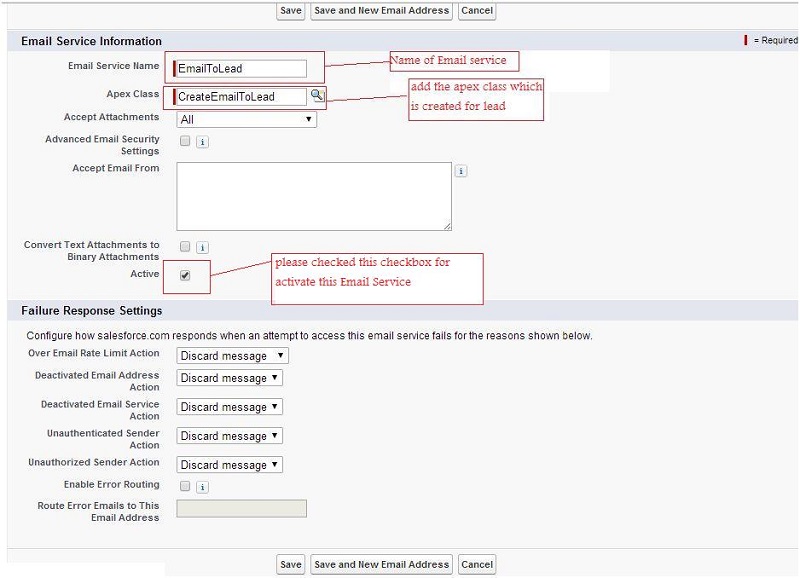
⇒ Click on Setup ⇢ enter Email Services in the Quick Find box ⇢ Click on Email Services ⇢ Click on New Email Service button and fill the details and make sure Active check box is checked ⇢ Click on Save
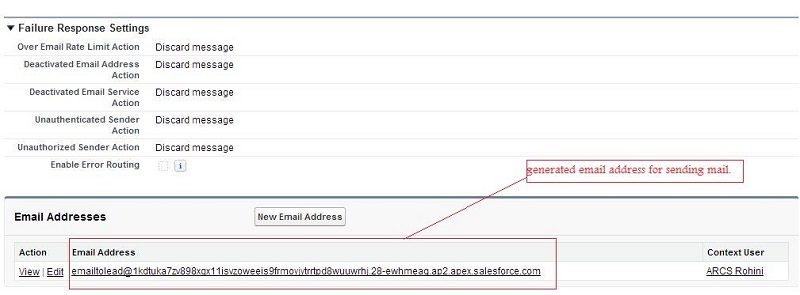
Generate the email address for sending the email :
⇒ Click on the New Email Address button of created email service page(EmailToLead) ⇢ put the email id of customers in the Accept Email from textarea. ⇢ Click on Save
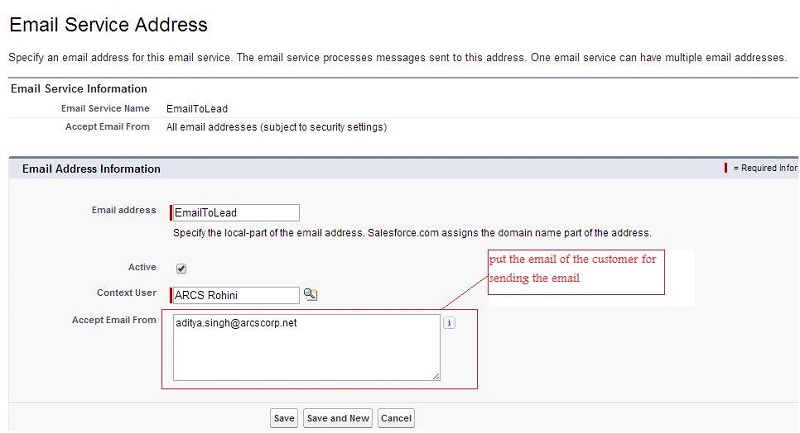
Note : If email Id of customer is not available in this textarea then they are not able to send the email.
Send the email using the generated email address :
⇒ Click on generated Email Address ⇢ This will open the compose mail pop up to send email and make sure to enter the email Subject ⇢ Click on Send
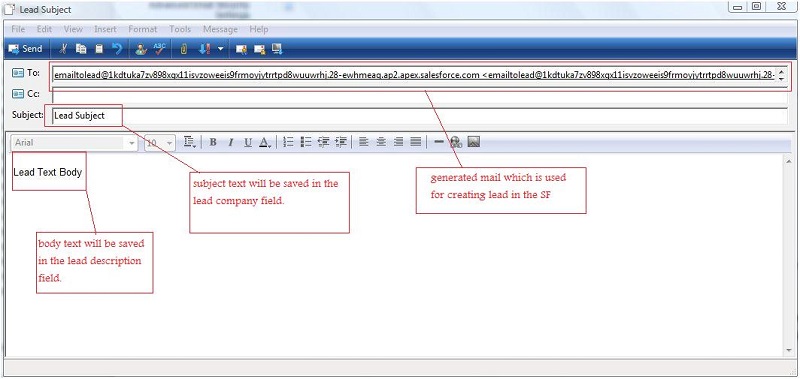
Check the automatic create Lead from Email Service :
⇒ Go to SF internal ⇢ Click on Lead Tab ⇢ Select the Today's Lead and click on Go⇢ Check automatic created Lead from Email Service
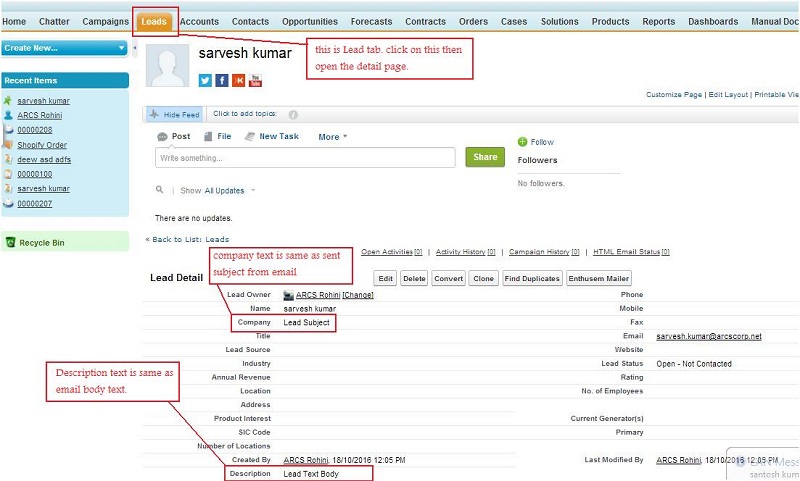
Create the Opportunity from the Lead:
⇒ Click on the convert button on the Lead ⇢ Fill the required mapping field for creating opportunity ⇢ Click on Convert ⇢ Go to the Opportunities tab and check the created Opportunity.
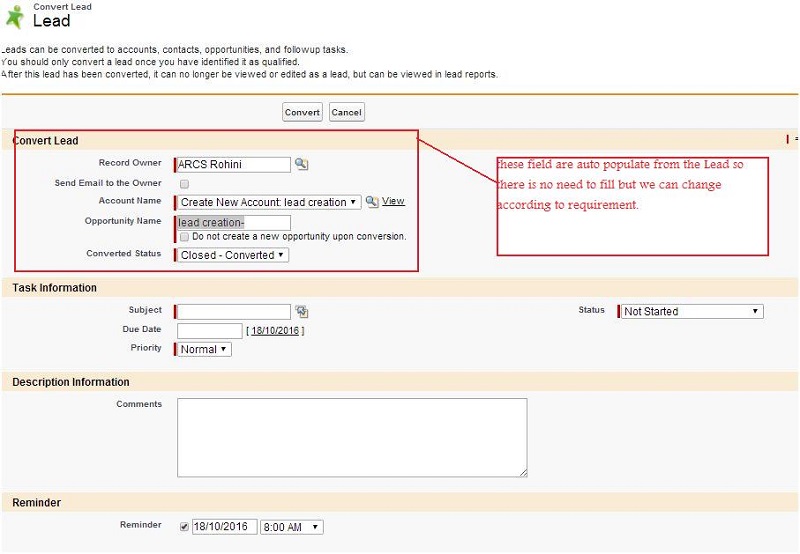
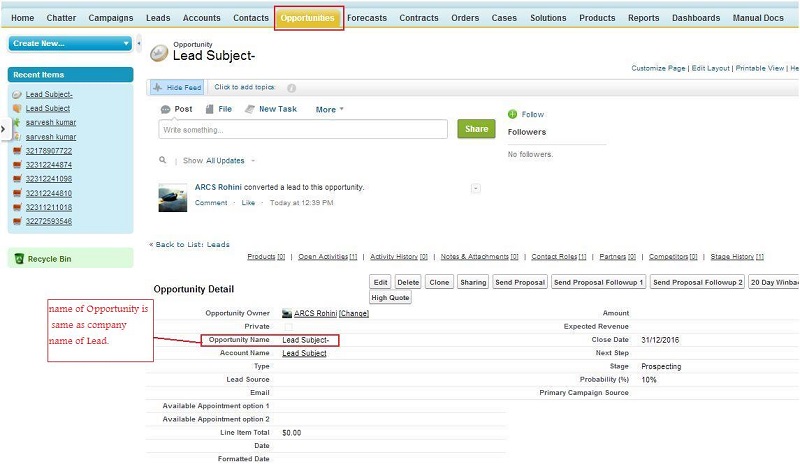
Note : Email Service for custom object is created same as Email to Case and follow all step for create email service for custom object which is used for Lead.