Verification Department Queuing System
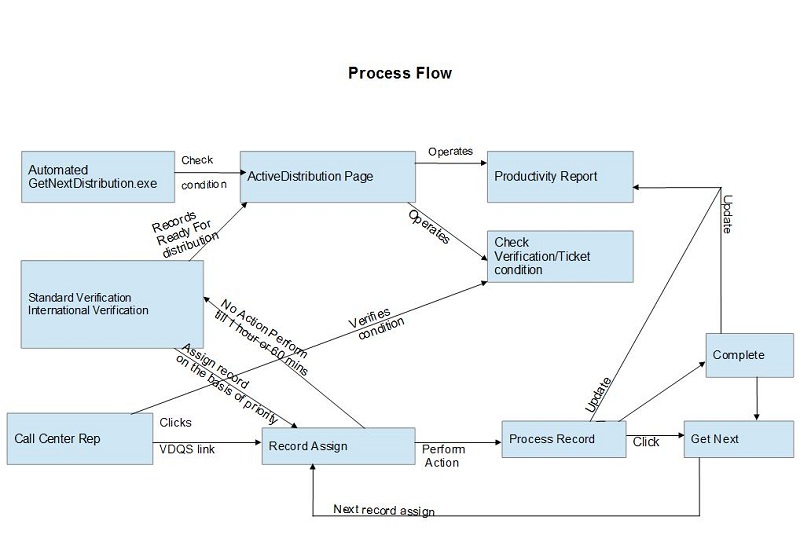
Distribution Rules for Verifications
All types of verification will queue depending upon
- Owner
- Timezone
- New to Old
- Yesterday's Untouched
- Account.
Verification Queuing(Owner)
There are currently 2 queues where it will pull searches from
Queue 1) First Call Attempt - these are verifications that have never been called on before but are ready for their first call.
Queue 2) Internal Processing - all other verifications processed by call center are in this queue, they are placed here after their first attempt (if they are not closed). They have low priority than First Call Attempt.
TimeZone
Verifications are first distributed by time zone. Reference Verifications have a slightly different prioritization than other verification types. Each time zone is distributed during their "activation period".
The time zone is determined by the field "Contact Time Zone" on the verification. If there is no time zone identified or present, then they will be stated as "other".
|
Time Zone for Verifications (Except Reference)
Eastern
Activated from 5 AM to 2 PM PST, #1 in priority when active.
Central
Activated from 6 AM to 3 PM PST, #2 in priority when active.
Mountain
Activated from 7 AM to 4 PM PST, #3 in priority when active.
Pacific
Activated from 8 AM to 5 PM PST, #4 in priority when active.
Alaska
Activated from 9 AM to 6 PM PST, #5 in priority when active.
Hawaii
Activated from 10 AM to 7 PM PST, #1 in priority when active.
Other
Activated from 5 AM to 10 PM PST, #1 in priority when active.
|
|
|
|
|
|
|
|
Time Zone for Reference Verifications
Eastern
Activated from 8 AM to 5 PM PST, #1 in priority when active.
Central
Activated from 9 AM to 6 PM PST, #2 in priority when active.
Mountain
Activated from 10 AM to 7 PM PST, #3 in priority when active.
Pacific
Activated from 11 AM to 8 PM PST, #4 in priority when active.
Alaska
Activated from 12 PM to 9 PM PST, #5 in priority when active.
Hawaii
Activated from 1 PM to 10 PM PST, #1 in priority when active.
Other
Activated from 5 AM to 10 PM PST, #1 in priority when active.
|
New to Old
After they are prioritized by time zone, they are then prioritized by the date/time the verification was created. Verifications are then distributed Newest Verification to Oldest Verification based on the date/time the verification was created in the system. The verifications having latest created date will have high Priority.
Yesterday's Untouched
These verifications are those which queued yesterday but not distributed, so these will prioritize according to the Yesterday's Untouched ON/OFF.
Account
The verification whose account is selected will be distributed on high priority.
ETA Date/Call Back DateTime
These type of verification will distribute if the ETA date is elapsed and Callback time is elapsed. These verification will not depend upon any above criteria. But the verification will have priority less than account level and Untouch level.

Active Distribution
1. Account Section
When we add any Account manually in this section, priority increase temporary at the account level.
This ensures that any verification for the account/accounts selected is pushed above any other search (if untouched). This priority bump will last until cancelled (should be controlled by account for cancel or addition) or until the end of the day (12 Midnight). And this section also has the ability to Remove account from list.
2. Yesterday's Untouched
It is toggle button on the page. It sets all Verification untouched from the prior day to be distributed first or set high priority and also depending upon the rest of the conditions.
3. TimeZone Toggle Buttons
There are following buttons for USA timezone : Eastern, Central, Mountain, Pacific, Alaska, Hawaii and Other.
These buttons automatic toggle ON when their timezone is active.
But these buttons the ability to active any their respective timezone manually also when their timezone is not active.
For example: When the time is 8PM PST then only other timezone is active automatically according to the time and only verification of other timezone will distribute that time, and now Toggle Eastern timezone button, so now Eastern timezone verification can also be distributed as timezone is activated manually. And so on user will be able to distribute any timezone's verification at any time.
Note: When timezone is activated manually then all types of verification will distribute except Reference Type verification.
4. Newest to Oldest or Oldest to Newest
These 2 buttons cannot be active at same time, if Newest to Oldest is active then Oldest to Newest will be inactive and vice-verse. When Newest to Oldest is active then recently created verification will be distributed on high priority depending upon the other conditions also.
5. Verification Types button(Employment, Employment, License, Reference)
By default all buttons are active, but when any type is deactivated then that type of verification will not set the priority and not be sent to the queue.
Active Distribution page
This page is the supervisor page from which we handle the verification distribution criteria
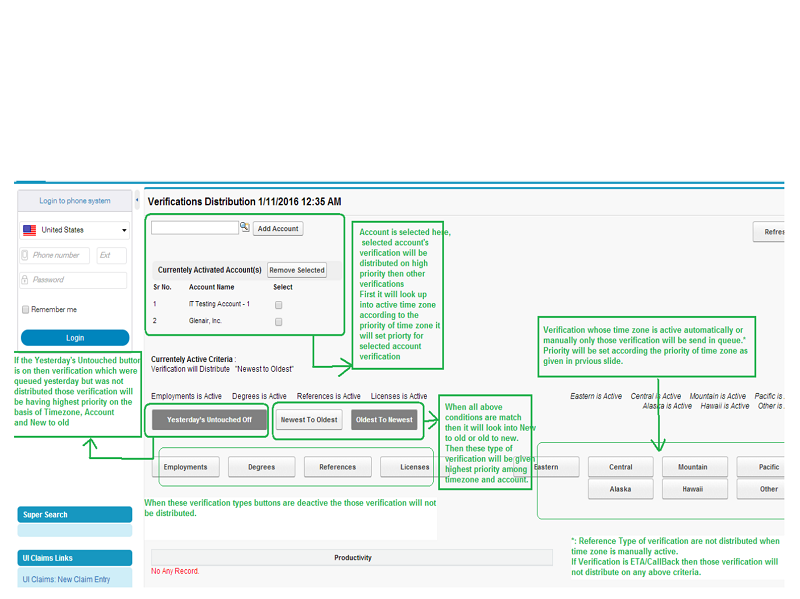
Explanation of Verification priority in Queue
For example
Condition are:
Account : IT Testing Account - 1 and Glenair, Inc. are selected
TimeZone: Manually active Eastern, Central and Pacific
Yesterday's Untouched is On
Newest to Oldest is active
There are 14 verifications as divided please see screenshot
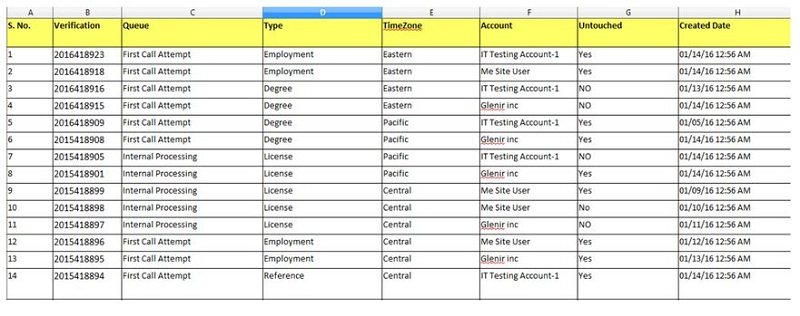
Now GetNextDistributionSheduler.exe will run in every 15 minutes which will set the priority of the verification records.
When the Accounts are selected and Untouched button is on then all verification which are untouched: Yes those will be distributed in the queue first according the time zone and owner. I.e The verification which is untouched and time zone: Eastern, Queue: First Call Attempt and Created date is latest date will assigned the priority 1. When priority is of all verification which are untouched, have selected account , time zone: Eastern, Queue: First Call Attempt set the priority according to the created date, then it will set priority of Central time zone verifications in same way as it has set the priority for Eastern time zone. When all verification set the priority which are untouched then it will set priority of all verifications which are not untouched but have the selected account , active time zone and latest created date.
After that all verifications will set priority with have account which is not selected on the active distribution page. Please see below screenshot.
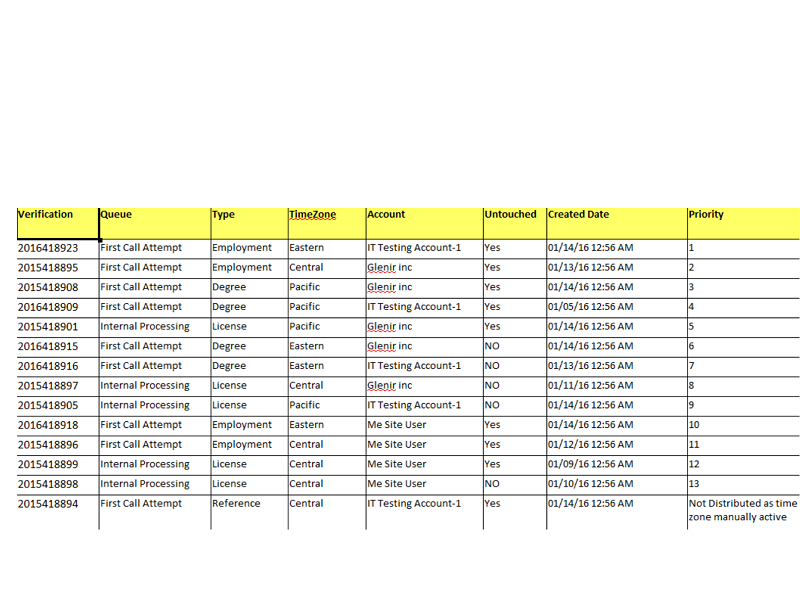
Note: Every midnight an automated exe(Commondata.exe) will execute which reset the priority of all verification. And also reset all the changes made by user manually on Active Distribution page.
Accuracy of Tasks and Reporting
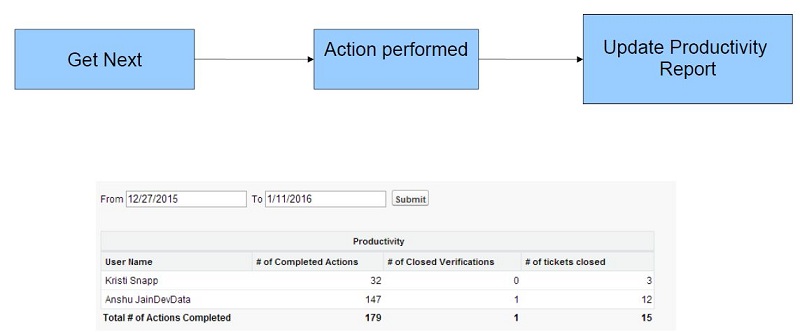
This is a small productivity report on active distribution page. It includes
# of Completed Actions (Verifications where the search status at the end of the users action was NOT complete).
# of Closed Verifications (Verifications where the search status at the end of the users action was completed). We must ensure that we do not double count searches in #1 and #2.
This should is the subsection of the page and allow the user to choose a date/time period but default to the current date.
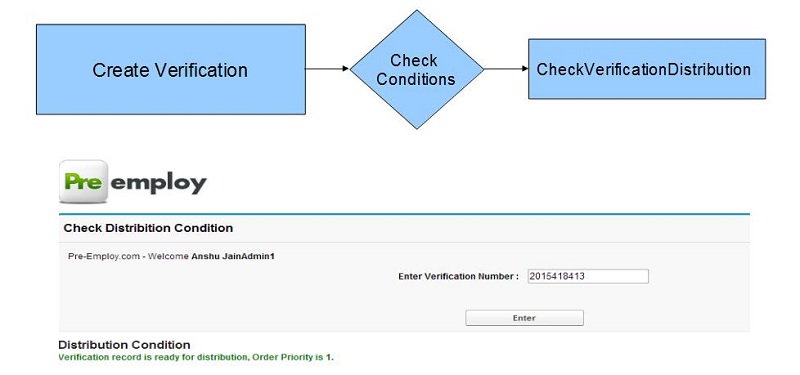
CheckVerificationDistribution
This is a link on the active distribution page on clicking this link user navigates to CheckVerificationDistribution page.
where a user can enter the verification number or search number which will then return.
Does the verification meet the current distribution criteria.
If YES - its distribution priority.
If No - why it does not meet the criteria.
If already assigned/worked - the user assigned and date/time distributed.
Standard Verification, International Verification
Standard Verification
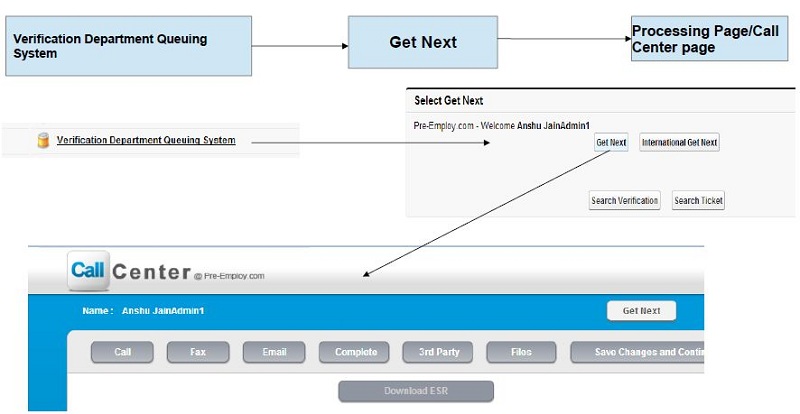
Once a standard verification is distributed to a Call Center Representative, the processing page allows them to work the verification. This page has several different aspects that change based on the status and verification type.
International Verification
International verifications are not distributed with the standard verifications as these have different criteria for when to call. On the Get Next staging area there is a "International Get Next " button that when selected will distribute the next international verification.
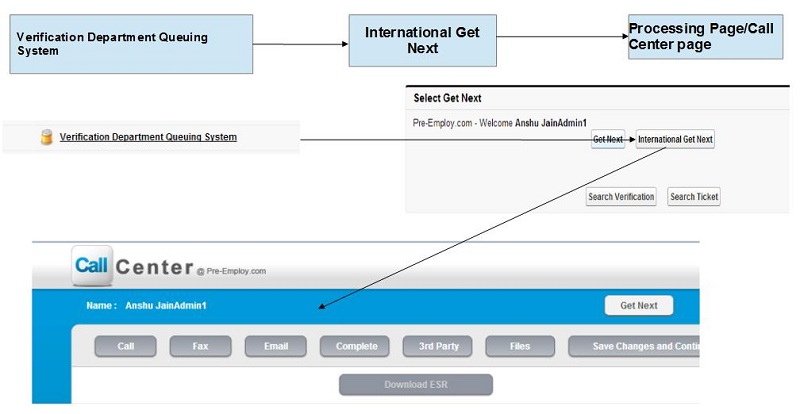
Call Center System
Call
Following are the options of first drop-down which performs some action.
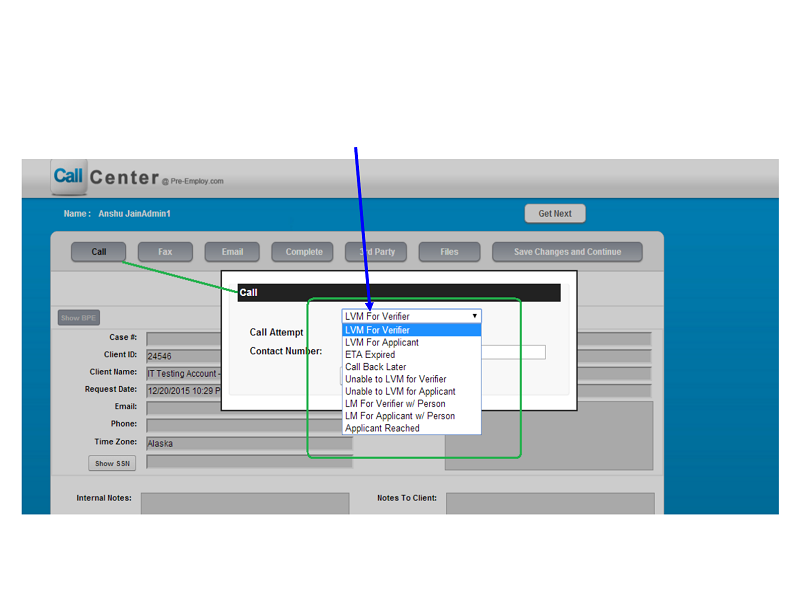
When Call tab is selected , This indicates that the Call Center Rep successfully made a call but is not able to complete the search. There are two drop-downs available.
Following are the options of first drop-down which performs some action.
1. LVM For Verifier - indicates that they left a voice message for the verifier. Selecting this will add a Notes to Client: We were unable to reach verifier and have left a voicemail at the number provided (inserts contact number). We will make further attempts to reach verifier with the information provided.
Validation: if there is no contact number present a prompt will display to the call center rep requesting them to provide the contact number.
2. LVM For Applicant- indicates that they left a voice message for the applicant for more information. Selecting this will ask the Call Center Rep to provide the reason why they are contacting the applicant. This will be a text box for them to enter in the reason.
This also adds a Notes to Client: We were unable to reach applicant to [Applicant Information Needed value] to complete this Verification and have left a voicemail at the number provided [applicant contact number]. We will make further attempts to reach applicant with the information provided.
Validation: if there is no contact number present a prompt will display to the call center rep requesting them to provide the contact number.
3. ETA Expired, Follow up VM - indicates that a previously we were provided with an ETA for a return fax, but that ETA has expired and we have left a message for the verifier. Selecting this will add a Notes to Client: ETA has expired for returned results. We have left a voicemail at the number provided [insert contact number] to obtain a new ETA.
Validation: if there is no contact number present a prompt will display to the call center rep requesting them to provide the contact number.
4. Call Back Later - indicates that we were asked to Call Back at a later time.
Selecting this will ask the Call Center Rep to provide a call back date/time Note - The search will then get next distribution at that date/time.
Selecting this will add a Notes to Client: We have been advised to call back verifier at [call back date/time value]. We will conduct a follow up call at time specified.
5. Unable to LVM for Verifier - indicates that we are unable to leave a voice message. Selecting this will add a Notes to Client: We have attempted to reach verifier and are unable to leave a voicemail at the number provided (contact number). We will make further attempts to reach verifier with the information provided.
Validation: if there is no contact number present a prompt will display to the call center rep requesting them to provide the contact number.
6. Unable to LVM for Applicant - indicates that we are unable to leave a voice message.
Selecting this will ask the Call Center Rep to select the reason why they are contacting the applicant. This will be a text box for them to enter in the reason.
Selecting this will add a Notes to Client: We have attempted to reach applicant to obtain [Applicant Information Needed value*] to
complete this verification and are unable to leave a voicemail at the number provided (applicant contact number). We will make further
attempts to reach verifier with the information provided.
Validation: if there is no contact number present a prompt will display to the call center rep requesting them to provide the ContactNumber, user requesting them to provide the contact number.
7. LM For Verifier w/ Person
Following are the fields:
Contact Number, Name, Position
Notes to Client will be updated with: [Standard Date Format] - We were unable to reach the Verifier to complete this verification and have left a message with [Name Value] ([Position]) at the number provided [Contact Number]. We will make further attempts to reach the Verifier with the information provided.
8. LM For Applicant w/ Person
Following are the fields: Name, Position
Notes to Client will be updated with: [Standard Date Format] - We were unable to reach the Applicant to complete this verification and have left a message with [Name Value] ([Position]) at the number provided . We will make further attempts to reach the Applicant with the information provided.
Second drop-down in Call tab option is name as "Call Attempt"
This drop down contains following options:
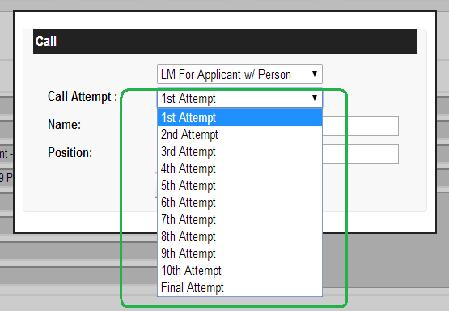
On submit, the following note should be appended to the top of the Internal Notes: [Standard Date/Time stamp] - [Call Select] [Call Attempt]
Note: This Call Attempt option is also under Email tab has the similar functionality as in Call tab.
Applicant Information Needed value*
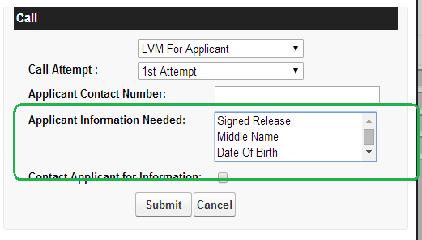
Applicant Information Needed
This is a field that is needed on the verification object. It should be a multi select dropdown field that contains the following values. (note that any pages using this needs to allow multi select feature)
- Signed Release
- Middle Name
- Date Of Birth
- Social Security Number
- Clarification on Previous Employer Name & Phone
- Used Name
- Documentation
- Reference Details
Fax
Following are the options of first drop-down which performs some action.
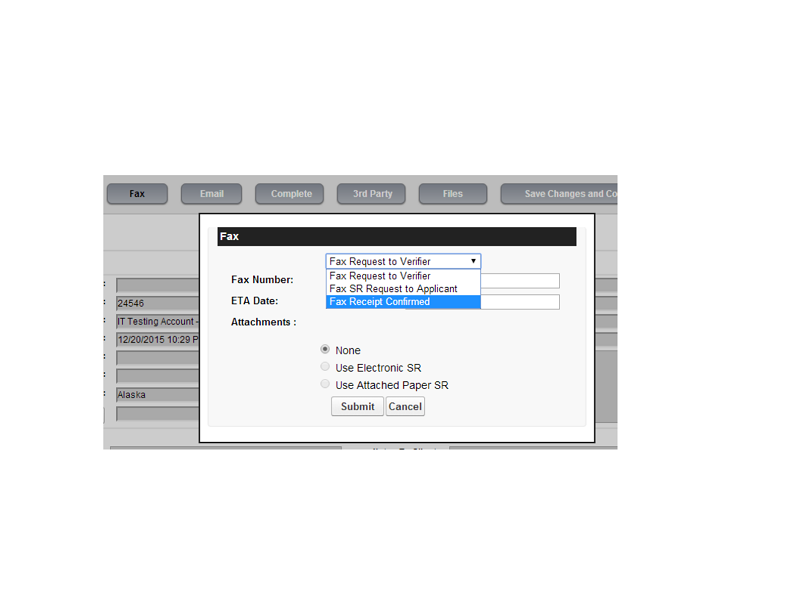
When Fax tab is selected, This indicates that the that the Call Center Rep needs to send a fax request. Options available include :
Following are the options of first drop-down which performs some action.
1. Fax Request to Verifier: Prompts Call Center Rep to provide an ETA Date for when to follow up on the fax. Changes the Verification Status to Hold Adds a Notes to Client : We have faxed our request the verifier, and are pending faxed back results on [eta date].
Validation: if there is no fax number present, the system will prompt the Call Center Rep to provide the "Fax Number" and this field should auto populate with the "Contact Fax" data. Sends the appropriate fax cover to the number provided. An option will be available for the user to select one of the attachments from the "Files" section and identify it as the SR, if selected, this will also fax to the verifier.
a. None
b. Use Electronic SR
c. Use Attached Paper SR
With None as the default selected option and "Use Electronic SR" or "Use Attached Paper SR" only being available when the documents are available (i.e. if no Electronic SR is available then the option should be grayed out and unavailable for selection)When one of the options is selected and the fax is sent, the corresponding SR should be attached to the outgoing fax.
2. Fax Request to applicant: Prompts Call Center Rep to provide an ETA Date for when to follow up on the fax.Changes the Verification Status to Hold Adds a Notes to Client :We have faxed the Signed Release to the applicant for completion, and are pending faxed back results on [eta date].
Validation: if there is no fax number present, the system will prompt the Call Center Rep to provide the fax number.Sends the appropriate fax cover to the number provided.
Fax Receipt Confirmation: Prompts Call Center Rep to submit the confirmation Note Adds Notes to client:[today's date/time] Fax Receipt Confirmed.
Email
Following are the options of first drop-down which performs some action.
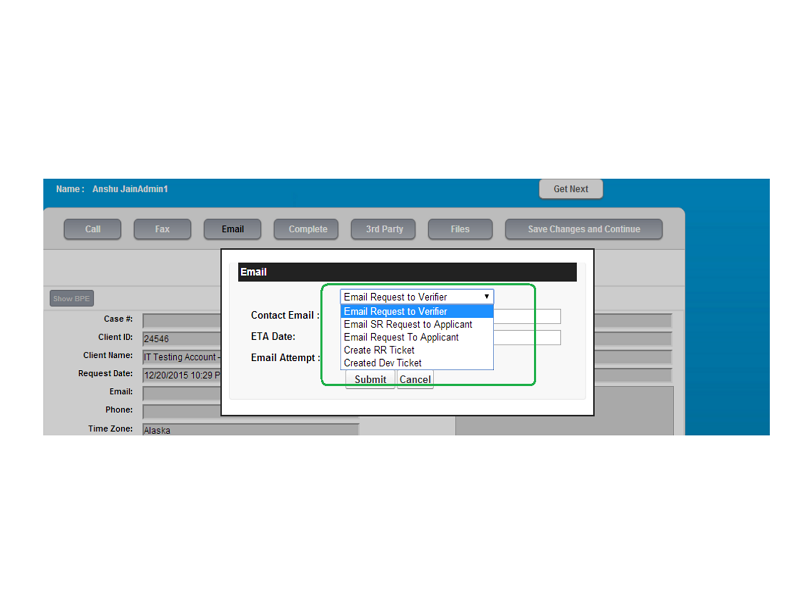
When Email tab is selected , This indicates that the Call Center Rep needs to send a email request. Options available include two drop downs:
Action Performance drop downs has following options
1. Email Request to Verifier: Prompts Call Center Rep to provide an ETA Date for when to follow up on the email.
Adds a Notes to Client: We have emailed our request to verifier at the address provided (contact email address) and are pending results emailed back on [eta date].
Validation: if there is no contact email, the system prompts the Call Center Rep to provide the contact email.Sends the appropriate email to the email address provided and in the received email, the link to redirect to Express Results page which will directly open to the correct page for the type (i.e. Employment should go to the Employment page directly) Search number will be auto filled the Search Number field on the express result page for the Verifier
2. Email SR Request to Applicant: Prompts Call Center Rep to provide an ETA Date for when to follow up on the email.Adds a Notes to Client: We have emailed the Signed Release for completion at the address provided (applicant email address) and are pending return fax on [eta date].
Validation: if there is no contact email, the system prompts the Call Center Rep to provide the applicant contact email.
Sends the appropriate email to the email address provided with an attached SR.
3. Email Request To Applicant: Prompts Call Center Rep to provide an ETA Date for when to follow up on the email.
Adds a Notes to Client: We have emailed a request to the applicant at the address provided [applicant email] and are pending response on [eta date]
Validation: if there is no applicant email, the system prompts the Call Center Rep to provide the applicant contact email.
Sends the appropriate email to the email address provided and no attachment of SR will be send.
4. Create RR Ticket: The Call Center Rep is prompted to indicate what information is needed from the client.
Adds a Notes to Client: Please note a [Applicant Information Needed value*] is required to complete this verification. Please forward us the information as soon as possible.
Sends or creates a RR Ticket to customer service via email requesting the information.
RR Ticket Creation
Create RR Ticket option will create a ticket with the following values
- Account Name > Account from Verification
- Related Background Check > related background check from verification
- Background Search > related background search from verification
- Subject > [Search Number] - Information Request [Applicant Information Needed value*]
- Ticket Origin> Call Center Internal
- Description > Additional information is needed to proceed with [Search Number] - [Value of Type Field on Verification]. We are in need of [Applicant Information Needed value*] in order to continue.
- Ticket Reason > Information Request
- Status > New
- Priority> High
- Call Center Client Notification > Checkbox - True
- Owner
>First owner is assign to Repid Response after exe run owner changes.
Created Dev Ticket: The Call Center Rep is prompted to indicate with following fields
- Ticket Number.
- Request Priority - (High, Medium, Low)
o Request Summary
When all values are filled and submitted the following note will be added to the Internal Notes.
o [date/time stamp] Dev ticket [Ticket Number] submitted for the following issue: [Request Summary].
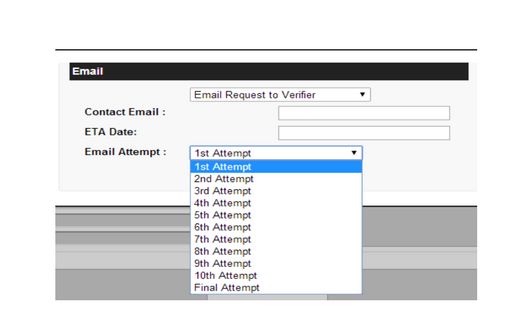
Second drop-down is name as "Email Attempt". This functionality and options are same as Call Attempt in Call tab option.
On submit, the following note will be appended to the top of the Internal Notes: [Standard Date/Time stamp] - [Email Select] [Email Attempt]
3rd Party
Following are the options of first drop-down which performs some action.
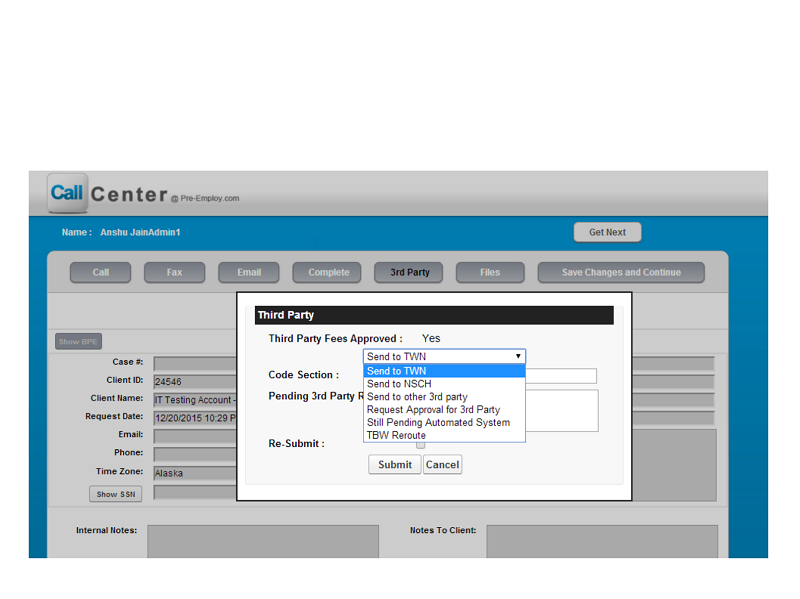
If a 3rd party needs to be used, then the Call Center Rep will select the 3rd party action. This will open a display that lets the user know if the client is already pre-approved for 3rd party fees. The following actions will be available:
Send to TWN - indicates that this verification should be sent to The Work Number
This option will request that the Call Center Rep provide the correct Company Code to send to TWN.
It will add a Notes to Client: Please note this verifier uses a 3rd party to process their verifications. We have submitted our request to them.
System will then send the verification to TWN and schedule it to be reviewed once the results return.
Following fields will update in verification record as:
- Code Section should be mapping to the Company Code in the Verification record
- Owner = 06CCAUTOMATED
- Automated System = True
- Third Party Approved = True
Send to NSCH - indicates that this verification should be sent to National Student Clearing House.
It will add a Notes to Client: Please note this verifier uses a 3rd party to process their verifications. We have submitted our request to
them.
System will then send the verification to NSCH and schedule it to be reviewed once the results return.
Following fields will update in verification record as:
- Code Section should be mapping to the Company Code in the Verification record
- Owner = 06CCAUTOMATED
- Automated System = True
- Third Party Approved = True
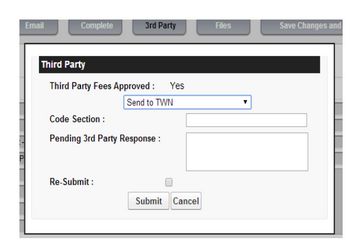
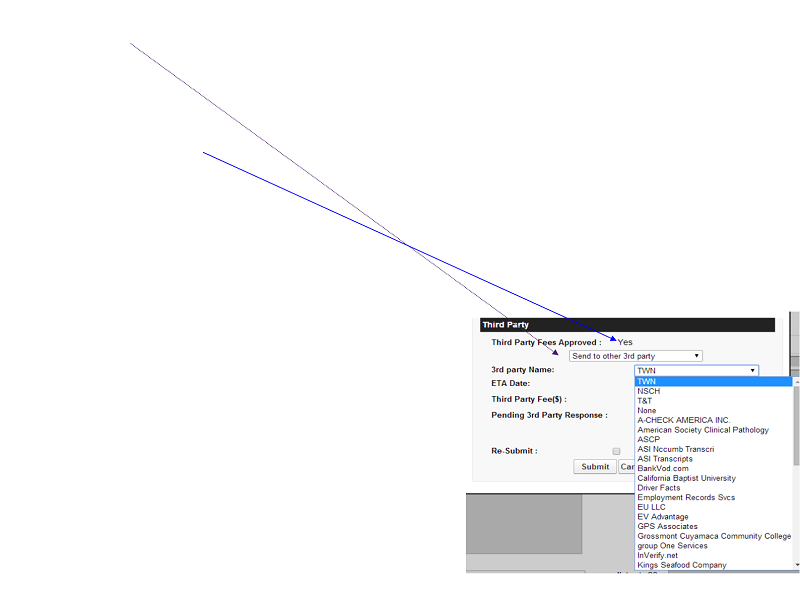
Send to other 3rd party - If our standard 3rd party providers are not used. The Call Center Reps will be asked to provide
3rd party Name(Dropdown)
- ETA Date
- The system will then add a Notes to Client: Please note this verifier uses a 3rd party to process their verifications. We have submitted
our request to them.
- Request Approval for 3rd Party - If the client is not pre-approved for 3rd party fees the Call Center Rep can then choose to request approval for the 3rd party fee.
- Adds Notes to Client: Please note this verifier uses a 3rd party to process their verifications. We are in need of your approval to process this verification.
- System SetsStatus to "Hold"
- Still Pending Automated System - Adds Notes to Client: [Date/Time Stamp] Pending Automated system.
- TBW Reroute - Following fields will update in verification record
- Owner = Sent to TBW
- Approved to Send to TBW = 1
- TBW Sent Date = null
- TBW Sent = 0
- Adds Notes to Client: [Date/Time Stamp] Search has been rerouted to TBW.
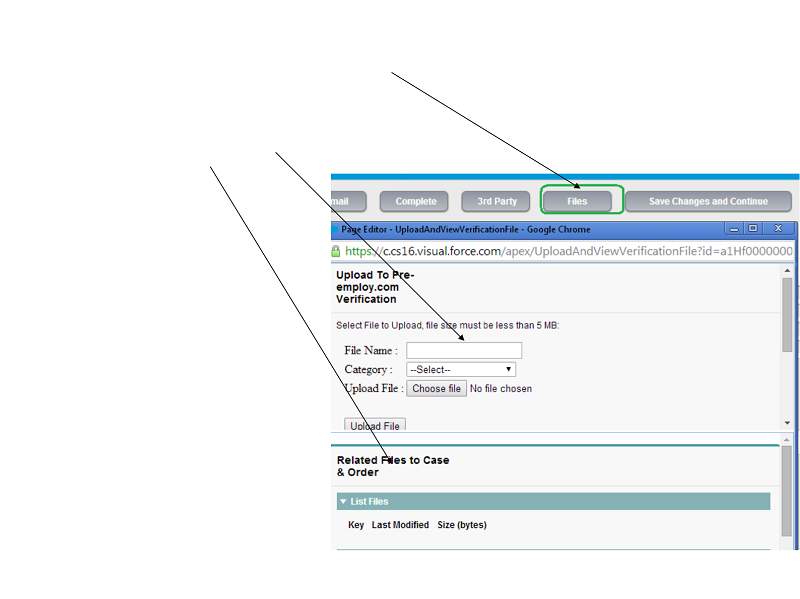
Files
If the Call Center Rep needs to review the files attached to the case (for a SR) or needs to attach a received file. They can select the "Files" action to open a window and have the options of:
- Upload a file to the Verification
- Review Files on the Case & Order
Complete
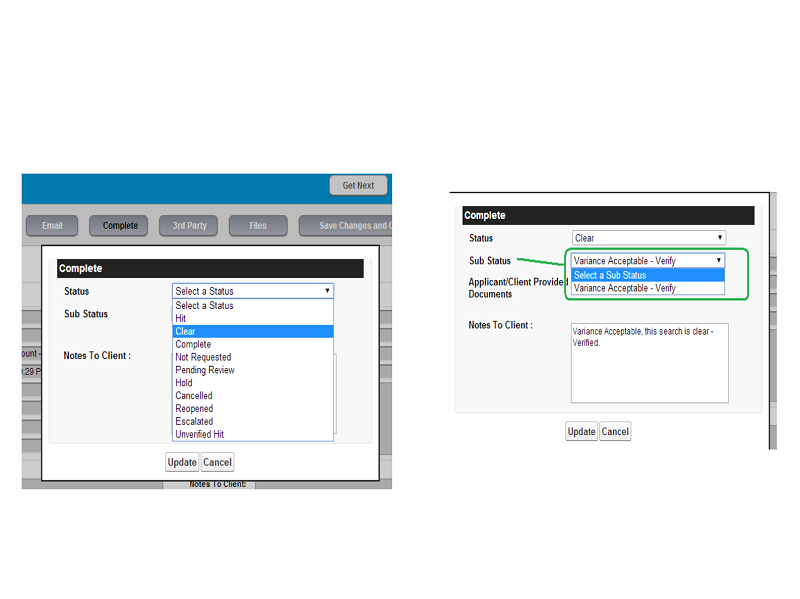
If the verification search is ready to be completed, the Call Center Rep can select "Complete" to tell the system that this search is ready to be closed.
Note: When the Client is Admin Review is True on verification object then verification cannot be closed or completed directly from call center page, it will be first reviewed then completed.
The Call Center Rep will be asked to provide a status (such as "hit" or "Clear") and a sub-status if applicable to the type and there will be a check box Applicant/Client provided Documents on the pop up for only Employment and Employment verifications types.
Status
Sub-status
Hold
Standard Mail - Notes to Client: Please note this institute requires all request to be sent via Standard Mail, we have mailed our request. We will reopen this request once we receive results via standard mail.
Clear
Variance Accepted - Verify
Hit
For Employment Options Sub status are:
- Difference in Date
- Difference in Date and Position
- Difference in Position
- General
- LVM for Verifier
- Cannot locate contact information
- Confirmed fax received
- CWN - Messages and faxes
- Emailed Request
- Fax Request
- Left messages with applicant
- No information provided
- Reference - Reference is no longer with company
- Request Add info from applicant via email
- Request DOB
- Request SR
- Requested Signed Release from applicant
- Turn Around Time Greater Than 3 Days
- Unable to verify: Reference does not know the applicant
- Verifier is on vacation / out of office
- Voicemail box is full unable to leave message
- Applicant Phone Call
- Automated System Required
Unverified hit
- Exhausted Attempts - Notes to client: When selected enters the following note: Please note we have exhausted all attempts and are unable to complete this request. Please contact customer service at 800-300-1821 with any information for successful completion.
- DNC - Notes to client: No Applicant Response - Applicant has requested this employer not be contacted, we have reached out to the applicant to obtain approval and/or documentation to complete this request, as of today we have not received a response.
For Employments verification sub status Options are
- Applicant has obligations to school
- Employment - Automated System No Record Found
- Per Client Request
- Records Purged
- School is a "Diploma Mill"
- School is No Longer In Operation
- Unaccredited School
- Verifier states that they are unable to provide information to third parties
For Employment verification sub status Options are
- Automated System - NRF
- Business no longer in operation
- Business Sold
- CWN - Left Numerous Messages Verifier/Applicant
- Employer is the client
- Internship or Student Learning
- No Record Found
- Per Client Request
- Self employment
- Unable to verify per company policy
- Verifier states that they are unable to provide information to third parties
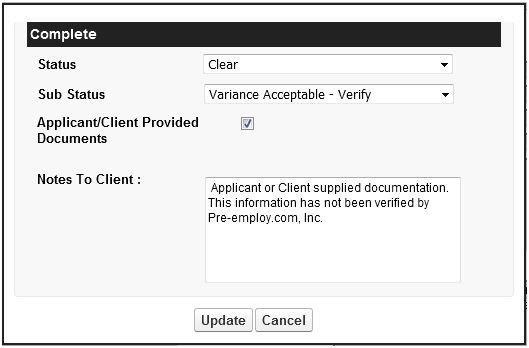
If Applicant/Client provided Documents: True then following note will be concatenated the "Applicant or Client supplied documentation. This information has not been verified by Pre-employ.com, Inc." to the actual note which will according to the status and sub-status.
Fore example: Status "Clear"
Sub Status "Variance Acceptable - Verify"
Auto Note "Variance Acceptable, this search is clear - Verified. " populates
And If Applicant/Client provided Documents: True
Then, Notes to the client will be "Variance Acceptable, this search is clear - Verified. Applicant or Client supplied documentation. This information has not been verified by Pre-employ.com, Inc."
Save Changes and Continue And Get Next

Because multiple actions can occur at once, selecting any of the actions except "Save Changes and Continue" will not close out the verification screen. This will allow the Call Center Rep to perform multiple different standard actions. However, once the Call Center Rep is done and ready to exit the verification they need to select "Save Changes and Continue" to exit.
Get Next button: Note that "Get Next"button has the similar functionality as "Save Changes and Continue" button but when "Get Next" button is clicked then next priority Verification/Ticket is opened on the call center page after saving whole data of previous verification.But when clicked on "Save Changes and Continue" button then it save the changes of the record and navigates to the VDQS page(GetNext_Callcenter).
Download ESR

When the order is created through EAP process and on Order Detail page Method of Data Supply is "Subject Manual Data Entry" the button should be available to click and have the same function as the "Download Electronic Signature Document" button found on the order object.
However if the method of data supply is NOT "Subject Manual Data Entry" then the button should be grayed out and unavailable for use.
Show BPE
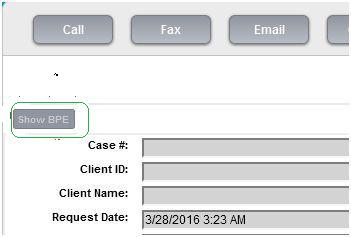
If System finds similar verification then Show BPE button will be available to click and when user clicks Show BPE button then Show BPE button changes to Hide BPE
- BPE section expanse displaying the possible matches
- User clicks Hide BPE button BPE section retracts
Last Action
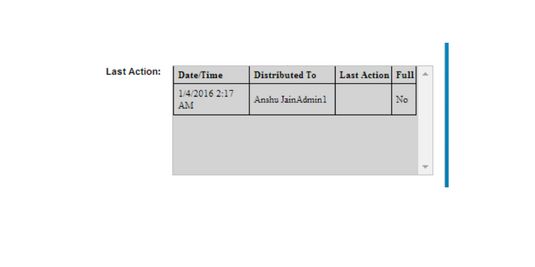
Each time a verification is distributed through the get next or when a Call Center Rep searches for a specific verification through the get next these actions are tracked by the system. Once the verification opens a timer starts and that timer does not end until the Call Center Rep successfully selects "Save Changes and Continue" to indicate that they are done with the verification.
If the "Save changes and Continue" button is not selected - then the verification may be flagged as abandoned. The information that is saved includes
- When the verification was opened
- Date/Time - The Distribution Time
- Who opened the verification
- Distributed to - The username of the distribution record
- What action was completed(Last Action)
- Last Action - the most recent action (if applicable) that the user did for that distribution session (may need to be added to the task record), this should list the name of the dropdown that was selected - but not the full notes. Full notes would still be visible in the internal notes of the search.
- Full - indicates (yes/no) if a full completed action was done on the verification (this is determined if there is a "Action completion time" in the task record, but if easier can be saved if the user selects "Save and Continue" on the get next record).
- What phone number was dialed
- How long the call was
- When the verification was closed
- The last status of the verification when it was closed
The actions are tracked in detail in salesforce; however a snapshot will be visible to the next user to see the basic information of what was previously done on the verification. More specific details can be viewed in the internal notes sections.
Difference by verification types
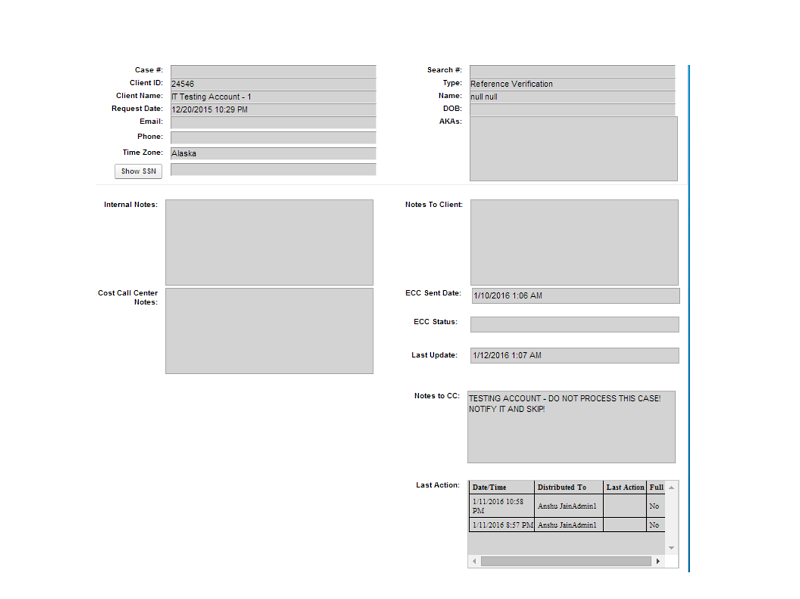
- The action bar at the top of the screen is the same for all verification types. In addition, all verification types will also display
- The case number that the verification is attached to
- The search number
- The client class and Client Name the verification is for
- The date the verification was requested.
- The Name, DOB, alternate names, email and phone number of the applicant.
- The Time Zone the verification is in.
- There will be a toggle button to display full social security number in SSN field.
- Following fields will only display on the Get Next CCO page when TBW Sent Date != NULL
Fields are :
- East Cost Call Center Notes - Should display TBW Notes
- ECC Sent Date - This field is to display the TBW Sent Date
- ECC Status - Should display the TBW Status
- Last Update - Should display the Last Modified date
East Coast Call Center Support
The East Coast Call Center (ECC) which processes verifications in addition to our West Coast Call Center in Anderson will have a special area that displays:
- The date/time the verification was sent to ECC
- The status with ECC
- The last date/time an update was received from ECC
- Expanded notes area from the ECC.
- In addition, users will have an action button of "Re-route to ECC" when a verification needs to be sent to the East Coast Call Center and removed from West Coast Processing.
The last complete action that was done on the verification will also display. Other details will vary based on search type.
Common fields on call center page
Employment verifications will display the basic employment information such as the Employer Name, Contact Name,Phone Number, Fax Number, and Address Etc. In addition to the contact information, the information that the applicant provided to verify (such as the Start/End Date) will be displayed. Next to the provided fields will be the corresponding "Verified" fields that indicate what was verified by the verifier. If the verifier will only verify what was provided, the call center rep will select "Verify provided" which will automatically insert what was in the "provided" fields into the "verified" fields.The Call Center Rep will also be asked to provide the verifier name and verifier title of the person completing the verification. The Call Center rep can then ask the verifier to provide answers to the optional Employment Questions such as Job performance and attendance. If the verifier will not provide any comments on these fields, the Call Center Rep can select "no comment" to automatically put that verbiage into the corresponding fields. On the Get Next page of Employment Type verification following script will display at the bottom of the page.
Hi, this is [User Name] with Pre-employ.com. I'm calling on behalf of [Account Name] for an employment verification on [Applicant Name], last name is spelled ________. Please refer to search number [Search Number] when returning our call at 800-719-6573, once again our number is 800-719-6573. Thank you and have a nice day.
Employment Type
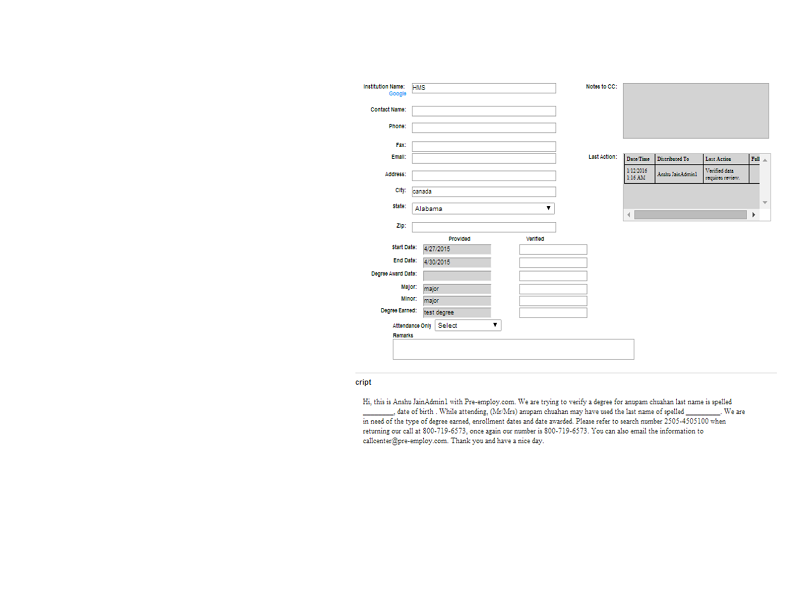
Employment Verifications will display the basic school/university information such as the school name, phone number and address.
In addition to the contact information, the information that the applicant provided to verify (such as attendance dates and Employment awarded) will be displayed.
On the Get Next page of Employment Type verification following script will display at the bottom of the page.
Hi, this is [User Name] with Pre-employ.com. We are trying to verify a Employment for [Applicant Name] last name is spelled ________, date of birth ******[Applicant Birth Year]. While attending, (Mr/Mrs) [Applicant Name] may have used the last name of spelled _________. We are in need of the type of Employment earned, enrollment dates and date awarded. Please refer to search number [Search number] when returning our call at 800-719-6573, once again our number is 800-719-6573. You can also email the information to callcenter@pre-employ.com. Thank you and have a nice day.
License Type
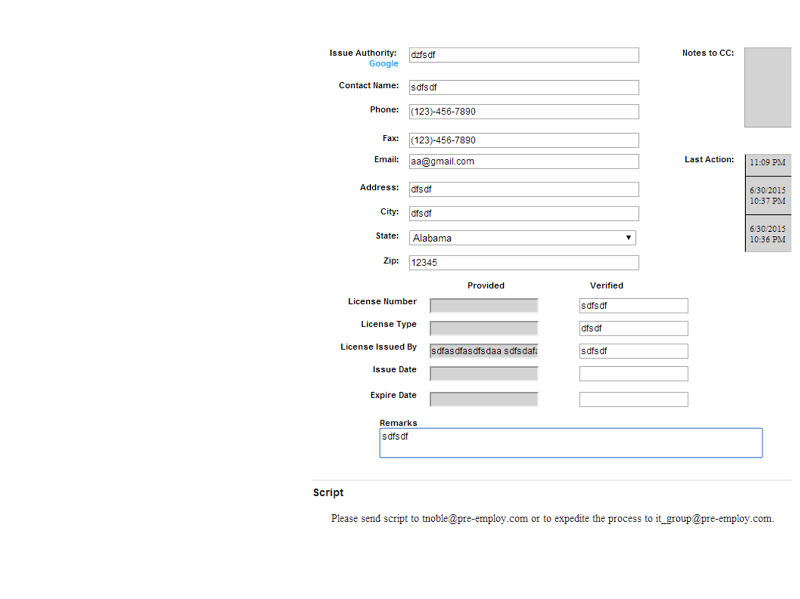
License verifications will display the basic license
information such as the license type, issuing authority,
License Number, License Issued By , Issue Date,
Expire Date and state. This information the call center
rep will then use to verify the license. New fields are
added
i. License Issued By
ii. Verified License Issued By
iii. Verified License Number
On the Get Next page of License Type verification
following script will display at the bottom of the page.
Please send script to tnoble@pre-employ.com or to
expedite the process to mbruch@pre-employ.com
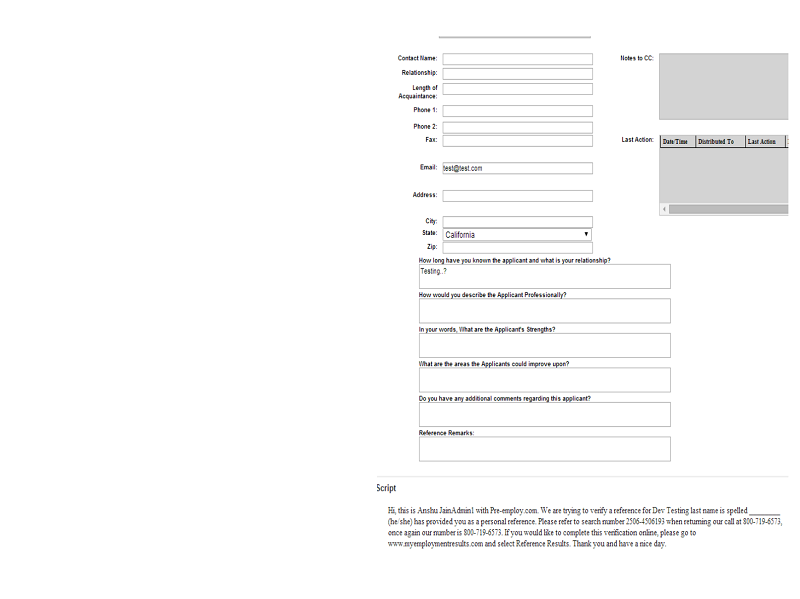
Reference Type
Reference verifications will display the basic reference information such as their contact details and relationship. Then the Call Center Rep will see the specific questions that they need to ask the reference. Normally these will be our standard reference questions such as "How long have you known the applicant ?" - But if the client requests any deviation from our standard questions, the correct question to ask will be displayed on screen. Additional details on "Specialty Clients" will be covered in the Specialty Client Section.On the Get Next page of Reference Type verification following script will display at the bottom of the page.Hi, this is [User Name] with Pre-employ.com. We are trying to verify a reference for [Applicant Name] last name is spelled ________ (he/she) has provided you as a personal reference. Please refer to search number [Search number] when returning our call at 800-719-6573, once again our number is 800-719-6573. Thank you and have a nice day.