How to provide permission to a profile on a Field / on Apex Class / on VF Page
How to provide permission to a profile on a field
Open the sandbox:
test.salesforce.com
Then login with credentials:
Go to setup
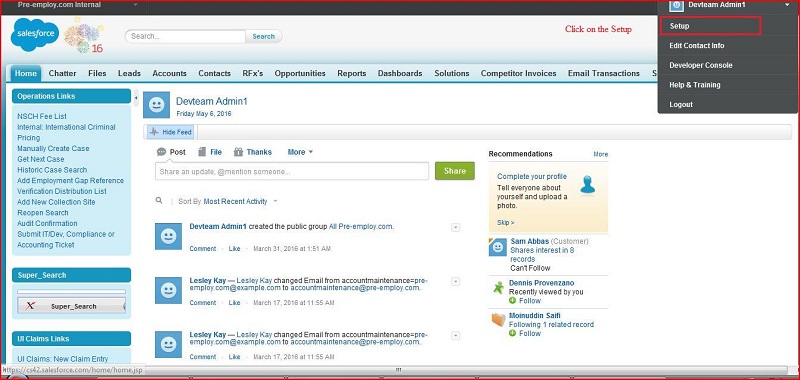
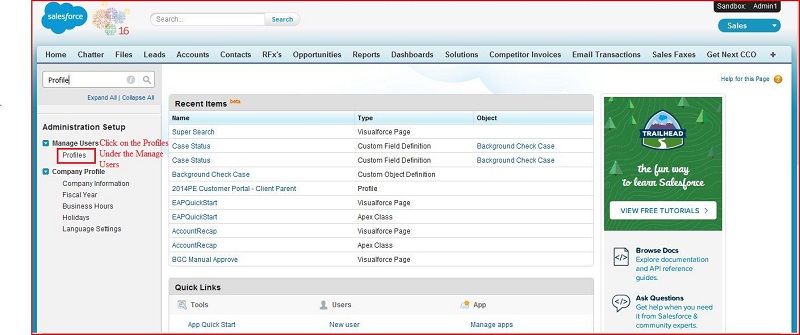
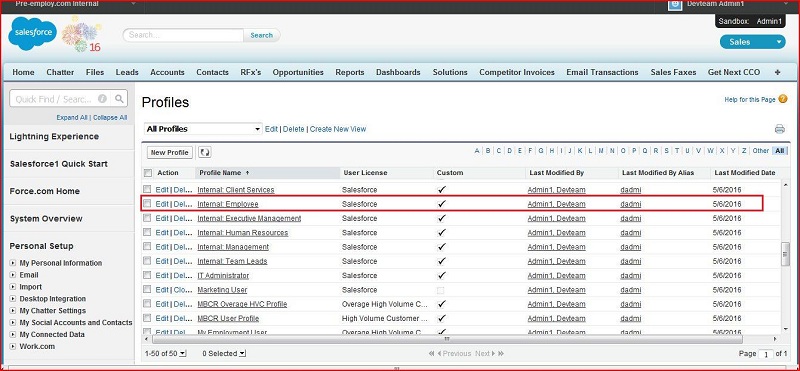
Go to Manage Users -----> Profile -----> Click on the Profiles
There are lots of profiles.
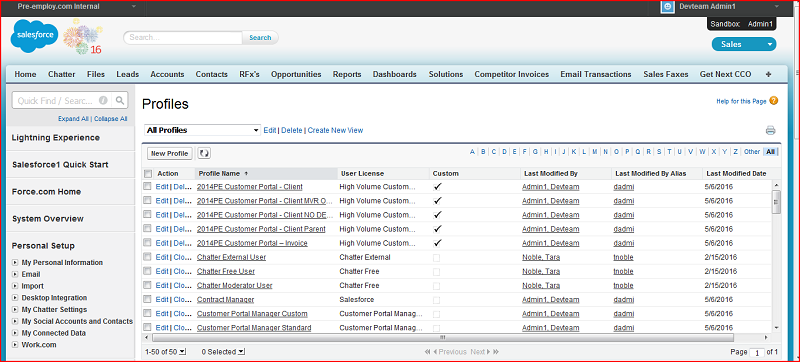
How to find
Portal Profile
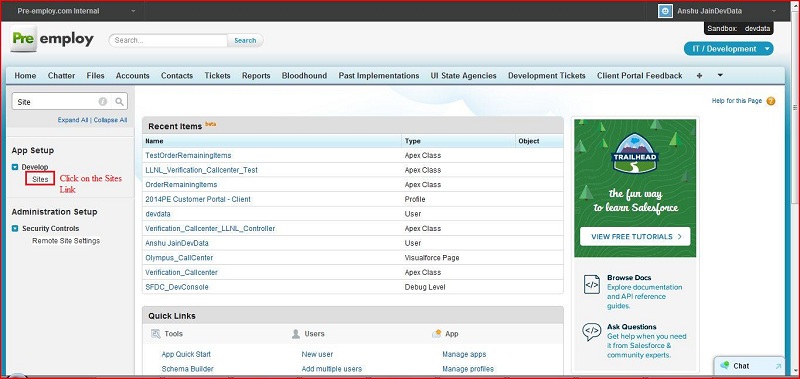
Go to Setup ----> App Setup ----> Develop ----> Site
Click on the
Sites
Link
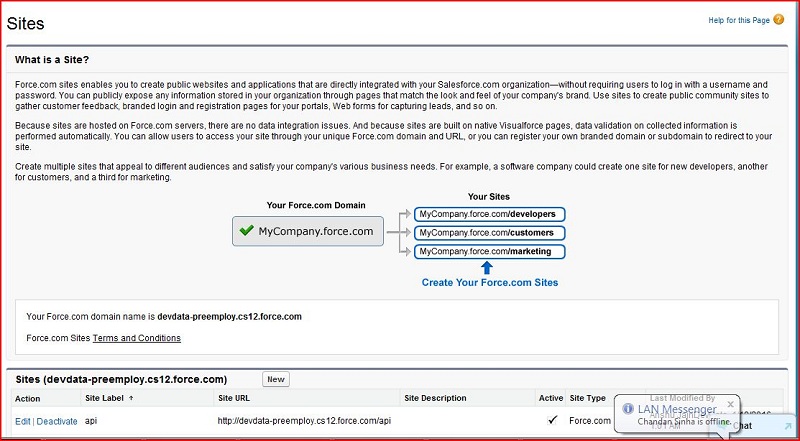
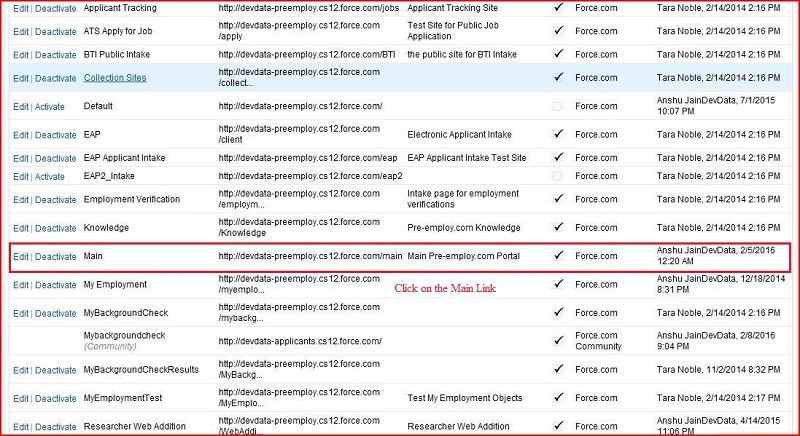
Click on the
Main
Link
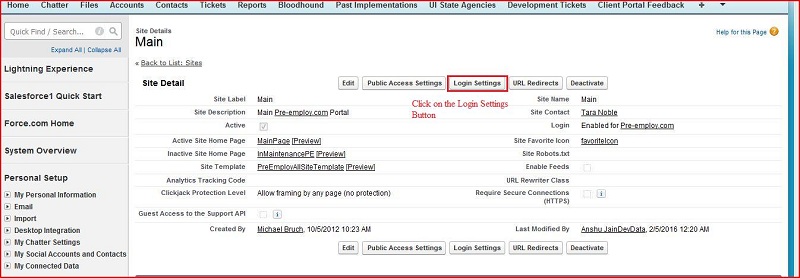
Click on the
Login Settings
Button
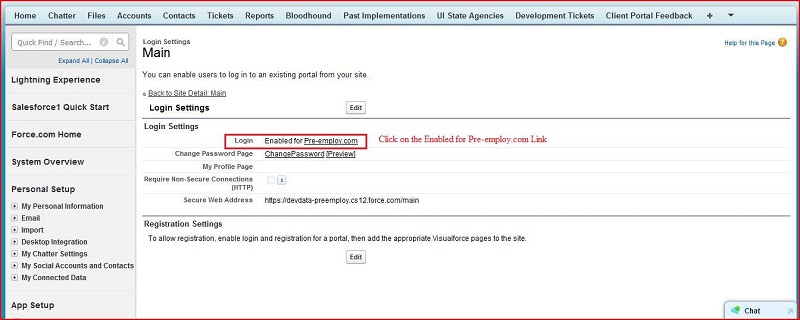
Click on the Enabled for
Pre-employ.com
Link
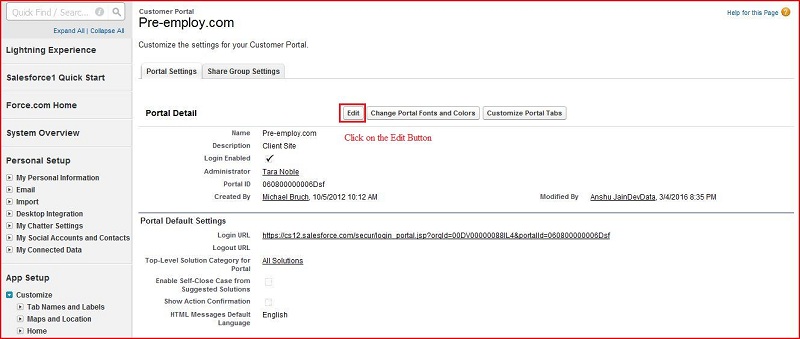
Click on the
Edit
Button
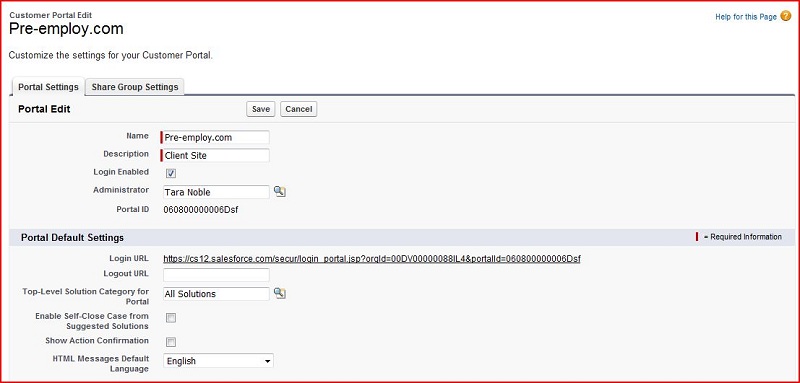
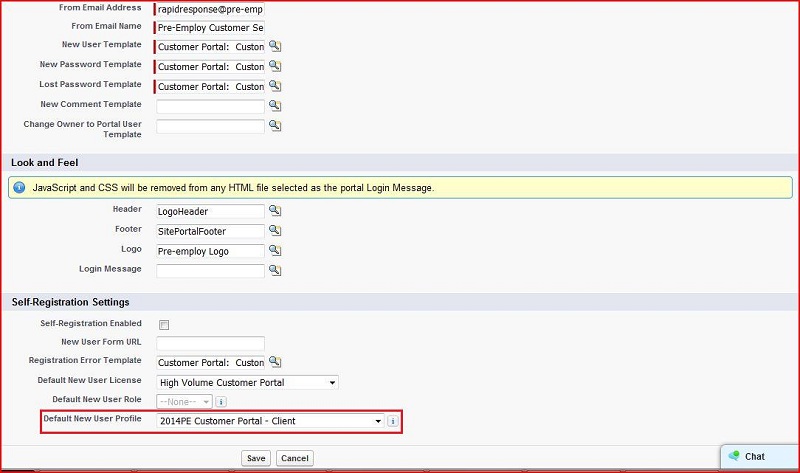
We can find the
Default New user Profile
Click on any Highlighted Profile
(Internal: Employee)
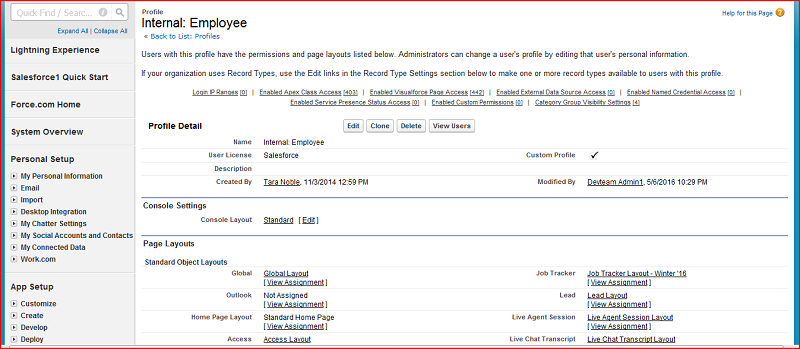
Its display the
Internal: Employee
Profile
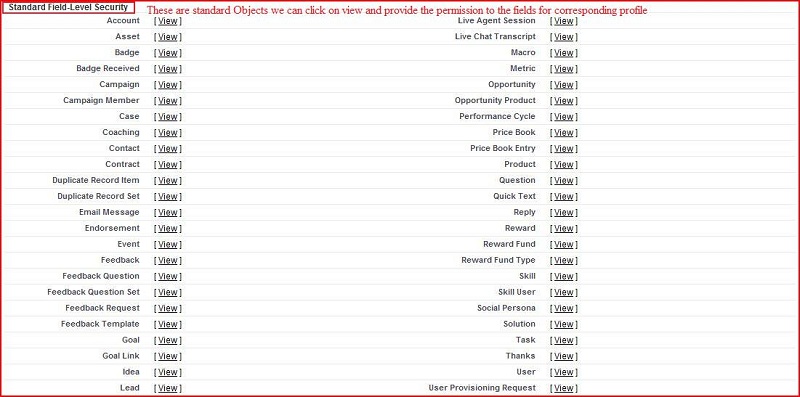
These are
Standard Objects
we can click on view and provide the permission to the fields for
corresponding profile.
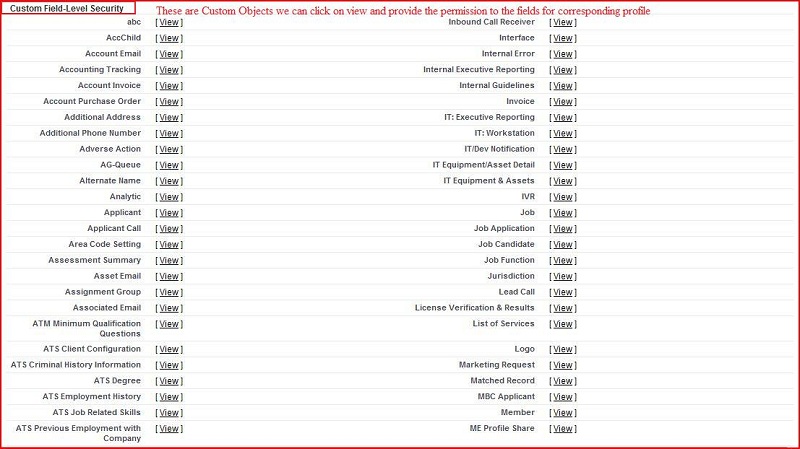
These are
Custom Objects
we can click on view and provide the permission to the fields for
corresponding profile.
Click on the
Account
View Link
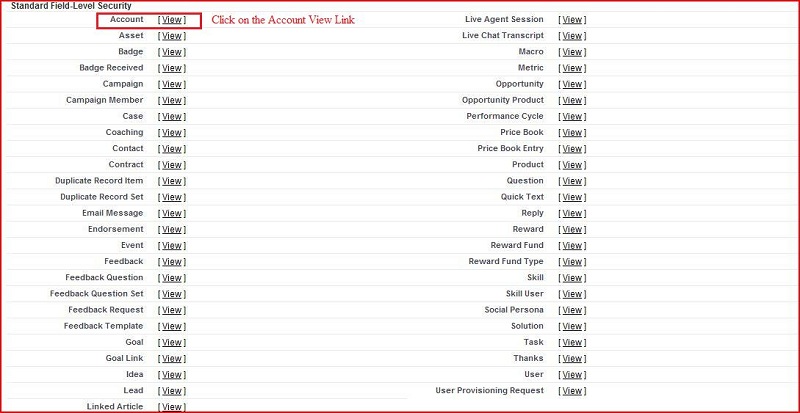
Its display the
Internal: Employee
Standard Field Level Access Page
Click on the
Edit
Button
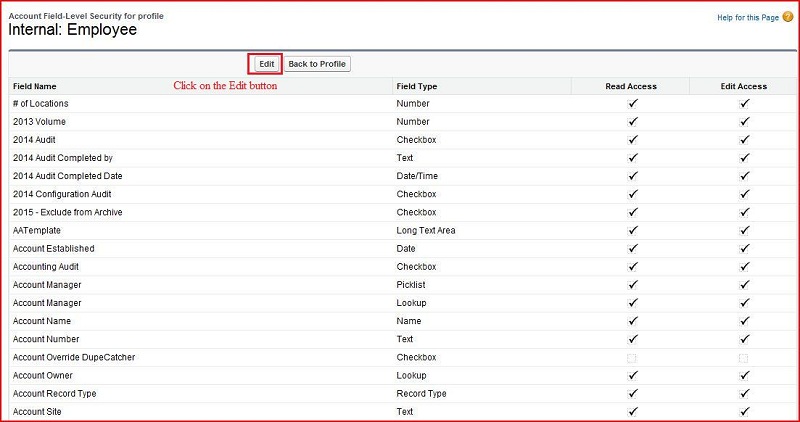
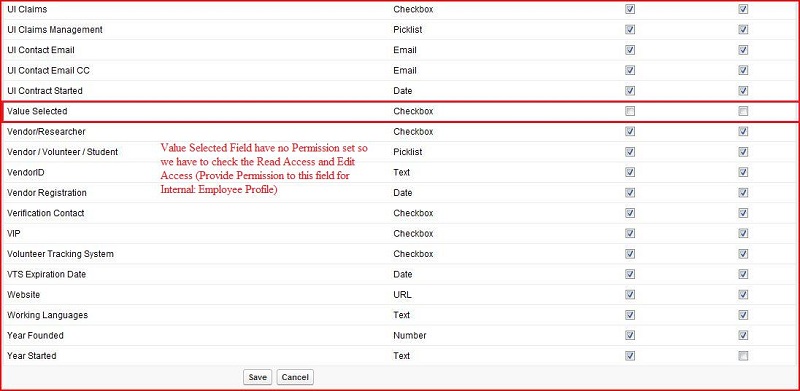
Field have no permission set so we have to check the read access and edit access (provide permission
to this Field for
Internal: Employee
Profile)
Then click on the
Save
Button
This Field is visible for
Internal: Employee
Profile
How to provide permission to a profile on Apex Class
Open the Profile (steps provided by above)
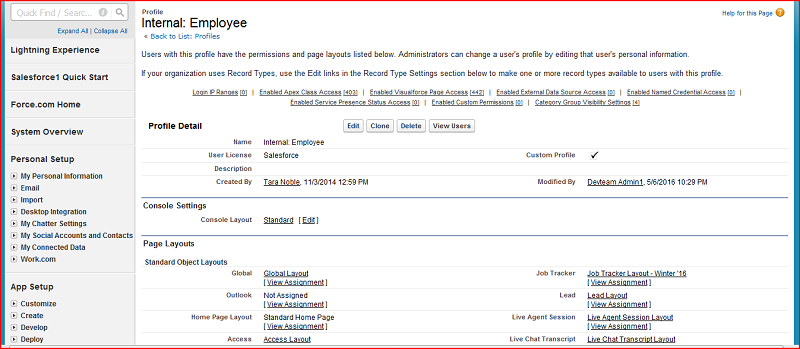
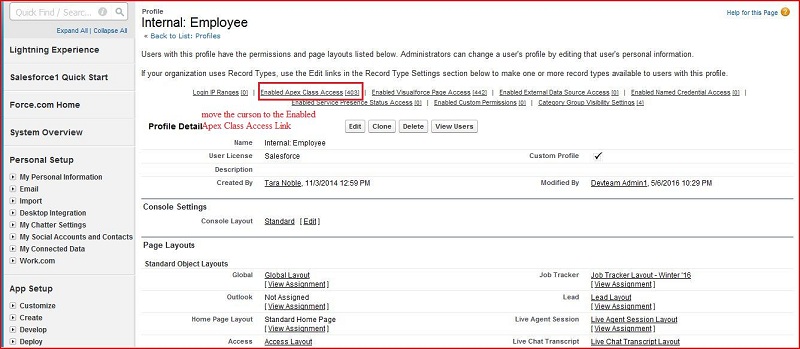
Move the curson to the
Enabled Apex Class Access
Link (Highlighed Area)
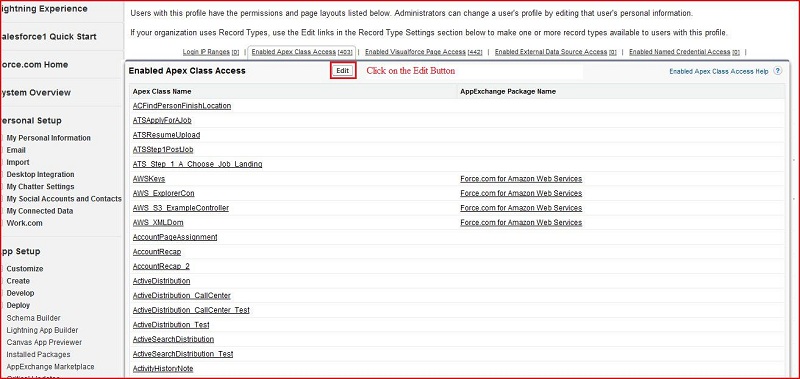
Then click on the
Edit
Button
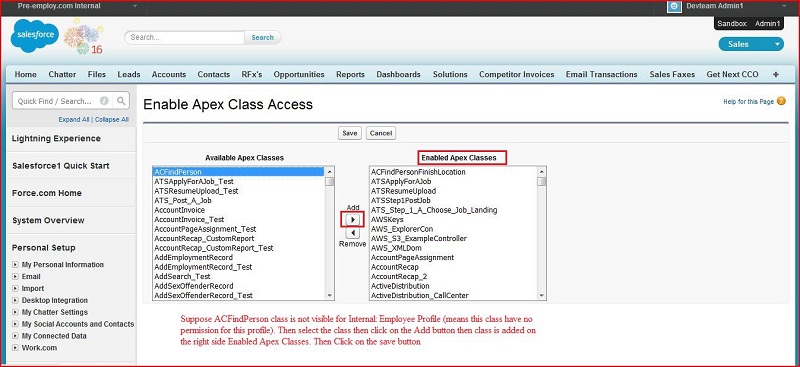
Suppose ACFindPerson class is not visible for
Internal: Employee
Profile (means this class have
no permission for this Profile). Then select the class then click on the add button then class is added
on the right side
Enabled Apex Classes.
Then click on the
Save
Button
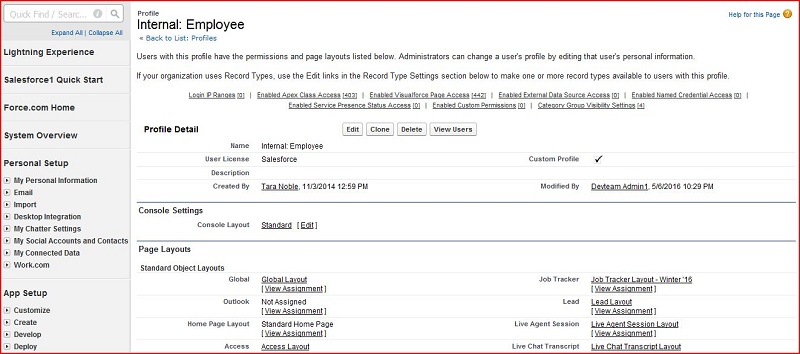
Then this class is ready to display for
Internal: Employee
Profile.
How to provide permission to a profile on VF Page
Open the
Profile
(steps provided by above)
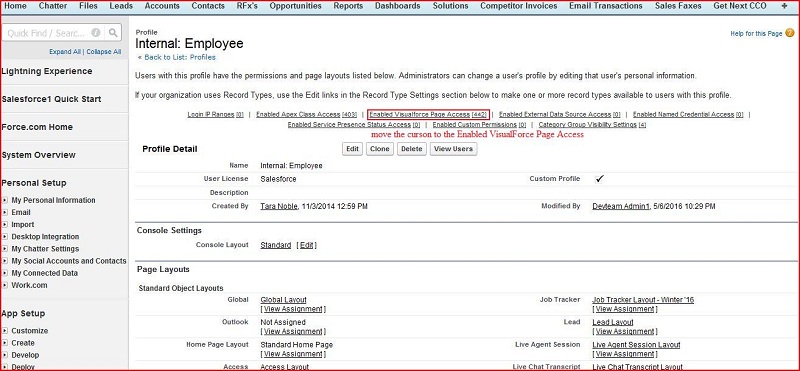
Move the cursor to the
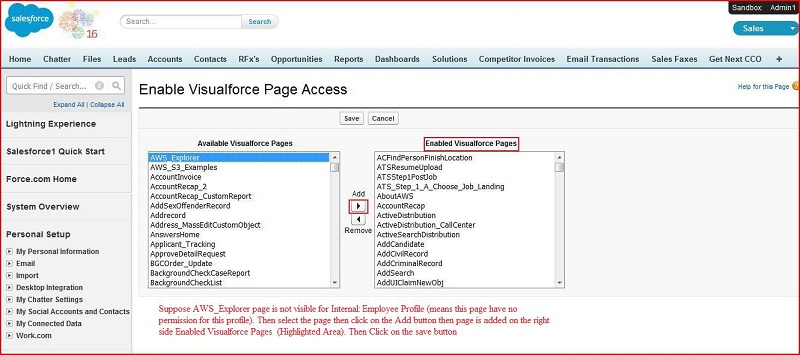
Enabled VisualForce Page Access
Link (Highlighted Area)
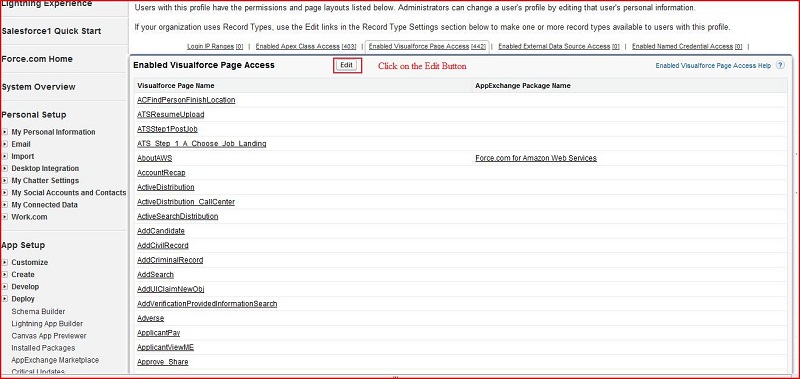
Then click on the
Edit
Button
Suppose
Aws_explorer Page
is not visible for
Internal: Employee
Profile (means this page have
no permission for this profile). Then select the page then click on the
Add
Button then page is added
on the right Side
Enabled VisualForce Pages
(Highlighted Area). Then click on the save button
Then this page is ready to display for
Internal: Employee
Profile.