Adobe Document
This document will help you to setup the merge document with Adobe and Salesforce. Merge document have some custom tags which are connected to salesforce and able to pull data from Salesforce to show on document.
1. Add Tags in the documents
In this step you can see some example of merge tags, we also describe how to use a merge tag in document
See below screenshot, I have highlighted some of the custom tag.
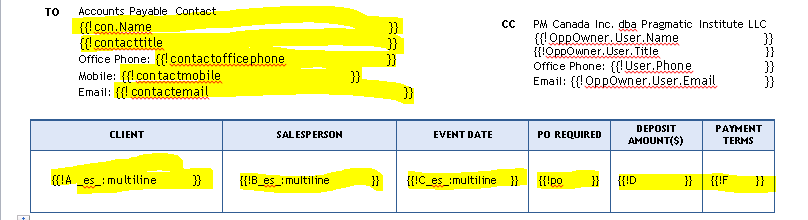
- {{!contacttitle }} This is a merge tag. Space added in this tag will define the width of the custom tag field.
- A custom tag will always starts with {{ and end with }} .
- ! symbol in the tag will make the tag read only for signer. If ! is not added then a signer will also be able to edit the merged tag value in the document.
- Example without ! symbol : {{!contacttitle }}
- Tag name(contacttitle) can be anything according to the need.
- To show merged value in multiple lines(if value is large) use multiline tag.
Example {{contacttitle_es_:multiline }}
- To show data from Related lists use indexing for each row. The # of records will pull based on rows mentioned in the document. See the below screenshot
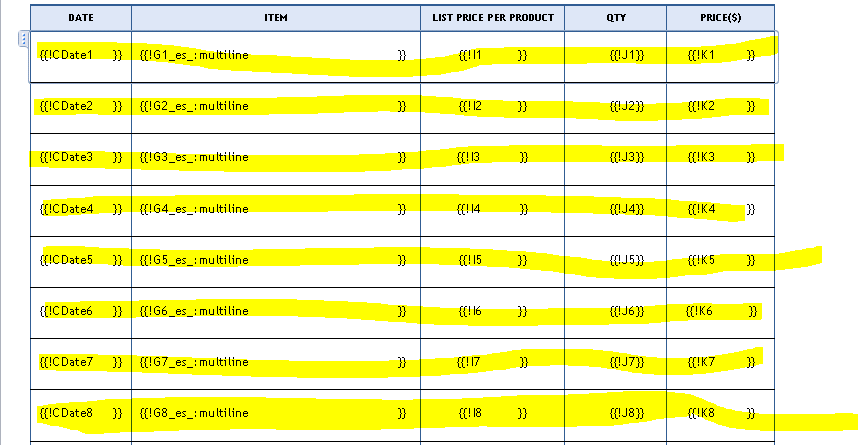
The above screenshot is showing all the an example of related list merge fields
- In the first row first column tag name is CDate and this is read only as used the ! symbol. Written 1 after the tag name is showing that this will pull record #1 from the related list and same applies to 2,3 and all rows. 2nd row will pull the 2nd record from related list and 3rd row will pull the 3rd record form the list based on # written after the tag name. If there is no data in the related list then this rows will see empty on the document.
2. Upload document to Salesforce
- Once you have done all the mapping of your word document then you need to upload this in salesforce.
- To upload just login into Salesforce and go to documents tab and add a new document in any of the folder.
3. Create merge mapping
Merge mapping is a tab in salesforce, this tab will help to connect the tags written in document and the Salesforce object fields.
- Go to All Tabs and open Merge Mapping tab in salesforce
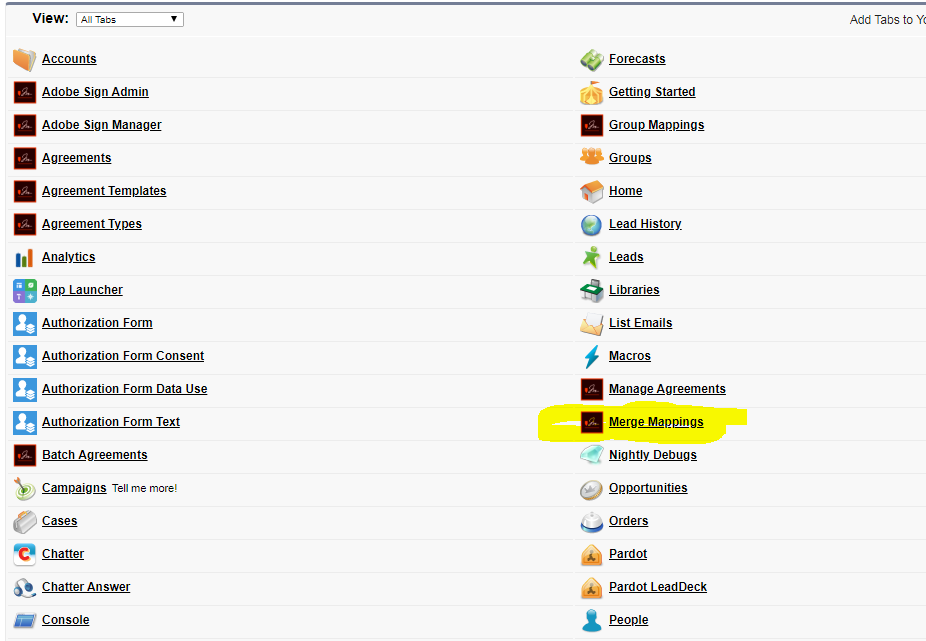
- Create new Merge Mapping record by clicking on new button.
- A single Merge Mapping record can have multiple tags mapping entries.
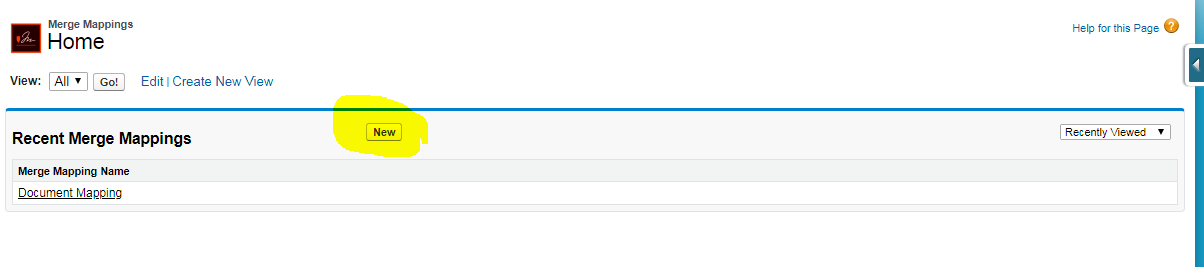
You will see the below screen
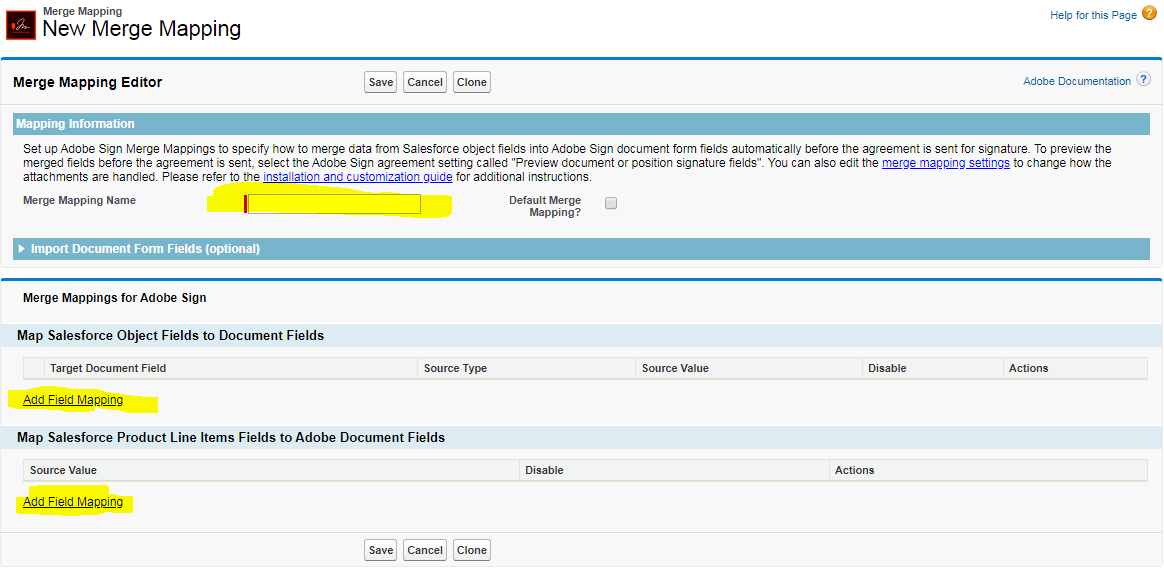
Enter any name in the Merge Mapping Name field.
- To map the document fields with an object’s field, click on the “Add field mapping” in the “Map Salesforce Object Fields” section. You can see the below screenshot after clicking on “Add field mapping”
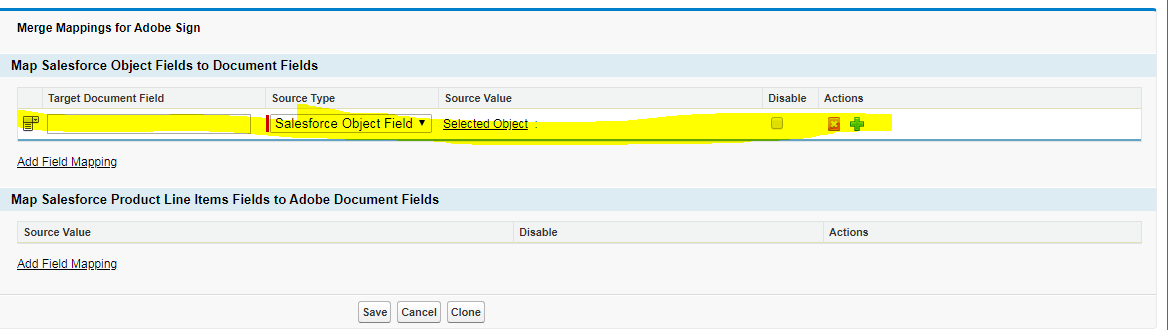
- Enter merge field name in “Target Document Field”

Target Document Field value must be same as the tag name entered in the document mentioned in step #1, otherwise no mapping will be done in document.
- Select the target object to pull value from SF click on “Selected Object”.

- After clicking on “Selected Object” you will see the below popup
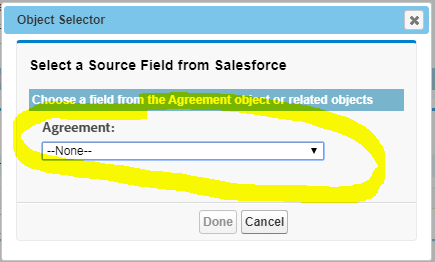
- Here you can select the object from where you want to pull the data. After selecting the object you will see the below mentioned screen to select the desired field.
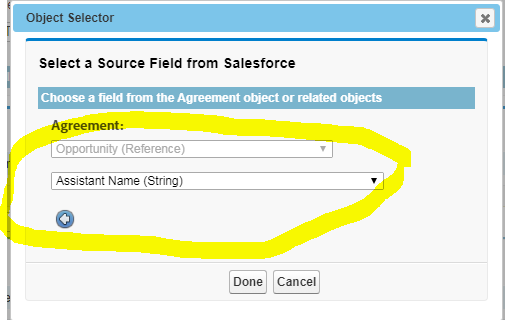
- Click on the “Done” button after selecting the field. You can see the selected field on the main screen like below. Data entered in the selected field will display on the document.

- To add mapping for related list Click on the “Add fields mapping” link under the “Map Salesforce Product Line Items under” section.

- Click on Select Object to select the object from popup

- Select the object from where you want the related records
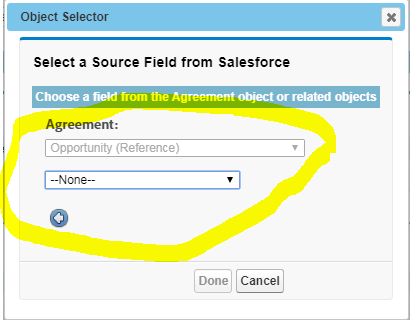
- After selecting the related object from picklist, select the fields for the related object to map data with document.
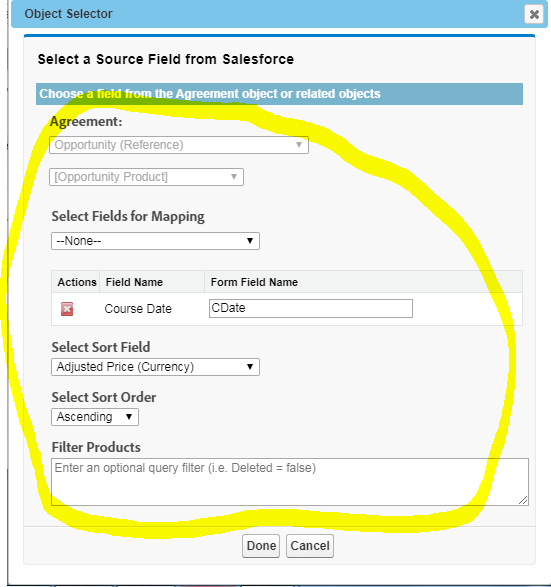
- In the “Form Field Name” mention the merge tag name.
- In “Select Sort Field” you can set the sorting order of the records
- In the Filter Products you can write a SOQL structured filter to filter the records.
4. Create Agreement Templates
An agreement Template is basically a combination of a Salesforce Object, Merge Document and a Merge Mapping record.
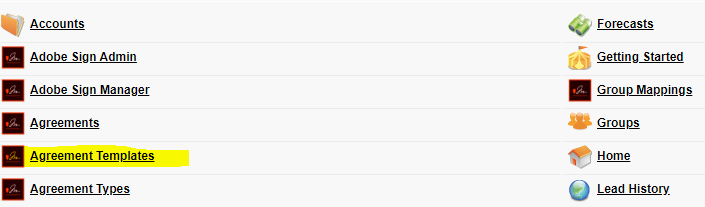
- To create Agreement Template go to all tabs and click on “Agreement Templates”
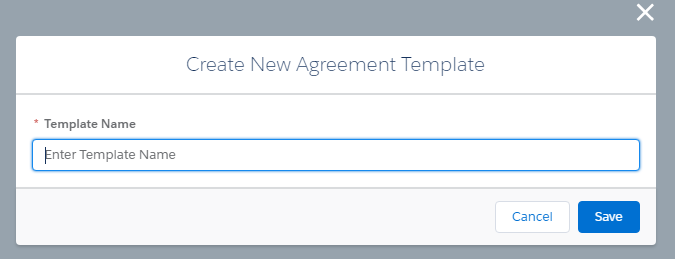
- Click on new button and provide name for the template name and click save
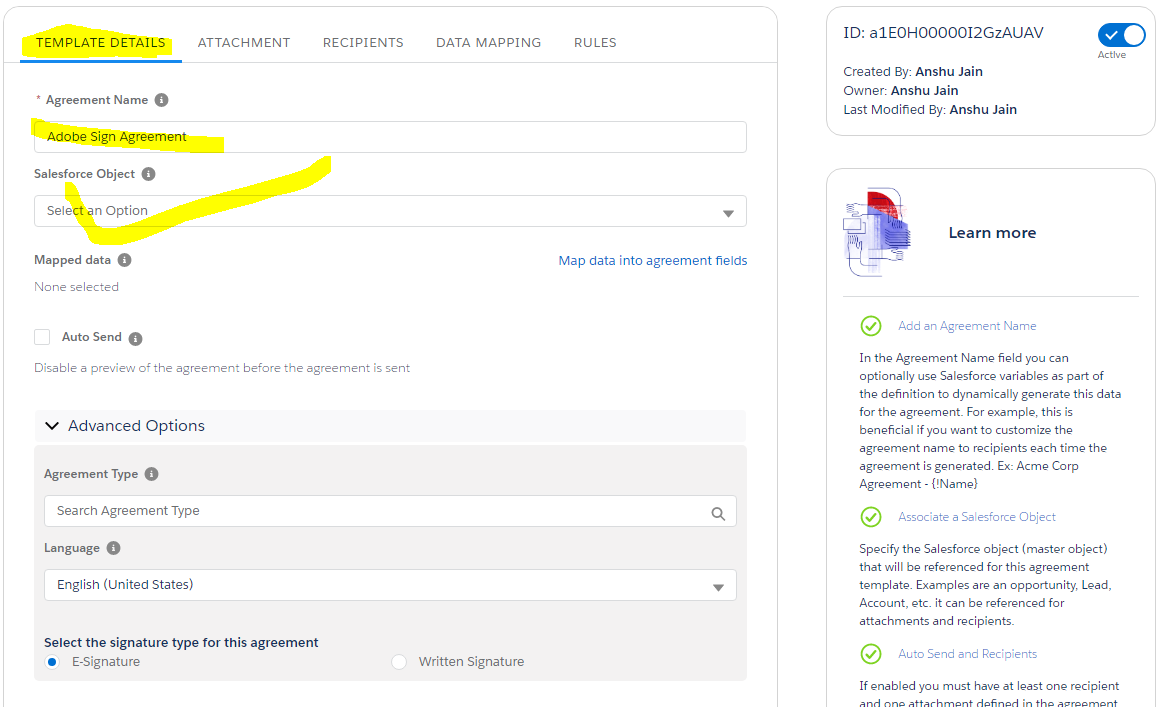
- On the next screen under the “TEMPLATE DETAILS” tab provide the Agreement Name and select the object where you want to use this agreement.
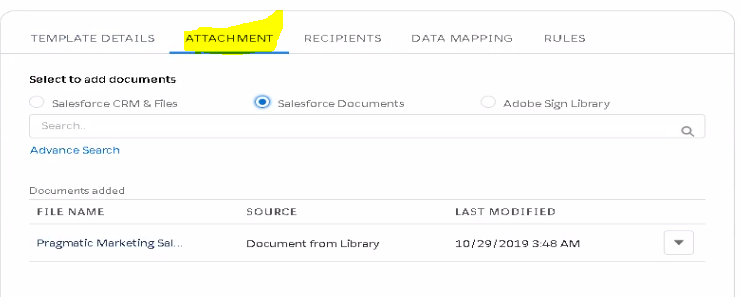
- In the Attachment tab you have to select the files for agreement, the same file that you uploaded on point #2.
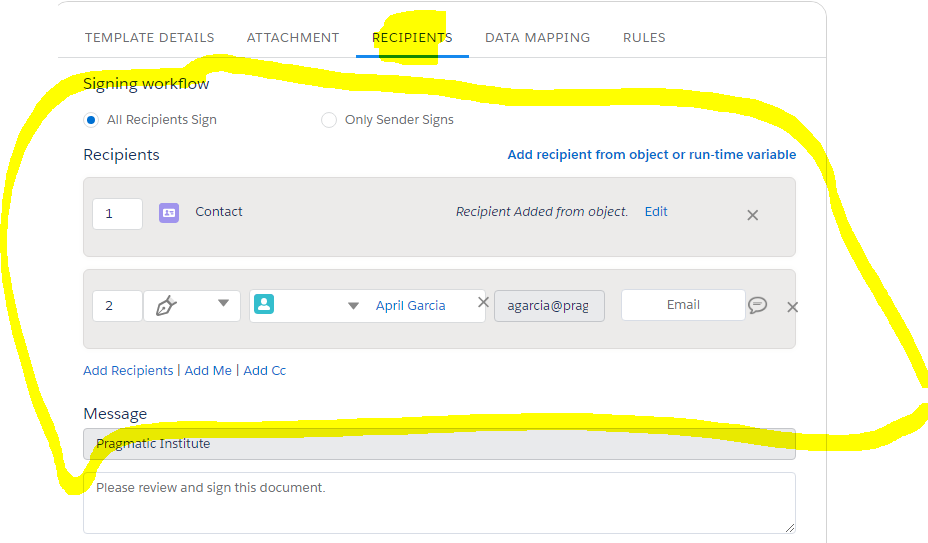
In the “RECIPIENTS” tab you can add default recipients from the “Add Recipients” button
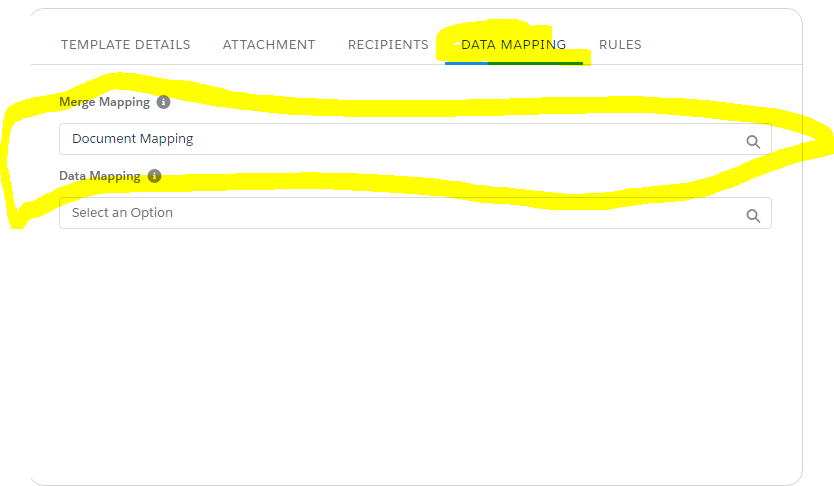
- Use “DATA MAPPING” tab to map the Salesforce fields on the document
In the Merge Mapping field use the mapping record that was created on point #3. In the below screenshot “Document Mapping” in the name of Merge Mapping record.
5. Adobe custom settings (Custom Setting Name: Adobe Sign Settings)
These setting are used to control the behavior of the Salesforce Adobe app.
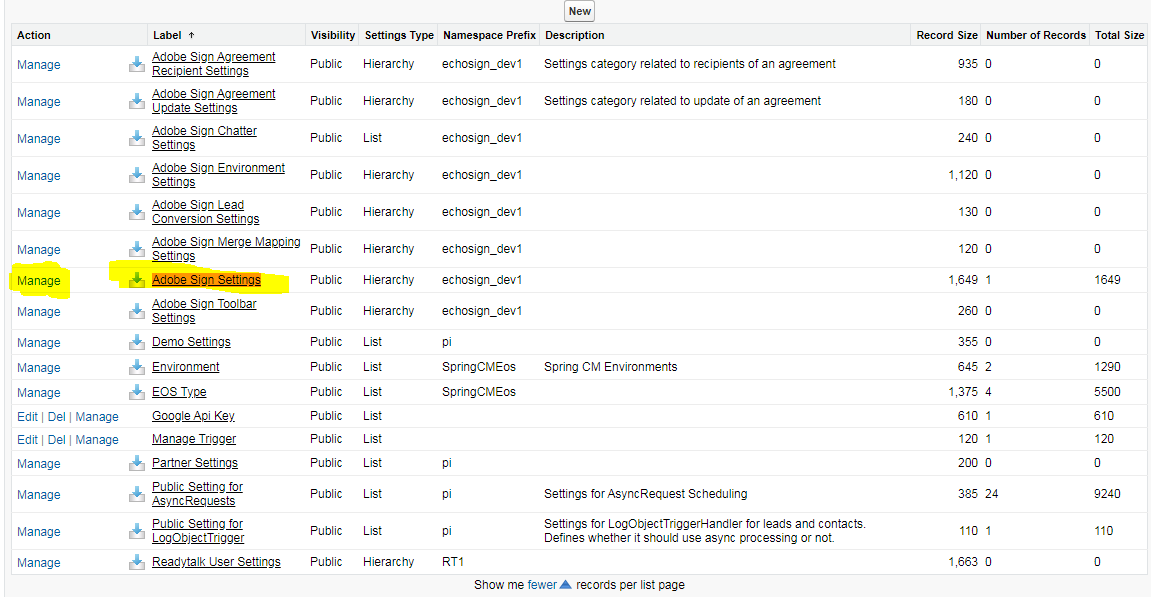
- Click on Manage button highlighted in the above screenshot, you will see the below scree
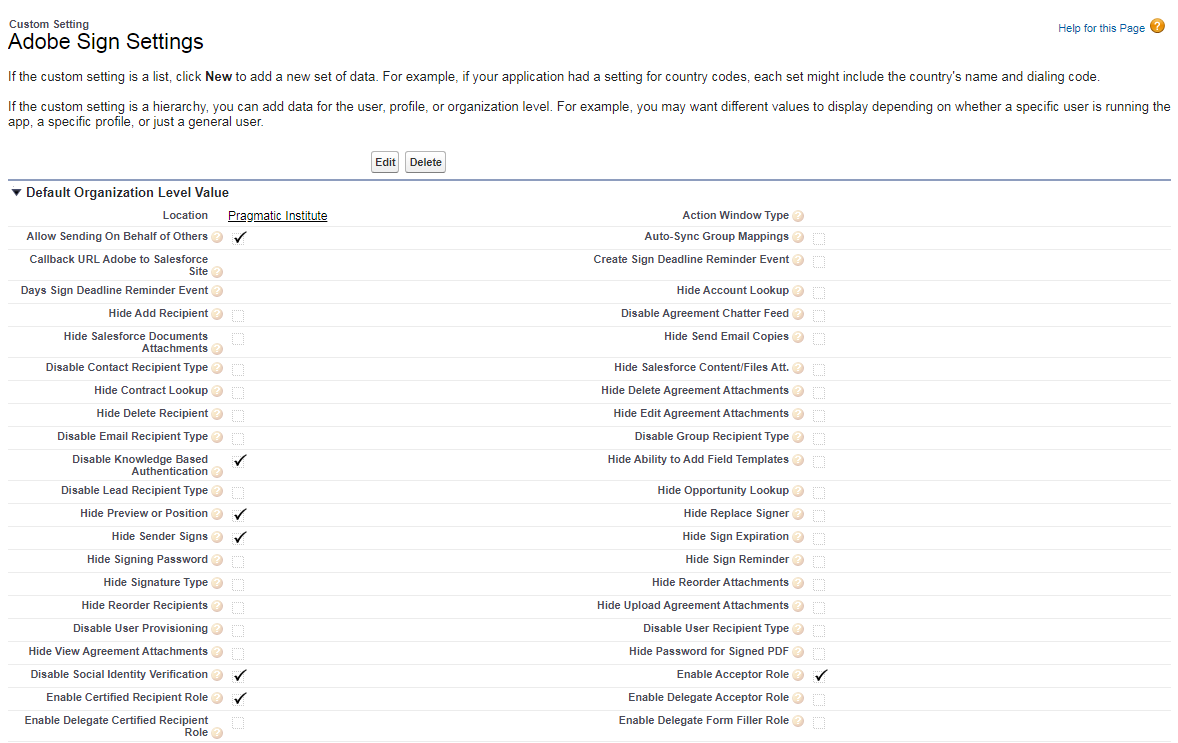
- Allow sending on behalf of Others

When you want to give permission to all the SF users to send agreement emails then check this checkbox.

Check this checkbox if you don’t want to see agreement preview when sending the agreement.