Add a Search Functionality
Add a Search is Custom button on the
Background Check Case (PreEmploy_Case__c)
Object Which is used to create the searches according to the selected
Search Type
on the ClientAddSearch VisualForce Page
Working of Client Add Search Flow
- First Screen is CaseNameId:
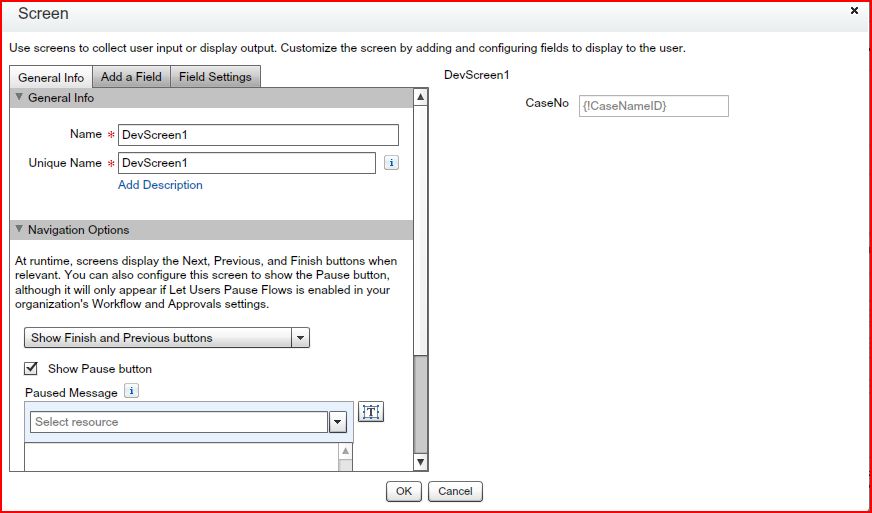
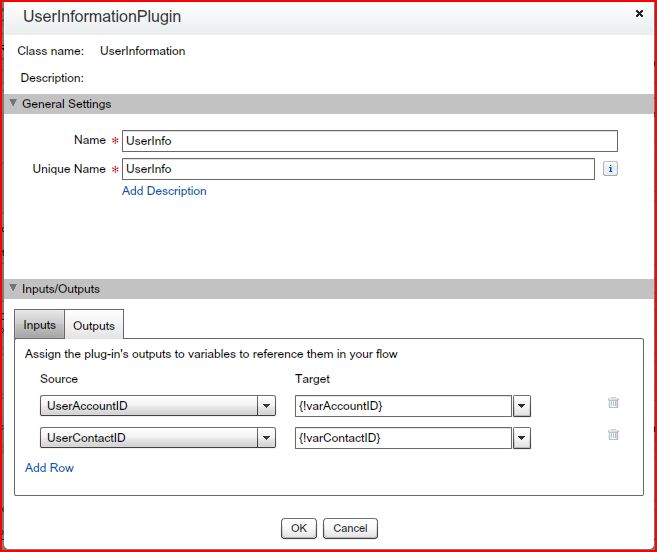
- Find the AccountId OR ContactId from the User Object
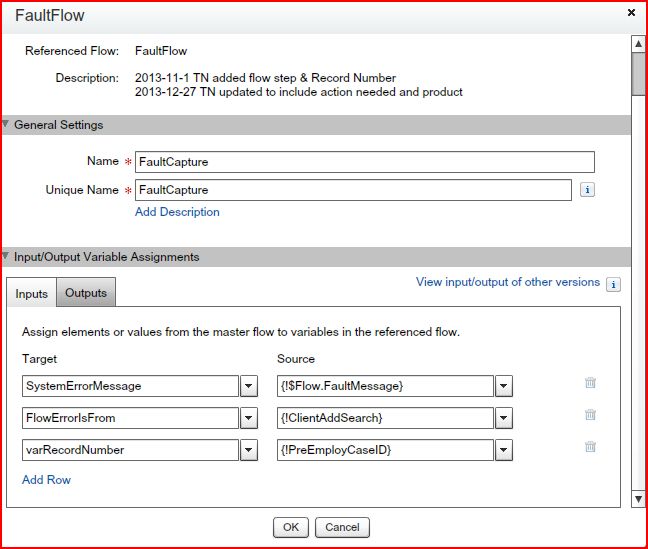
- If AccountId OR ContactId is null then Its move to the FaultCapture Screen
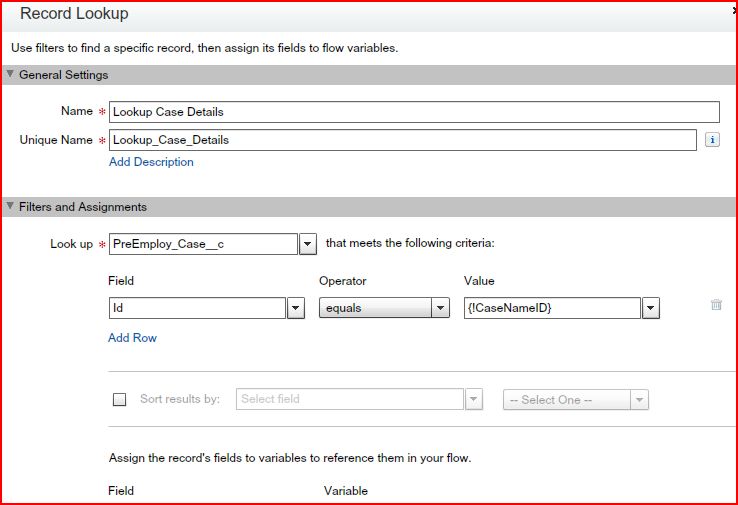
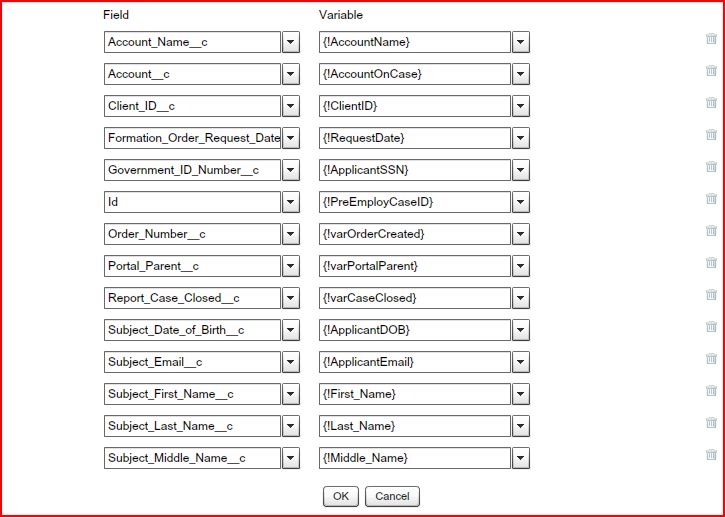
- Then move to the Record Lookup. Lookup on PreEmploy_Case__c Check the Id equals CaseNameId and Assign the values to the variables
Account_Name__c to AccountName
Account__c to AccountOnCase
Client_ID__c to ClientID
Formation_Order_Request_Date__c to RequestDate
Government_ID_Number__c to ApplicantSSN
Id to PreEmployCaseID
Order_Number__c to varOrderCreated
Portal_Parent__c to varPortalParent
Report_Case_Closed__c to varCaseClosed
Subject_Date_of_Birth__c to ApplicantDOB
Subject_Email__c to ApplicantEmail
Subject_First_Name__c to First_Name
Subject_Last_Name__c to Last_Name
Subject_Middle_Name__c to Middle_Name
Subject_Phone_Number__c to ApplicantPhone
Subject_State__c to ApplicantState
Subject_Zip_Code__c to ApplicantZip
Subject_of_background__c to varSubjectOfBackground variable
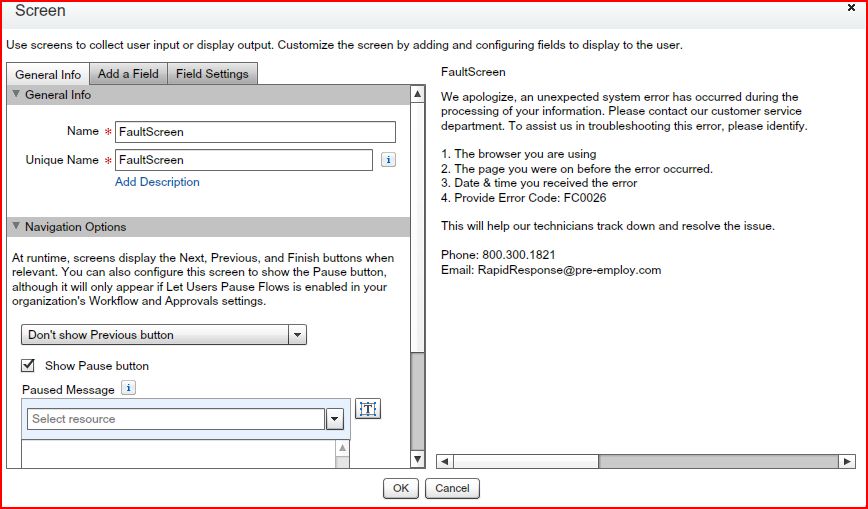
- If Case Id is not available then move to the next FaultCapture Screen
- Then Its move to the next Fault Screen
- Then Its move to the next step Case is Closed or Not
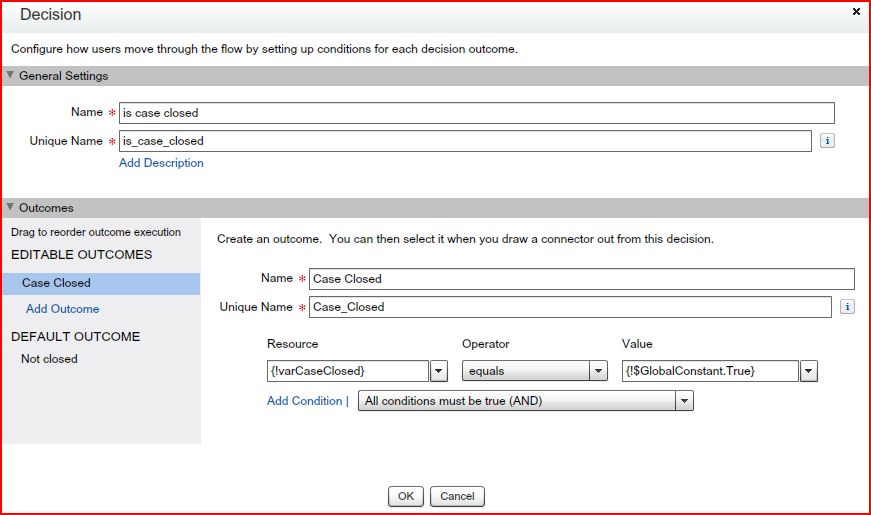
- If case is closed
- Then Its move to the case closed screen.
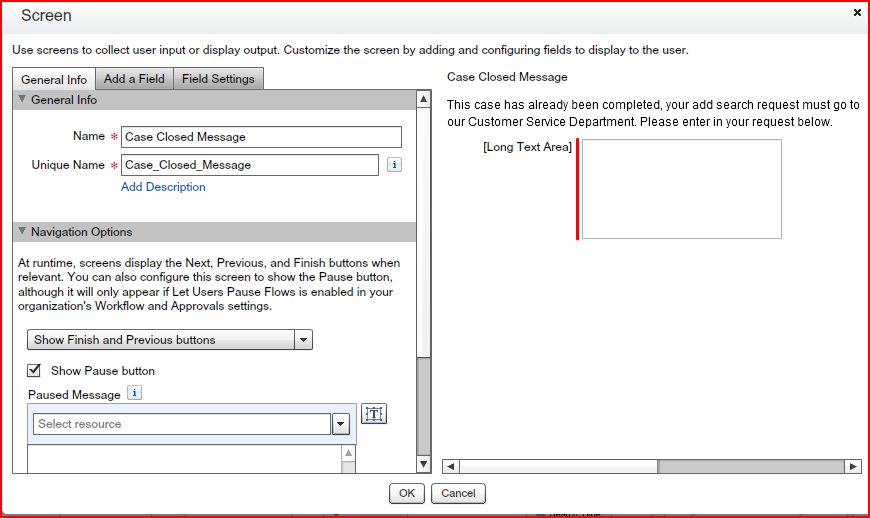
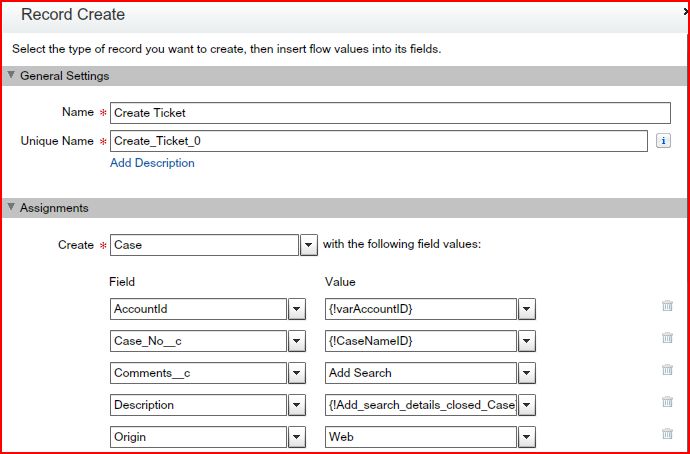
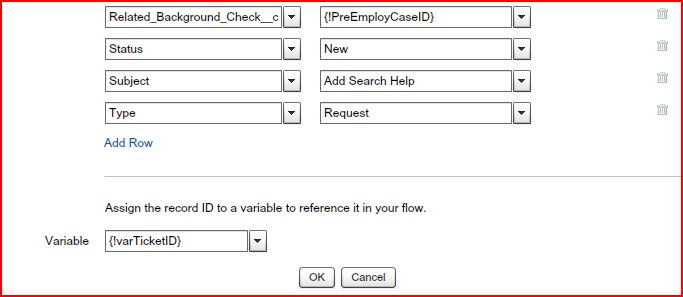
- Then Its move to the Record Create Screen
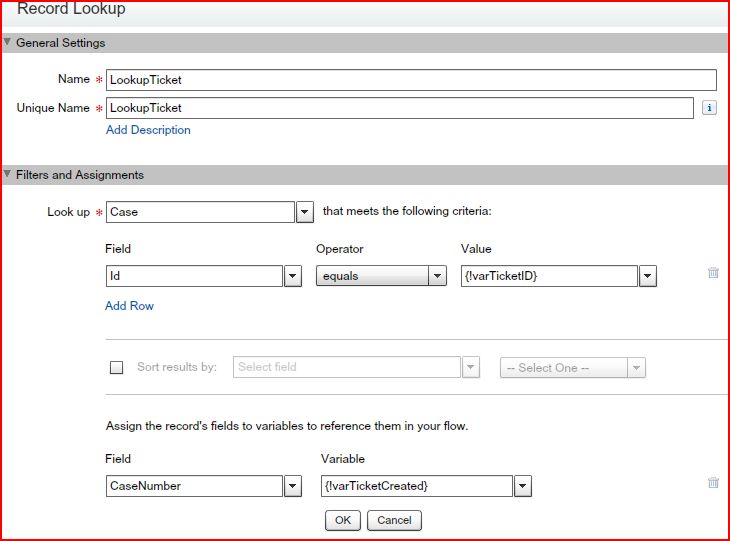
- Then Its move to the Record Lookup Screen
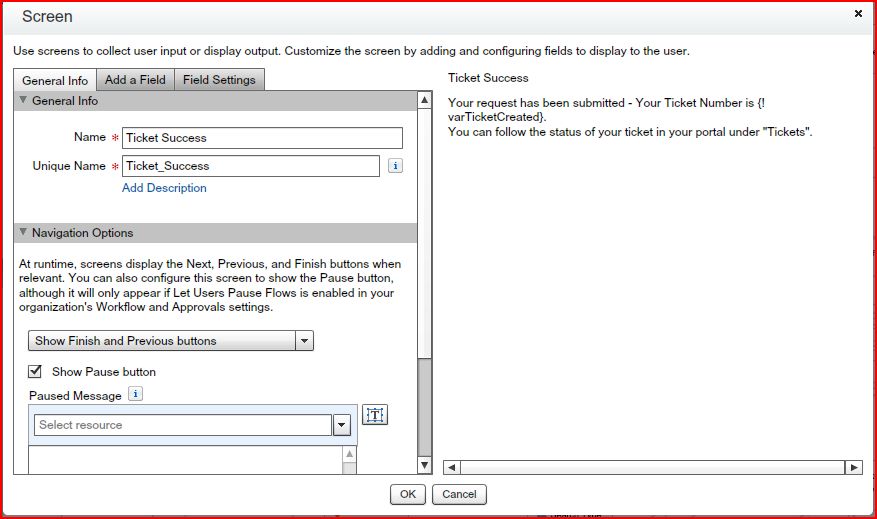
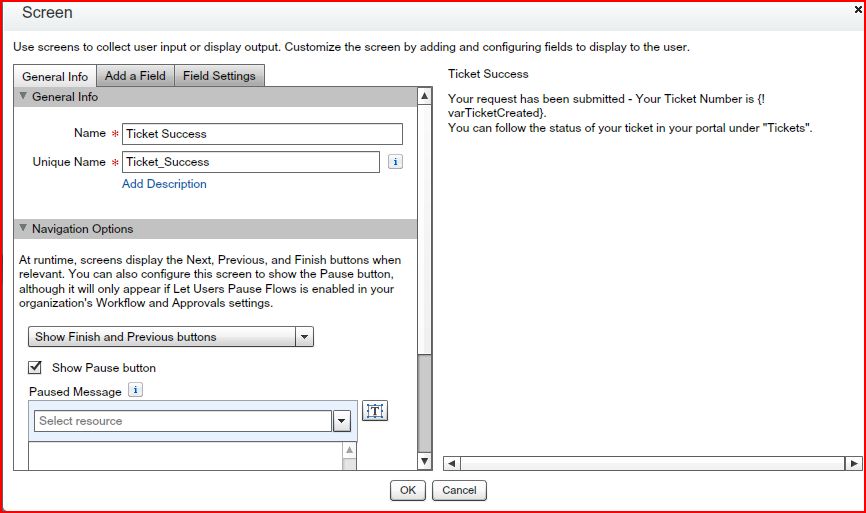
- Then Its move to the next Ticket Success Screen
- If case is not Closed
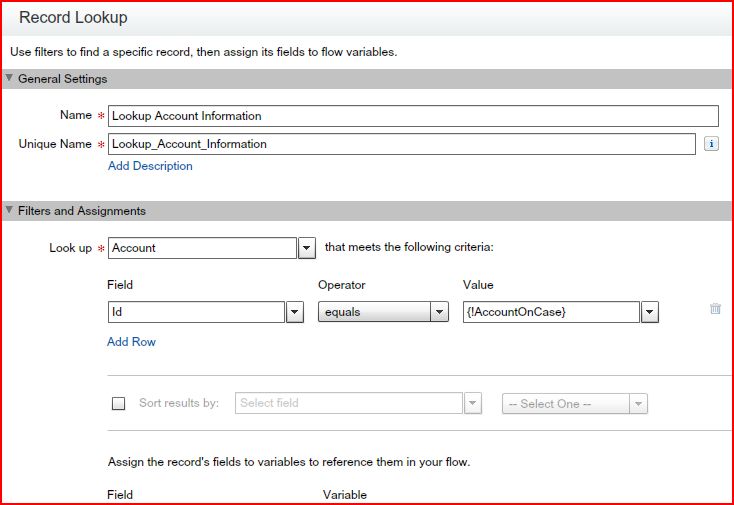
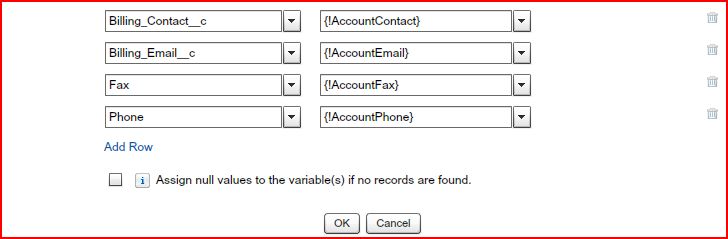
- Check the Account Id with AccountOnCase
Assign the Billing_Contact__c to AccountContact
Assign the Billing_Email__c to AccountEmail
Assign the Fax to AccountFax
Assign the Phone to AccountPhone
- Then Its move to the next Ticket Success Screen
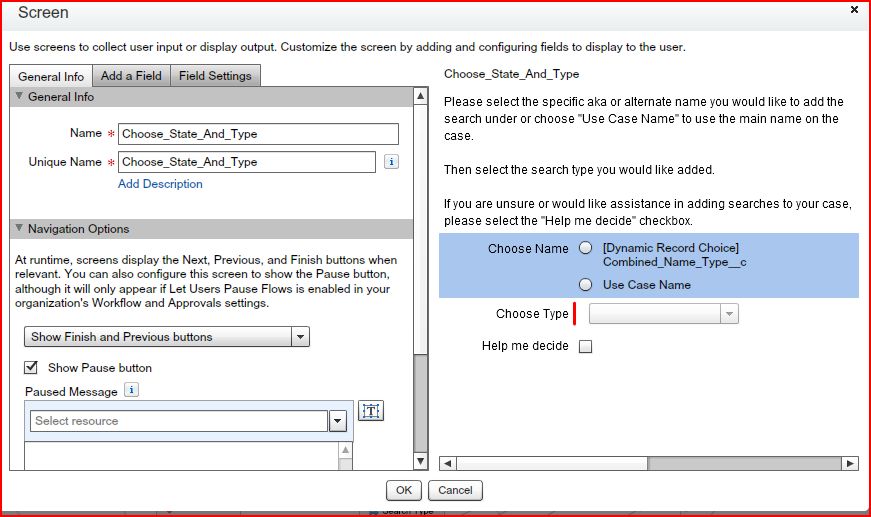
- Its move to the next screen Choose_State_And_Type
- Then Its move to the decision Add or Help me Decide
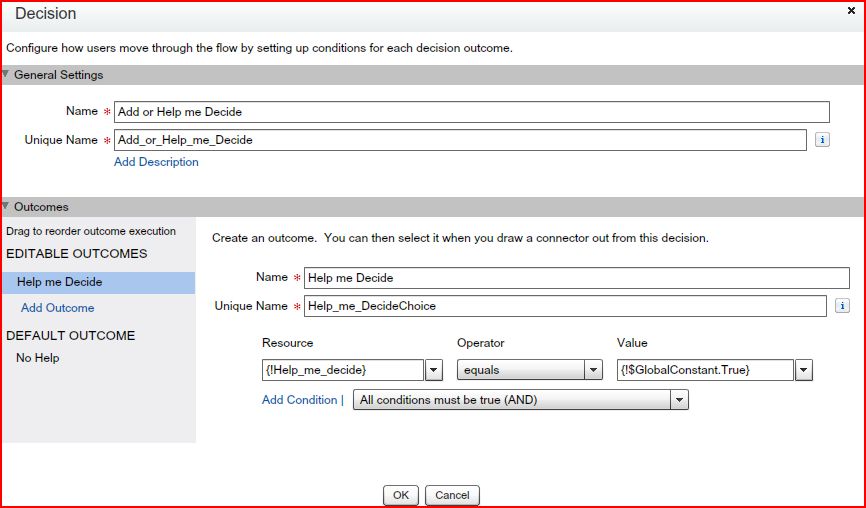
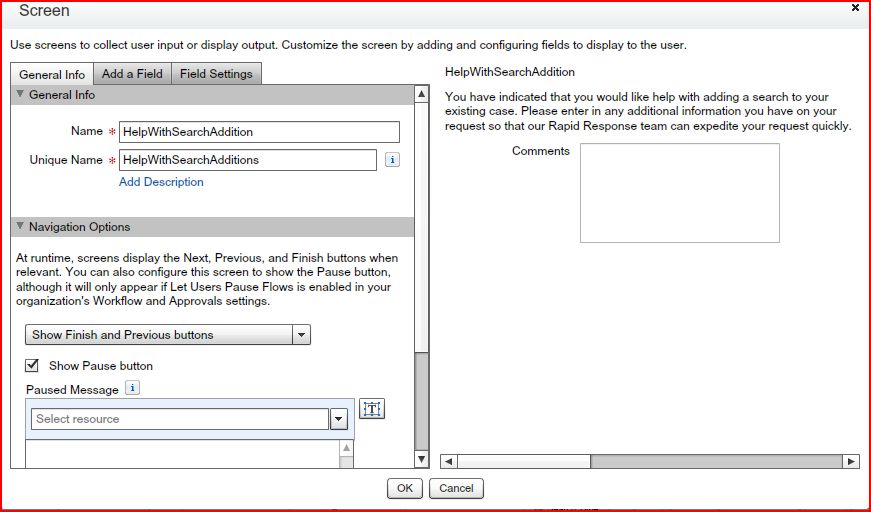
- If Help me Decide is checked then Its move to the HelpWithSearchAddition Screen then input the text in the comment textarea.
- Then move to the Record Create Screen
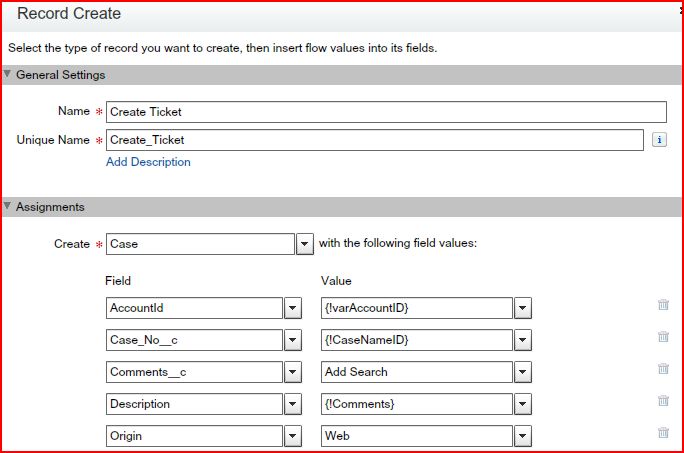
- On Case Object Assign the Values.
Assign the AccountId to varAccountID
Assign the Case_No__c to CaseNameID
Assign the Comments__c to Add Search
Assign the Description to Comments
Assign the Origin to Web
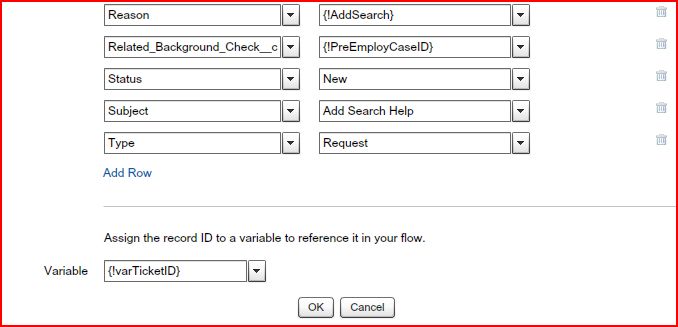
Assign the Reason to AddSearch
Assign the Related_Background_Check__c to PreEmployCaseID
Assign the Status to New
Assign the Subject to Add Search Help
Assign the Type to Request
Assign the RecordId to Variable varTicketID
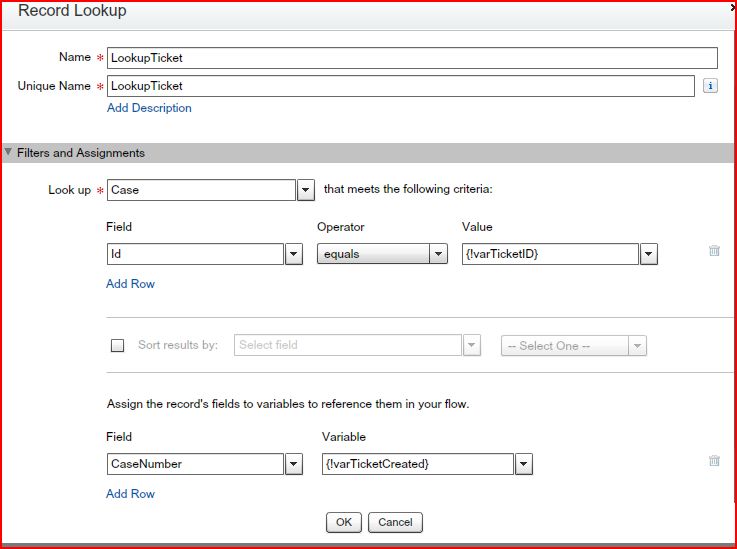
- Then Its move to the Record Lookup Ticket
- Check the Id equals varTicketID then
Assign the CaseNumber to varTicketCreated variable
- Then Its move to the Ticket Created Screen
- If Help me Decide is not checked Its move to the Case Name or AKA Decision
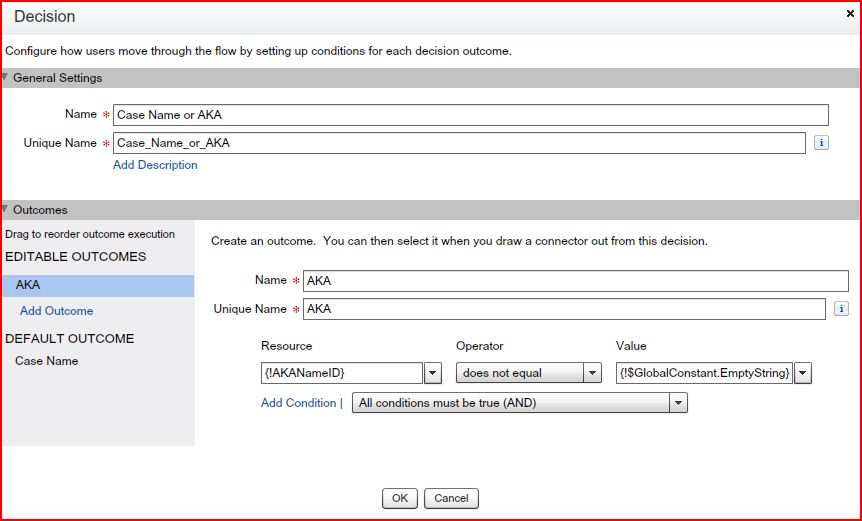
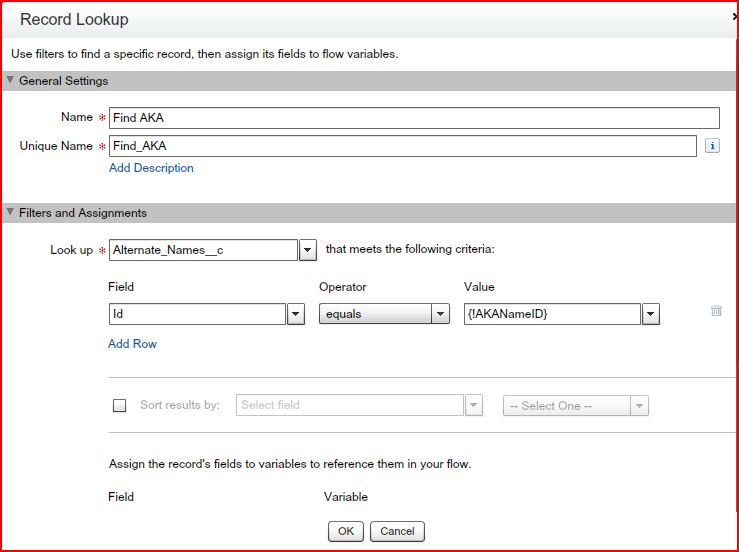
- If AKA Name is not equals null then Its move to the Record Lookup of Alternate_Names__c and Assign the Id to AKANameID variable.
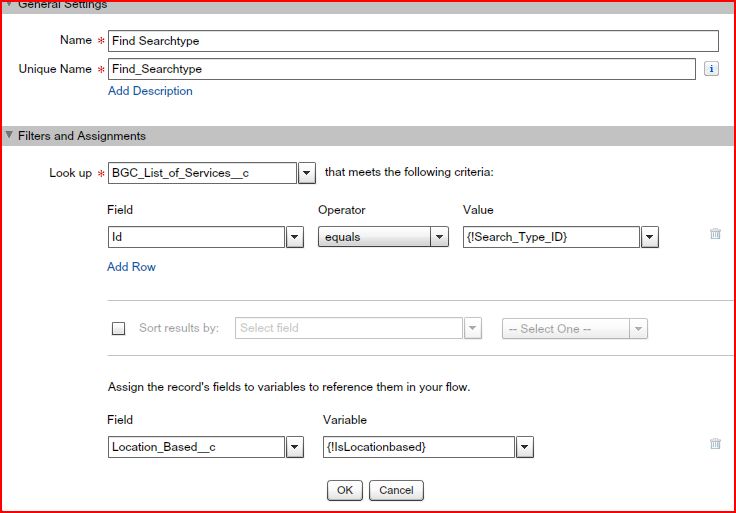
- Then Its move to BGC_List_of_Services__c Record Lookup and Assign the Id to Search_Type_ID variable and also assign the Location_Based__c to IsLocationbased variable.
- If Search_Type_ID is null then its move to the Fault Flow Screen.
- If Case Name equals null then Its move to the BGC_List_of_Services__c Record Lookup Screen.
- Then Its move to the Decision Location Based.
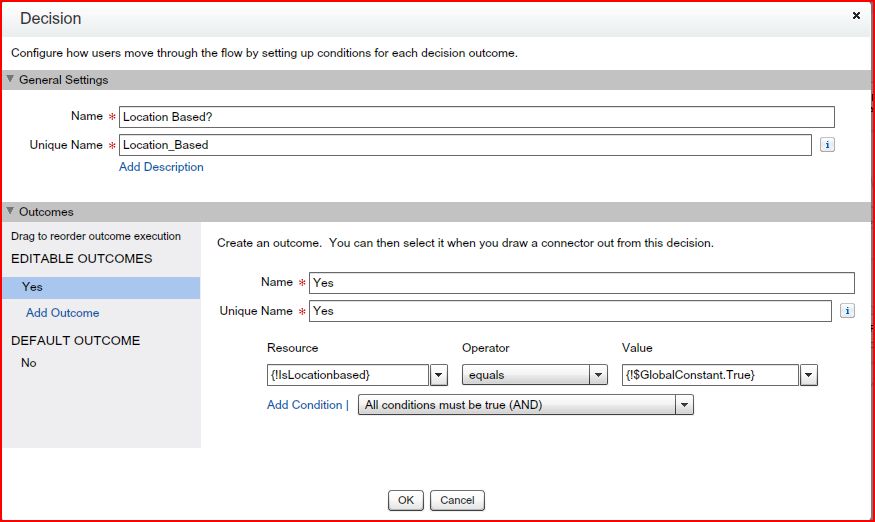
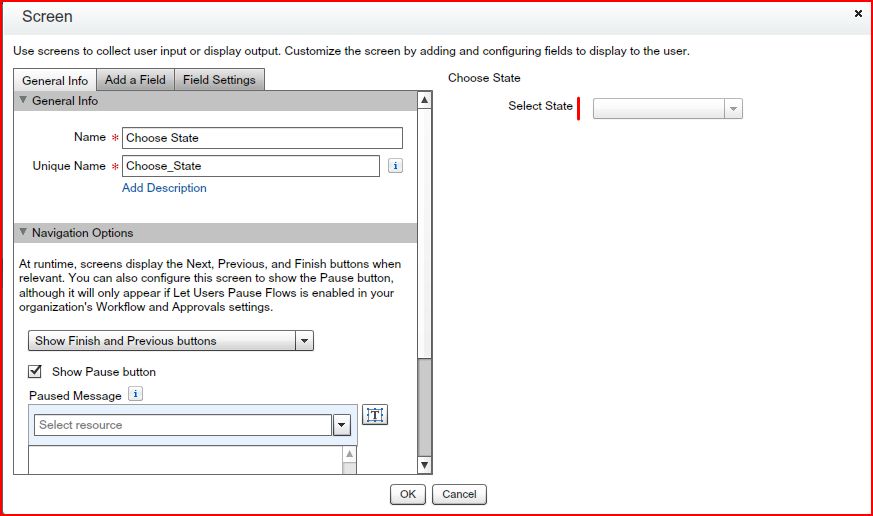
- If IsLocationbased is checked then Its move to the Choose State Screen.
- Then Its move to the Decision Search Type.
check Search_Type_Name equals CountyCriminal
check Search_Type_Name equals StatewideCriminals
check Search_Type_Name equals EducationVerification
check Search_Type_Name equals EmploymentVerification
check Search_Type_Name equals ReferenceVerification
check Search_Type_Name equals ProfessionalLicense
check Search_Type_Name equals DrugTest
check Search_Type_Name equals OCCHealth
check if any condition is not satisfied then its move to the other
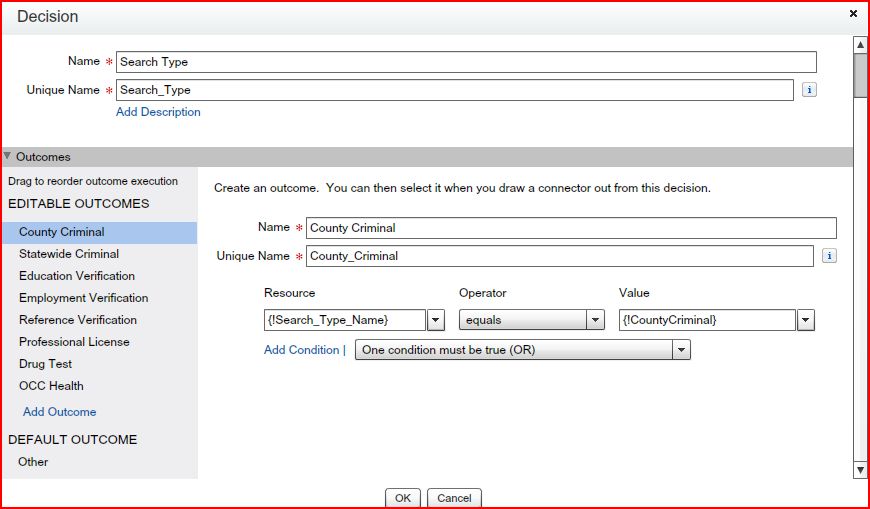
- If IsLocationbased is unchecked then Its move to the Decision Search Type.
- If Search_Type_Name equals CountyCriminal then move to the Select County Screen
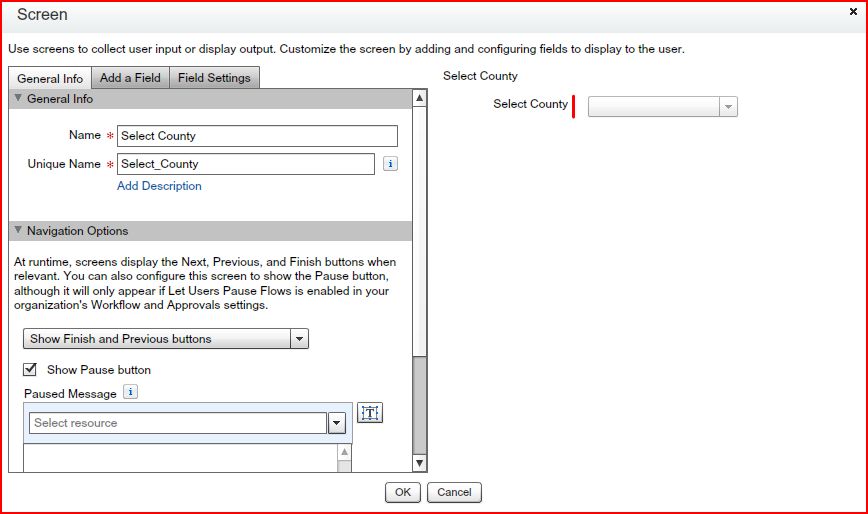
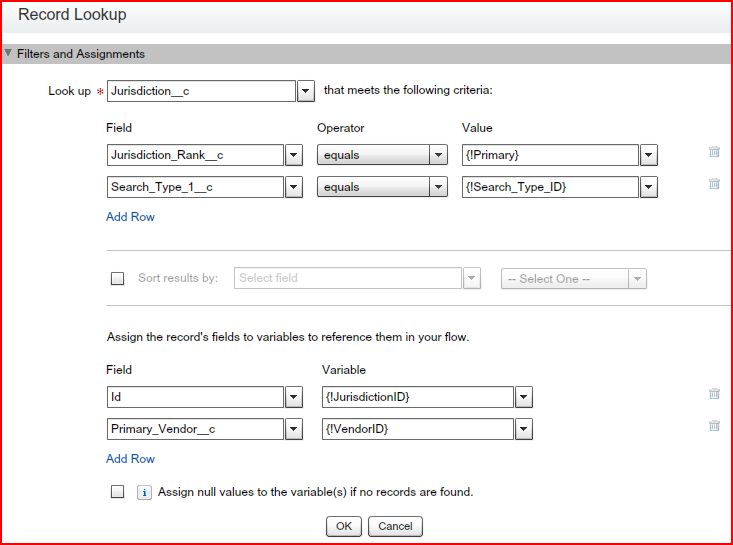
- Then move to the Find County Jurisdiction Record Lookup on the Jurisdiction__c Object
Assign the County__c to CountyID
Assign the Jurisdiction_Rank__c to Primary
Assign the Search_Type_1__c to Search_Type_ID
Assign the State_Providence__c to Selected_State_ID variable
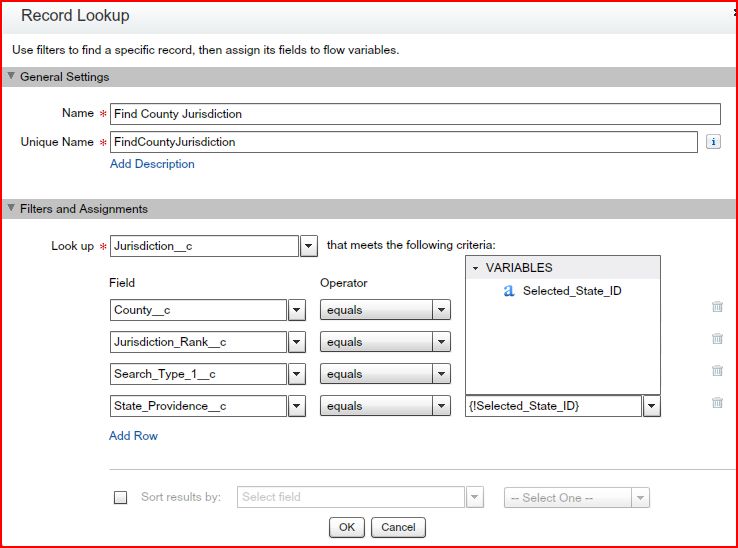
- If Jurisdiction__c is not found then Its move to the FaultCapture Screen
- After assign the Jurisdiction Value then move to the Decision No Jurisdiction
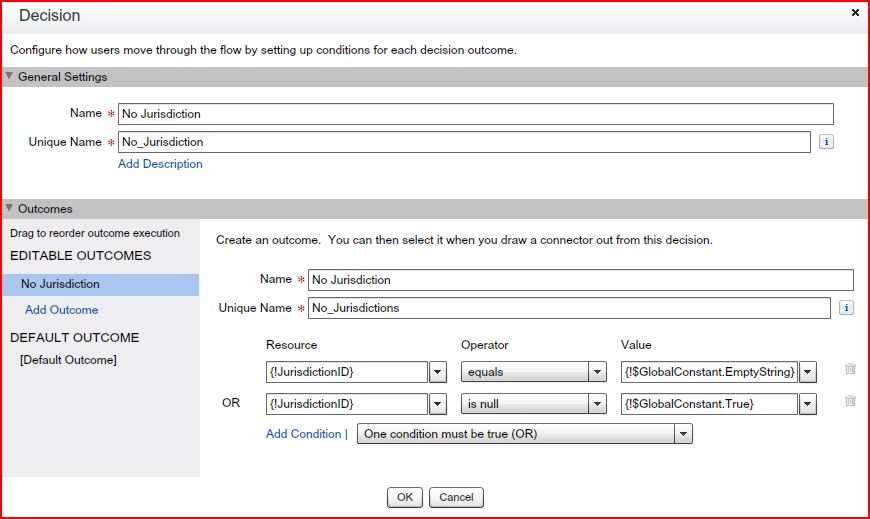
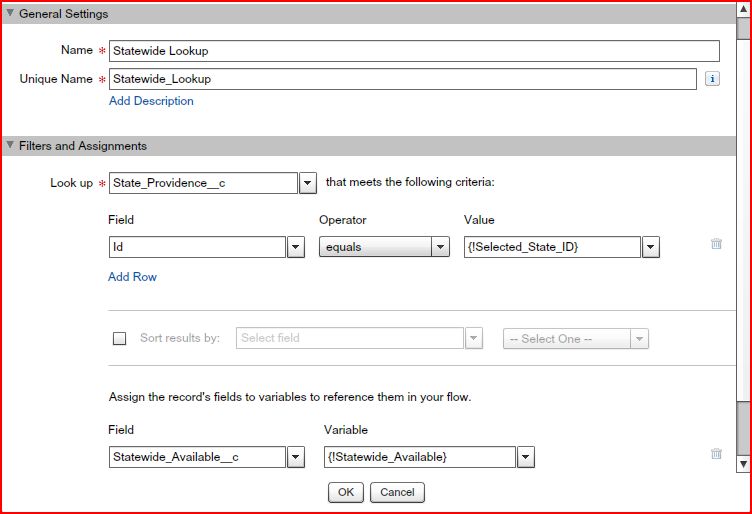
- If Jurisdiction is null then move to the Record Lookup Statewide Lookup.
Assign the Id to Selected_State_ID
Assign the Statewide_Available__c to Statewide_Available variable
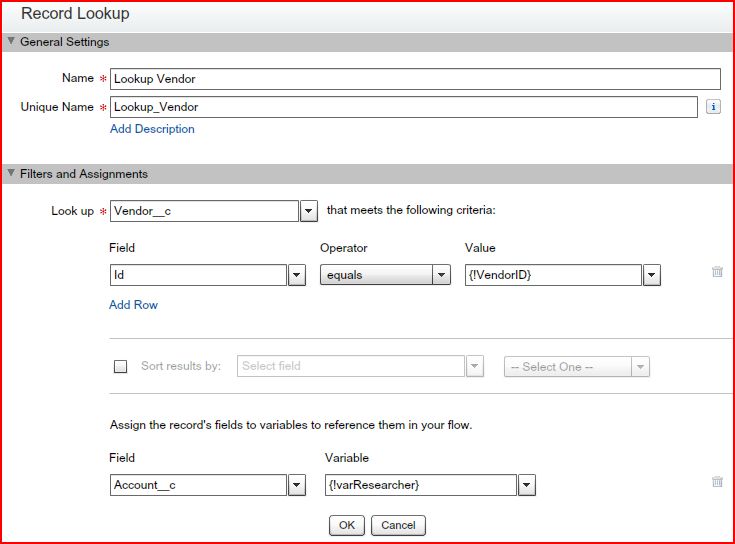
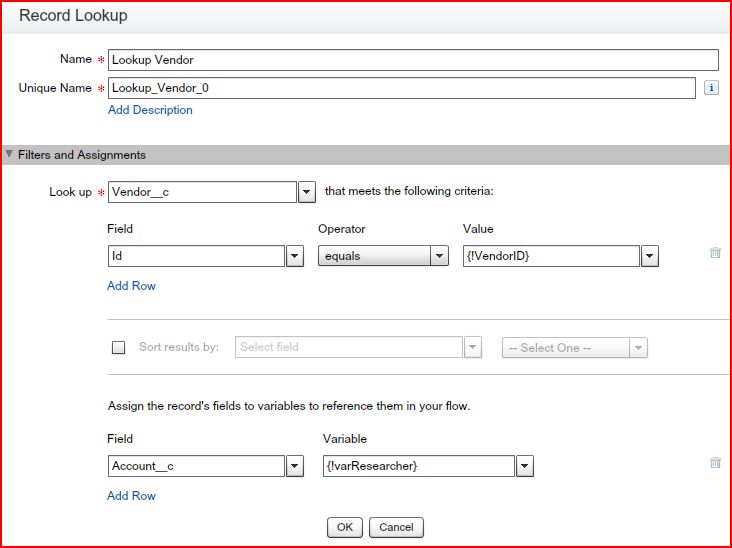
- If Jurisdiction is available then move to the Record Lookup Vendor.
Assign the Id to VendorID
Assign the Account__c to varResearcher
- Then Its move to the Record Lookup Statewide Lookup.
- Then Its move to the Statewide Available Decision.
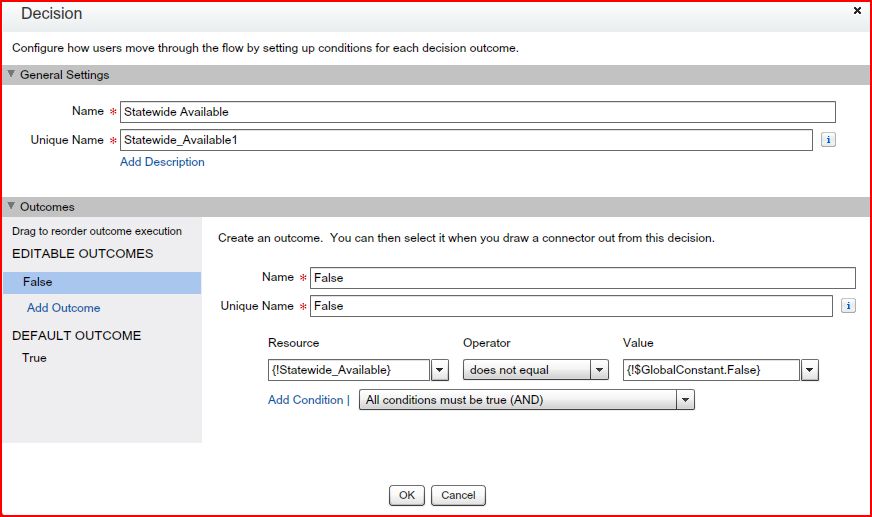
- If Statewide Available is true then Its move to the statewide error screen.
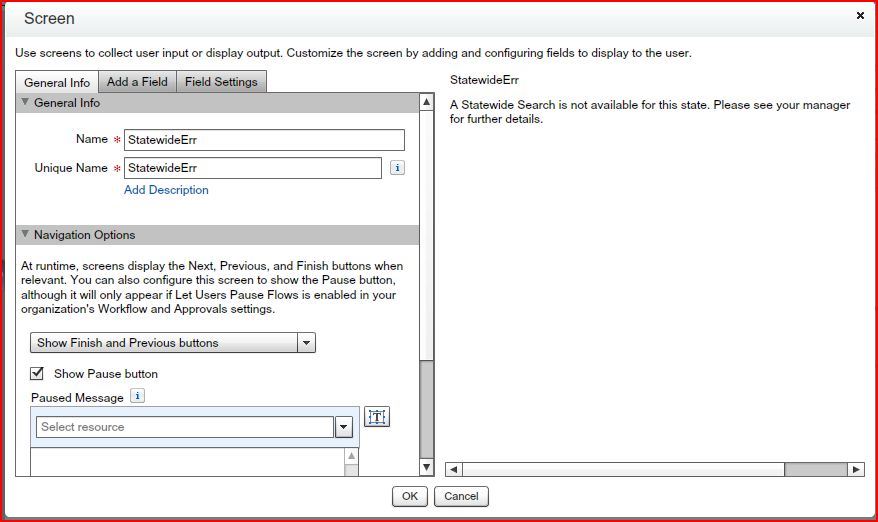
- If Statewide Available is true then Its move to the createSearch Screen.
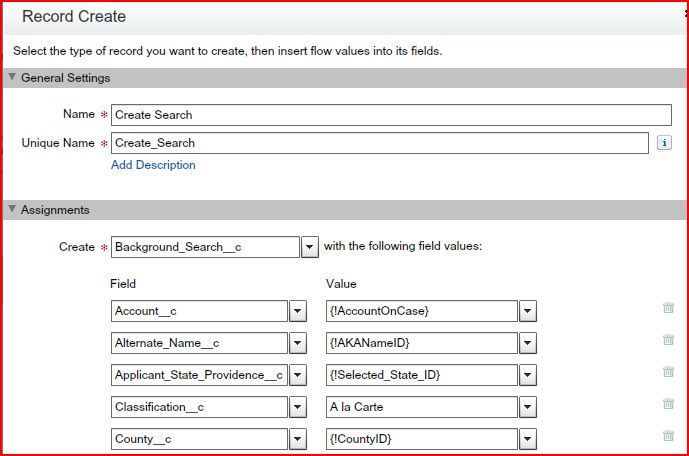
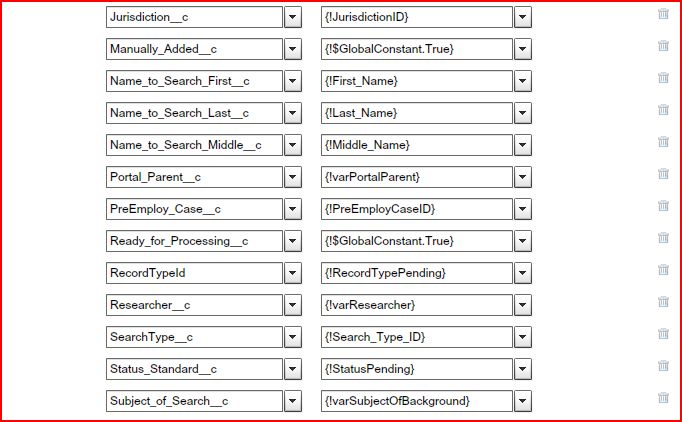
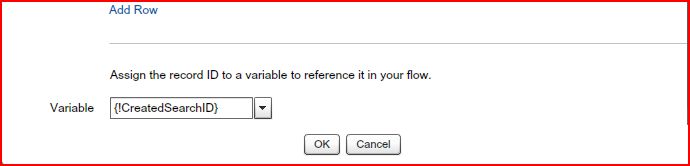
- If null the any field then move to the FaultCapture Screen
- If Search_Type_Name equals StatewideCriminals Its move to the Record Lookup Find Statewide Criminal Jurisdiction
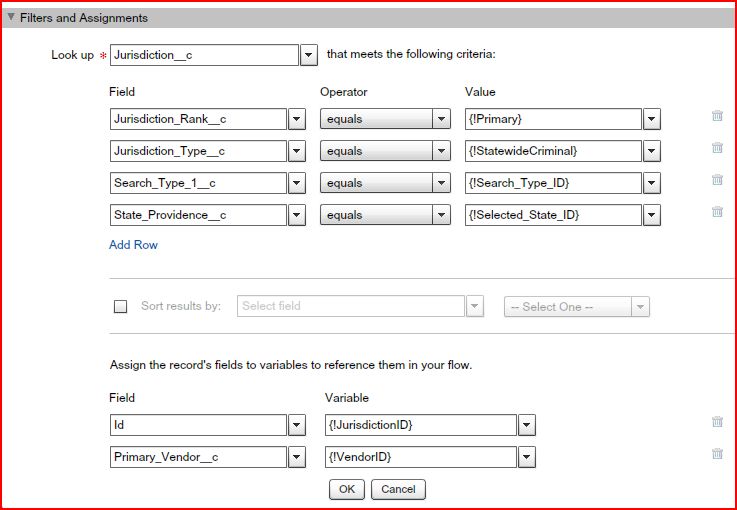
- Then Its move to the Decision No Jurisdiction (All Steps same like CountyCriminal I already explain).
- If Search_Type_Name equals EducationVerification then move the Record Lookup Find Verification Jurisdiction
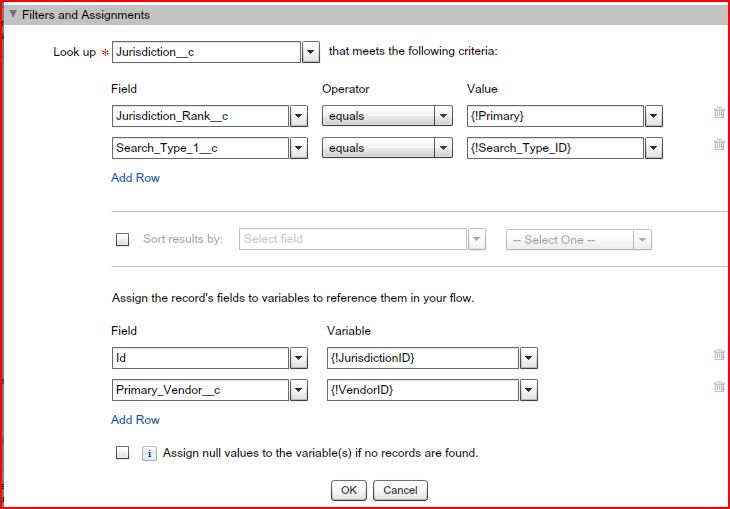
- Then Its move to the Record Create Create Search.
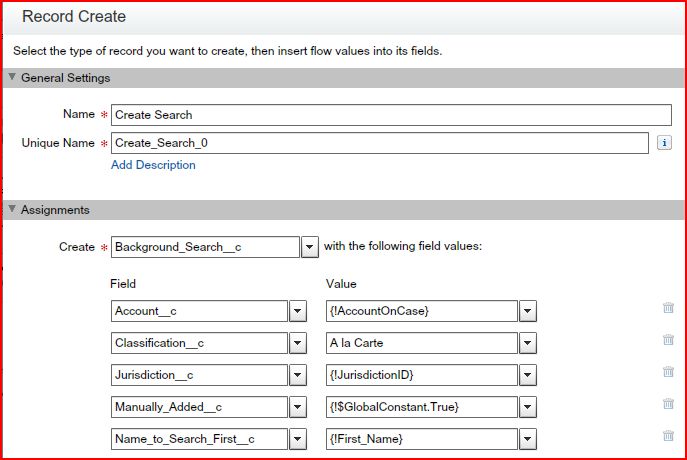
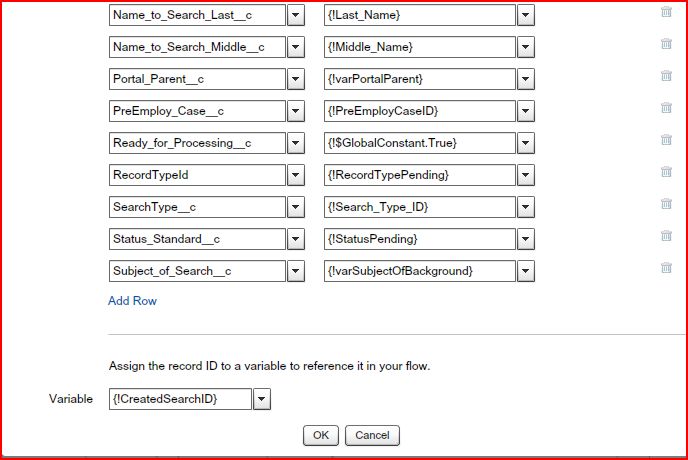
- If any of the field is empty then its move to the FaultCapture Screen
- Then move to the Decision Search Type
Assign Search_Type_Name to EducationVerification
Assign Search_Type_Name to EmploymentVerification
Assign Search_Type_Name to ReferenceVerification
Assign Search_Type_Name to ProfessionalLicense
If not satisfied any condition then move to the Default Outcome.
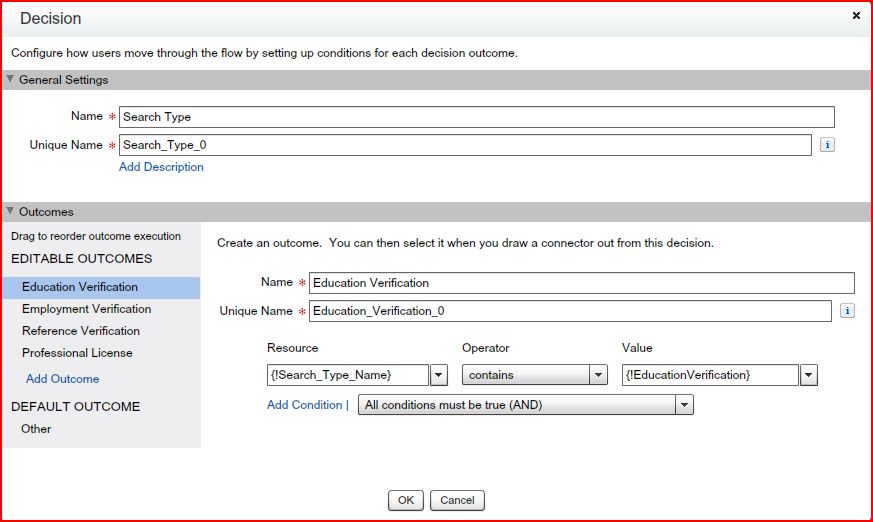
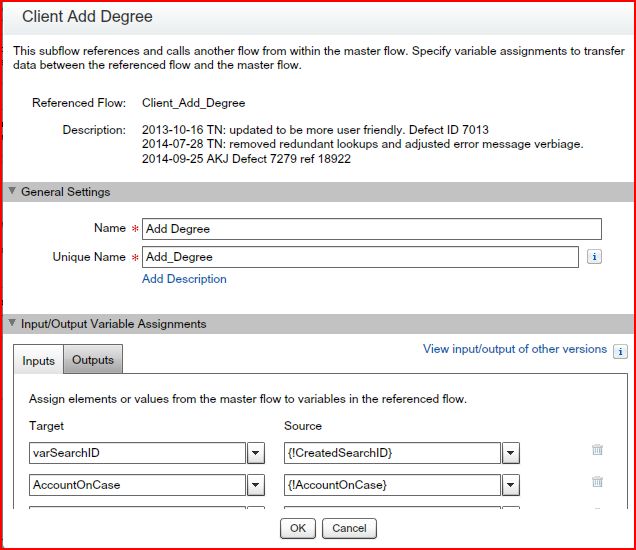
- Check Search_Type_Name equals EducationVerification then Its move to the Client_Add_Degree Flow.
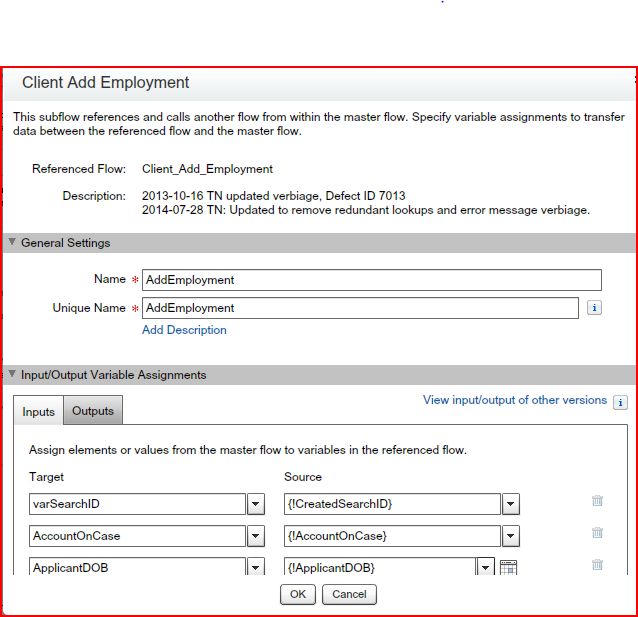
- Check Search_Type_Name equals EmploymentVerification then Its move to the Client_Add_Employment Flow.
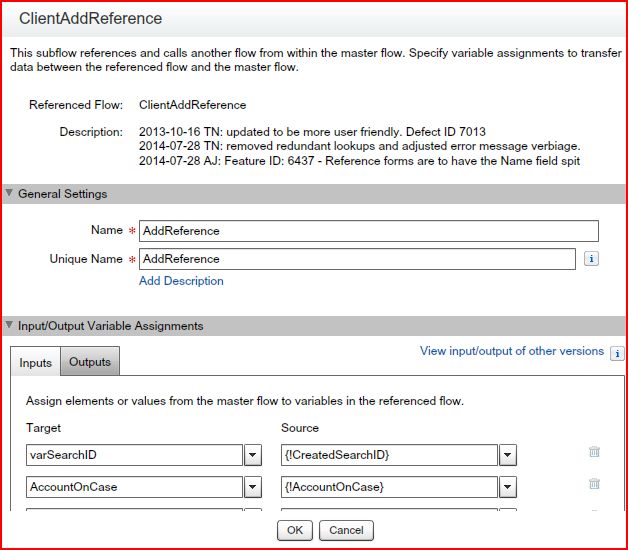
- Check Search_Type_Name equals ReferenceVerification then Its move to the ClientAddReference Flow.
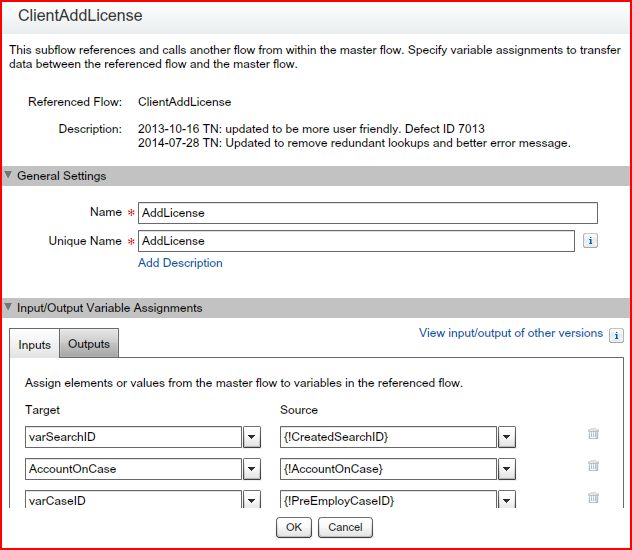
- Check Search_Type_Name equals ProfessionalLicense the Its move to the ClientAddLicense Flow.
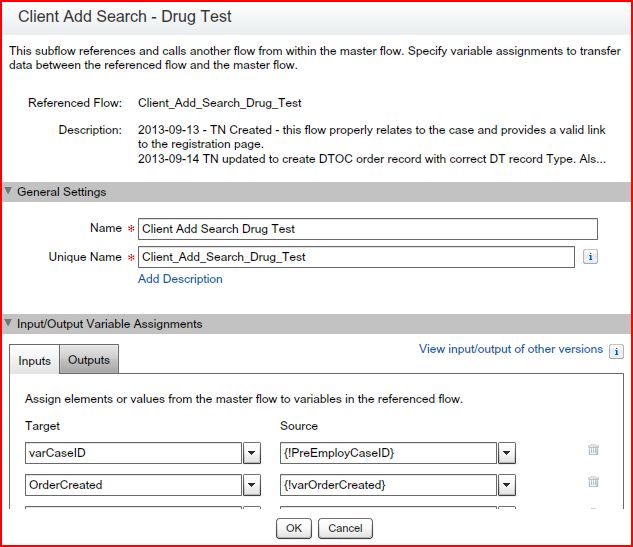
- Check Search_Type_Name equals DrugTest then Its move to the Record Lookup Find Drugtest Jurisdiction
- Then Its move to the Record Lookup Vendor.
- Then Its move to the Client_Add_Search_Drug_Test Flow.
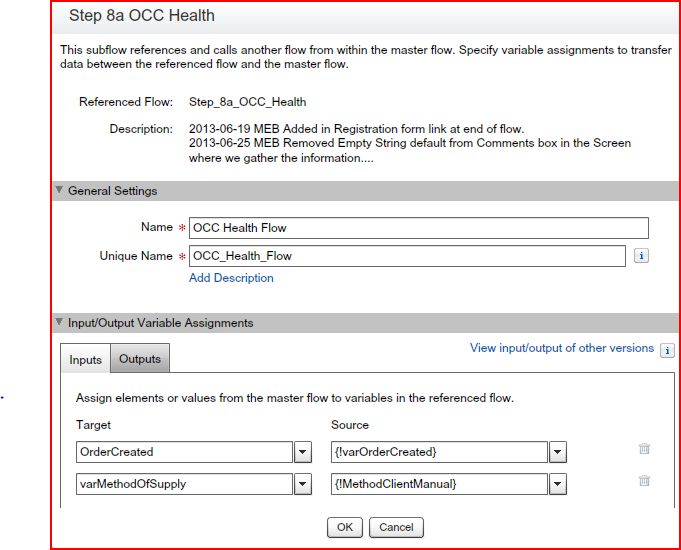
- Check Search_Type_Name equals OCCHealth Then Its move to the Step_8a_OCC_Health.
For Add Search Page
Go to Setup ----> All Tabs ----> Background Check Case ----> Click on the Case Link ---> Click on the
Add a Search
Button
Whenever we click on the Add Search Button Then Its redirect to the ClientAddSearch Visual Force Page
In ClientAddSearch Visual Force Page and Controller Class we have find the All Values from the Flow Name: Client_Add_Search
ClientAddSearch Class Methods
-
GetOrderId
-
GetSearchId
-
GetCaseId
-
GetTypeName
-
GetAkaFName
-
GetAkaLName
-
CheckDrugTest
-
GetUrl
Working of ClientAddSearch Controller: getOrderId Method
- In this method we get the OrderId from the Client_Add_Search Flow.
Working of ClientAddSearch Controller: getSearchId Method
- In this method we get the SearchId from the Client_Add_Search Flow.
Working of ClientAddSearch Controller: getCaseId Method
- In this method we get the CaseId from the Client_Add_Search Flow.
Working of ClientAddSearch Controller: getTypeName Method
- In this method we get the Search TypeName from the Client_Add_Search Flow.
Working of ClientAddSearch Controller: getTypeName Method
- In this method we get the Search TypeName from the Client_Add_Search Flow.
Working of ClientAddSearch Controller: getAkaFName Method
- In this method we get the getAkaFName from the Client_Add_Search Flow.
- Show the All Values in the Alternate First Name After Space
Working of ClientAddSearch Controller: getAkaLName Method
- In this method we get the getAkaLName from the Client_Add_Search Flow.
- Show the All Values in the Alternate Last Name After Space
Working of ClientAddSearch Controller: checkDrugTest Method
- In this method we get the Search TypeName from the Client_Add_Search Flow.
- If value is drug Then Method Return the True Value Otherwise Its Return the False Value
Working of ClientAddSearch Controller: getUrl Method
- In this method we have call the checkDrugTest Method. If this method returns the Drug then Its move to the next step.
- Then Check If we are login on Portal the Its Redirect to the /apex/AddSearch Page and add the OrderId, Drug Test, akaFName, akaLName, sId (get the CaseName Id from the VF Page URL)
- If we not login to the Portal We are Internal Login Its Redirect to the /apex/AddSearch Page and add the OrderId, Drug Test, akaFName, akaLName, sId (get the CaseName Id from the VF Page URL)