How to Attach jurisdiction data with search record for various search type
Jurisdiction Data:
Jurisdiction data is the static data, this data is created based on the Vendor, County and Location based Or Non Location based. this data is attached in the background search at the time of search creation.
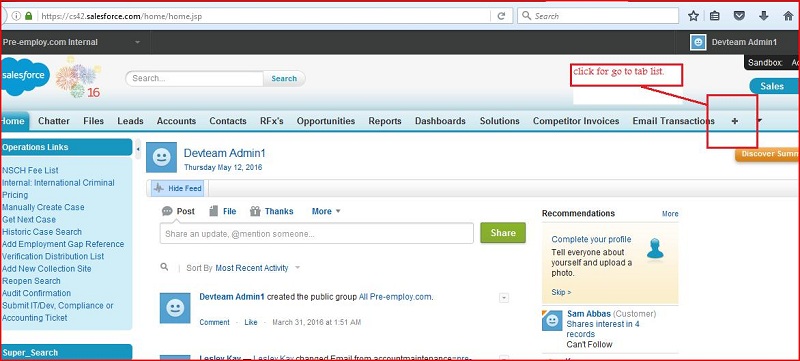
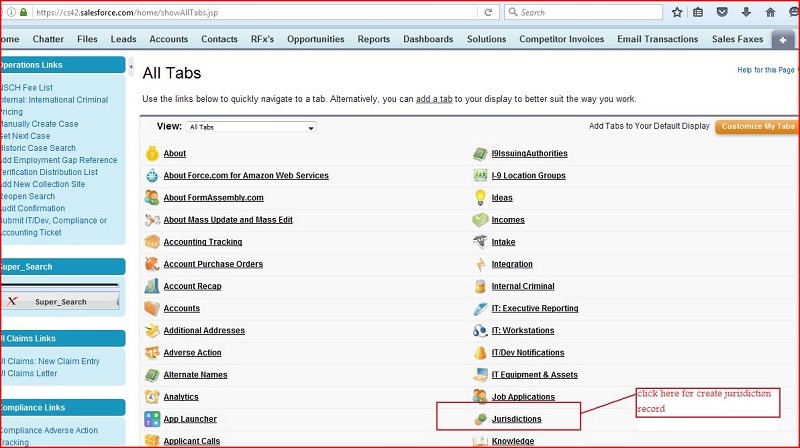
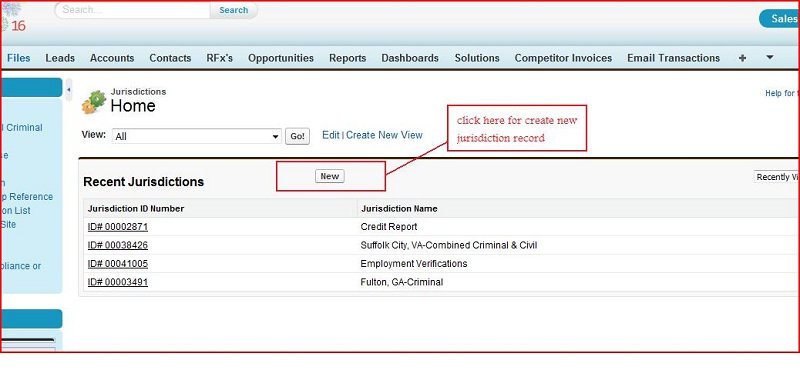
for creating new data we click on new in the jurisdiction tab and following this steps to create new jurisdiction data.
Click on all tab ⇢ Click on Jurisdictions ⇢ Click new ⇢ Fill the details and save.
Jurisdiction Data attaching Criteria:
We are attaching jurisdiction for newly created search(BackgroundSearch) as per below condition either added by Add Search or for new case:
First we try to find the jurisdiction by Search Type if its value is provided as per below Basic criteria:
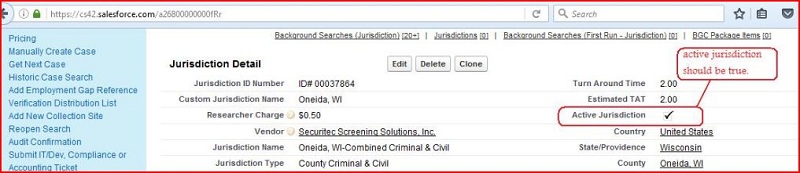
- Active jurisdiction should be checked
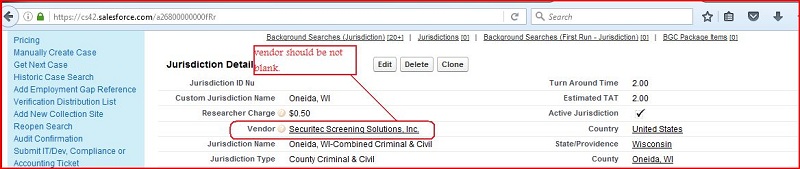
- Vendor should not be blank
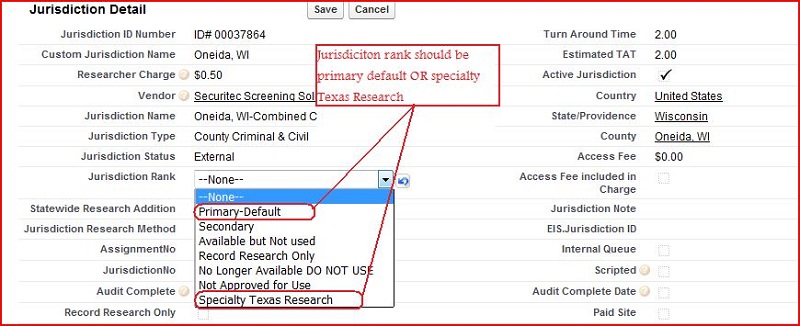
- Jurisdiction Rank should be "Primary-Default" OR "Specialty Texas Research"
- Search type in "Search Type 1, Search Type 2, Search 3 and Search Type 4" should be equal to new search's search type in associated jurisdiction.

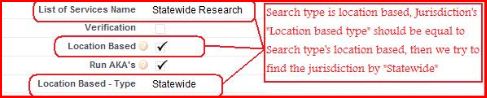
⇒ If we fullfill the basic condition and Search type is location based, Jurisdiction's "Location based type" should be equal to Search type's location based, then we try to find the jurisdiction by "County"(set this in corresponding search type of BGC list of services object as per given below SS.) if its value is provided as per below Criteria :

If County value is provided, find jurisdiction as per following criteria:
- Jurisdiction's County should be equal to search record's County.
If County value not is provided, find jurisdiction as per following criteria:
- Jurisdiction's County should be equal to new search record's ZipCode's County. If Zipcode in search record is blank then use zip code value from related BGC Order's record.
⇒ If we fullfill the basic condition and Search type is location based, Jurisdiction's "Location based type" should be equal to Search type's location based, then we try to find the jurisdiction by "Statewide"( set this in corresponding search type of BGC list of services object as per given below SS.) if its value is provided as per below Criteria :
- Jurisdiction's State should be equal to new search record's Applicant State/Providence. If Applicant State/Providence in search record is null then use State value from related Additional Address.
⇒ If Search type is non location based, then we try to find the jurisdiction by search type if its value is provided as per below Criteria :
- Active jurisdiction should be checked
- Vendor should not be blank
- Jurisdiction Rank should be "Primary-Default" OR "Specialty Texas Research"
- Jurisdiction by looking search type, search type in "Search Type 1, Search Type 2, Search 3 and Search Type 4" field of jurisdiction including all basic conditions.
Special Case :
⇒ If we fullfill the basic condition and search type is "Motor Vehicle Report", find jurisdiction as per following criteria:
- Jurisdiction's State should be equal to new search record's Applicant State/Providence Or DL State from related PreEmploy Case's record Or DL State From Related BGC Order's record.
⇒ If we fullfill the basic condition and search type is "Child Abuse Registry", find jurisdiction as per following criteria:
- Jurisdiction's State should be equal to new search record's Applicant State/Providence.
Note:
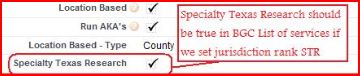
If we are using Jurisdiction Rank "Specialty Texas Research" in place of "Primary default" for jurisdiction, we have to following given below criteria :
- Specialty Texas Research should be true in the BGC Configuration of associated account.
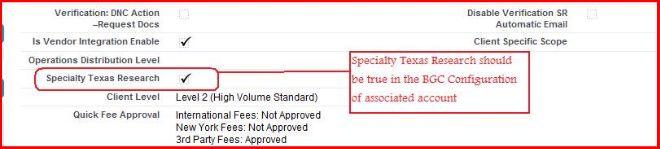
- Specialty Texas Research should be true in BGC List of services
Checkpoints :
- Jurisdiction data may not be availbale for associated search.
- Search type may not set in given "Search Type 1, Search Type 2, Search 3 and Search Type 4" field of jurisdiction
- County may not availble for this search type and zip code is not available
- Data mismatch