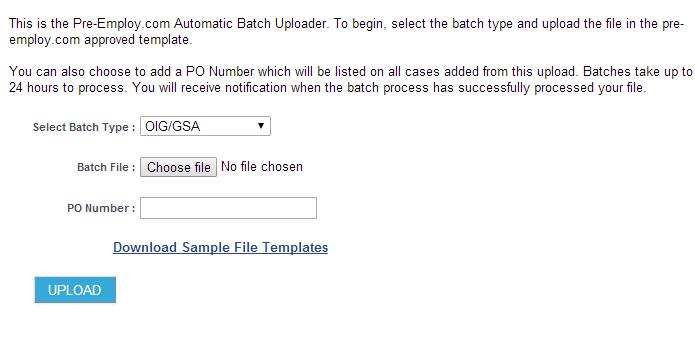
10. Batch Upload
When in Account---->BGC Configuration: “Enabled: OIG Batch Upload” is True then page is accessible.
When selected allows users for the account to have access to the batch uploader tool. If a user attempts to access the tool and the account is not authorized, an error message will display. The batch uploader tool will be a link on the portal that will take the user to a page where they can upload a file to create background check cases in batch form, instead of one-by-one via the order entry pages.
At this time, only uploads for OIG/GSA is supported.
Batch File: document upload, will upload to specific amazon directory
PO Number: optional text field, any value entered will be added to the PO Number field in the order/case created for all items in the batch. The maximum limit of this field is 50 chars.
Download Sample File Templates: Open a pop-up window where sample downloadable files and explanations of the files will be listed.
Upload: upload button which will start the upload. The first step of the upload will be to ensure that the file and headers within the file are in the correct format required for the batch type selected. The validation of this will be tracked by a progress bar so that the user knows what is going on.
If the file rejects, message will display letting the user know why the file rejected.
The second upload step will be to actually save the file to the directory, progress of this will also be tracked by a progress bar so that the user knows what is going on.
If the file is unable to save or rejects at the save point. A notification goes to the IT team and a message will display to the user.
File Name is in following format: AccountID_PONumber_OIG.fileextention If user elect not to have a PONumber in the file then the file name would be as follows: eg: 0018000000Ukx5T_NOPO_OIG.csv