1. Create Order
- New Order Request/ Order Background Check
- Quick Drug Test Order
- Standard Background Check Order
- Quick Background Check Order
- EAP Order
New Order Request/ Order Background Check(Intake flow)
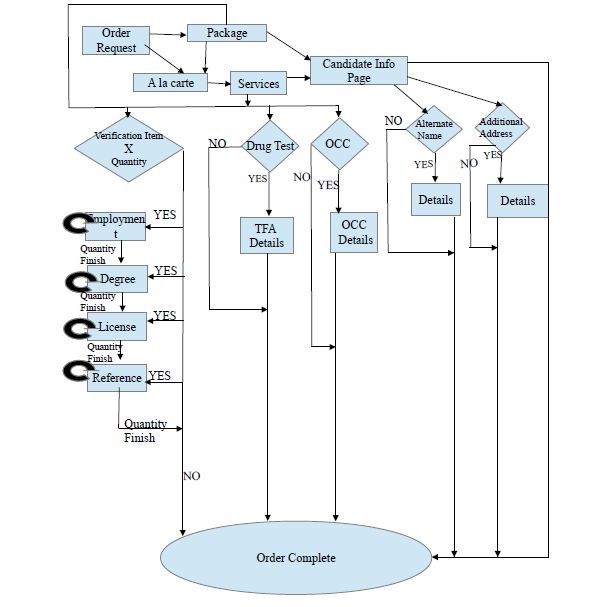
Intake is the basic flow to create an applicant order. The order is created by a client with the applicant data to be filled depending upon what type of background check order is needed to be verified i.e Package. In intake flow there are different process to create an order depending upon the package.
Packages used are :
- Criminal Package
- Verification Package
- Non Criminal Package
- Drug Test/OCC
- Drug Test
if no package then there is an option of a la carte to add any services or items one by one according the requirement of the client.
When order is created with criminal package or non criminal package without any drug test, OCC or verification in it then order is created with prompting to fill only applicant details.
Order Process explanation:
Screen 1:
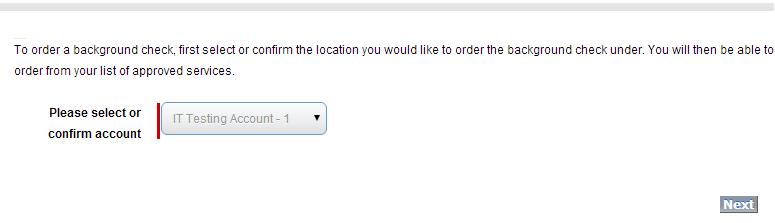
This screen is choosing account. The account name are listed here are associated with the contact of the user logged in.
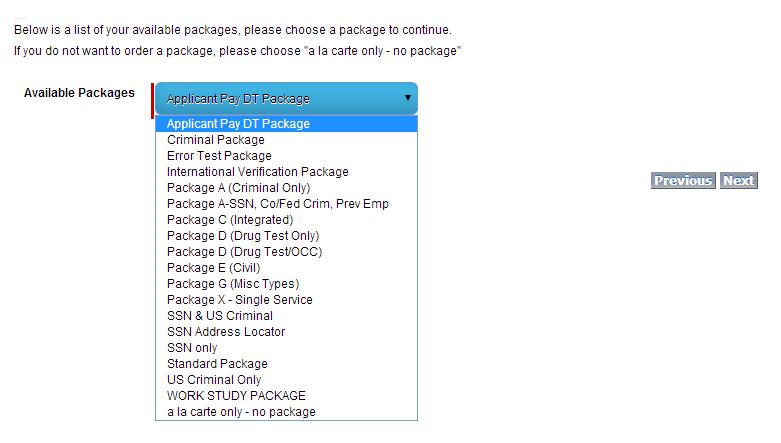
Screen 2: On clicking next on Account page navigates to Choose Package page.
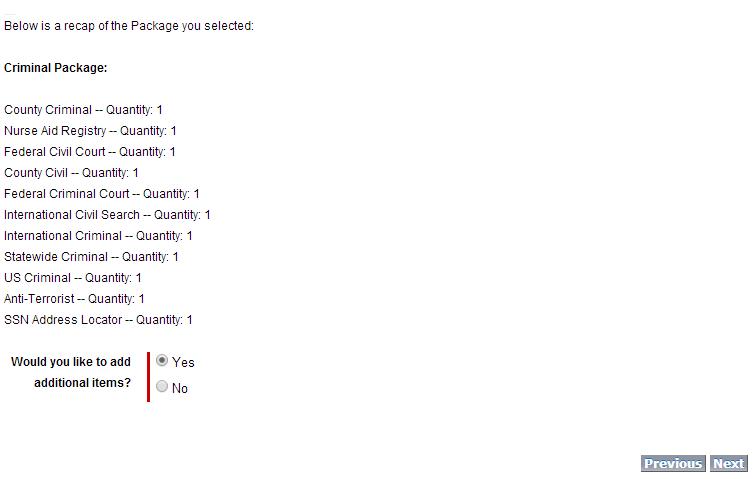
Screen 3: This is the page where the client sees that what package he has selected with the items in it and also on this page client can choose Yes to add any additional item as a la carte.
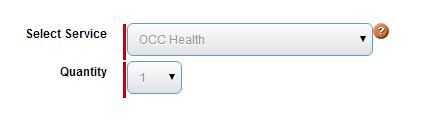
If Yes then client can choose items from next screen from the Select Service drop-down and Quantity.
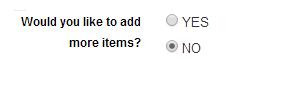
Screen 4: To add more items if required.
Note That if the verification package is chosen and also verification item is added as a la carte also then that verification will be prompted total number of times. For example If the Employment Verification is in a Package with 2 quantity and also Employment Verification as a la carte with 3 quantity then 5 times Employment verification will be prompted to fill by the user.
This quantity process will only be done for verification items only.
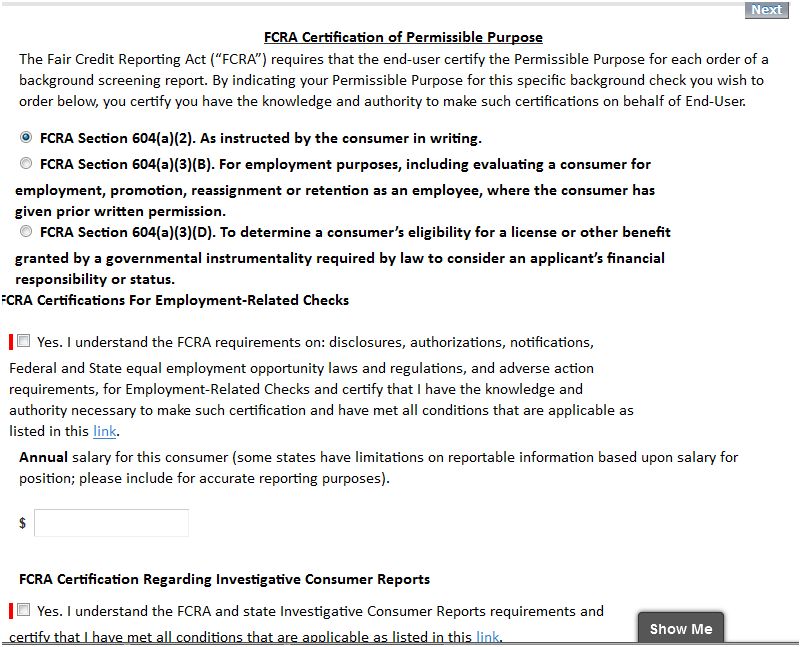
Screen 5: This is a FCRA screen, it displays when we create any order with any package.
if package contains Credit Report in it or Credit Report item is added as a la carte in order then FCRA screen will display but with different contents. And also before FCRA screen one more page will display on location.
On location page Client at least has to select No or Yes radio button and then click Next to proceed otherwise client will not proceed.If Yes is selected then it is mandatory to select Location also otherwise it cannot proceed. And user can select both locations also at a time.
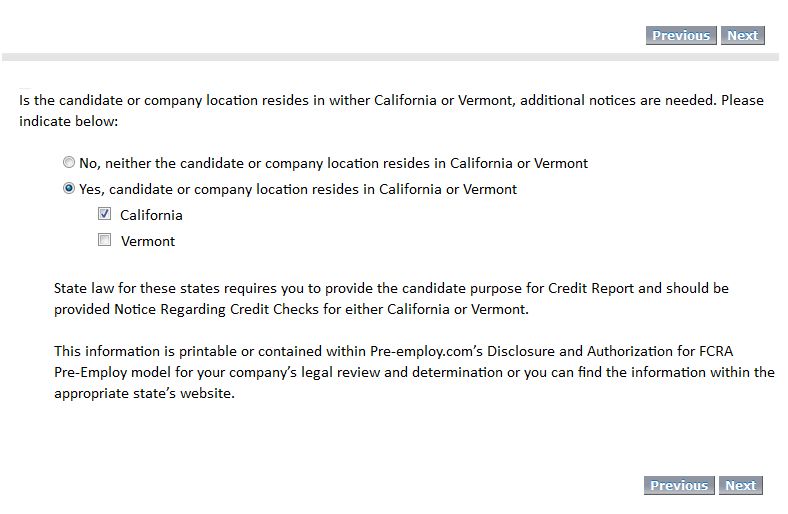
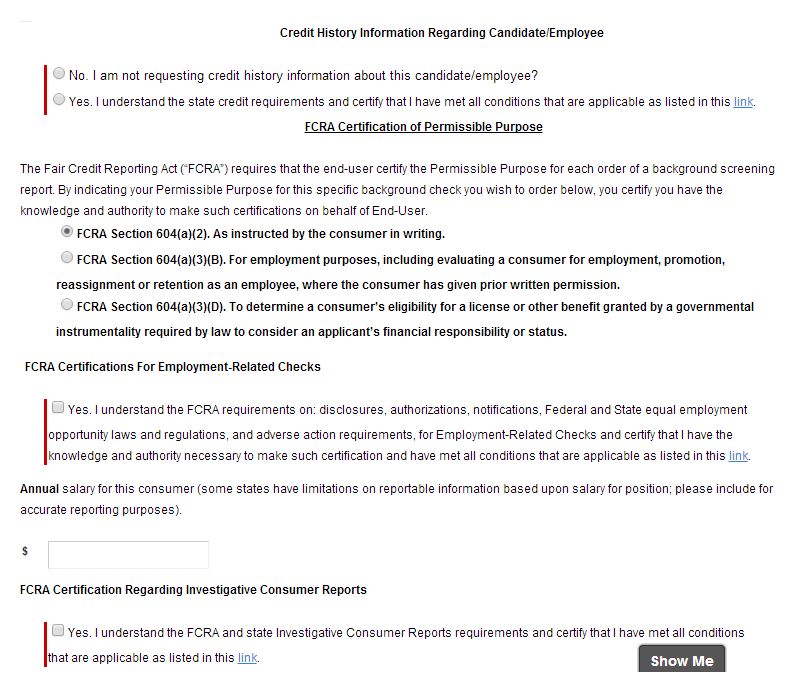
But if package do not contains Credit Report in it or Credit Report item is not added as a la carte in order then FCRA screen will display on location.
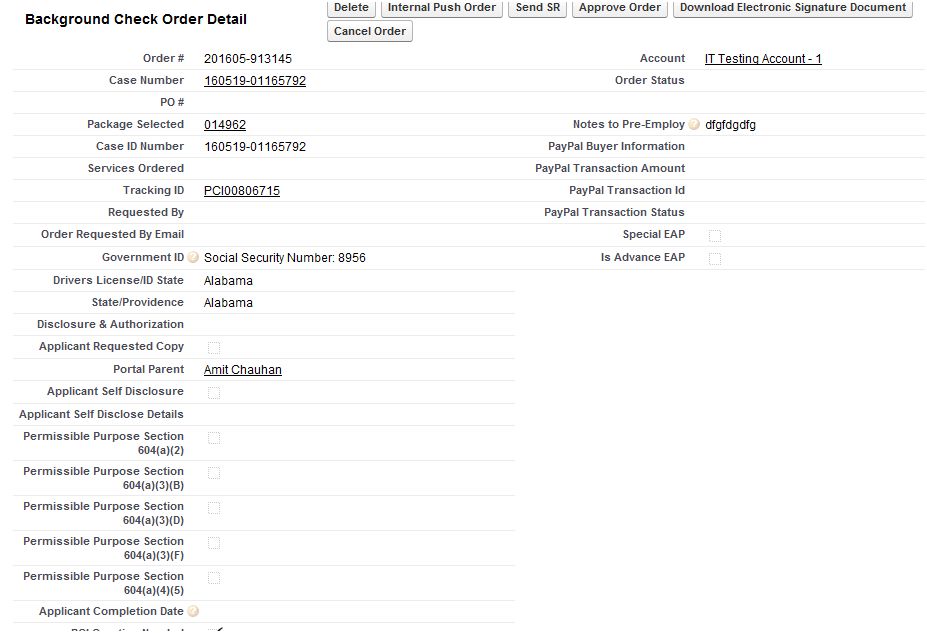
Screen 6: This is Background chek order details page.
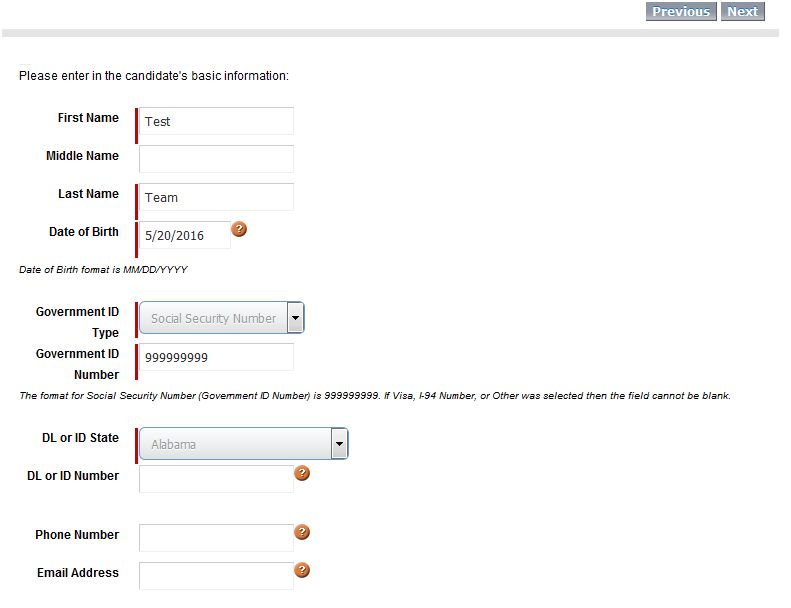
Screen 7: Basic applicant information page.
Here user fills the basic detail of the applicant. On the page there is an option to add Alternate Name and Additional Address if applicant has so.When all fields are filled on the basic info page then all fields update the fields on background check order object.
Note that Government ID number if SSN is selected then user have to enter 9 digit number in the field.
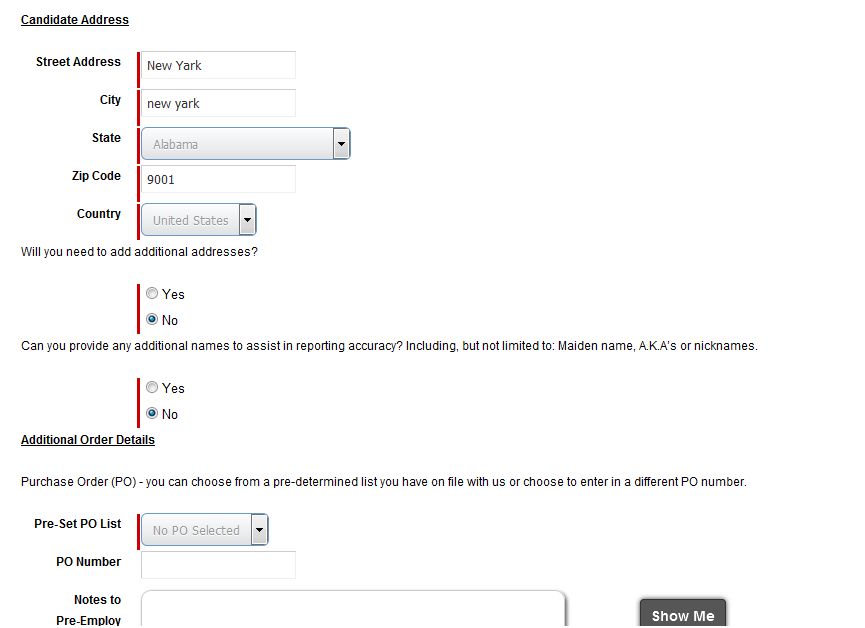
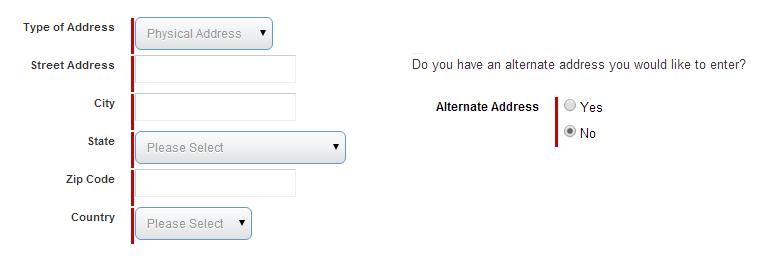
Screen 7a: When Additional Address Yes is selected then on next screen Addition Address info page displays that will create a new record of Additional Address with the filled details in that order and associate with the order. After filling the details and clicking Next then user will be having ability add more addresses.
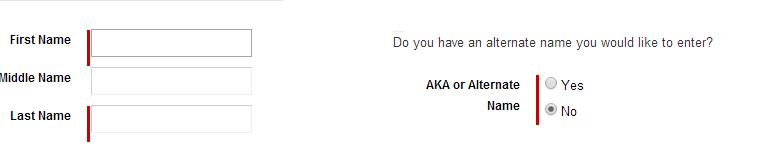
Screen 7b. When Alternate Name Yes is selected then on next screen Alternate Name info page displays that will create a new record of Alternate Name with the filled details in that order and associate with the order. After filling the details and clicking Next then user will be having ability add more Names.
Screen 8: Citizenship Question page
If user selects Yes then user proceeds but if user selects No then user is prompted to enter Country of the applicant.
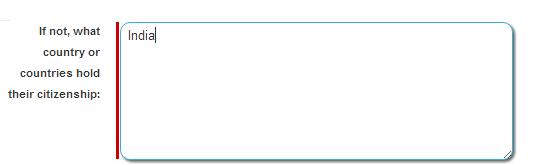
If yes then following note will be updated on Background Check case object in "Case_Notes__c"field "Are you a US Citizen or Legal U.S. Permanent Resident? Yes"If No is selected then following note will be updated on Background Check case object in "Case_Notes__c"field, "If No, from what country/countries is your current passport issued and/or current country/countries of citizenship: [answer to second question]".
Screen 9: If package includes Verification Type item such as Employment then Employment Detail page will display. These details will create a record on Provided Employment Information object associated to the created order.
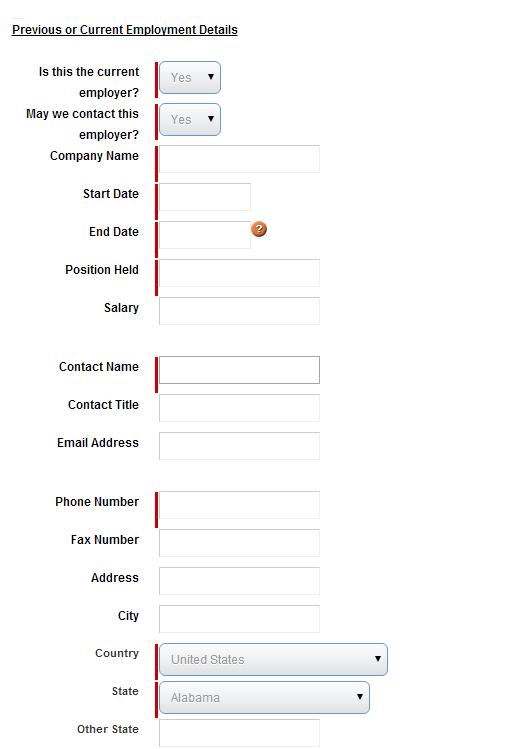
Note that USA is selected as a country by default and when selected then it will add search as previous employment but if country is selected other than USA then search will be added International Employment.
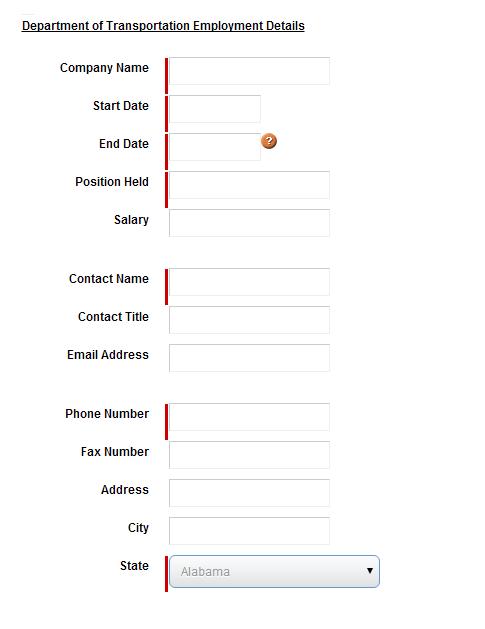
Screen 9a: If we have DOT and Employment both then 1st user will be prompted to fill employment detail then Department of Transportation Employment Details. Otherwise il will display instead of their position. These details will create a record on DOT Information object associated to the created order.
Screen 9c: If we have DOT, Employment and Degree items in package then 1st user will be prompted to fill employment detail then DOT Details and then Degree details. Otherwise il will display instead of their position. These details will create a record on Provided Education Information object associated to the created order.
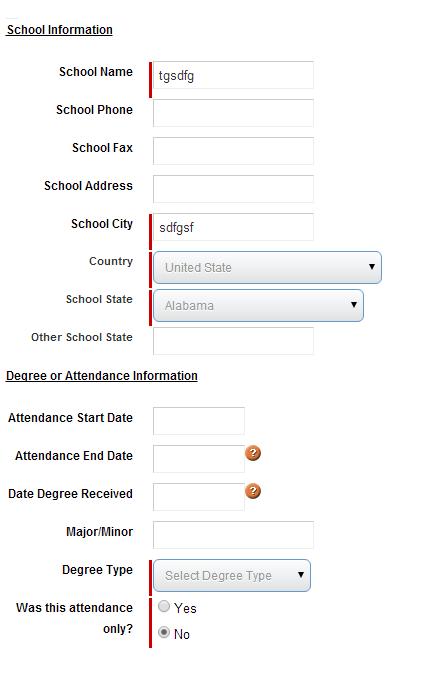
Note that USA is selected as a country by default and when selected then it will add search as Education Verification but if country is selected other than USA then search will be added International Degree.
Screen 9d: If we have DOT, Employment, Degree and license items in package then 1st user will be prompted to other verification details then License Details. Otherwise it will display instead of their position. These details will create a record on Provided License Information object associated to the created order.
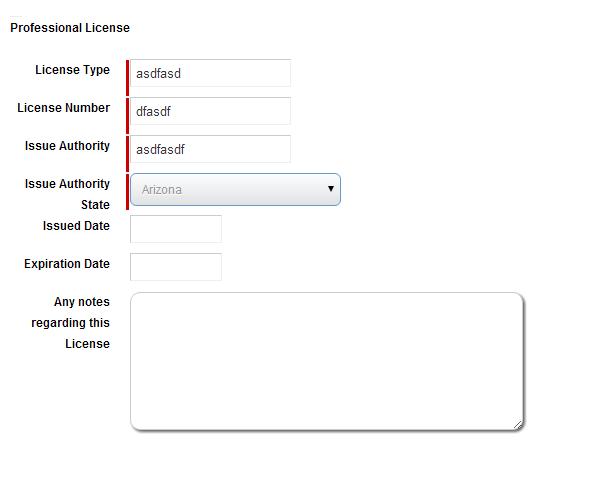
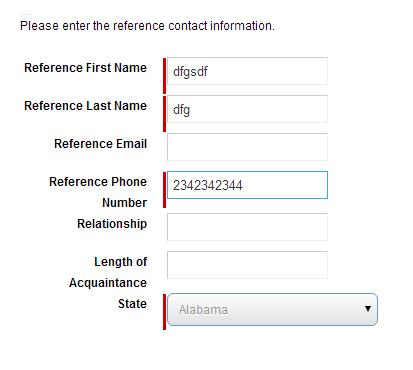
Screen 9d: If we have DOT, Employment, Degree, license and Refernce items in package then 1st user will be prompted to other verification details then Refernce Details. Otherwise it will display instead of their position. These details will create a record on Provided Reference Information object associated to the created order.
Screen 9e: If OCC item is also added in package or a l a carte with verification items then it will display OCC details screen after all verifications are filled if there is no verification are there then it will display after citizen page.
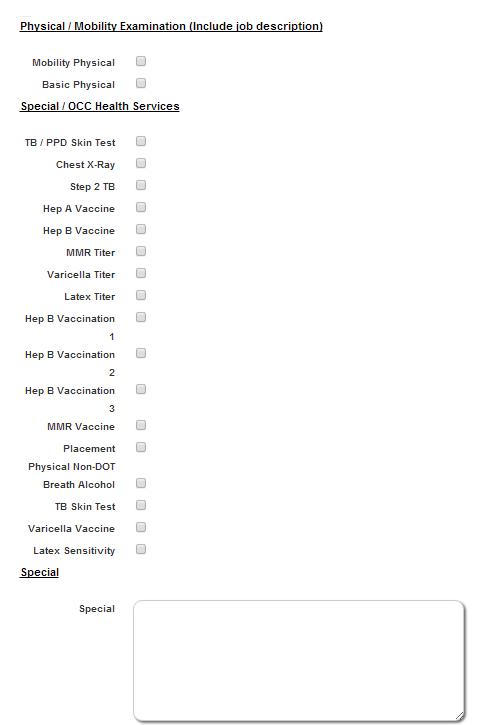
These details create a record for Drug Screen & Occupational Health Orders object associated to the order.
Screen 9f: If Drug Test item is also added in package or a l a carte with verification items then it will display Drug Test details screen after all verifications are filled if there is no verification are there then it will display after citizen page. And if OCC item is added too then OCC detail page display before Drug Test flow.
9fa. This is a collection site screen, here user has ability to choose location for drug test and even he can use defult location also associated to the account.
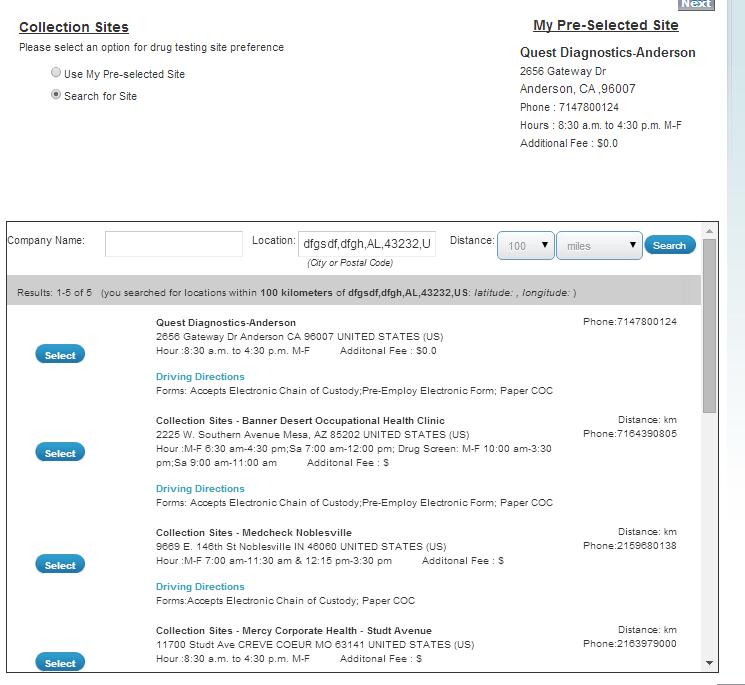
These details create a record for Drug Screen & Occupational Health Orders object associated to the order.
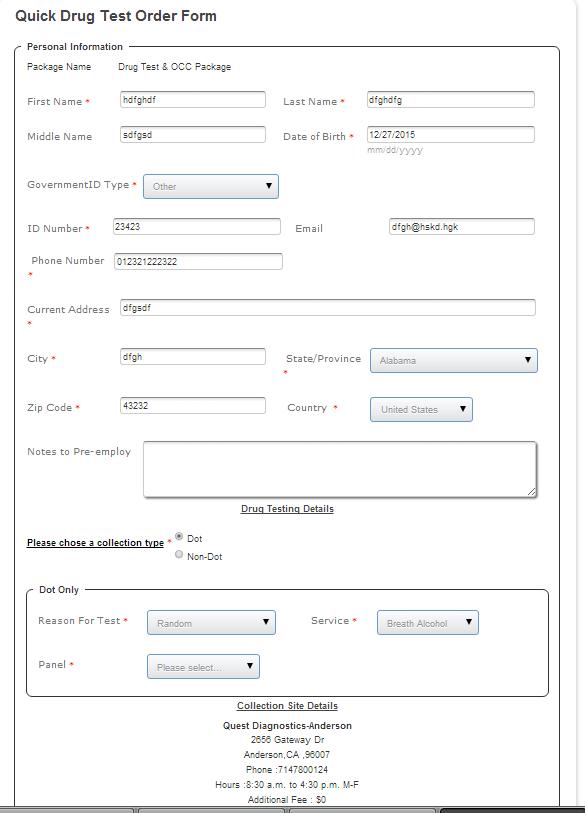
9fb. This is a TFA form page on which user can fill the detail of applicant. If user has created drug test order through intake flow then the details will be Pre-filled on the TFA form page which were filled on Screen 7.
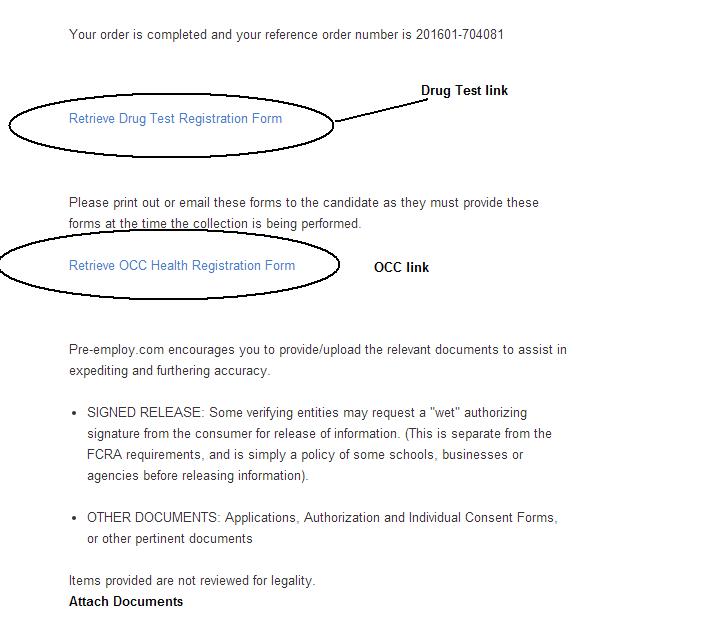
Screen 10. Order Completion page. When Order is completed after filling all details in all steps then page will navigate to this page.
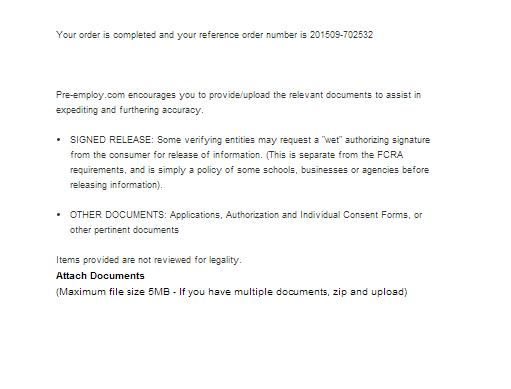
On this page if Drug Test item and OCC item are added then accordingly completion page will display with different contents.
Quick Drug Test Order
This Order flow is used for default Drug Test only package, it does not asks for package. User is prompted to ask Account, PO Number and other above screens (9fa and 9fb) and functionality is also same as Drug Item in Intake order.(9fa and 9fb).
Quick Background Check Order
This the another method to create an order but in fast process. The logic is same as in intake flow but here user is able to add details on single screen rather clicking Next on every screen. On this page user is able to select Account, Package, a la carte service, PO number, Citizenship etc on single page. The logic of Location page and FCRA page and other condition of verification is same as Intake flow logic.
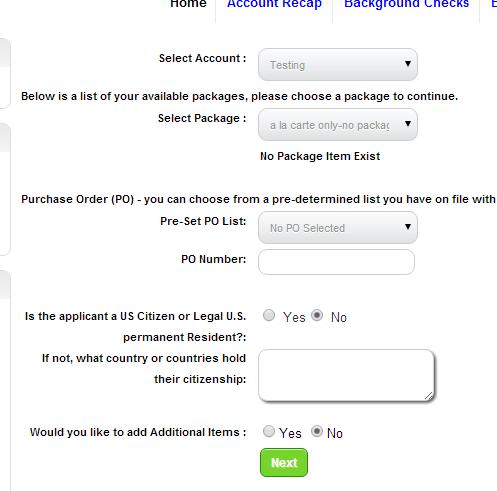
Note that no verification except Employment can be added more than 3 quantity and Employment can be 10 maximum quantity. And also there is no Drug Test and OCC flow in the order process.
In this order process all applicant details and verification details are filled on single page called TFA form page.
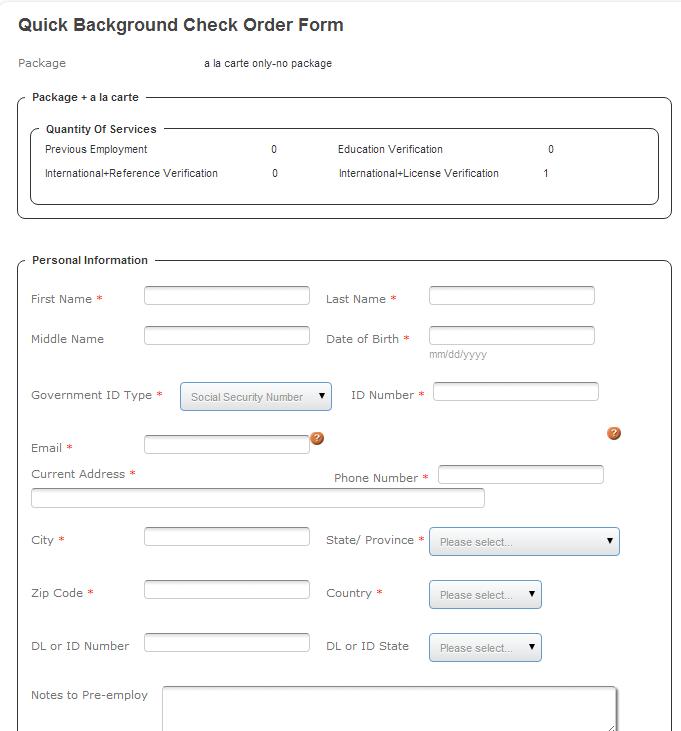
Standard Background Check Order
This process is same as Quick Background Check Order but in this process Default Account package is selected by default so that user directly navigate to FCRA or location page. TFA form logic is same as in QBGC order.
EAP Order
The logic and process same as Intake flow that is why this flow is name as EAP Intake flow. But in this flow there are some extra screens used by default in the flow rest method is same as intake flow.This Order is requested by client to be filled by the applicant. Sending request is done by Quick Invite and Advance Quick Invite(To be discussed later in this document).
Note that, there is no seperate flow for Drug Test and OCC services.
For Drug Test we have a new flow for applicant user EAPDrugTest Order
EAPDrugTest Order
This process is for Applicant user for Drug Test only package.
Different email will be sent to applicant for Drug Test only packag, which will allow applicant to complete the EAP Process for a Drug Test Only Order.
The Drug Test Only EAP process is to be a shortened version of the current EAP process that should include only two pages.
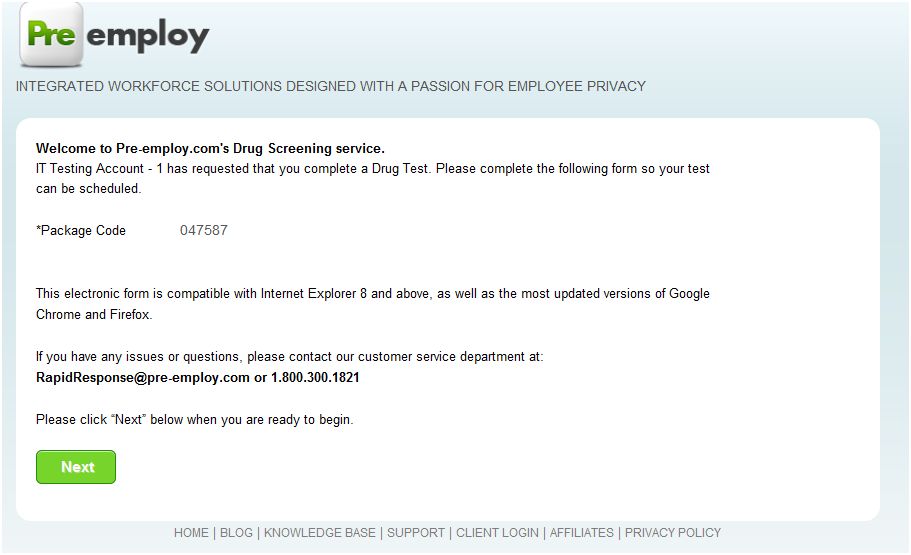
- Page one: EAP Home page with code field
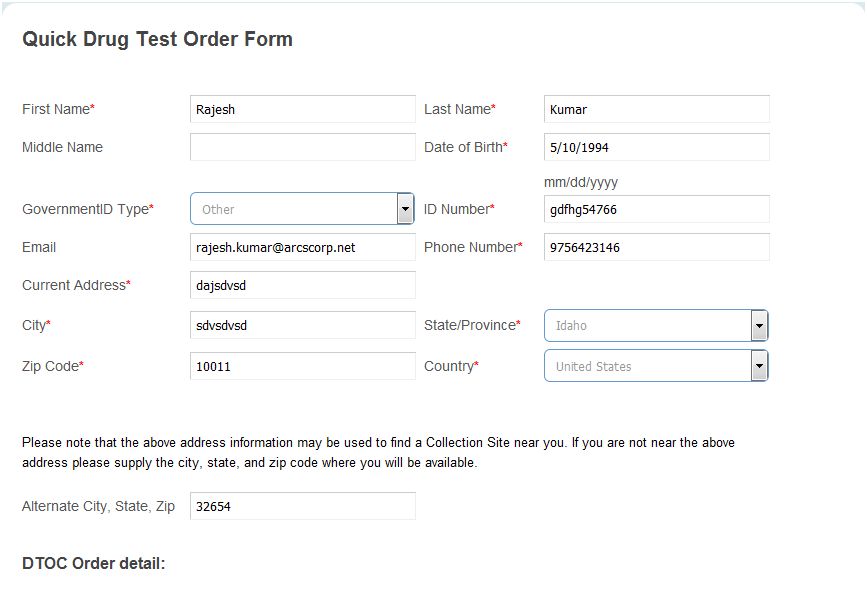
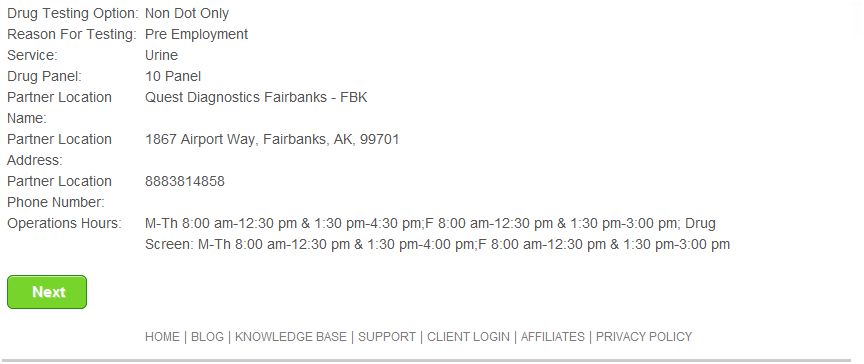
- Page two: Drug Test Order from with the clients setting field out and unavailable for editing by the applicant.
- Page three: Confirmation page .
Screen1:
Screen2:
Screen3: